Design and manage your test case
You have an empty test case, and you have modules that you created by scanning. So far, so good!
If you haven't yet, check out our best practices for test case content to learn golden rules for creating useful test cases.
If your workspace is linked to a qTest project, converted qTest test cases also appear in your inventory. These come with specific restrictions, so it's worth checking them before you start.
Build an automated test sequence
Once you're ready to start building an automated test sequence, add these elements to your test case:
-
Modules, which are the technical representations of parts of your application in Tosca Cloud. They help you define how Tosca Cloud interacts with your application at runtime.
You can use modules you created by scanning, or you can use standard modules. Standard modules are pre-built modules for common tasks that Tosca Cloud provides out of the box.
-
Reusable test steps, which are steps that you maintain in a central location and reuse in multiple test cases. They help you reduce test maintenance effort.
-
Logic elements, which are elements that add structure to your test case: groups and if statements. They help you keep your test cases easy to read and allow you to design dynamic test sequences for specific conditions or criteria.
-
Parameters, which let you define a value once and reuse it across your test cases, playlists, workspaces, and tenant. They reduce repetition, keep values consistent, and lower maintenance effort.
-
Test step folders, which are organizational elements in your test case. They help make even complex test flows easy to read, understand, and work with. To add a folder, go to Standard objects > Structural objects > Test step folder and add the folder to your test case. Then drag and drop test steps into the folder.
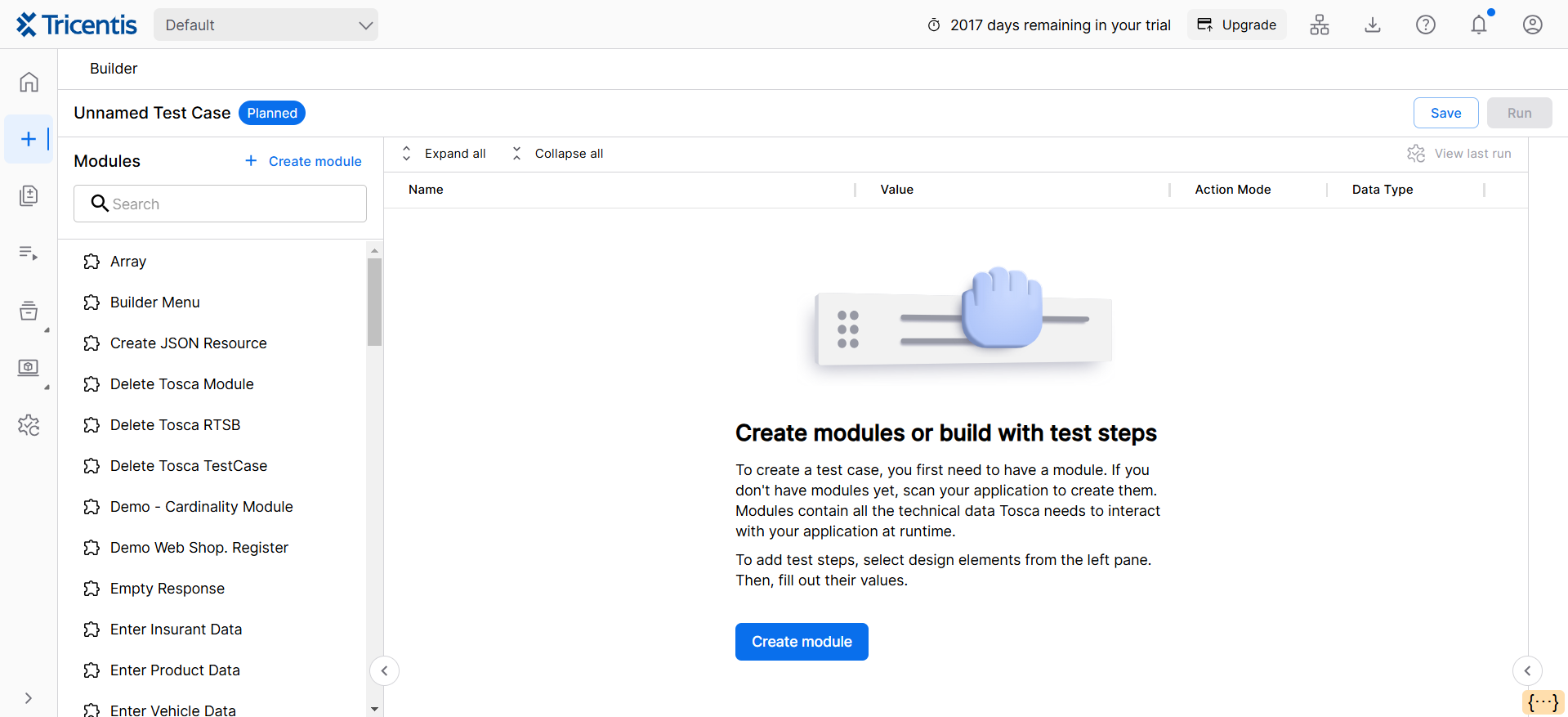
Test case editor
Set the work state
The work state shows how far along a test case is. Your team can use it to see what's planned, what's in progress, and what's done.
Each new test case starts as Planned.
To set a different work state for a test case, select the test case. Then, select a work state in the Details panel.
Hide unused test step values
For a clearer view of your work, hide unused test step values. Use the toggle to hide both unused test step values and undefined business parameters.
Refresh references
When you change a module or reusable test step while a test case is open, refresh the references to pull those changes into your test case. To refresh references, go to your test case and select the checkboxes of the test steps you want to refresh. In the toolbar, select  Refresh.
Manage your assets
The left menu bar gives you a single place to access all your assets. From there, you can manage them throughout their complete life cycle: create, review, maintain, and delete them.
This table explains what's available in each section:
|
Section in the menu bar |
Description |
|---|---|
|
Prepare |
Everything related to planning and designing tests. For example, test data, test sheets, and business flows. |
|
Build |
Everything in your inventory related to building tests. For example, test cases, modules, and reusable test steps. In addition to managing these assets, you can also track the following:
|
|
Run |
Everything related to running tests. For example, playlists, agents, and results. |
|
Configurations |
Everything related to configuring tests and setting up connections. For example, test parameters |
|
API Simulations |
Everything related to simulating services. |