Add workspace parameters
Use workspace parameters to define reusable values for your test cases and apply them across your workspace. Define it once at the workspace level and reuse it across your playlists and test cases.
Before you start
Before you create workspace parameters, keep the following in mind:
-
Only administrators and contributors can create, edit, and delete workspace parameters.
-
Workspace parameters apply only to the workspace where you create them.
-
If you use a shared test case in your workspace, it uses your workspace's parameters, not the ones from the workspace where the test case was created.
-
Each workspace can have up to 100 workspace parameters.
-
If your administrator has set up tenant parameters, your workspace uses them by default. You can keep these values as they are or adjust them using workspace parameters. This way, your adjustments won't affect other workspaces.
Create a new workspace parameter
To create a new workspace parameter, follow these steps:
-
Go to
 Configurations > Parameters and select the Workspace parameters tab.
 -
Select Create new parameter.
-
Enter your parameter details:
|
Column |
Description |
|---|---|
|
Parameter |
The workspace parameter name:
|
|
Value |
The parameter value:
|
|
Data type |
Select the data type that matches your value: String, Boolean, or Password. |
-
Select Save.
Set workspace parameters
Workspace parameters let you override tenant parameters for a specific workspace. This means different teams can use different parameter values and not affect the rest of your organization. To learn how parameters inherit and override values across levels, check out Parameters.
Let's say your organization wants to test different language versions of an application. Team A tests the German version of the application and Teams B and C test the English version. The administrator sets the following tenant parameters:
-
BaseUrl: Team A, Team B, and Team C now use https://acmecompany.my.tricentis.com as the base URL for all test cases. The data type is set to String.
-
Browser: Team A, Team B, and Team C now use Chrome as the default browser for test cases. The data type is set to String.
-
TargetDecimalCharacter: Team A, Team B and Team C uses . as the default decimal character to match the English number format. The data type is set to String.
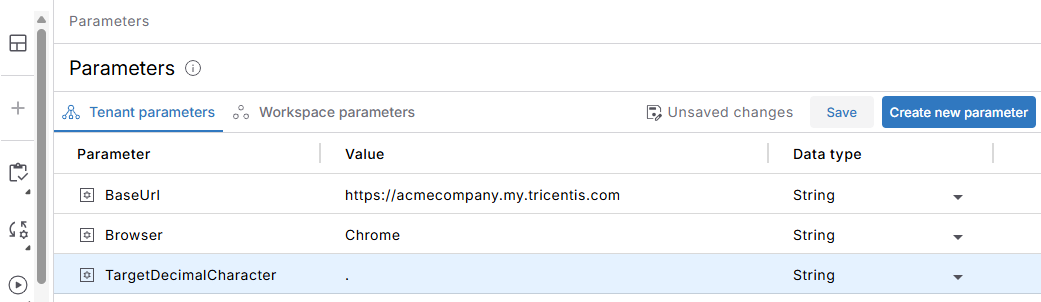
Create tenant parameters for Team A, Team B and Team C
The administrator sets the following workspace parameters for Team A:
-
BaseUrl: Team A uses https://acmecompany-de.my.tricentis.com as the base URL for all test cases. The data type is set to String.
-
TargetDecimalCharacter: Team A uses , as the decimal character to match the German number format. The data type is set to String.
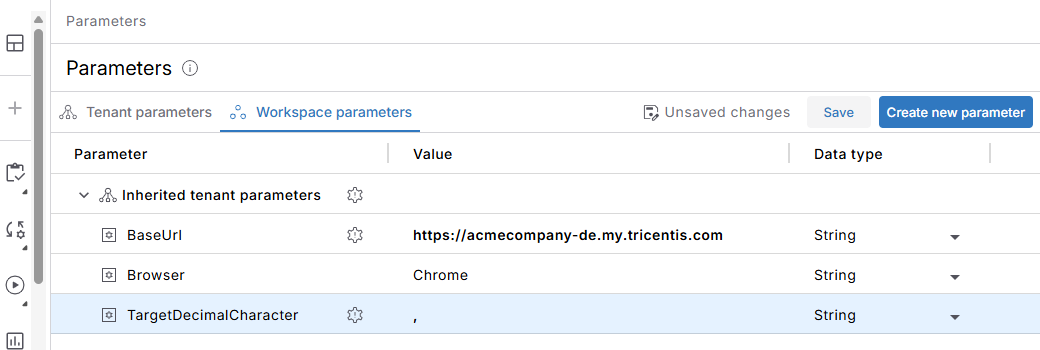
Override inherited tenant parameters for Team A
When you run a test case for Team A, Tosca Cloud applies the parameters as follows:
-
BaseUrl: Team A uses https://acmecompany-de.my.tricentis.com because the workspace parameter overrides the tenant parameter value.
-
Browser: Team A uses Chrome because there is no workspace parameter and it inherits the tenant parameter value.
-
TargetDecimalCharacter: Team A uses , because the workspace parameter overrides the tenant parameter value.
Team B and Team C inherit all three tenant parameters and don't have specific workspace parameters configured.
Reset overridden workspace parameters
To reset a workspace parameter to its default tenant value, follow these steps:
-
Go to
Configurations > Parameters and select the Workspace parameters tab. -
Choose the parameter and select Reset to default value.
Edit or delete workspace parameters
You can edit or delete workspace parameters at any time. Go to Configurations > Parameters > Workspace parameters and select the respective parameter.
Note that if you reference the value of a custom parameter in test cases, deleting that custom parameter will break those test cases. So, replace the test case values before you delete the parameter.
What's next
Your workspace parameters are all set. Next, you can take it a step further and set test case parameters and create parameter sets.