Add tenant parameters
Use tenant parameters to avoid managing the same parameter values in different places. They automatically apply to all your workspaces, playlists, and test cases. This gives your team a uniform starting point and so you don't maintain the same values in multiple places.
Before you start
To create tenant parameters, you must be an administrator.
Create a new tenant parameter
To create a new tenant parameter, follow these steps:
-
Go to
 Configurations > Parameters and select Create tenant parameters.
 -
Enter your parameter details:
|
Column |
Description |
|---|---|
|
Parameter |
The tenant parameter name:
|
|
Value |
The tenant parameter value:
|
|
Data type |
Select the data type that matches your value: String, Boolean or Password. |
-
Select Save.
Set tenant parameters
Use tenant parameters to define parameter values for all workspaces in your organization.
Let's say your organization wants to use Chrome as the default browser and a shared BaseUrl for all test cases. Your organization has three workspaces, one for each team: Team A, Team B, and Team C. Instead of configuring the parameters in every workspace, the administrator sets tenant parameters once.
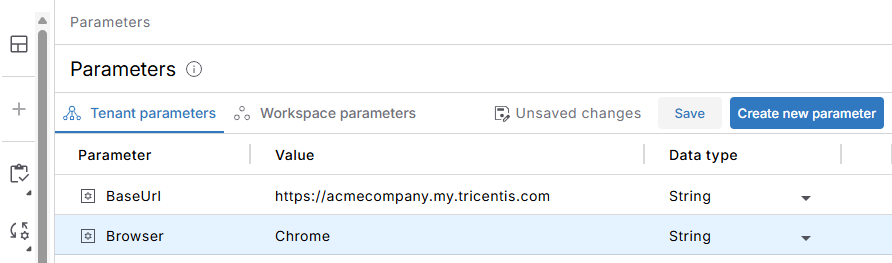
Create new tenant parameters
The administrator configures the following tenant parameters:
-
BaseUrl: Team A, Team B, and Team C now use https://acmecompany.my.tricentis.com as the base URL for all test cases. The data type is set to String.
-
Browser: Team A, Team B, and Team C now use Chrome as the default browser for test cases. The data type is set to String.
Edit or delete tenant parameters
You can edit or delete tenant parameters at any time. Go to Configurations > Parameters > Tenant parameters and select the respective parameter.
Note that if you reference the value of a custom parameter in test cases, deleting that custom parameter will break those test cases. So, replace the test case values before you delete the parameter.
What's next
Your tenant parameters are all set. Next, you can take it a step further and set workspace parameters.