Assign test runs
After you create test runs, assign them to testers to delegate test execution.
Choose how to assign test runs:
-
Use a single test run to set one tester in the test run properties.
-
Use a test suite so new test runs inherit the tester.
-
Use Data Query to assign many existing test runs at once.
To email testers when you assign a test run, see Notification settings.
Before you start
Make sure you have the Edit Test Execution Assignment permission in your user profile.
Assign a tester to a single test run
To assign one test run to a tester, follow these steps:
- Go to the test run you want to assign a tester to.
-
In Test Run Properties, use the Assigned To field to search for and select the tester.
-
Save your changes.
Assign a tester to a test suite
If you assign a tester to a test suite before you create new test runs, all the test runs you create in the test suite inherit the tester assigned to the test suite.
Only new test runs inherit this value. If you later change Assigned To on the test suite, existing test runs keep their original tester.
To assign a tester to a test suite, follow these steps:
-
Go to the test suite you want to assign a tester to.
-
In the Properties tab, use the Assigned To field to search for and select the tester.
-
Save your changes.
-
Add new test runs to the test suite. qTest assigns each new test run to the tester assigned to the test suite.
Assign multiple test runs with Data Query
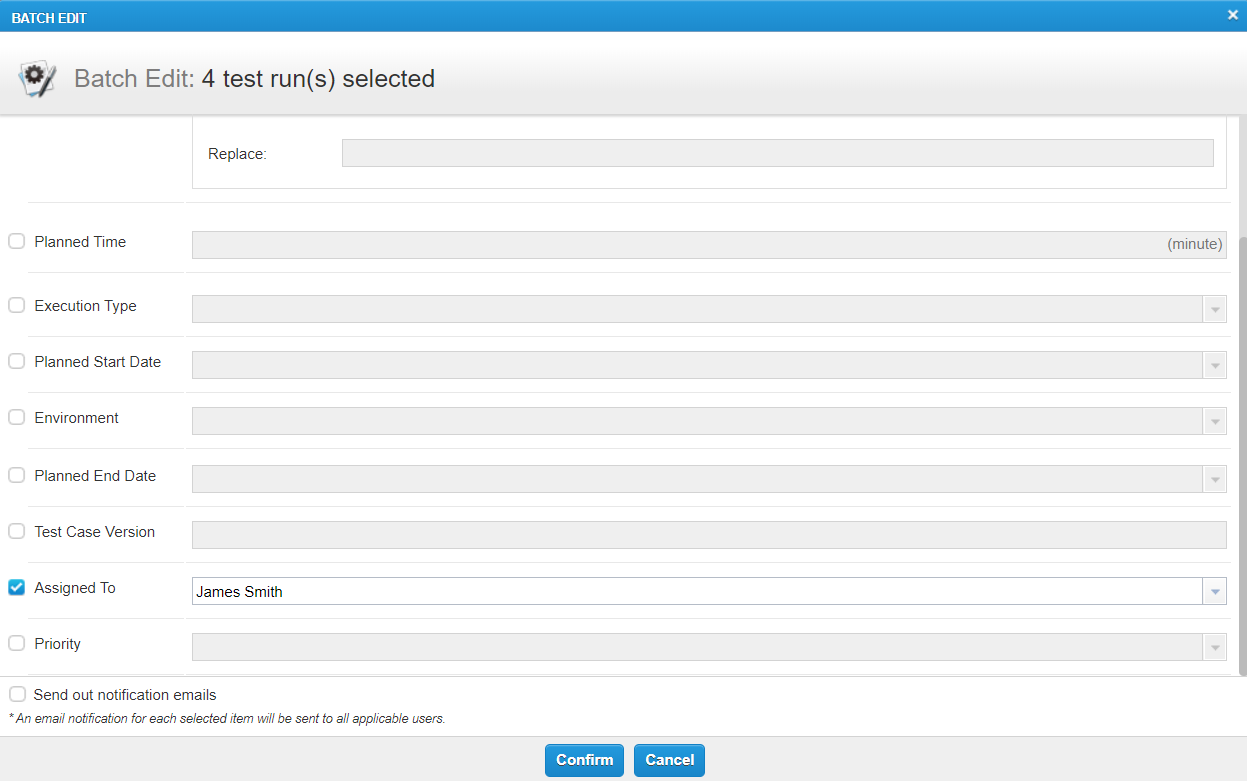
To assign multiple existing test runs to one tester, you can batch edit test runs with Data Query.
To assign multiple test runs, follow these steps:
-
Go to the Test executions tab.
-
Select
 Data Query on the toolbar in the tree panel. Or right-click the object and select Data query.
 -
Build a query to list the test runs you want to assign. For example, you can create a query for unassigned test runs.
-
Select the checkboxes next to the test runs you want to assign.
-
Select Edit, then select Batch Edit from the dropdown.
-
Select the check box for Assigned To. Search for and select the tester.
-
Select Confirm.
What's next
Execute the test runs to record results in Quick Run or the TestPad.