Reservations
When you need guaranteed resources for a performance test, create a reservation and use it to run your test. A reservation locks a controller, load generators, and virtual users for a specific time slot. Your test won't compete with other teams for infrastructure.
Reservations require a workspace type that support this feature.
Before you start
Before you create a reservation, make sure you have the following:
-
A configured test with an uploaded project, a customized scenario, and a selected zone. The zone needs at least one controller and one or more load generators available.
-
Reservations enabled for your account. An administrator turns this on in Settings > Reservations.
Enable reservations
Reservations are off by default. When you enable them, you can reserve resources for a time slot and schedule test runs to start automatically. You turn reservations on or off in Settings > Reservations.
To enable reservations, follow these steps:
-
Go to Settings > Reservations.
-
Select Enable reservations.
After you enable reservations, the Grid and Calendar views appear, along with the Create reservation and Schedule test run options.
To turn reservations off again, open the options menu in the top-right corner and select the Reservations toggle. When reservations are on, the toggle shows Reservations are now ON.
Guaranteed resources and reservations conflict. You can't create a reservation on a workspace that has guaranteed resources. To reserve resources for that workspace, remove its guaranteed VUs first.
Create a reservation
A reservation secures the resources you need for a specific time slot. Each reservation includes a controller, load generators from one or more zones, and a defined number of virtual users.
To create a reservation, follow these steps:
-
Go to Settings > Reservations and select Create reservation.
-
Enter a Name of up to 150 characters. Optionally, add a Description of up to 500 characters.
-
Under Reservation details, select the Workspace, then set the time slot with the Start date, Start time, End date, and End time. NeoLoad Web shows the Total reservation duration below the fields.
-
Under Load zones and generators, select a zone type: NeoLoad Cloud, Static, or Dynamic. The zone list shows the zones available for that type.
-
Set the number of load generators for each zone you want to use in the LG column. Then select the Controller option for the one zone that hosts the controller.
-
Turn on Use high-capacity load generators if your test uses CPU-intensive protocols such as RealBrowser.
-
Under Virtual users, enter the number of Web VUs your test needs. NeoLoad Web shows how many of each are still available below the field.
-
Select Create.
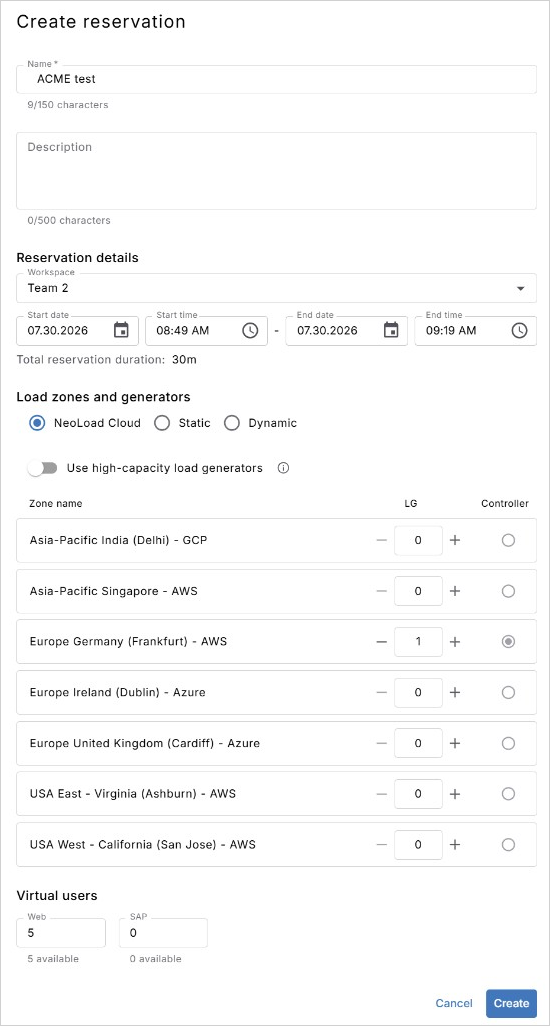
Click to enlarge: Set the time slot, the load zones, and the virtual users to reserve.
The reservation appears in the list with a Planned status until the time slot begins.
The following rules apply to every reservation:
-
A reservation must last at least 20 minutes, and it must be longer than the test duration plus 20 minutes. If the time slot is too short, NeoLoad Web displays an error and doesn't create the reservation.
-
You can't create a reservation on a workspace that has guaranteed resources.
-
You can't reserve more VUs than your license has available for the time slot.
NeoLoad Web automatically stops tests that run beyond the reservation's end time. The system starts a graceful stop 15 minutes before the slot ends, forces a stop 5 minutes before, and releases all resources 30 seconds before.
Run the test
After your reservation's time slot begins and the status changes to Available, you can use it to run your test.
To run a test with a reservation, follow these steps:
-
Go to Tests and select Configure.
-
Select Use an existing reservation instead of Auto reservation.
-
Select the reservation you created from the list, then select Run test.
NeoLoad Web runs the test with the reserved resources. No other tests can use those resources until the reservation ends.
When reserved resources aren't available
Nothing happens at the moment a reservation's time slot begins. The reservation simply becomes Available, and it's the test you launch against it that needs the resources.
If those resources aren't available when the test starts, the test fails to start. The reservation stays in place, so every test you launch against it fails the same way for as long as the resources remain unavailable. Free up the resources, or wait for them to become free, then run the test again.
Schedule an automatic test run
If you want a test to start on its own when its time slot begins, schedule a test run instead of a reservation. A scheduled run reserves the resources and starts the test for you, which suits any test that nobody needs to attend. Each scheduled run starts once, so schedule every run you need.
To set up a scheduled run, check out Schedule a test run.
Manage reservations
Go to Settings > Reservations to review and manage existing reservations. You can switch between two views:
-
Grid: A list of reservations with their status, name, time slot, load generators, and virtual users. Use the search and filter options to narrow the list.
-
Calendar: Reservations plotted against a timeline. Switch between the month, week, day, and list layouts.
Both views list every reservation in the workspace, even the ones NeoLoad Web creates for you. A scheduled test run appears as a Planned reservation named after the test you scheduled. A test that runs without a reservation appears afterwards as an Auto-reservation, which records the resources that test consumed.
Each reservation shows one of the following statuses:
-
Planned: The reservation is scheduled for a future time slot.
-
Available: The time slot is active and the reservation is ready to use.
-
Ended: The time slot has passed.
Select a reservation to view its details: workspace, controller zone, load generator zones, and virtual user distribution. You can copy the reservation ID from the URL to use it with the NeoLoad Web API.
To delete a reservation, select the options menu on the right side of the reservation row and select Delete. You can't delete reservations during an active test or after the time slot has ended.
What's next
Now that you can reserve resources, here's what you can do next:
-
Schedule a test run so a test starts automatically when its time slot begins.
-
Analyze the test results after your reserved run finishes.
-
Manage workspaces to review how VUs are allocated across your teams.