qTest Sessions Quick Start Guide
qTest Sessions is the storage location for all planned and executed Explorer test sessions. This module provides the ability to plan sessions-based testing and collect all exploratory test session data in one central location.
Sessions Permissions
The following Project permissions are found in the Session Manager section for User Profiles and User Management.
Create Session: Allows you to create a session in qTest Sessions and Manager. Additionally, this permission allows you to record a new session recording on both Web/Desktop Explorer, as Explorer creates a session in qTest Sessions and Manager.
Update Session: Allows you to update a session and record a Planned Session created earlier by a Project Admin in qTest Sessions
View Session: Allows access to qTest Sessions from the Product Navigator. Only applicable to qTest Sessions, no impact to Web/Desktop Explorer functionality.
Delete Session: Allows you to delete a session from qTest. Only applicable to qTest Sessions, no impact to Web/Desktop Explorer functionality.
Accessing Sessions Module
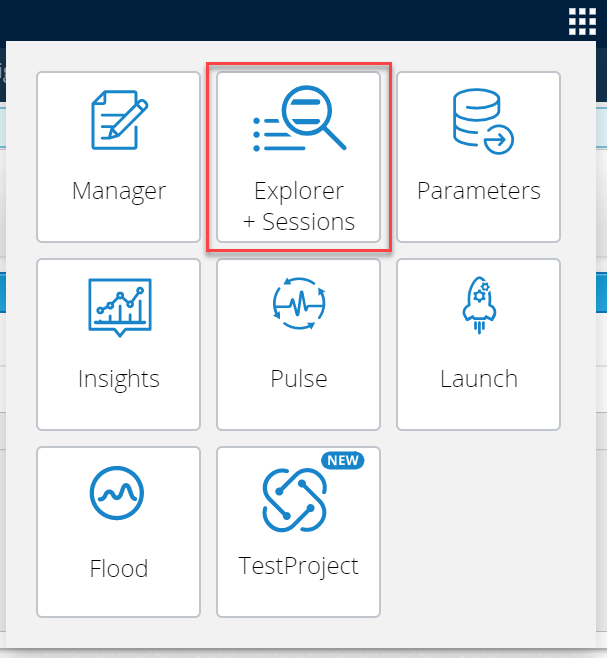
Select the Product Navigator to choose the Sessions module. If you do not have access to this module, please get in contact with your Site Administrator.
Navigation
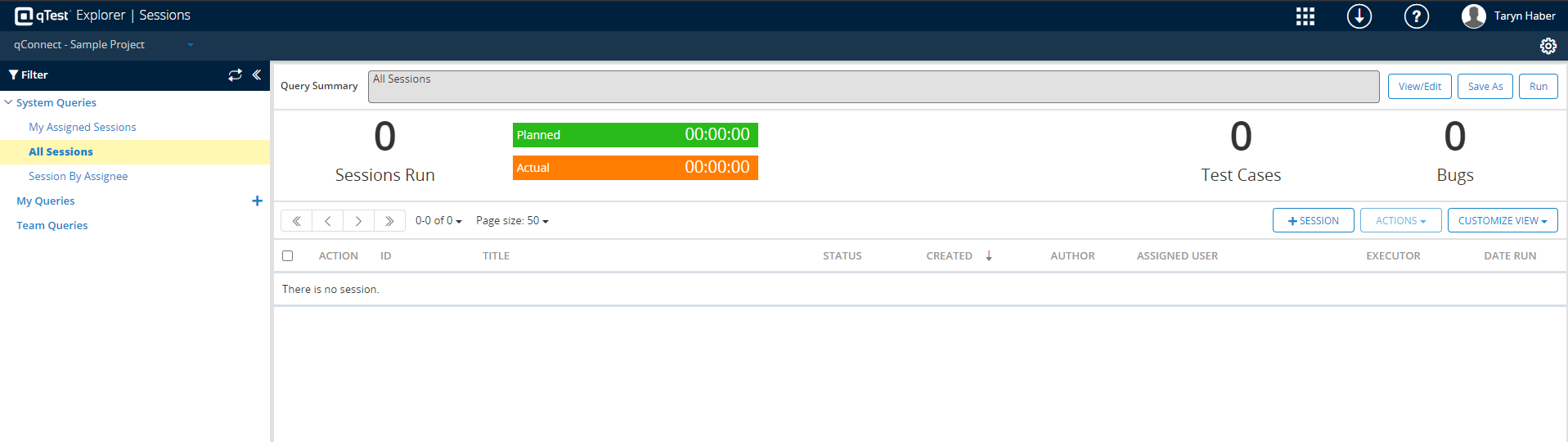
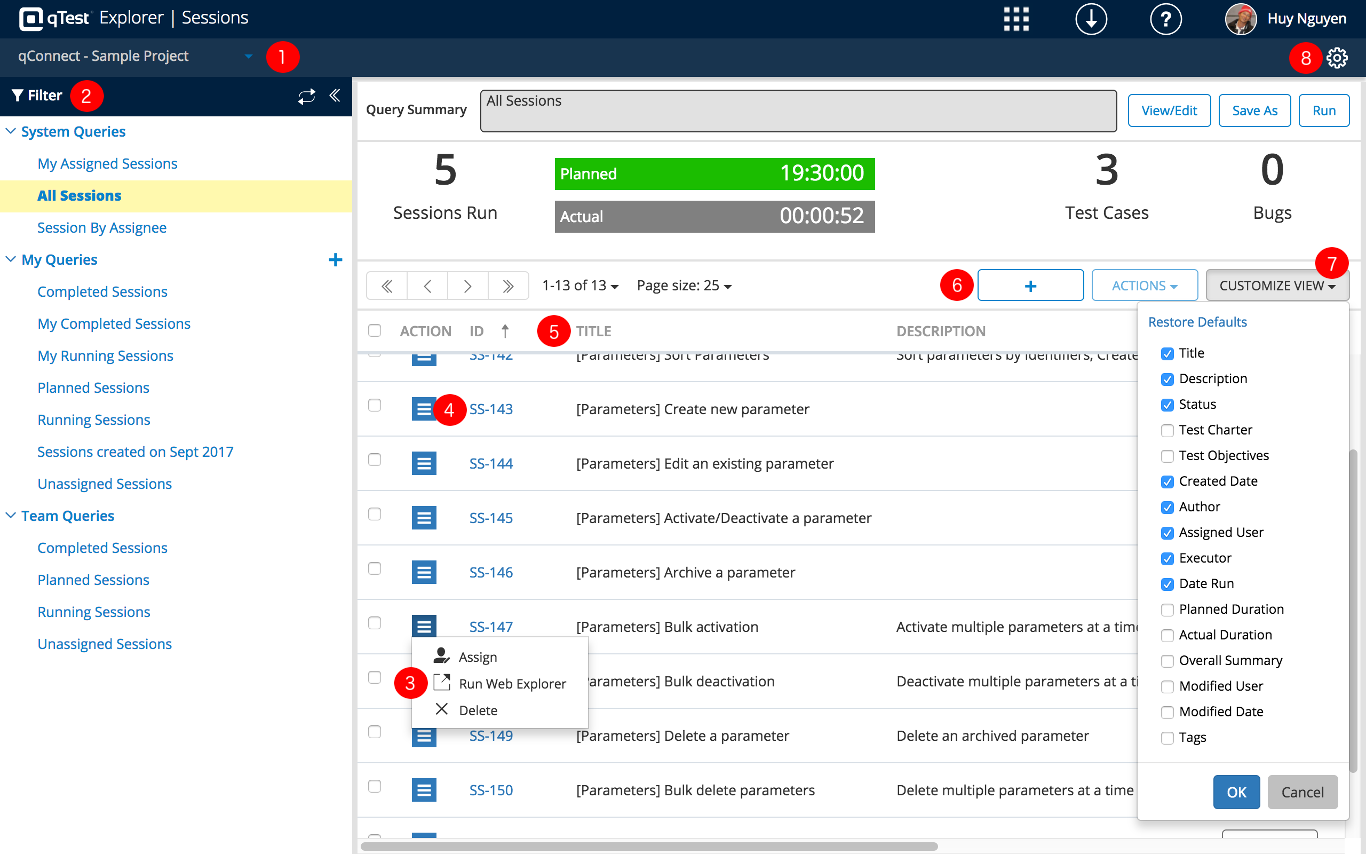
Once you select Sessions, you will be navigated to a data grid that displays any planned, running, reviewed or completed test sessions from Explorer.
-
Select project
-
Filter sessions by creating and executing query
-
Run planned session
-
Review completed session
-
Sort rows
-
Create session
-
Customized column view
-
Project Settings
Sessions Guides
Review the following topics to help you get started with qTest Sessions:
Have Questions?
You can always access the Support Portal and the qTest manual through your qTest instance. Just select the Help icon  to see your options.
From the dropdown, you can go to Get Help to access a manual article that relates to what you're working on in qTest.
Or, you can go to Submit Tickets to Tricentis to take a look at the Support Hub, where you can look through the knowledge base or log in to get help from a real person, depending on your needs.
Need support to log in to your instance? After you contact us, enable support login and give the support@tricentis.com account the permissions needed for us to see your issue, and we'll be able to log into your qTest instance to see things from your perspective. This won't affect your license count.