Develop Custom Script Generator Plug-in
In qTest Sessions Module, to generate automated script from a recorded session, you must select a script generator, also known as a plug-in.

Following are the plug-ins that are built in to qTest.
-
Java Selenium: Plug-in to generate automated script in Java language that can be executed against Selenium framework
-
C# Selenium: Plug-in to generate automated script in C# language that can be executed against Selenium framework
-
Protractor: Plug-in to generate automated script in JavaScript language that can be executed against Protractor framework
-
Python: Plug-in to generate automated script in Python language that can be executed against Selenium framework
In the Sessions Module, you can manage script generator plug-ins from the Settings page. You can also develop your custom plug-ins and submit them through Script Generator Plug-in on the same page.
Create A Custom Plug-in
If the built-in plug-ins do not meet your needs, then you can develop your own plug-in, such as one to generate automation script in a different programming language.
You must use a testing framework to run the output, as a generated script will not run on its own. Common testing frameworks include:
-
Selenium
-
Playright
-
Cypress
-
Appium
You can build a generated script for any language or format that has modern UI or browser automation binding capabilities. This includes, but isn't limited to, the following languages:
-
C#
-
Go
-
Java
-
JavaScript
-
Perl
-
PHP
-
Python
-
Ruby
-
Rust
-
Swift
-
TypeScript
-
JSON/YAML
Plug-in development must expose an instance of script generator to session editor. The script generator is a JavaScript object that implements a function named generateScripts. The plug-in must also expose a mechanism for session editor to load and obtain the script generator instance by adding a function, namely getAutomationScriptGenerator, to browser's window object which, when being called by session editor, will return the script generator instance.
We think it would be better to describe how the script generator plug-in works with a simple workflow:
-
User selects a plug-in, via its name from script generator dialog in session editor.
-
Script generator loads the plug-in, which is a JavaScript file associated with the selected plug-in, from qTest system.
-
Script generator invokes the function window.getAutomationScriptGenerator() to obtain the instance of script generator.
-
Script generator obtains the supportedProperties field of the plug-in. The values of this field are used to filter out the captured attributes of the UI element. In the resulting generated script, these attributes are used to build the element locators.
-
Script generator calls the function generateScripts() on script generator instance to generate automated script.
-
Script generator populates the resulting script to the script generator dialog.
In addition, session editor also allows the user to download the generated script and save it as a text file, we find it would be more convenient for the user to specify the default file extension in the script generator plug-in so that when user chooses to download the script, the file extension will be selected by default.
Below is a screenshot showing the concept of plug-in development.
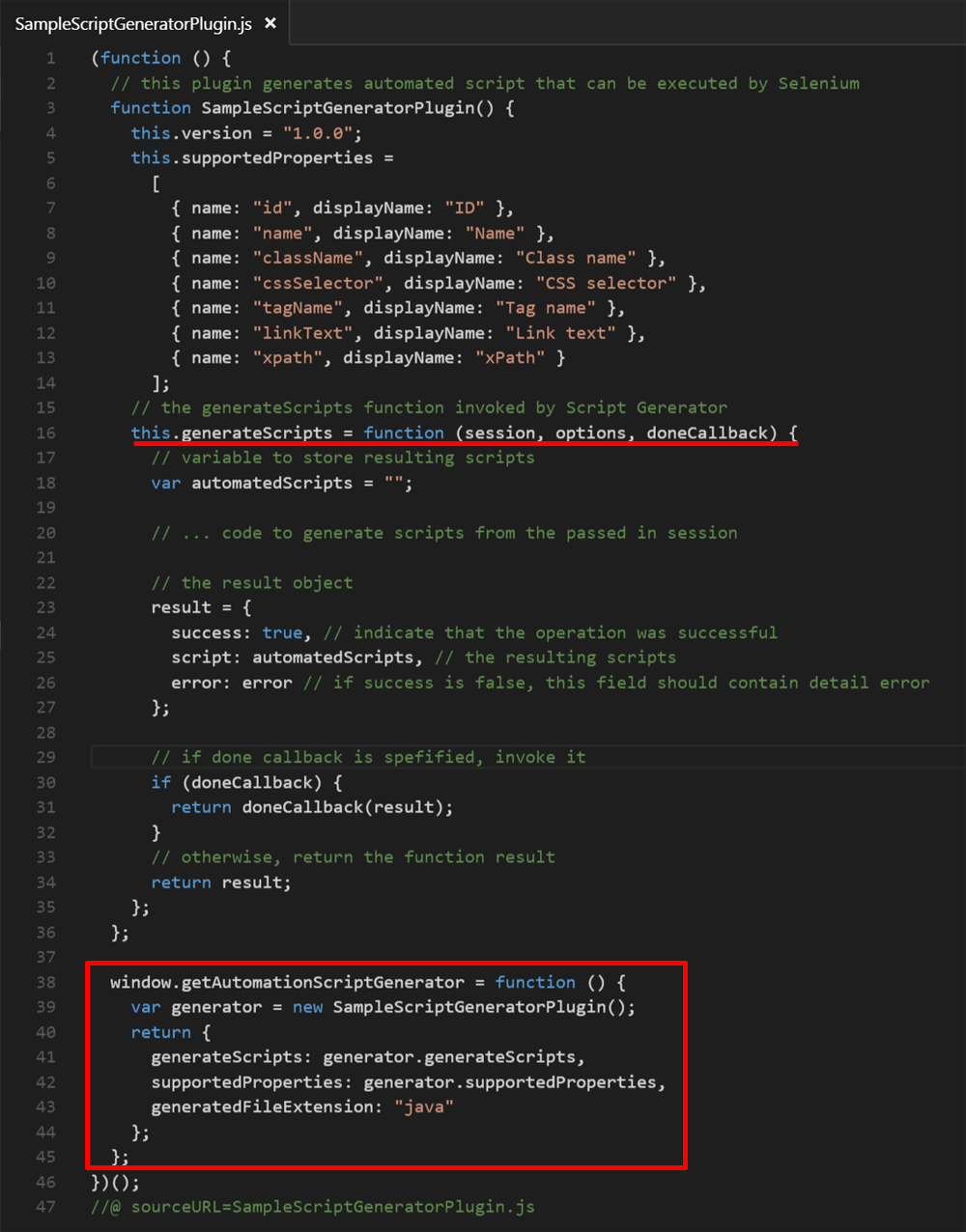
One thing to note is that the implementation concept does not return an instance of SampleScriptGeneratorPlug-in but a JavaScript literal object that contains a function named generateScripts, a field named generatedFileExtension whose value is "java" (or probably "cs", "py", "js" depends on the practical implementation) and a supportedProperties field. There is another way to return the script generator instance, as shown in below screenshot:
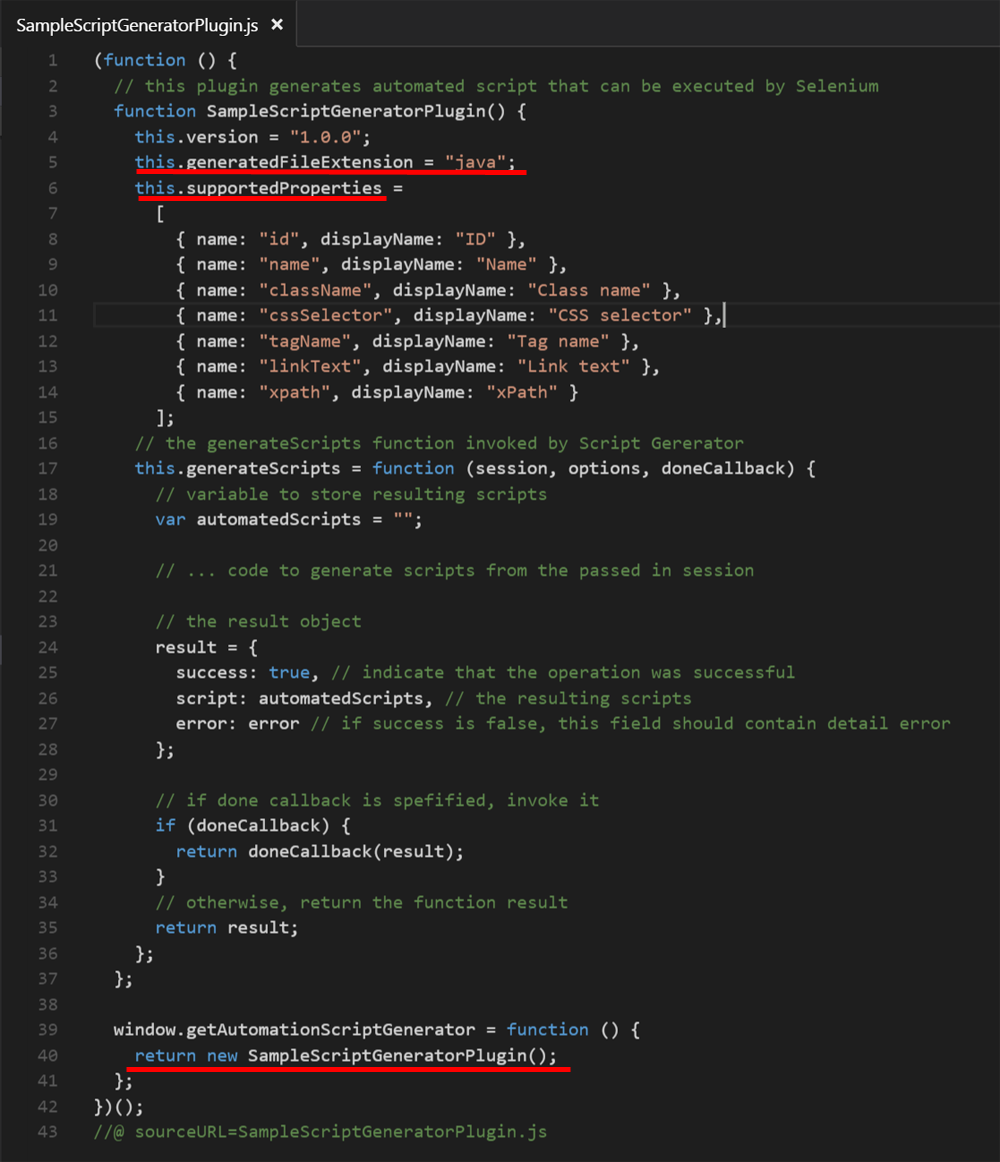
Bottom line is, choosing the way to return the script generator instance is just a matter of preference.
The generateScripts Function
The signature of generateScripts function is described as below:

Below are descriptions of generateScripts function parameters.
session parameter
Description: This parameter represents the JavaScript object containing the session data used to generate automated script.
| Field Name | Type | Description |
|---|---|---|
| appInfo | AppInfo | Instance of AppInfo object |
| sysInfo | SysInfo | Instance of SysInfo object |
| actions | Action[] | Array of action objects |
AppInfo
Description: This object contains the information of the recorded application.
| Field Name | Type | Description |
|---|---|---|
| name | string | Name of the recorded (browser) application, such as “Chrome”, “Firefox”, "Safari” |
| version | string | Version of the recorded (browser) application |
SysInfo
Description: This JavaScript object contains the system information.
| Field Name | Type | Description |
|---|---|---|
| os | string | Name of the Operating System where the session was recorded, such as Mac. Windows |
Action
Description: This JavaScript object represents for an action taken by the user.
| Field Name | Type | Description |
|---|---|---|
| description | string |
Action description. Examples:
|
| type | string |
Type of action. Possible values:
|
| selectedPropertyName | string |
Name of the selected property used to generate selector script. Possible value is either: “ID”, “Name”, “xPath”, etc. |
| selectedPropertyValue | string |
Value of the selected property of a selected action on Script generator dialog. For the example of automating Google search, the value is either:
|
| time stamp | string |
time stamp of the action |
| actionMetadata | ActionMetadata |
Instance of ActionMetadata object |
ActionMetadata
Description: This object carries additional metadata of the action, such as the metadata of UI elements that user took action on, or the data representing for the action taken on pop-up dialogs (alert, confirm, prompt).
| Field Name | Type | Description | ||||
|---|---|---|---|---|---|---|
| id | string |
Value of id property of web element, empty if not specified |
||||
| name | string |
Value of name property of web element, empty if not specified |
||||
| className | string |
Value of class property of web element, empty of not specified |
||||
| tagName | string |
Tag name of the web element |
||||
| time stamp | string |
time stamp of the action |
||||
| xpath | string |
xPath of the web element |
||||
| controlType | string |
Type of control, such as “button”, “text box”, “check box”, “radio”, etc. |
||||
| value | string |
Value of web element at the time the action was taken. |
||||
| frames | Array of anonymous (literal) javascript objects |
List of (nested) frames where the web element is located in the web page This field is used to determine whether the automated script should switch to correct frame before taking action on the web element.
Example value: [ { value: "0", type: "index"}] |
||||
| popupData | Anonymous JavaScript object |
This field is a literal object containing data for action taken on alert, confirm or prompt dialog. Below is the object definition: { message: "", response: { action: "", value: "", } } Examples: 1. User click "OK" on an alert box. This field contains value as below: { message: “Are you sure you want to delete this?”, response: { action: “ok”, value: “” } } 2. User entered some value on a prompt dialog, then clicked “OK”, this field will contain values as below: { message: “Enter your name?”, response: { action: “ok”, value: “John Brown” } } 3. User click ‘OK’ on a confirm dialog, this field will contain value as below: { message: “Are you sure?”, response: { action: “ok”, value: “” } } |
||||
| details | Anonymous JavaScript object |
This object represent for the detail information of the action. It might contain:
|
options parameter
Description: This parameter represents a JavaScript literal object containing the additional data the user entered in Script generator dialog, such as web driver path as below example:
{
webDriverPath: "D:\webdriver\chromedriver.exe"
}
done callback Parameter
Description: A callback function which should be called when the generatedScripts function completes its execution. When invoking this function, plug-in developer must pass a literal JavaScript object which contains fields and values as below:
| Field Name | Type | Description |
|---|---|---|
| success | boolean | Possible values: true or false to indicate whether the generateScripts function has executed successfully |
| script | string | The resulting generated script |
| error | string | Optional field containing the detailed error |
Script generator dialog, when calling the generateScripts function from the plug-in, it will inspect the object returned from the doneCallback function. If the value of success field is true, Script generator will obtain the generated script in script field. In case the value of success field is false, it will try to get the value from error field if specified. The value of script or error field will be displayed in the UI where user expects to see the resulting generated script.
Sample plug-in
At any time, you can view the source code of the built-in plug-ins developed by Tricentis by accessing to Script Generator Plug-in in the Settings page.
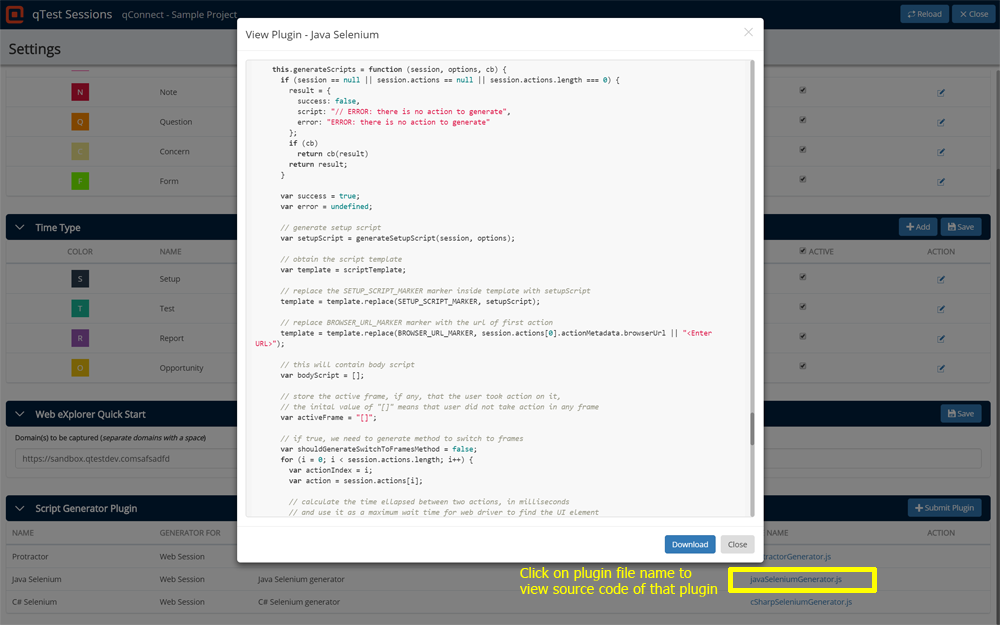
From View Plug-in dialog, you can view the implementation of each plug-in, or customize a plug-in by downloading it to the local machine, adding changes, then uploading it via Script Generator Plug-in section as a new plug-in.