Set up シミュレータAgents
The シミュレータAgent hosts simulations that you can run in your local environment on any machine.これらのシミュレーションは、メッセージを送信したり、リクエストを受信したり、実際のサービスのように応答します。
Use the シミュレータAgent interface to create, edit, and organize your simulations, or connect your agent to Tosca Cloud.
始める前に
-
シミュレータAgents are copyable files, so you don’t have to install anything specific for it.
-
The machines on which you run your シミュレータAgents must meet the minimum system requirements.
Set up your シミュレータAgent
You can set up your シミュレータAgent through the setup wizard during the download process.If you are a Tosca Cloud administrator, you can also set it up through the appsettings.yml file.
この作業が必要なのは一度だけです。When you restart a registered シミュレータAgent, it automatically connects to Tosca Cloud.
Choose this option if you haven't yet downloaded a シミュレータAgent.ウィザードはダウンロードプロセス中に自動的に開始されます。
-
O pen
 Downloads from the top menu.
 -
Download the シミュレータAgent for your operating system.ダウンロードプロセス中にセットアップダイアログが開始されます。
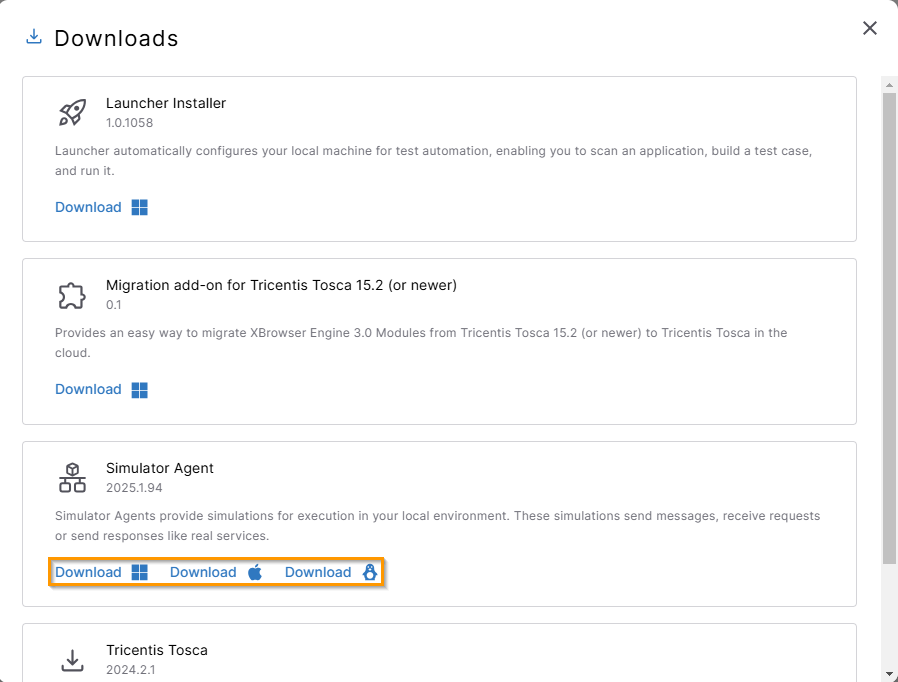
Download the シミュレータAgent.
-
ダイアログからクリップボードへのテナントとワークスペースの接続詳細を含むリンクをコピーし、ダイアログを閉じます。
-
ダウンロードした実行ファイルをダブルクリックします。
-
次のダイアログには、以下のオプションがあります。
-
Tosca Cloudでシミュレーションを整理する場合は、「シミュレータエージェントを接続」を選択します。
-
To use the local シミュレータAgent interface, select the link.The シミュレータAgent opens and you can start exploring right away.次のステップを行う必要はありません。
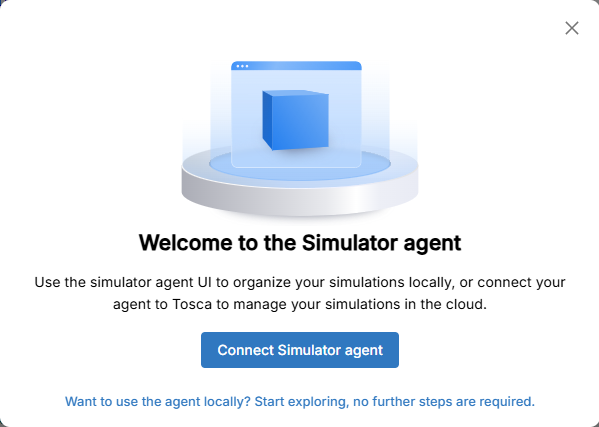
シミュレータAgent welcome screen.
-
-
クリップボードにコピーしたリンクを貼り付け、画面の指示に従います。
Your シミュレータAgent is now active and listed on the シミュレータAgents page.
As an administrator, and if you have already downloaded a シミュレータAgent, you can connect it to Tosca Cloud using the Simulator agent details dialog and the appsettings.yml file:
-
Go to
 APIシミュレーション > シミュレータAgent and select Get agent details.
 -
In the default installation folder %LOCALAPPDATA%\Tricentis\Simulation, open the appsettings.yml file.
-
In the Simulator agent details dialog, copy the values Tenant, Workspace, and Client secret, then paste them into the respective entries in the appsettings.yml file.
または、APIを使用してクライアントシークレットを取得し、ファイルに保存することも可能です。
-
「シミュレータエージェント詳細」ダイアログを閉じます。
-
Save and close the appsettings.yml file.
Your シミュレータAgent is now active and listed on the シミュレータAgents page.
シミュレータAgent files and directories
The default location for シミュレータAgent files is %LOCALAPPDATA%\Tricentis\Simulation.以下のフォルダーとファイルが含まれています。
|
フォルダーまたはファイル |
説明 |
|---|---|
|
ログ |
Storage for your シミュレータAgent log files. |
|
ワークスペース |
このフォルダーにお客様のシミュレーションファイルを保存します。フォルダを作成して整理します。When you start the シミュレータAgent, it loads all simulation files that are in this folder. ご注意ください:シミュレーションファイルでは、同じワークスペースのフォルダ内のファイルのみを参照することができます。 |
|
appsettings.yml |
This is the シミュレータAgent configuration file.You can use this file to integrate the シミュレータAgent to Tosca Cloud. |
Start the シミュレータAgent
To start the シミュレータAgent, double-click the Tricentis.Simulator.Agent.exe file that you've downloaded.
When the シミュレータAgent is set up, the console window opens and shows all logs.現在、Tosca Cloudに接続されています。
Mac users: Start the シミュレータAgent from the command line
The Mac version of the シミュレータAgent comes as a bundled application, allowing Mac users to launch it easily.To run it in a console or pass command line parameters, start the シミュレータAgent manually using this method: ./Simulator.app/Contents/Resources/Tricentis.Simulator.Agent.
次の記事
Deploy simulations to your シミュレータAgent.