Run tests with SAP databases
The SAP Custom Data Reader is a custom data reader that allows Tosca Cloud to read data from SAP databases. That way, you can use this data in Data Integrity tests you create with the Complete Row by Row Comparison module and the Load Data into Caching Database from Customization module.
Prepare your infrastructure
To use a custom data reader for SAP databases, you first need to set up the required tools:
-
Download the SAP Connector for Microsoft .NET from the SAP Support Portal (opens in new tab). You need NCo 3.1 compiled for .NET, in 64bit.
-
Download the Tosca_DI_SAPCustomDataReader_ABAP_Addon from the Tricentis Support Hub (link triggers download) and install it. For information on how to install the add-on in SAP, check out the LiveCompare documentation (opens in new tab).
-
Go to
 Configurations > Uploads > Custom Data Readers > Upload file and select SAP from the Choose a data reader to upload dropdown menu. Upload the following SAP .Net Connector files:
-
cpc4n.dll (version 1.1.4.0)
-
ijwhost.dll (version 8.0.624.26715)
-
Microsoft.Win32.Registry.dll (version 5.0.20.51904)
-
sapnco.dll (version 3.1.5.0)
-
sapnco_utils.dll (version 3.1.5.0)
-
System.Configuration.ConfigurationManager.dll (version 8.0.23.53103)
Note that only users with administrator rights can upload files to Tosca Cloud.
-
After you upload the files, you can see them in the Custom Data Readers tab, under SAP.
Use the SAP Custom Data Reader in test cases
Tosca Cloud supports SAP databases in all Data Integrity tests you create with the Load Data into Caching Database or the Complete Row by Row Comparison module.
The way to establish a connection to an SAP database is the same for both modules. You need to fill out the test step value Custom Data Reader:
-
For Class Attribute Name, enter SapReader.
-
Under Parameters, set up the following parameters:
|
Parameter name |
Value |
Optional |
|---|---|---|
|
SystemNumber |
The ABAP application server's instance number, which can be a value from 0-99. |
No |
|
ApplicationServer |
The service name as defined in etc/services, or the port number under which the application server's gateway process is listening for RFC requests. This is the DNS name or IP-Address. Example: sap-server.acme.com |
No |
|
Client |
The Client ID used to sign in to the SAP system. Example: 200 |
No |
|
Language |
The language you use to log into the SAP system. Example: EN |
No |
|
Username |
The user name that will access the SAP system during tests. |
No |
|
Password |
The password of the specified user. |
No |
|
Tablename |
The name of the SAP table that contains the data you want to read. Table names are case-sensitive. |
No |
|
DataProvisioningTimeout |
Time in seconds that Tosca Cloud should wait for SAP to send data before timing out. The default value is 300 seconds. |
Yes |
|
RowFilters |
Filters for fetching specific rows from an SAP table. Enter F[],O[],L[],H[],S[]:
For operators that require a low value, use the following parameters:
For operators that require a high and low value, use the following parameter:
The following examples show how Tosca Cloud processes parameters and operators:
You can specify multiple filters, separated by semicolon. For example: F[Firstname],O[EQ],L[Anna],S[I];F[Age],O[BT],L[20],H[50],S[I];... To combine multiple row filters with OR, use the same values for the parameter F. For example: F[Firstname],O[EQ],L[Anna],S[I];F[Firstname],O[EQ],L[Julia],S[I] To combine multiple row filters with AND, use either of the following:
|
Yes |
|
ColumnFilters |
Filters for fetching specific columns of an SAP table. Enter F[]:
You can specify multiple filters, separated by semicolon. For example:
|
Yes |
Loading data from an SAP database.
In this test case, you want to load data from a specific SAP table into your caching database, so you can run a reconciliation test on it.
For the data loading part, you use the module Load Data into Caching Database from Customization.
These general test step values define data target and reporting:
-
Table Name is SAPDataTarget, which means you load the data into a table called SAPDataTarget in the cashing database.
-
Keep Existing Table Entries is False, which means that Tosca Cloud clears any existing content in SAPDataTarget before adding the new data.
-
Custom Data Reader > Class Attribute Name is SapReader, which means you're using the custom data reader to access your SAP database.
-
Load Error Behavior > File name is C:\Error_Reports, which means that if Tosca Cloud encounters errors during the load, it saves a report to this location.
And these Parameters specify the database access and the data to load:
-
SystemNumber defines the ABAP application server's instance number: 01.
- ApplicationServer defines which server contains the data you want to load: sap-server.acme.com.
-
Client defines the Client ID: 001.
-
Language defines your specified SAP system language: EN.
-
Username and Password define the credentials with which you access the SAP database during the test run.
-
Tablename defines the name of the SAP table that contains the data you want to load: TVAK.
-
DataProvisioningTimeout defines how many second Tosca Cloud tries to load the data before it times out: 360.
-
RowFilters has the value F[OrderID],O[BT],L[1000],H[2000],S[I];F[Status],O[EQ],L[Canceled],S[E]. This defines that you only want to fetch rows that have values between 1000 and 2000 in the column OrderID, and that don't have the value Canceled in the column Status.
-
ColumnFilters has the value F[OrderID];F[Status];F[OrderDate];F[DeliveryDate]. This defines that you want to only fetch the columns OrderID, Status, OrderDate, and DeliveryDate.
After loading the SAP data, Tosca Cloud should run a reconciliation test on them. So, you've added the module Row by Row Comparison to your test case.
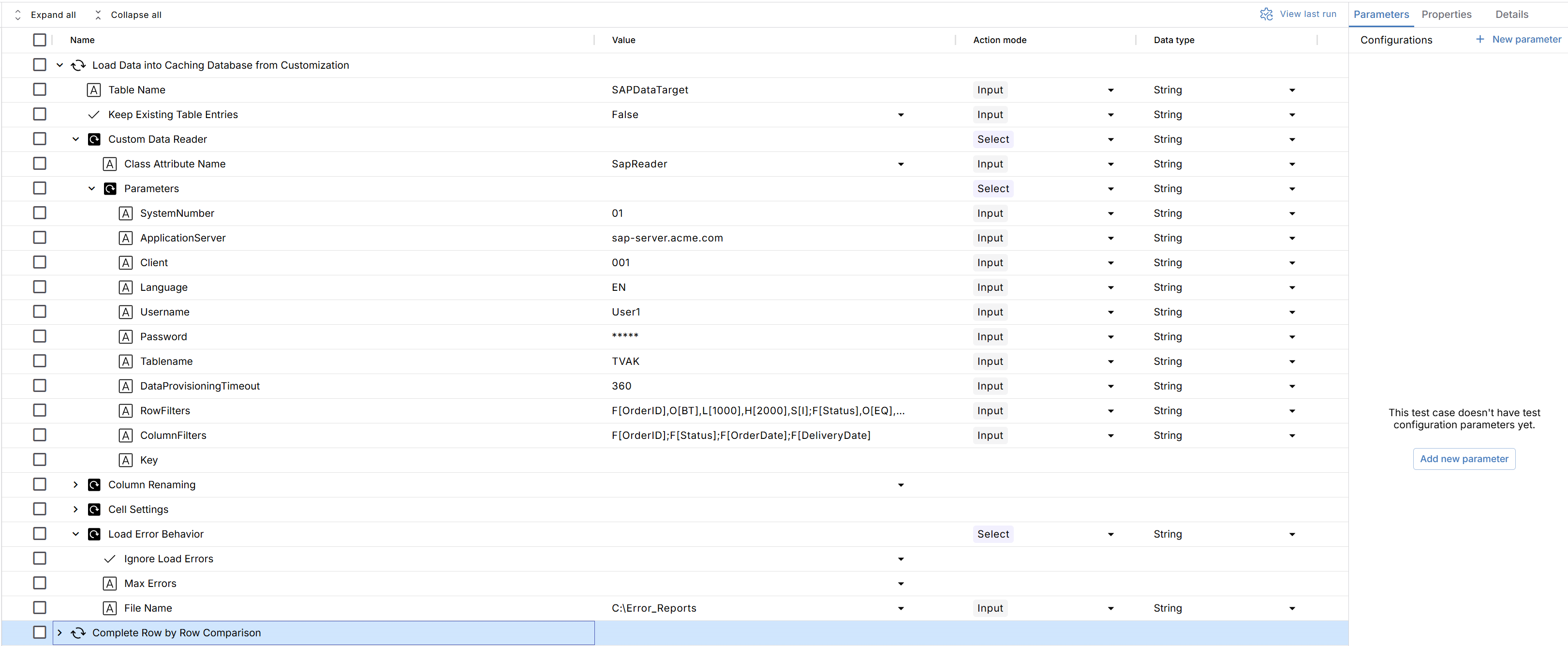
Your test case using the SapReader