How to navigate qTest Manager
Just getting started with qTest's new design and want to learn the basics? Take a look at this topic to get yourself oriented with our new design.
In August 2026, our user experience changes will go live for all users. You'll still be able to opt out, but that means you won't have access to future improvements as we build in the new user interface.
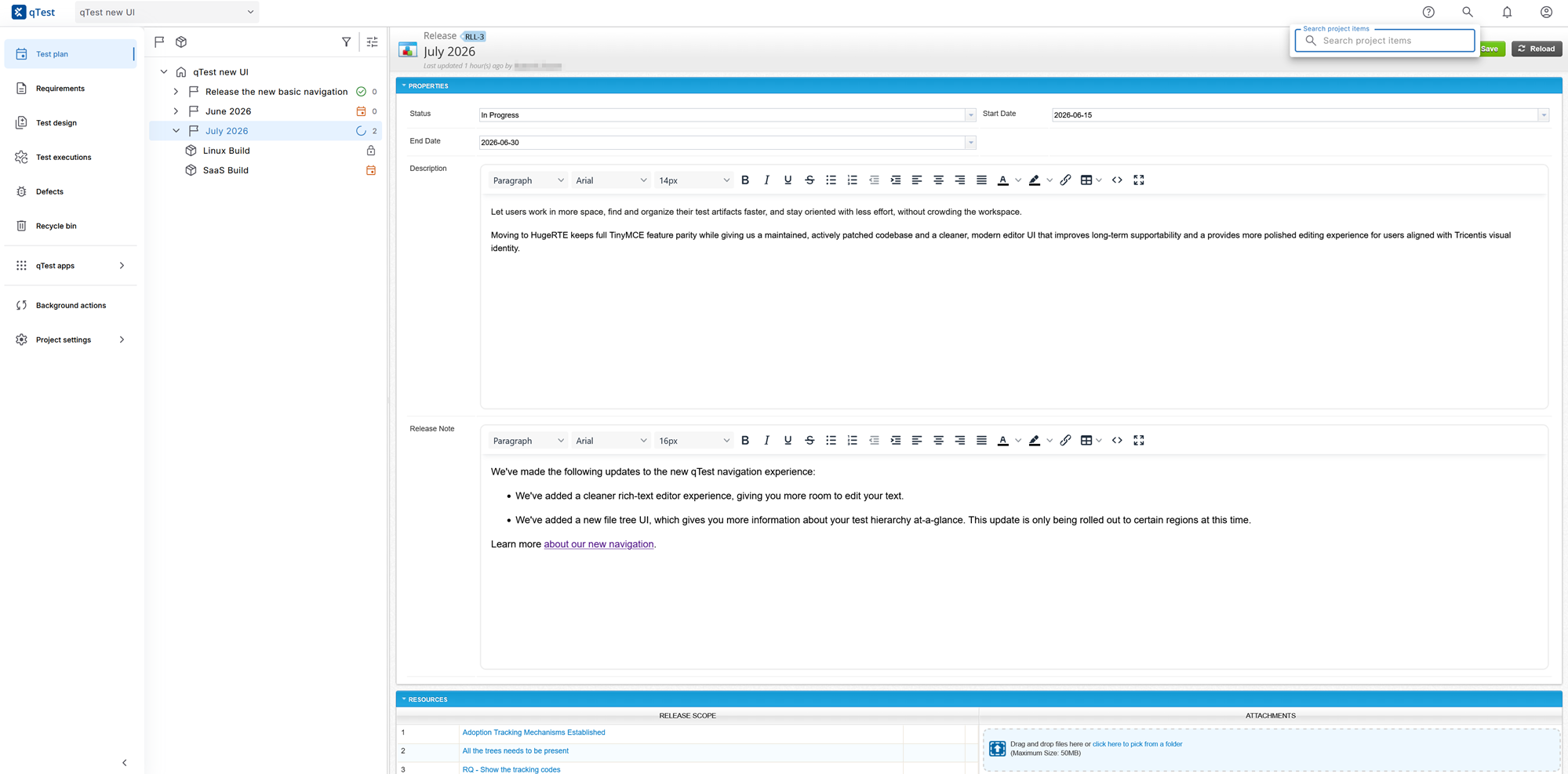
Our new navigation contains all your regular tools.
Switch to qTest Manager's new look
If you're interested in our Beta, select your profile and choose Go to new qTest from the dropdown. This simple switch will give you access to the new navigation without any affect on your current projects or tests. Don't worry, if there's any reason you want to switch back, simply go to the same dropdown and select Return to classic qTest. You can switch between the two as often as you want.
Note that this feature is being rolled out gradually, so you may not have access yet. If you're interested in trying it out, reach out to your account manager.
Navigate qTest
Our new navigation has all the tools you use in classic qTest. Here's what you'll find and where you'll find it.
Top menu
Here's all the resources you'll find on the top menu bar.
To switch in and out of projects, select the Projects dropdown menu from the top toolbar. To prioritize certain projects to display at the top of the projects list, you can click the Star icon next to the project names. You can quickly search projects in the Search bar using keywords. Starred projects containing those keywords appear at the top of the search results.
Objects in Projects are then viewed and managed using the main tabs, each of which offer unique functionality for different areas of testing.
Select  Resources to navigate to the Support Hub, find version details about qTest, and download qTest resources. You can also get to documentation relevant to the screen you're working in from this menu.
You can also select How to navigate the new UI to learn more about everything that's changed.
To search for objects, select  Search in the top-right corner to open the search window.
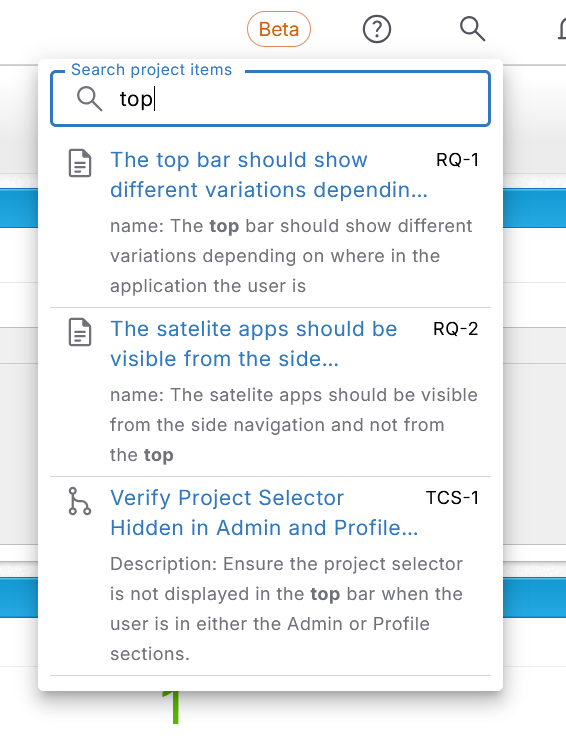
Use keywords to search for objects across the project you're working in.
No matter where you are in your project, when you use the search box, the system searches through the entirety of Manager for objects that contain the keywords you entered.
If you want to learn about how to search and what objects you can search for in qTest Manager, take a look at Search and filter objects.
Select  Notifications to view all the notifications you've received from the dropdown.
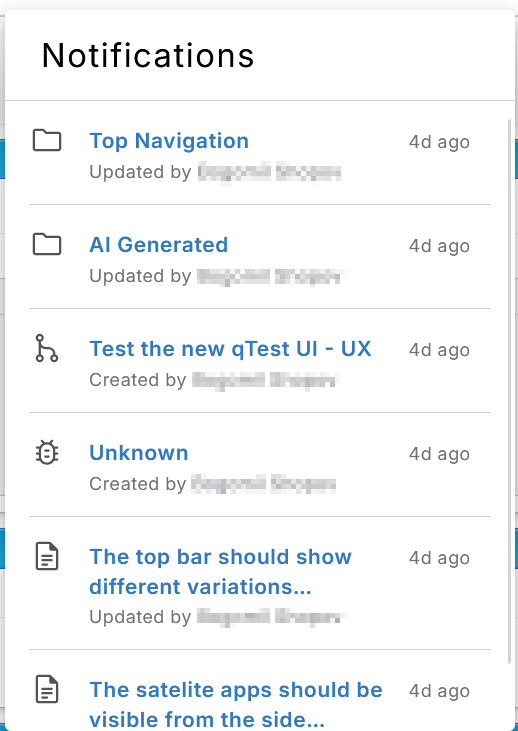
The Notifications panel lists recent activity on objects you follow, along with who made each update and when.
Select the  User menu to access any of the following tools:
-
My profile: Edit your name, email, or timezone, or change your password.
-
Company profile: Administrators can use this page to edit company information, such as contact information and company name.
-
Schedule Notifications: Administrators can access the Notification Center to schedule global notifications from here.
-
Administration: Administrators can access global and site administration.
-
Return to classic qTest: Select this option to go back to the old user experience. You can switch back and forth as often as you want.
-
Sign out: Sign out of your qTest profile.
Left-hand menu
Here are all the resources you'll find in the left-hand menu.
Here, you can find the five main areas where you manage the objects you use in your testing:
-
Test plan: Create and manage releases and builds.
-
Requirements: Create and manage testing requirements.
-
Test design: Create and manage test cases.
-
Test executions: Create and run tests.
-
Defects: Create and manage defects native to qTest.
Learn more about the details of your test management organization.
To permanently delete or restore any objects you've deleted from Manager, select Recycle bin from the left-hand toolbar.
If you want to learn more about how to manage deleted objects, take a look at Recycle bin.
You can now find all of your 9-box apps on the left-hand toolbar. Select External apps to navigate to Explorer + Sessions, Parameters, Insights, Pulse, or Launch.
If you're outside of a project, select the qTest logo to return to the project before you switch to an external app. For example, you can no longer switch to an external application if you're in Administration or the Notification Center.
Select Background actions to view any processes currently running in the background, such as bulk changes.
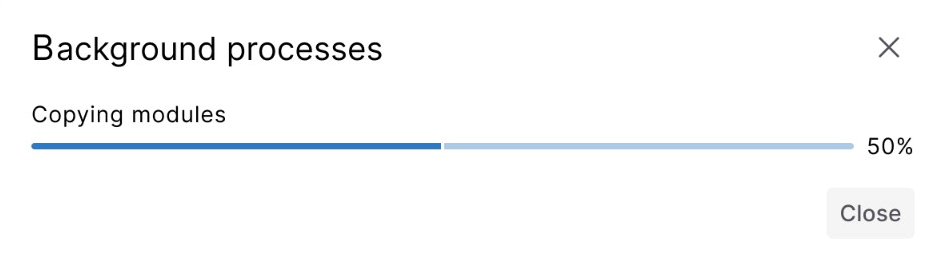
The Background processes panel shows the status and progress of long-running operations.
To manage your settings for an individual project, select the Project settings dropdown from the left-hand toolbar.
If you want to learn more how to manage settings in a project as an administrator, take a look at Project Settings.
File tree
The new file tree includes every feature from classic qTest and shows additional information about each object at a glance. That means you can know more about your testing process before you even drill down into your qTest objects. Use this information to help with quick navigation and object organization.
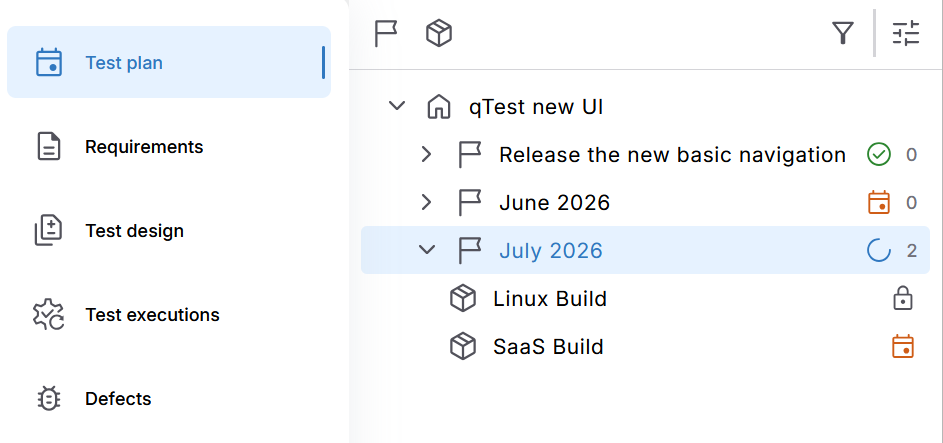
The file tree now gives you more information about every object in qTest.
Across the file tree, you have the following options for each object:
-
Check the number of sub-objects: Check the number to the right of an object to see how many child objects it has., This could be test cases in a module or test runs in a release.
-
Move objects: Select Reorder
 next to an object, and then drag it to another location in the file tree to move it.
 -
Take action: Select Actions
 next to an object to view the list of actions you can take with that object. The available actions depend on the object you select. These are the same options available when you right-click an object in the classic UI. For example, you can copy an object, add new test cases to a module, or delete an object from this menu.
The following icons indicate the status of your file tree:
Release and build objects let you know where in the testing process the object is from within the file tree. The selected release or build Status determines this.
The following icons are associated with the object status:
-
 Planned
 -
 In Progress
 -
 Closed
 -
 Completed
Test case objects let you know whether a test case is planned as a manual or automated test, and whether it is approved for test execution.
The following icons are associated with the test cases:
-
 Approved or
  Unapproved: This icon indicates whether a test case has been approved for testing.
 -
 Manual test or
  Automation test: This icon indicates if the object is a manual test case or if it's an automated test case.
What's next
If you want to learn more about the basics of qTest, check out qTest Manager 101.