Create test case instances and test cases
A test case instance is one specific combination of values from your test sheet. Tosca Cloud generates one test case from each instance.
This topic covers both process-based and template-based test case design.
Before you start
To create test case instances, you must be an administrator or contributor.
Also, your test sheet must be ready. Your chosen test case design solution determines the definition of "ready".
Please choose your use case:
Your test sheet is ready if all of the following apply:
-
The test sheet has at least one attribute with at least one attribute instance.
-
The test sheet has all necessary mappings. In other words, each attribute that has instances is mapped to a business parameter in a reusable test step. If you're unsure, double-check the Link automation tab of all activities in the path.
You only need to double-check when you create attributes manually. If you generate attributes, Tosca Cloud automatically maps them.
-
The test sheet doesn't have unsaved changes.
Your test sheet is ready if all of the following apply:
-
The test sheet has at least one attribute with at least one attribute instance.
-
The test sheet doesn't have unsaved changes.
Understand test case instances
You have a test sheet with attributes and instances. So far, so good!
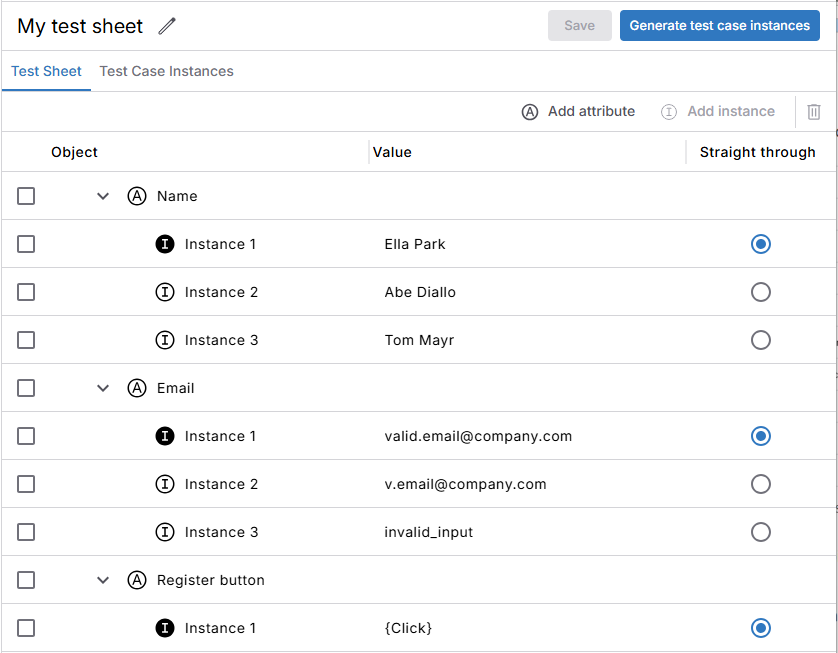
Test sheet with multiple attributes and attribute instances
Now, you need to define how you want to combine all these attribute instances. For example:
-
You want one test case instance that uses the value of instance 1 for Name, the value of instance 2 for Email, and the value of instance 2 for Register button.
-
You want another test case instance that uses the value of instance 2 for Name, the value of instance 2 for Email, and the value of instance 1 for Register button.
-
And so on.
In essence, you define variations of input values:

Multiple test case instances
Create test case instances
Tosca Cloud offers different ways to create test case instances:
-
Generate test case instances in bulk, based on an algorithm of your choice. This is the most useful method most of the time. Here, Tosca Cloud combines your attribute instances automatically and creates a full set of test case instances.
-
Create test case instances manually. This is useful when you just need a small number of very specific combinations.
Please choose your use case:
To generate test case instances in bulk, open your test sheet and select Generate test case instances. Then, select one of the following algorithms:
|
Description |
|
|---|---|
|
Linear expansion |
Starts with the straight through and then changes one attribute instance at a time. Result:
This algorithm makes it especially easy to identify issues in your application code. If a test other than the straight through fails, you'll know exactly what caused the failure: the code related to this particular attribute. Linear expansion produces slightly more tests than the orthogonal approach, but the test increase is still manageable. If your attributes have multiple instances that are part of the straight through, Tosca Cloud takes the first straight through instance of each attribute for the initial test case instance. |
|
Orthogonal |
Creates a minimal set where each attribute instance appears at least once. Result:
This algorithm is extremely efficient. It produces a low number of test case instances that cover all attributes at least once. However, this efficiency leads to test case instances that have more than one variation. This means that if a test fails, you'll have to spend additional effort to determine which variation caused the issue. |
Depending on your test sheet, you may need to make additional manual adjustments. For example, you may need to enter values for attributes without attribute instances.
Example: algorithms in action
Let's say your test sheet has three attributes:
-
Attribute A has two instances: A1, A2.
-
Attribute B has two instances: B1, B2.
-
Attribute C has three instances: C1, C2, C3.
And you've defined (A1,B1,C1) as the straight through.
This is what each algorithm produces:
|
|
Linear expansion |
Orthogonal |
|---|---|---|
|
Result |
5 test case instances* |
3 test case instances* |
|
Calculation |
1 + 1 + 1 + 2
|
Attribute C has the highest number of attribute instances: 3. This means you need at least 3 variations. Attribute A and B instances then distribute across those variations. |
|
Variations |
(A1,B1,C1) (A1,B2,C1) (A1,B1,C2) (A1,B1,C3) (A2,B1,C1) |
(A1,B1,C1) (A2,B2,C2) (A1,B1,C3) |
* Includes the straight through
To create a test case instance manually, follow these steps:
-
Open your test sheet and go to the Test case instances tab.
-
Select Create instance.
-
For each attribute, select an instance from the dropdown if available. Otherwise, enter the value directly or leave it empty.
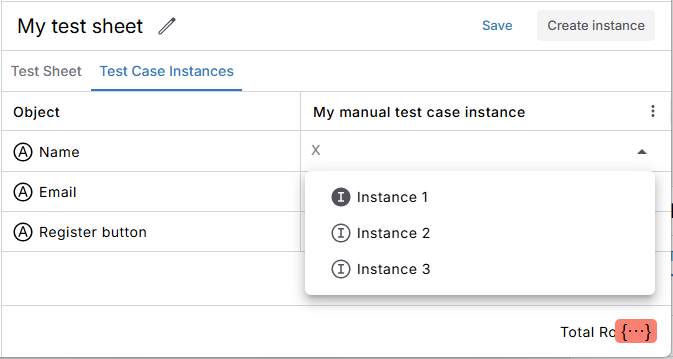
Create your test case instance manually
Generate test cases
How you generate test cases depends on your chosen test case design solution:
-
If you use template-based test case design, go to your template, link your test sheet and generate your test cases.
-
If you use process-based test case design, select Publish to generate your test cases. You can find them in Build > All assets.
What's next
Now that you've generated your test cases, it's time for a few trial runs. This helps you find and fix issues, so you can make your tests as stable and reliable as possible.