Buffer values
A buffer stores a value during a test run so a later test step can read it. Buffer values are one of several types of value expressions in Tosca Cloud.
Create a buffer
Create a buffer in one of these ways:
-
With the standard module TBox Set Buffer, which creates a buffer independently of your application. For example, to define data at the start of your test case that you want to insert later.
-
With action mode Buffer, which saves something that's already in your application to a buffer. For example, to buffer the content of one table cell and compare it to a different table cell.
-
With action mode Verify, which saves part of a string to an XBuffer. For example, if a label contains a static and a dynamic part, and you only want to save the dynamic part.
Reuse the data
Read a buffered value with the following syntax, no matter how you created the buffer:
{B[<name of your buffer>]}
The buffer name must be an exact match, including capitalization.
This example enters data that you've previously saved to a buffer into a textbox. The test case performs the following actions:
-
The test step Set buffer uses the module TBox Set Buffer to create a buffer named My Buffer with the value ABC.
-
The test step Use buffer value enters the buffer value into My textbox, using the value {B[My Buffer]} and action mode Input.
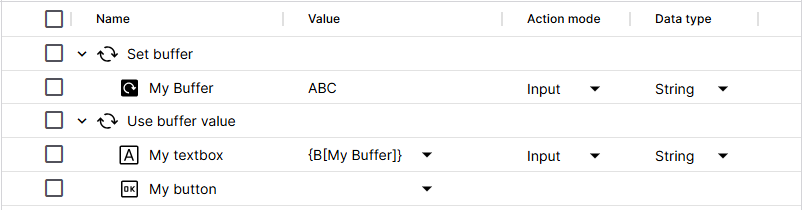
Create a buffer and use the buffered value
This example compares data that you've previously saved to an XBuffer to data in a table. The test case performs the following actions:
-
The application shows a confirmation message that includes a new user's ID number, for example Thank you. Created new user with the ID 11111. At the same time, the application adds a new row to a table, with the ID in the column User ID.
-
The test step Verify confirmation + save ID verifies the confirmation message using the value Thank you. Created new user with the ID {XB[My XBuffer]}. and action mode Verify. This saves the ID number to an XBuffer named My XBuffer.
-
The test step Verify ID checks the row for the new user in the table User table, and verifies that the cell in the column User ID matches the value {B[My XBuffer]}, using action mode Verify.
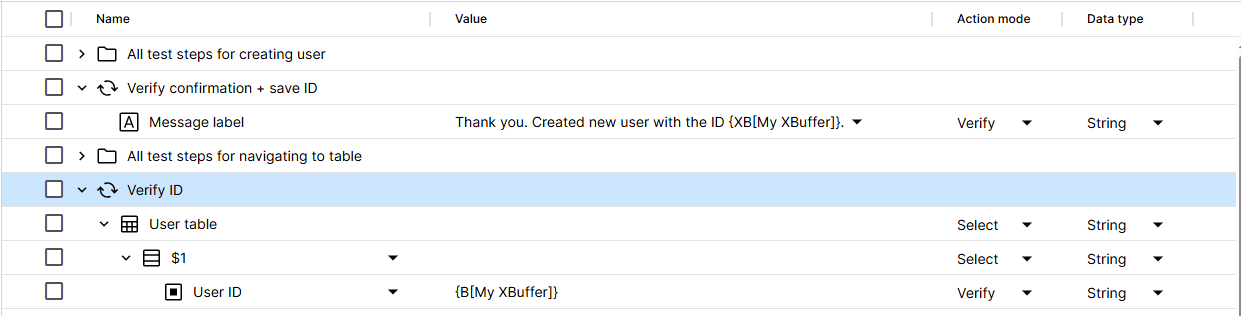
Create an XBuffer and compare its content to a table cell