Buffer operations
The automation tools modules for buffer operations can create buffers, save values to them, and manage buffered arrays for later test steps to read.
TBox Set Buffer
Creates a buffer with a particular value or verifies the value of an existing buffer.
|
Value |
Description |
|---|---|
|
<Buffername> |
Replace <Buffername> with the name of the Buffer. To save a value to the buffer, enter the desired value into the Value column. Use action mode Input. To verify the value of the buffer, enter the value in question into the Value column. Use action mode Verify. |
TBox Name to Buffer
Buffers the name of the test case that uses the module.
|
Value |
Description |
|---|---|
|
Buffer |
Name of the buffer to which you want to save the test case. Use action mode Input. |
TBox Partial Buffer
Buffers parts of a value and verifies parts of a buffered value.
|
Value |
Description |
|---|---|
|
Buffer |
Name of the buffer. |
|
Value |
Value you want to buffer or verify.
|
|
Start |
Character index from which you want the system to start buffering or verifying the value. |
|
End |
Character index that ends the value you want to buffer or verify. |
|
Last |
Number of characters you want to buffer or verify, starting from the last character. If you set this value, Tosca Cloud ignores the values Start and End. |
TBox Delete Buffer
Removes individual or all existing buffers.
|
Value |
Description |
|---|---|
|
Buffer |
Name of the buffer you want to delete. Use action mode Select. You can delete buffers as follows: |
TBox Iterate Array
When Tosca Cloud buffers a row or column of a table, it organizes that information into an array. The module TBox Iterate Array iterates a buffered array, such as a table row or column. TBox Iterate Array outputs each array element individually. For instance, you can buffer a column containing customer names and send each name individually to the system under test. Tosca Cloud sends each array element in sequential order.
|
Value |
Description |
|---|---|
|
Parent containing one array and one target. Add as many as you need for your use case. |
|
|
Array to Iterate |
Name of the buffer that contains an array you want to iterate. |
|
Target buffer |
Name of the buffer that should receive the iterated output. Use action mode Input. |
TBox Array Operation
You can use this module to run advanced operations with array elements of an existing buffer. Or you can use it to create an array from elements you manually define.
|
Value |
Description |
|---|---|
|
Use the dynamic expression {B} to define which buffered array you want to run your operation on. Use action mode Select. |
|
|
Content |
Your use case determines what you need to do with Content. |
|
Item |
Use Item to specify index positions with one of the following values:
|
You can add elements anywhere you want in an array:
-
For Array, enter the array you want to add elements to.
-
For Content, use action mode Select.
-
For <Item>, define each element you want to add and where:
-
Replace <Item> with the index position where you want to add a new element.
-
For Value, enter the new value.
-
Select action mode Insert.
-
Add a new value to the end of a buffered array
In this test step, TBox Array Operation adds a new element to the end of the Transaction amount buffered array:
-
Array uses action mode Select to identify {B[Transaction amount]} as the target buffer.
-
Similarly, Content uses action mode Select to work with the array's existing elements.
-
#last targets the position right after the last existing element.
-
The Value 150.77 and action mode Insert tell Tosca Cloud to add 150.77 as a new element to the end of the array.
Tosca Cloud runs the test step, inserts 150.77 after the last existing element in the Transaction amount buffer.

Add elements to an array
You can delete entire arrays or only specific elements.
Delete an entire array
To delete an entire array, you only need to use Array and Content:
-
For Array, enter the buffer you want to delete.
-
For Content, select action mode Delete.
Delete specific array elements
You can delete elements by using their index position:
-
For Array, enter the buffer you want to delete elements from.
-
For Content, use action mode Select.
-
For <Item>, define the index position of the element you want to delete and select action mode Delete.
For each element you want to delete, create a new <Item> and define its index position.
Tosca Cloud deletes your elements in the order you list them. This means the index position of your elements changes with each element you delete.
Search and delete using action mode Constraint
Using action mode Constraint for <Item> lets you search for and delete only specific values. To do so, follow these steps:
-
For Array, enter the buffer you want to delete elements from.
-
For Content, select action mode Delete.
-
For <Item>, enter your search value under Value and select action mode Constraint.
Delete an array element found by search
In this example, TBox Array Operation searches the Order quantity buffer for the value 10 and deletes it:
-
Array uses action mode Select to identify {B[Order quantity]} as the target buffer.
-
Content uses action mode Delete to tell Tosca Cloud you want to remove elements from this array.
-
<Item> the combination of Value 10 and action mode Constraint searches the array for any element equal to 10 and deletes each match.
Tosca Cloud runs the test step, finds the element with the value 10 in the array, and deletes it from the Order quantity buffer.

Delete elements from an array
You can overwrite elements by using action mode Modify:
-
For Array, enter the buffer whose element you want to modify.
-
For Content, use action mode Select.
-
In <Item>, define what you want to modify and how:
-
Replace <Item> with the index position of the element you want to modify.
-
For Value, enter the new value.
-
Select action mode Modify.
-
Modify an array element by index
The test step TBox Array Operation overwrites the first element of the buffer Unit price:
-
Array uses action mode Select to identify {B[Unit price]} as the target buffer.
-
Content uses action mode Select to work with the array's existing elements.
-
<Item> #1 targets the first element. Action mode Modify overwrites that element with the Value 42.00. This doesn't add any elements to the array.
Tosca Cloud runs the test step and overwrites the first element of the array in the Unit price buffer with 42.00.

Modify an element
Search and modify elements using action mode Constraint
Using action mode Constraint lets you search for and modify only specific values. To do so, follow these steps:
-
For Array, enter the buffer whose elements you want to modify.
-
For Content, enter the new value and select action mode Modify.
-
For <Item>, enter your search terms under Value and select action mode Constraint.
Modify array elements found by search
In this test step, TBox Array Operation searches the Unit price buffer for elements with the value 10 and overwrites them:
-
Array uses action mode Select to identify {B[Unit price]} as the target buffer.
-
Content has Value 42 and uses action mode Modify to tell Tosca Cloud to overwrite 42 into any matching element.
-
<Item> has 10 for Value and uses action mode Constraint. This combination searches the array for elements equal to 10 and overwrite each match with the value from Content.
Tosca Cloud runs the test step, finds the elements with the value 10 in the array, and overwrites each of them with 42.

Modify elements with Constraint
Verify individual array elements, or verify the size of an array.
Verify specific array elements
To verify array elements, follow these steps:
-
For Array, enter the buffer whose elements you want to verify.
-
For Content, use action mode Select.
-
For <Item>, define the index position of the element you want to verify, enter the expected value, and select action mode Verify.
Verify an array element by index
In this example, TBox Array Operation verifies that the element at index position 23 has the value 42.00:
-
Array uses action mode Select to identify the array's buffer.
-
Content uses action mode Select to work with the array's existing elements.
-
<Item> has #23 to target that element. The combination of Value 42.00 and action mode Verify tells Tosca Cloud to check the element against this value.
Tosca Cloud runs the test step and verifies that the element at index 23 has the value 42.00.

Verify an array element
Verify array size
To verify the size of an array, follow these steps:
-
For Array, enter the buffer whose size you want to verify.
-
For Content, use the expression .Count==<expected value>, then select action mode Verify.
Verify the size of an array
In this example, a single test step uses the module TBox Array Operation to verify that an array has 50 elements:
-
Array uses action mode Select to define the target array as buffer {B[New customers]}.
-
Content has the expression .Count==50 and uses action mode Verify. This tells Tosca Cloud to check that the array has exactly 50 elements.
Tosca Cloud runs the test step and verifies that the array has 50 elements.

Verify the size of an array
Create a new buffer array with only the elements you want from another array:
-
For Array, enter the buffer containing the source array.
-
For Content, enter a name for your new buffer and select action mode Buffer.
-
Optionally, use <Item> to define the index position and select the appropriate action mode for any additional changes.
Remove items when you copy elements
Remove items from the source buffer while you copy elements into the new buffer. Use <Item> with action mode Delete and the index position of the elements you want to remove.
Copy array elements into a new buffer, excluding one element
This example copies the array in the Order quantity buffer into a new buffer without its first element:
-
Array uses action mode Select to identify {B[Order quantity]} as the source array.
-
Content enters Updated order quantity and uses action mode Buffer, telling Tosca Cloud to copy the source array's elements into a new buffer with this name.
-
<Item> is #1 and uses action mode Delete. This tells Tosca Cloud to exclude the first element of Order quantity from the copy.
Tosca Cloud runs the test step and creates a new buffer, Updated order quantity, containing every element of Order quantity except the first.

Copy array elements into a new buffer by deleting elements
Create an array by defining each element:
-
For Array, enter the name of the new array. Use the dynamic expression B.
-
For Content, leave Value blank and select action mode Insert.
-
For each element:
-
Replace <Item> with # and the index position.
-
Enter the Value you want.
-
Select action mode Insert.
-
Create an array manually with two elements
The test step TBox Array Operation creates a new array named Product Price with two elements:
-
Array uses action mode Select to identify {B[Product Price]} as the array to create. Tosca Cloud will look for this array and create it if it doesn't exist.
-
Content leaves Value blank and uses action mode Insert, telling Tosca Cloud to create the array named in Array.
-
The first <Item> has #1 for the index position. This means that Tosca Cloud inserts 19.99 as the array's first element.
-
The second <Item> has #2 for the index position. This means that Tosca Cloud inserts 99.99 as the array's second element.
Tosca Cloud runs the test step and creates the array Product Price with two elements: 19.99 at index 1 and 99.99 at index 2.
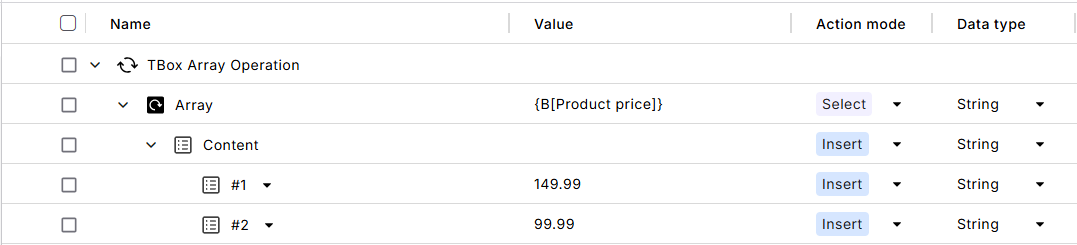
Create an array manually
Create an array with empty elements
Create an array with empty elements, and define how many you want:
-
For Array, enter the name of the new array. Use the dynamic expression B.
-
For Content, enter the number of elements in your new array and select action mode Insert.
If you want to define one or more elements:
-
Replace <Item> with # and the index position.
-
Enter the Value you want.
-
Select action mode Modify.
-