Test data modules
Tosca Cloud offers standard modules, which are sets of pre-built test steps for various useful tasks and actions. This topic lists all standard modules for test data:
Test data - Update item
If the test data you want to modify is a shared asset, you must add the parameter called TestDataWorkspace to the test case.
This module allows you to perform one of the following test data actions:
-
Update data during test runs. You can update the last row that Tosca Cloud consumed or a specific alias row that you've defined with the module TestData - Find and provide item.
-
Stop Tosca Cloud from marking a row as used after a test run, so you can reuse the data.
Test design
The module supports one action for one data source. This means the following:
-
If you want to perform 'reuse' actions or 'update last consumed row' actions in a test case that's linked to multiple data sources, you need to add the module multiple times. Once per data source you want to update.
-
If you want to update multiple alias rows, you need to add the module multiple times. Once per alias you want to update.
Application
Tosca Cloud applies all actions in all linked data sources:
-
If your data source is a subset, Tosca Cloud applies the action to the row in both the subset and its parent data set.
-
If your data source is a data set that has subsets, Tosca Cloud applies the action to the data set and all its subsets.
Limitations
The Test data - Update item module doesn't stop Tosca Cloud from marking a row as used if you identify the row with the module TestData - Find and provide item. That's not a problem, however, because TestData - Find and provide item offers its own method to keep a row unused.
Module attributes
When you use the Test data - Update item module in a test case, fill out the following information:
|
Attribute |
Description |
|---|---|
|
Alias |
Alias of the row you've defined with the module TestData - Find and provide item. If you use Alias, leave Data set and Subset empty. |
|
Data set |
Name of the data set. You only need to populate Data set for the following use cases:
|
|
Subset |
Name of the subset. |
|
Reuse data |
Specify if you want to reuse a row. To do so, enter True. |
|
Data structure |
Define your data update. To do so, perform the following actions:
After you've added your information, Tosca Cloud adds a new Column line. To update another column in the same data source, simply fill out the new line. |
Define that you want to reuse data.
This example test case performs the following actions:
-
Test step Enter name enters test data into a text box called Name and clicks Next.
The test data comes from a data set called Customer data, specifically the column Name.
-
Test step Test data - Update item defines that you want to reuse the row that Tosca Cloud consumes during the test run:
-
Data set with the value Customer data defines where the data is from.
-
Reuse data with the value True indicates that you want to reuse the data.
-
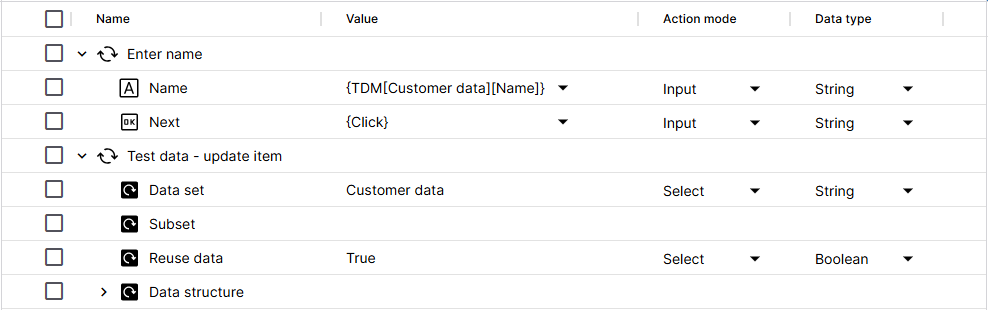
Click to enlarge: Define that you want to reuse data
Update the last row that Tosca Cloud consumes during the test run.
In this example, you want to add a time stamp to the data row that Tosca Cloud consumed during a test step. To do so, you add the module to your test case and fill out the test steps:
-
Since you want to update the last consumed row, you leave Alias empty.
-
To define the location of the data source, you populate Data set and Subset with the respective names: My example data set and Subset A.
-
To define that you don't want to reuse the row after this test run, you set Reuse data to False.
-
To define what you want to modify and how, you populate Data structure:
-
To define the column you want to modify, you replace <Column> with the name of the column: Processed.
-
To define the time stamp, you enter the dynamic date and time expression {DATETIME} into the Value column of Processed. At runtime, Tosca Cloud will create the time stamp based on the actual date and time.
-
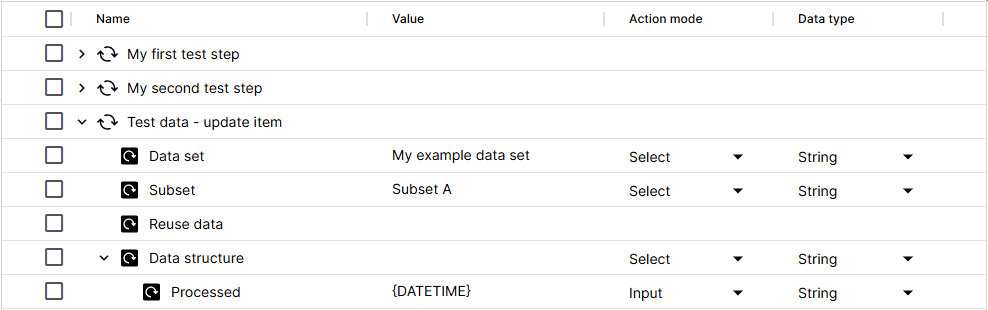
Click to enlarge: Update data during a test run
Update an alias row.
In this example, you want to add an order number to a specific data row. This data row has the alias Audi2020Red, which you've previously defined with the module TestData - Find and provide item.
To update the alias row, you add the module Test data - Update item to your test case and fill out the resulting test step:
-
To define which row you want to update, you enter Audi2020Red as the value of Alias.
-
To define which column you want to update and how, you populate Data structure:
-
To specify the column, you replace Column with the name of the column you want to update: Order number.
-
To specify the data you want to enter into this column, you enter the order number 123456789 as the value of Order number.
-
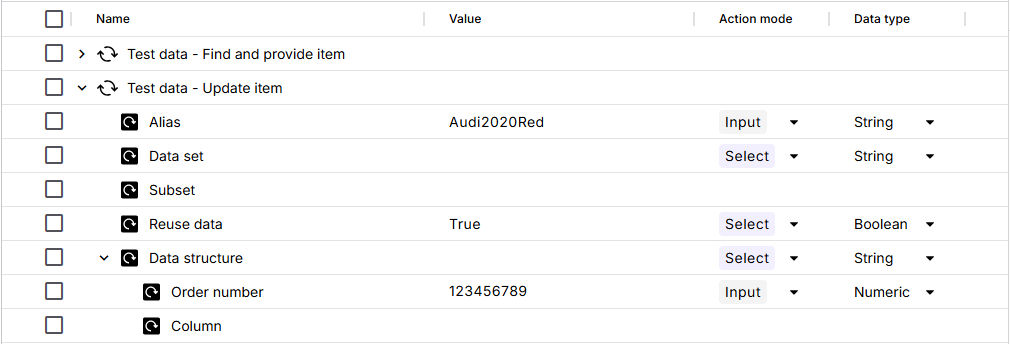
Click to enlarge: Update an alias row
Test data - Find and provide item
By default, you can use one row of data from the same data source per test case. If you want to use more than one row per test case, the module TestData - Find and provide item is one option you can choose.
With this module, you define conditions the test data must meet. Tosca Cloud picks the first row that matches and gives this row an alias of your choice. To use the test data, simply reference the alias in a test step.
You can add the module as many times as you like to define multiple rows of data in the same test case.
Limitations
Keep the following limitations in mind:
-
The module only works with data sets. You can't use it to consume multiple rows of a subset.
-
The alias is only valid within the same test case. You can't define an alias in one test case and then reference it in another.
Module attributes
When you use the module TestData - Find and provide item in a test case, fill out the following information:
|
Attribute |
Description |
|---|---|
|
Data set |
Name of the data set. |
|
Shared Workspace |
If your data set is a shared asset, enter the name of the asset library it belongs to. Note that if you've also set the parameter TestDataWorkspace and the parameter has a different value, Tosca Cloud ignores the value of Shared Workspace. Instead, it uses the parameter value. |
|
Alias |
Specify a name for the data row that Tosca Cloud will select from all rows that match your query or filter. The alias is only valid within the same test case. |
|
Mark data as used |
By default, Tosca Cloud marks the alias row as used after you run the test case, whether it's a trial run or an actual test run. To prevent this so that you can reuse the row later, set the value to False. |
|
Start index |
Define how Tosca Cloud starts counting index positions. You can use one of the following values:
|
|
Position |
Specify the position of the item you want to retrieve. You can use one of the following values:
|
|
Query |
Enter a query expression that specifies the conditions the test data must meet. Tosca Cloud only returns matching data. Alternatively, you can define data by Data search filter. |
|
Data search filter |
In the Data search filter parameters, specify the column and value that define the data you're looking for. Tosca Cloud will return all rows that have this value in the specified column. You can enter multiple column-value pairs to fine-tune your filter. Make sure to use the following:
For the value, you can also use wildcards and regular expressions. Note that Tosca Cloud doesn't support the != operator in regular expressions. You need to incorporate it into the regular expression itself. |
|
Sorting |
Define sorting criteria for your search results:
|
Use the module in a test case to create an alias called Audi2020Red.
In this example, you want to filter your data to include only red Audis that were manufactured in 2020. To do so, you add the module to your test case and fill out its values:
-
To specify the data source, you populate Data set with the name of the data set you want to use in your test case: My example data set.
-
This data set belongs to the workspace you're in, so you leave Shared Workspace empty.
-
To define the "name" of the row, you populate Alias with the name you've chosen: Audi2020Red. You'll need this later on, when you want to use the data.
-
To define that Tosca Cloud should start the index count at 1, in the first row after the header, you set Start index to 1.
-
To define that you want Tosca Cloud to retrieve the item in the third row after the header, you set Position to 3.
-
To define that you want to reuse the row, you set Mark data as used to False.
-
To define the conditions the test data must meet, you use Data search filter. You replace <Column name> with the actual column name and enter the expected value into the Value field. This leaves you with the following parameters:
-
Parameter Brand with the value Audi.
-
Parameter ManufactureDate with the value 2020. Since this value is a number, you select data type Numeric.
-
Parameter Color with the value Red.
-
-
To define the order of your search results, you populate Sorting:
-
To define the column by which you want to sort, you replace <Column name> with the name of the column: Brand.
-
To define the direction, you enter Ascending into the Value column.
-
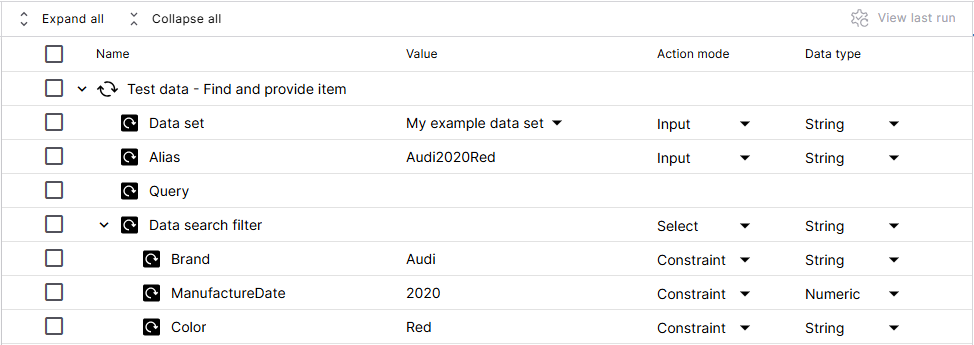
Click to enlarge: Module TestData - Find and provide item in a test case
By the way, you can also use Query instead of Data search filter. Simply enter Brand==Audi AND ManufactureDate==2020 AND Color==Red into the Value field of Query.
No matter which option you choose, the result is the same: At runtime, Tosca Cloud returns all matching rows and stores the first one under the alias Audi2020Red.
Define query expressions
The module attribute Query supports the following query components:
|
Type |
Details |
Examples |
|---|---|---|
|
Values |
Strings, numbers, boolean, null |
MyString 1467.5 or 1467,5 (depending on the format in your data) TRUE, FALSE NULL |
|
Comparison operators |
<, <=, >, >=, ==, != |
Status==Registered Processed!=NULL Mileage<=10000 Electric==TRUE |
|
Logical operators |
NOT (!), AND (&), OR (|) |
All cars where the brand is Mercedes or Audi: Brand==Mercedes OR Brand==Audi All cars where the brand is Mercedes and engine power is equal or bigger than 250: Brand==Mercedes AND Enginepower>=250Mileage Note that by default, AND and OR are left associate. Use parentheses () to define groupings and set precedence:
|
If your string contains special characters, you need to escape them:
-
To escape special characters, enclose the string with single quotation marks ('). Note that Tosca Cloud considers empty spaces as special characters.
-
To escape backslashes (\) and single quotation marks ('), add an additional escape character: a backslash (\). Example: FastFoodRestaurant=='McDonald\'s'
-
To escape double quotation marks ("), add an additional escape character: double quotation marks ("). Example: Actor=='Dwayne ""The Rock"" Johnson'
-
To signify numbers that Tosca Cloud should treat as text, enclose them with single quotation marks ('). Example: Order=='1524'
Reference an alias
To use the test data that Tosca Cloud stores behind an alias, enter the following expression:
{TDM[<alias>][<name of column that has the data you want to use>]} *
* This expression is new, effective September 2026. We still support the old CTDS expression, which means your existing test cases still work. However, we recommend that you switch to the new expression going forward.
Reference the alias so you can use the data.
In this test case, you create an alias and then reference this alias, so you can use the data row behind it:
-
Test step Create alias uses the module TestData - Find and provide item to create an alias called Audi2020Red. For this test step, we're reusing the "find and provide" example.
-
Test step Enter license plate steers two controls:
-
A text box called Plate number. Here, you want to use the data behind the alias Audi2020Red. Specifically, you want to use the data that the row has in the LicensePlate column. To do so, enter {TDM[Audi2020Red][LicensePlate]}.
-
A button called Next, where you want to perform a left-click. To do so, enter {Click}.
-
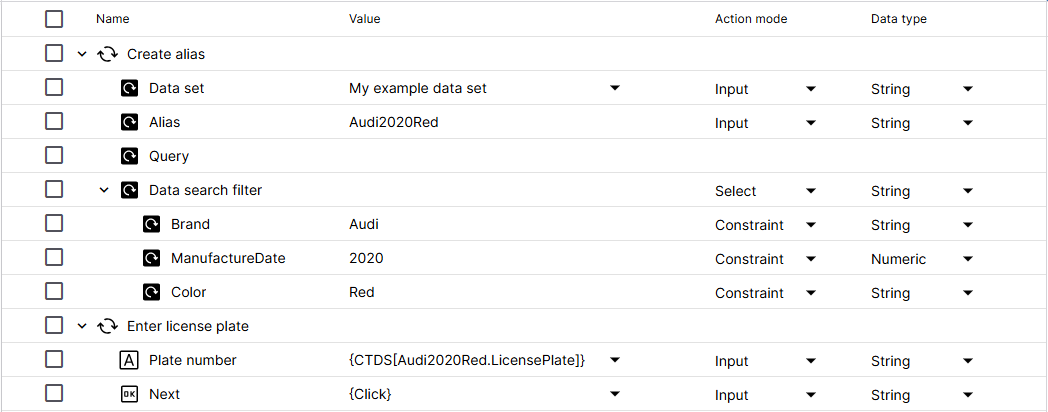
Click to enlarge: Use the test data behind an alias
Test data - Export items
This module allows you to export a data set as a CSV, Excel, or JSON file. This makes it easy to share test data, for example between Tosca Cloud workspaces. Or, to use it outside of Tosca Cloud, for example in reports or data processing tools.
If you want to export test data manually without using a test case, export your data set or export your subset.
Module attributes
When you use the module Test data - Export items in a test case, fill out the following information:
|
Attribute |
Description |
|---|---|
|
Data set |
Name of the data set you want to export. |
|
Shared Workspace |
If your data set is a shared asset, enter the name of the asset library it belongs to. Note that if you've also set the parameter TestDataWorkspace and the parameter has a different value, Tosca Cloud ignores the value of Shared Workspace. Instead, it uses the parameter value. |
|
Export format |
Desired export format: CSV, Excel, or JSON. |
|
File name |
Absolute path to the export file. For example: C:\MyFolder\data_export_20260215.json For Excel, Tosca Cloud supports .xlsx. |
|
Sorting |
[Optional] Data sorting criteria:
|
|
Encoding |
This attribute only applies if you export a CSV file. In this case, you can add encoding: ASCII, Windows 1252, or UTF-8. |
|
Line break |
This attribute only applies if you export a CSV file. In this case, you can specify a line break character: \r, \n, or \r\n. |
|
Separator |
This attribute only applies if you export a CSV file. In this case, you can specify a different delimiter than the default semicolon (;). |
Export data as an Excel file.
In this example, you want to export a data set called Insurance_Clients as an Excel file. You also want to sort the data in a specific way. To do this, you add the module Test data - Export items to your test case and fill it out:
-
Data set specifies the data set you want to export: Insurance_Clients.
-
Shared Workspace specifies the name of the asset library the data set belongs to, if the data set is a shared asset: Insurance test assets.
-
Export format specifies your desired file format: Excel.
-
File name specifies the name of the export file and where you want to save it: C:\My projects\Test data\my_data.xlsx.
-
Sorting specifies the sorting behavior. You want Tosca Cloud to sort rows by the column ProcessDate, in descending order. To do this, you replace <Sort property> with ProcessDate and enter Descending into the Value column.
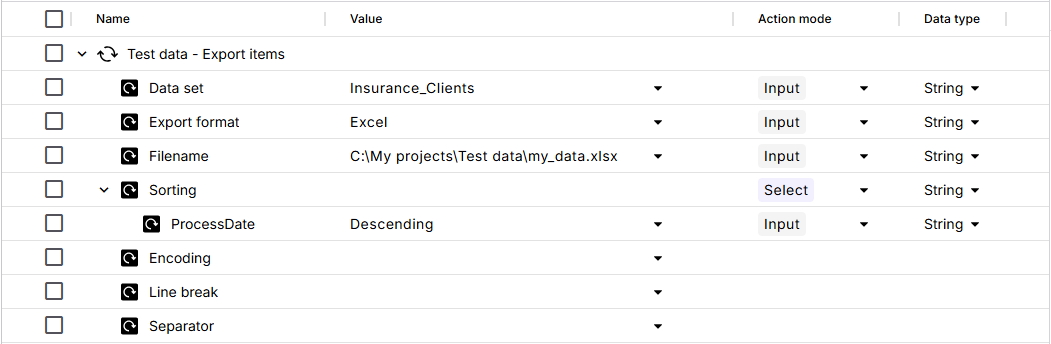
Click to enlarge: Export a data set as an Excel file
Test data - Delete item
If the test data you want to modify is a shared asset, you must add the parameter called TestDataWorkspace to the test case.
This module allows you to delete a row from a data set. It helps you make data cleanup part of the test case instead of a separate, manual task.
Limitations
You must define the row and create an alias with the module Test data - Find and provide item before you can delete it with the module Test data - Delete item.
Module attributes
When you use the module Test data - Delete item in a test case, fill out the following information:
|
Attribute |
Description |
|---|---|
|
Alias |
Alias of the row you want to delete. To define the alias, use the module Test data - Find and provide item. |
Delete a data row.
In this example, you want to delete a particular row from a data set. To do so, you create the following test case:
-
Test step Create alias uses the module Test data - Find and provide item. It defines the row and creates an alias called Audi2020Red for it. For this test step, we reuse the "find and provide" example.
-
Test step Delete data row uses the module Test data - Delete item. In this test step, Alias has the value Audi2020Red, which tells Tosca Cloud to delete the row behind this alias.
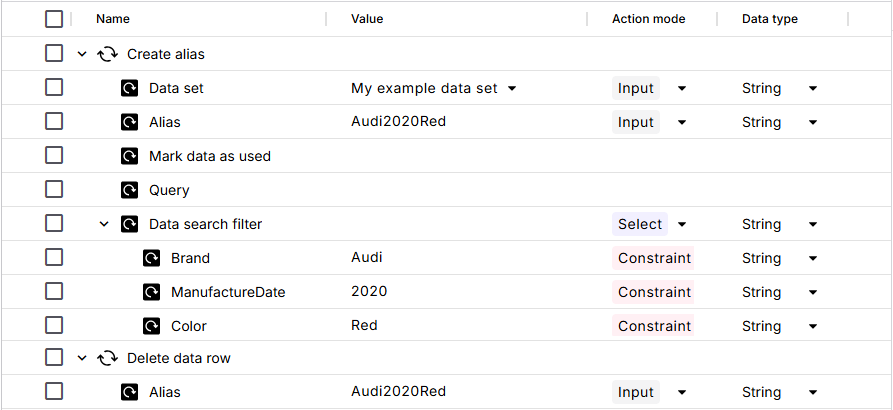
Click to enlarge: Delete the data row behind the alias Audi2020Red
Test data - Create and provide new item
If the test data you want to modify is a shared asset, you must add the parameter called TestDataWorkspace to the test case.
This module allows you to create a new row of test data during a test run. No need to update your data set manually!
Module attributes
When you use the module Test data - Create and provide new item in a test case, fill out the following information:
|
Attribute |
Description |
|---|---|
|
Data set |
Data set where you want to add the row. If the target data set doesn't exist at the time of the test run, Tosca Cloud creates it. |
|
Alias |
Alias of the new row. You need the alias if you plan to update or delete the row. The alias is only valid within the same test case. |
|
Data structure |
Content of the new row:
Repeat this for all columns you want to define. Note the following:
|
Add a new row.
In this example, you want to add a new row to a data set called Contacts. You plan to update this row at the end of your test case, after you've used the data.
The data set Contacts has the following columns: First name, Last name, Email, Phone, and Last contact date.
To add a new row, you add the module Test data - Create and provide new item to your test case and fill out its values:
-
For Data set, you enter the value Contacts. This defines where you want to add the new row.
-
For Alias, you enter the value ContactAlias. This defines the "name" of the new row, which you'll need to update the row later.
-
In Data structure, you define the contents of the new row. In each line, you replace <Column name> with a column name from the data set Contacts. Then, you define the value that the new row has in this column.
In this example, you define the following data structure:
-
First name has the value Elaine.
-
Last name has the value Wu.
-
Email has the value elaine.wu@company.com.
-
Phone has the value (555) 010-0199.
-
At runtime, Tosca Cloud creates the new row with the specified values in all specified columns. Since you don't specify anything for the column Last contact date, Tosca Cloud will leave this column empty.
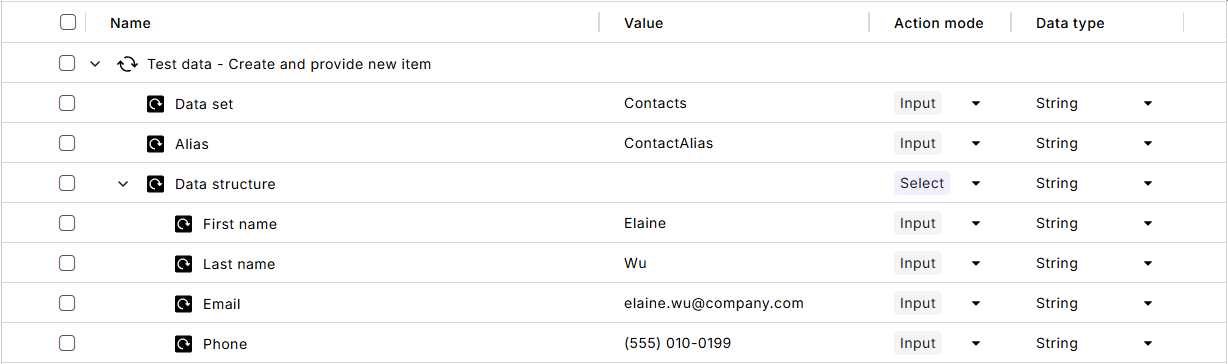
Click to enlarge: Add a new row to a data set
Test data - Move row
If the test data you want to modify is a shared asset, you must add the parameter called TestDataWorkspace to the test case.
This module allows you to move a row of data from one data set to another, as part of an automated test case. Tosca Cloud deletes the row from the original data set and adds it to the new data set. No need to update manually!
Limitations
You must define the row and create an alias with the module Test data - Find and provide item before you can move it with the module Test data - Move row.
Module attributes
When you use the module Test data - Move row in a test case, fill out the following information:
|
Attribute |
Description |
|---|---|
|
Data set |
Name of the data set to which you want to move the row. Note the following:
|
|
Alias |
Alias of the row you want to move. To define the alias, use the module Test data - Find and provide item. |
Move a data row.
In this example, you want to move a row of data from one data set to a data set called Processed data. To do so, you create the following test case:
-
Test step Create alias uses the module Test data - Find and provide item. It defines the row you want to move and creates an alias called Audi2020Red for it. For this test step, we reuse the "find and provide" example.
-
Test step Move data row uses the module Test data - Move row. This test step has the following information:
-
Data set has the value Processed data. This tells Tosca Cloud where to move the row.
-
Alias has the value Audi2020Red. This tells Tosca Cloud to move the row behind this alias.
-
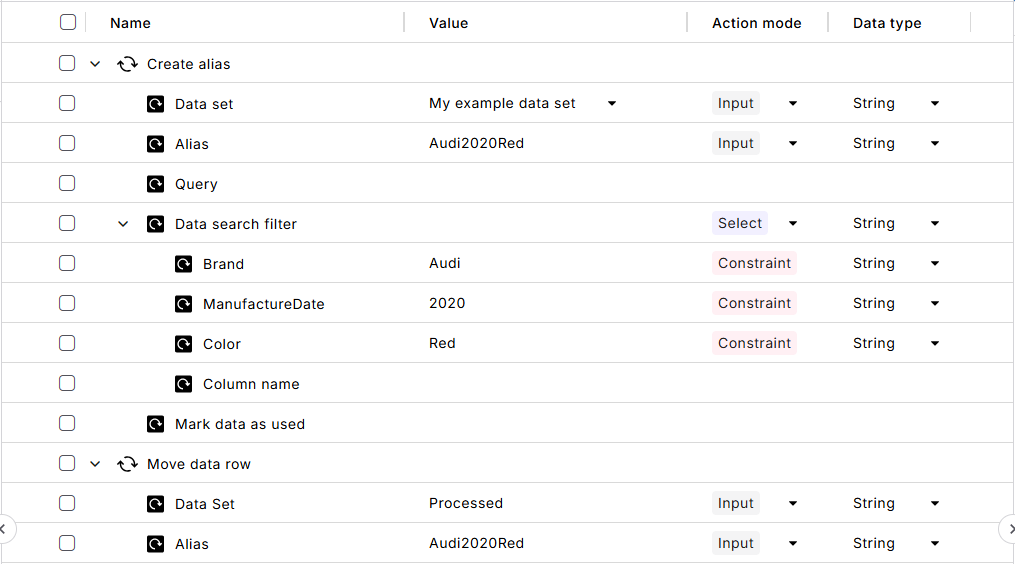
Click to enlarge: Move a data row to a different data set
Test data - Rename data set
If the test data you want to modify is a shared asset, you must add the parameter called TestDataWorkspace to the test case.
This module allows you to rename an existing data set as part of an automated test case. No need to update manually!
Module attributes
When you use the module Test data - Rename data set in a test case, fill out the following information:
|
Attribute |
Description |
|---|---|
|
Data set |
Existing name of the data set you want to change. |
|
New name |
New name of the data set. |
Rename a data set.
In this example, you want to rename a data set called Contacts to BusinessContacts. To do so, you add the module Test data - Rename data set to your test case and fill out its values:
-
Test step Data set has the value Contacts. This tells Tosca Cloud which data set name you want to change.
-
Test step New name has the value BusinessContacts. This tells Tosca Cloud what the new name of the data set should be.

Click to enlarge: Move a data row to a different data set
Test data - Import data set
If the test data you want to modify is a shared asset, you must add the parameter called TestDataWorkspace to the test case.
This module allows you to import a test data file during a test case. That way, you skip manual uploads or data entry and keep everything within an automated test flow.
Tosca Cloud saves the imported data as a data set, which you can use immediately, within the same test case.
Limitations
Tosca Cloud supports CSV, Excel, and JSON files.
The test data files you import with the module must meet the same requirements as the test data files you upload via the Tosca Cloud user interface.
Module attributes
When you use the module Test data - Import data set in a test case, fill out the following information:
|
Attribute |
Description |
|---|---|
|
Data set |
Name you want to give the resulting data set. |
|
Format |
Format of the import file: CSV, Excel, or JSON. |
|
Filename |
Absolute path to the import file. For example: C:\testdata\client_list.csv |
|
Ensure order |
Enter True if you want to preserve the order during the import. |
|
Encoding |
This attribute only applies if you import an encoded CSV file. In this case, specify the encoding: ASCII, Windows 1252, or UTF-8. |
|
Separator |
This attribute only applies if you import a CSV file. In this case, you can specify a different delimiter than the default semicolon (;). |
|
Duplicate handling |
Define what you want to do when the file you specify in Filename has been imported previously:
|
Import test data during a test case.
In this example, you want to import a test data file that you've already imported once. You also want to identify which data Tosca Cloud should use in your test. To do so, you create the following test case:
-
Test step Import test data uses the module Test data - Import data set to import the data:
-
The value of Data set defines the name you want to give the resulting data set in Tosca Cloud: My example data set.
-
The value of Format defines the file type you want to upload: Excel.
-
The value of Filename defines the path to the import file: C:\MyProjects\tests_v6\car_list.xls.
-
The value of Duplicate handling defines what you want to do with the data that you've previously imported with this file: Overwrite.
-
-
Test step Create alias uses the module Test data - Find and provide item. It defines the row you want to use in your test and creates an alias called Audi2020Red for it. For this test step, we reuse the "create alias" example.
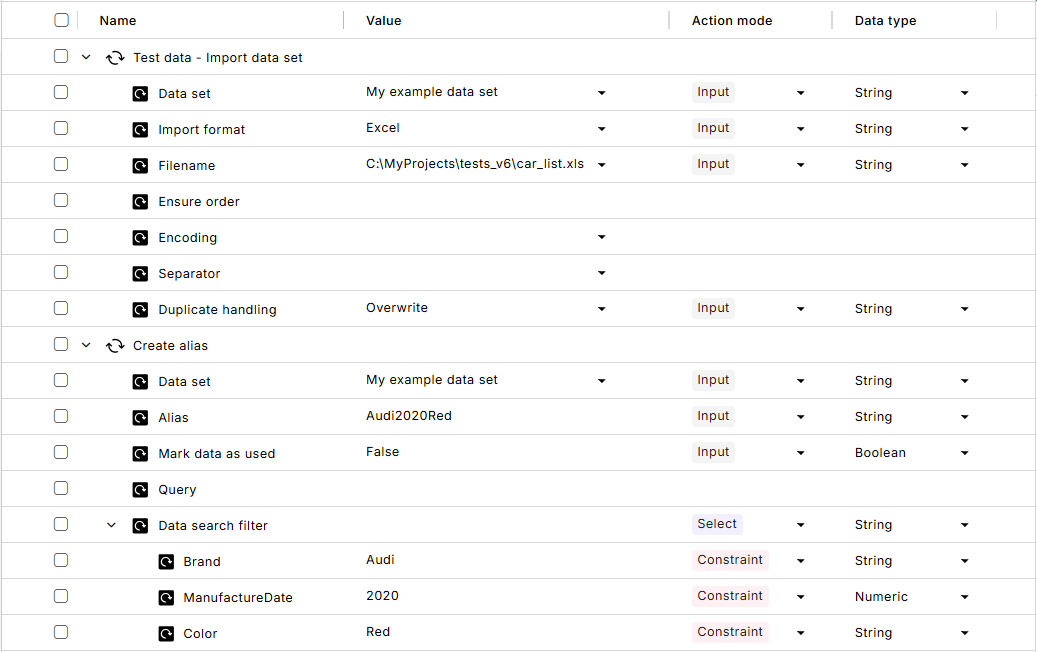
Click to enlarge: Import test data and identify which data you want to use
Test data - Expert
This module allows you to perform different tasks in a test case. It covers the functionality of several test data modules and adds extra features. For example, you can lock data sets so that only your test case can use this data.
Module attributes
When you use the module Test data - Expert in a test case, fill out the following information:
|
Attribute |
Description |
|---|---|
|
Test data task |
Task you want to perform. Choose one of the following values:
|
|
Data set |
Name of the data set. |
|
Shared Workspace |
If you run a Find operation with the module and the source data set is a shared asset, enter the name of the asset library it belongs to. This attribute only applies to the operations ReadRow and Find. To run any other operation on shared test data, you must add the parameter called TestDataWorkspace to the test case. Be careful with ReadRow and Find operations. If you've specified Shared Workspace and set the parameter TestDataWorkspace for some reason, Tosca Cloud ignores the value of Shared Workspace. Instead, it uses the parameter value. |
|
Alias |
Existing alias of the row, or alias that you want to give the row. The alias is only valid within the same test case. |
|
Start index |
Define how Tosca Cloud starts counting index positions. You can use one of the following values:
|
|
Position |
Specify the position of the item you want to retrieve. You can use one of the following values:
|
|
Query |
Query expression that specifies the conditions the test data must meet. Alternatively, you can use the attribute Data structure. |
|
Data structure |
Conditions that the test data must meet:
You can define as many conditions as you need. Depending on the operation you want to run, select the relevant action mode:
|
|
Sorting |
Define sorting criteria for your search results:
|
Read and buffer test data.
In this example, you want to search for a row with particular characteristics and save part of its information for later. For example, to insert it into your application or to compare it to an expected value.
To achieve this, you create the following test steps:
-
Test step Read data uses the module Test data - Expert to search for a particular row:
-
The value of Test data task defines what you want to do: ReadRow.
-
The value of Data set defines the location of the row you want to read: the data set called Cars.
-
The value of Alias defines the name you want to give the row: ReadForColor. You'll need this name later.
-
The value of Start index defines how Tosca Cloud starts counting index positions: 0. This means the index count starts at 0, in the first row after the header.
-
The value of Position defines the position of the row you want to read: Random. This means Tosca Cloud takes any row from the search results.
-
The Data structure defines your search criteria for the row. It should have the column Make with the value Ford, the column Model with the value Explorer, and the column DateOfManufacture with the value 03.03.2021.
And to tell Tosca Cloud that these are search parameters, you use action mode Constraint.
-
The Sorting defines sorting criteria for the search results. You want to sort by the column Make, in Ascending order.
-
-
Test step Create buffer for color uses the module TBox Set Buffer to save the information:
-
FordExplorer03032021Color is the name you want to give the buffer.
-
The value {TDM[ReadForColor][Color]} references the alias. It tells Tosca Cloud to take the Color value from the row called ReadForColor and save it to the buffer.
-
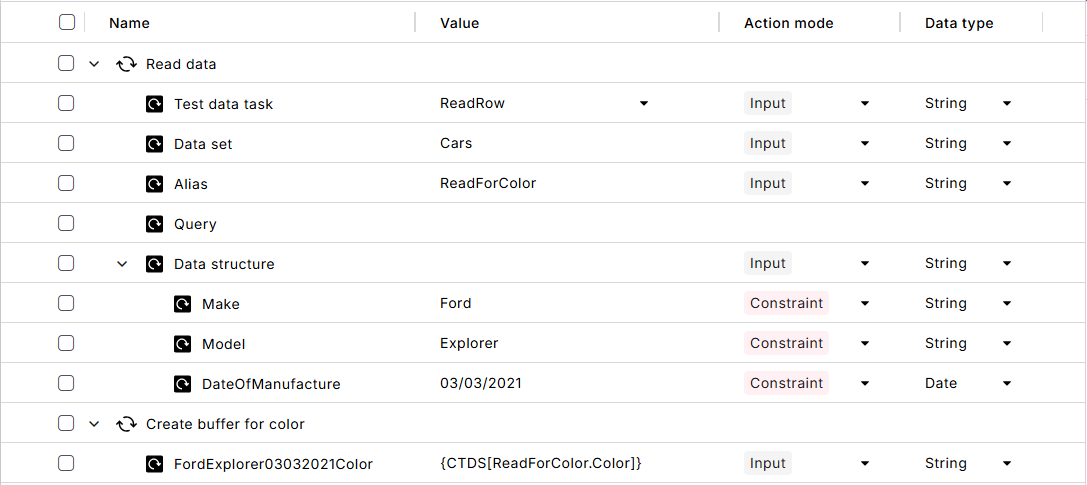
Click to enlarge: Read and buffer test data in a test case