Use the Report Viewer
The Report Viewer allows you to open the SQLite database that contains Data Integrity test reports directly on your machine and without using a browser. It also offers search and filter options that help you find important data faster. You can generate these reports by defining the Report Path test step in the Complete Row by Row Comparison or Complete Tree Comparison modules.
If you want to coordinate with others on your QA and business teams, you can even share your reports in different formats.
Download the Report Viewer
You can download the Report Viewer from the  Downloads list on the top menu of Tosca Cloud. This way, you will get the viewer as an executable file that is ready to run.
Open a Data Integrity report
After you create a test report with the Complete Row by Row Comparison or Complete Tree Comparison modules, you can open it in the Report Viewer. To do so follow these steps:
-
Open The Report Viewer by running the Tricentis.DataIntegrity.Report.Viewer.exe file you downloaded.
-
Load your file into the Report Viewer using one of the following options:
-
Drag and drop the report SQLite file.
-
Click Browse to browse for a file on your machine.
-
This opens the Summary page of your report. It displays the comparison results, an overview of the processed data and errors, and a description of the source and target.
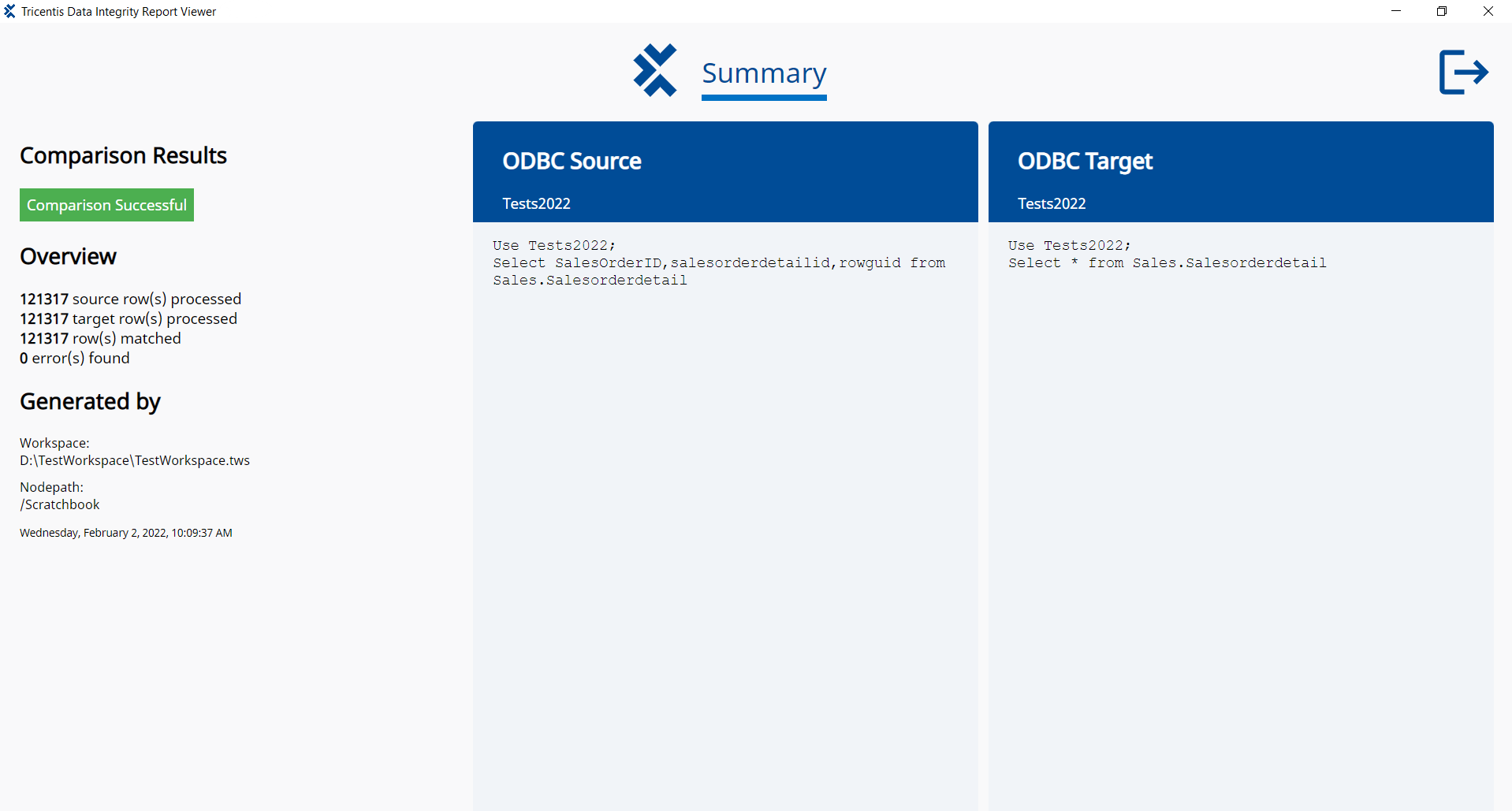
The Report Viewer displays a report of a successful comparison
Navigate the Report Viewer
The Report Viewer sorts the results of your comparison by various criteria. Which tabs you see depends on the comparison results and what you specified in your TestCase.
To view specific information, click on the tabs at the top of the Report Viewer:
-
Differences displays a complete list of the rows that don't match between source and target.
-
In source only displays the rows that are only in the source.
-
In target only displays the rows that are only in the target.
-
Invalid in source displays the rows in the source that couldn't be processed.
-
Invalid in target displays the rows in the target that couldn't be processed.
-
Matched displays a complete list of the rows that are the same in the source and target.
Modify your report
To check results and filter your report, use the following features of the Report Viewer:
-
Click Columns visibility to select which columns you want to display.
-
Select Shows columns with differences only to display only columns with differences.
-
Enter a search query into the Content Search field to highlight data in the results.
-
Click on the
 menu icon in the top right corner of each column to sort and filter. You can combine filters on multiple columns to refine your results.
 -
Use the Display records field below the data table to specify how many records you want to display per page.
-
Click on Previous, one of the numbers, or Next below the data table to navigate between pages.
-
Click on the
 Close Report icon to go back to the start page, where you can select another report to view.
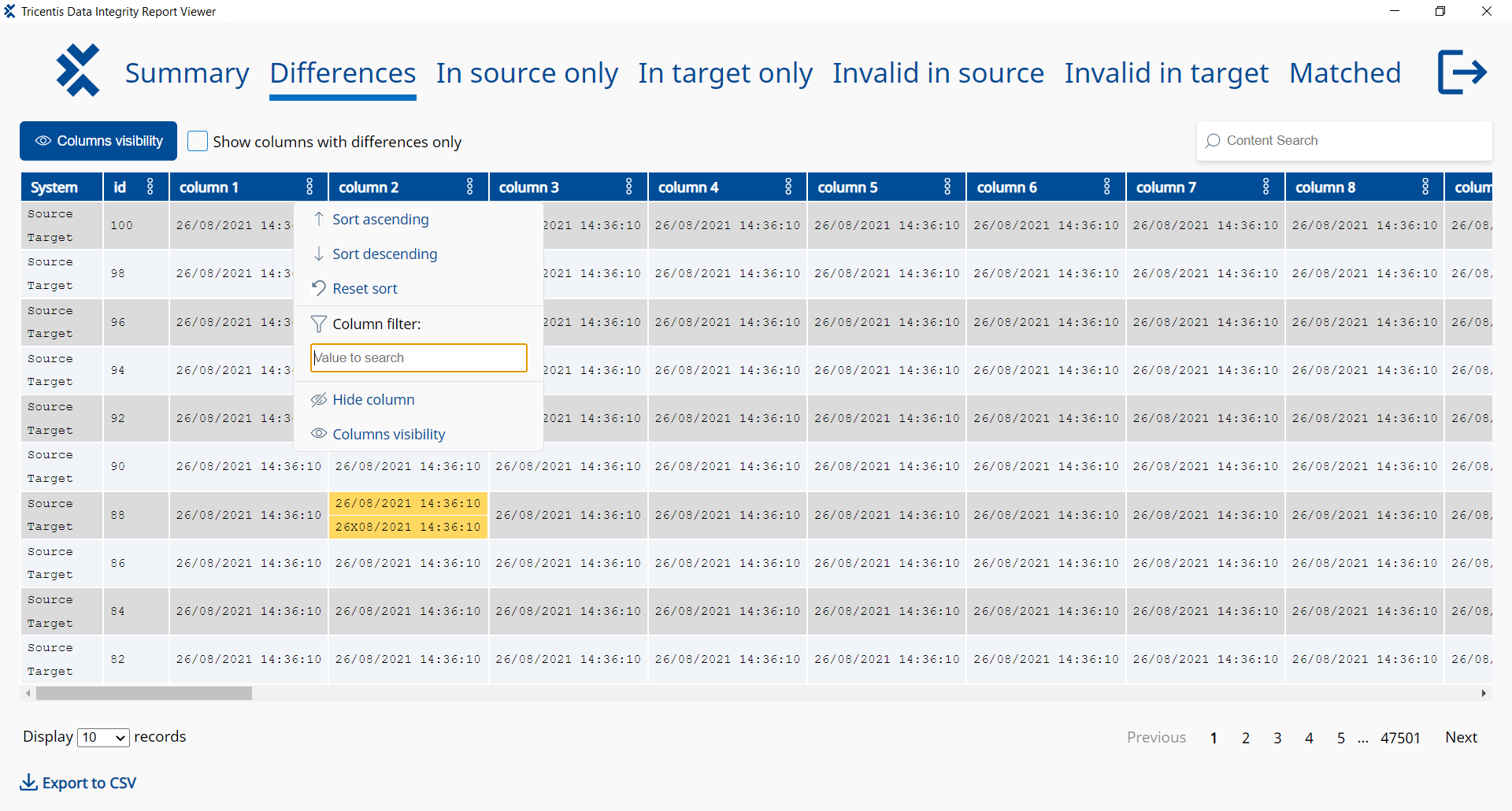
Report Viewer search, sort, and filter options
Share reports
The Report Viewer gives you key insights into the integrity of your data. If you want to coordinate with others in your QA, business, or other teams, you can share this information with them. You can do so in any of the following ways:
-
Forward to your team the report you created with your test and the Tricentis.DataIntegrity.Report.Viewer.exe executable file. This way, your team can open the report with the Report Viewer.
-
Export a CSV file that contains the information of a specific tab in the Report Viewer and share it with your team. You can export all tabs except for the Summary tab. To export a CSV file with specific tab information, follow these steps:
-
In the Report Viewer, click on the tab whose information you want to export.
-
Click Export to CSV.
-
In the subsequent dialog, select a location and name for the export file.
-
Click Save.
-
-
Export an HTML or CSV report with our Report Exporter and share it with your team.