Test MCP tools in the API playground
You can test that the tools on any Model Context Protocol (MCP) server work as expected before you use them. In the API playground, select a tool, fill in its parameters, and run the request. The MCP tools panel builds the request payload for you.
Before you start
To use the MCP tools panel, you need the following:
-
You need an MCP connection.
-
To send and save API messages in your workspace, you need the Contributor or Administrator role. Without this role, the MCP tools panel doesn't appear.
Create an API message for your MCP server
Connect an API message to your MCP server to load its tools:
-
Create an API message.
-
In the Connection field, select your MCP connection.
The MCP tools panel opens to the right of the API messages overview. Its header shows MCP tools (n), where n is the number of tools the server returned.
Find a tool
After you select a connection, the panel lists the tools that the MCP server reports. Use the following options to find the tool you need:
-
Enter text in the Search tool box to filter the list by tool name or description.
-
Select
 Show details to show or hide the descriptions of tools and their parameters.
 -
Select
 Refresh tools to reload the tool list from the server. The panel caches the list for your browser session, so refresh the list to see changes that the server made since the panel loaded.
Select a tool
When you select a tool, the panel fills in the request for you:
-
The panel sets the method to POST.
-
The panel creates a payload that calls the selected tool. It uses placeholder values for the required parameters.
-
The panel sets the headers that the MCP call needs. It doesn't change headers you added yourself that aren't part of the MCP request.
The panel keeps the headers in sync with the selected tool and its parameters.
Fill in tool parameters
Enter your own parameter values to test how the tool responds. When you select a tool that has parameters, the panel shows them in a form. Each tool has its own parameters, so the form differs for each tool.
|
Field type |
How to fill it in |
|---|---|
|
Text, numbers, switches, and dropdowns for fixed choices |
Edit the value in the form. |
|
Objects |
Select the object to open its fields. An object can contain other objects. Select each one to open its fields. |
|
Lists of items (arrays) |
Select the array to open the list. Select Add to add an item. Enter a value, such as an ID, or select the object and fill in its fields. Remove items at any time. |
The form shows only the parameters it can display. If a tool has other parameters, set them in the payload directly. The form marks required fields with an asterisk (*).
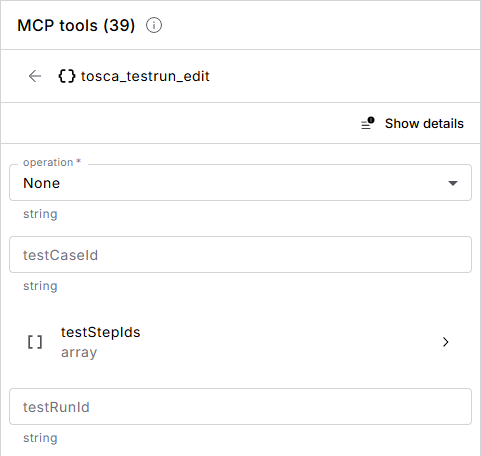
Click to enlarge. Parameters for a selected MCP tool
Edit the tool parameters in the payload directly
You can also edit the JSON payload in the request editor instead of using the parameter form. The panel reads your changes, selects the matching tool, and updates the form.
If the payload doesn't match the tool, the panel shows one of the following notices:
|
Notice |
Cause and solution |
|---|---|
|
Tool "<name>" does not appear in the current tool list |
The payload calls a tool that isn't in the tool list. Check the tool name in the payload. If the server changed its tools, refresh the tool list. |
|
Some payload fields do not appear in the current tool schema: ... |
The payload contains fields that the selected tool doesn't define. The notice lists these fields. Correct their names or remove them. |
|
Some required fields are missing from the current payload: ... |
The payload doesn't contain fields that the selected tool requires. The notice lists these fields. Add them to the payload. |
Run the request
After you enter the parameter values, run the request as you do for other API messages.
This example shows how to check that your MCP server can read your API connections, for example before an AI assistant works with them.
To get one API connection and review its details, call the tosca_apiconnection tool:
-
In the MCP tools panel, select tosca_apiconnection.
-
In the operation field, select Get.
-
Enter the ID of the API connection you want to get.
-
Run the request.
The response shows the details of the API connection.
If you run the request without an ID, the response contains an error instead. For example:
event: message
data: {"result":{"content":[{"type":"text","text":"An error occurred invoking \u0027tosca_apiconnection\u0027: Id is required."}],"isError":true,"resultType":"complete","_meta":{"io.modelcontextprotocol/serverInfo":{"name":"Tricentis.McpService","version":"2026.281.3.0"}}},"id":1,"jsonrpc":"2.0"}
This error confirms that the MCP server received your call and checked its parameters. To fix it, add the ID and run the request again.
Troubleshoot the MCP tools panel
If the panel doesn't work as you expect, find your problem in the following table.
|
Problem |
Solution |
|---|---|
|
The MCP tools panel doesn't appear. |
Make sure that the API message uses an MCP connection and that you have the Contributor or Administrator role. |
|
The MCP tools panel shows Could not reach the MCP server. |
Select Retry. If the error persists, select Edit connection and check the URL and authentication of the connection. The connection settings open in a new tab. |
|
The tool list doesn't show changes that the server made. |
Select |
|
The panel shows No tools available. |
The MCP server doesn't return any tools. Check that the server provides tools and that the connection points to the correct server. |
|
The panel shows Tool loading cancelled. |
Select Load tools to load the list again. |
|
The panel shows a notice about missing or unknown fields. |
Select the tool in the list again to create a matching form. Alternatively, correct the payload. For details, see Edit the tool parameters in the payload directly. |
What's next
Once your request returns the expected response, create an API test case from your API message. This way, you can rerun the tool call automatically as part of your tests.