Release Note Archive
2025
Manager
Securely connect with support
Need help in qTest? We've introduced a secure and federated sign-in method for Tricentis Support. If you need our hands-on help, your customer support representative can sign-in to your qTest instance to see it from your perspective. All you need to do is select the Enable Support Login checkbox in Security, then assign the support@tricentis.com account the necessary access and privileges for the project you want support to view.
Don't worry, the support user won't affect your license count.
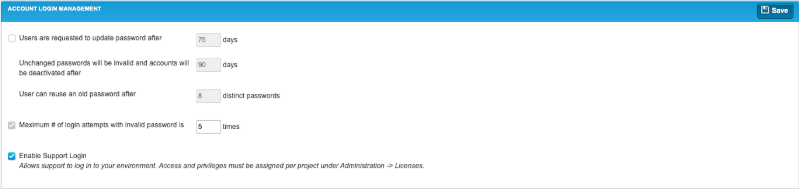
Enable or disable support login with one checkbox.
Once you've gotten the help you need, just clear the checkbox, and we won't have access to your instance anymore.
Learn how to give support access to your qTest instance.
New MCP Server version
We've updated the qTest MCP to a Typescript server in order to support HTTP Streaming. We've also added more actions, so you and your AI assistant can do more together.
You'll need to update the URL you use to connect to the MCP. Learn how to connect to the MCP.
Choose whether to notify users added to a project through the API
We've added a new skipEmailNotifications parameter to the POST /api/v3/users/projects API, which allows you to choose whether or not to send a notification email when you add a user to the project.
To learn more, you can view API documentation in Download qTest Resources.
Security updates
-
We made background changes to improve the overall security of qTest Manager.
-
We made some changes to qTest-Tosca authorization requirements, which improves the security of all calls to Tosca. Learn how to connect qTest and Tosca.
Cancel Project cloning
We've made it so you can clone only one project at a time across your qTest instance.
If you start cloning a project, you can cancel it at any point. Canceling the process deletes the clones copy, but the original one remains available.
Learn more about cloning projects.
Icon refresh
We updated the icons and favicons throughout qTest Manager and the satellite applications to align with the Tricentis brand.

Same great tools, but with a shinier logo.
Security updates
We made background changes to improve the overall security of qTest Manager.
Activate your own SaaS instance
We've enhanced your ability to activate your SaaS instance without external help. Now, you can activate your qTest license from your own instance, whether you're still participating in a qTest trial or your trial has ended.
That means you can connect your license and configure your product at any point, without asking Support for help. Don't worry—we're still here if you need anything.
Learn how to activate your license.
Find your server's region
Now, SaaS users can easily find the name of the region where their qTest instance is hosted, located at the bottom of the screen next to the version information.

Find your region next to the version information, anywhere in qTest.
You can use this information if you need to locate your region's status on the Tricentis Status page (opens in new tab).
Updated Jira Cloud connection process
For a more secure experience, when you set up a new connection to Jira Cloud, you need to add a One-time Password. You'll only need this password for the initial setup, and this is different from the existing Password or Token field.
Learn how to connect to Jira Cloud.
Security updates
We performed some background changes to improve the overall security of qTest Manager.
Copilot powered with new LLM
To improve qTest Copilot and get you better results for your generated tests, we've upgraded qTest Copilot to use GPT 4o-Mini.
Read more about what models we use across the Tricentis portfolio (opens in a new window).
Activate your own SaaS instance
Now, you can activate your qTest license from your own instance. That means you can connect your license and configure your product without asking Support for help. Don't worry—we're still here if you need anything.
Learn how to activate your license.
Block executable files from upload
To give you more control over your security, we've added the ability for site admins to block all users from uploading executable files. If you turn on this option, your users will still be able to upload attachments, but qTest will stop them from adding any executable file types. This also prevents users from uploading executable files as attachments through the qTest API.

Block executable files in the Security tab in Administration.
Currently, this setting allows you to block the following file types: .exe, .class, .cmd, .bat, and .bin.
Learn more about how to adjust your Security settings.
Performance updates
We performed some background changes to improve the overall performance of the qTest-Tosca integration.
Security updates
We performed some background changes to improve the overall security of qTest Manager.