Copy and move objects
Copy an object to keep the original and create a separate object in another location. Move an object to remove it from its current location and place it in a new container.
When you move an object, this updates the release for that object and its nested objects.
Before you start
You need the create and edit permissions for the object type you want to copy or move.
Keep in mind that you can't copy or move objects linked to Tosca, and you can't move a closed test cycle.
Use the tree context menu
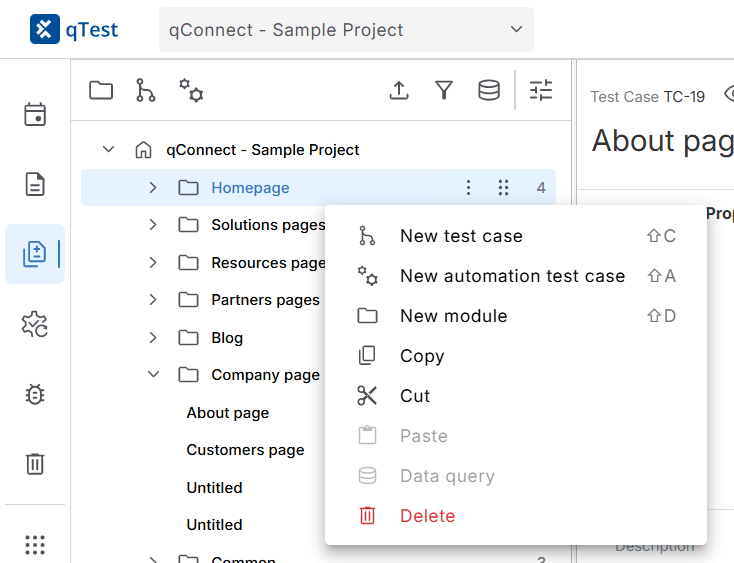
Right-click an object in the file tree to view the context menu.
To copy or move objects with the tree context menu, follow these steps:
-
Select the object in the tree panel. To select multiple objects, hold Ctrl while you select them.
-
Right-click a selected object, and then select one of these options:
-
Copy: Keep the original object and create a separate copy.
-
Cut: Remove the object from its current location and move it.
-
-
Right-click the destination container, and then select Paste.
Use the grid context menu
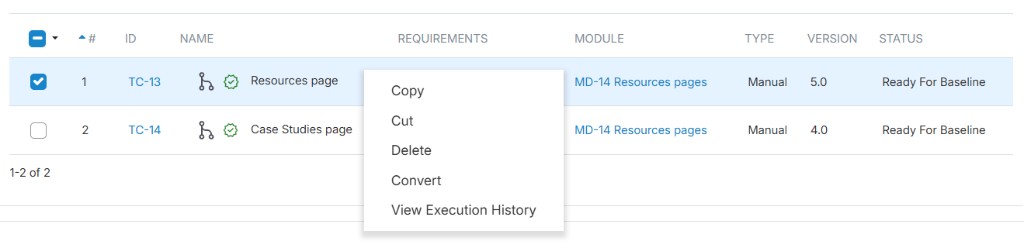
Right-click an object in the grid to display its context menu.
To copy or move objects from a grid to a container in the tree panel, follow these steps:
-
Select an object in the tree panel to display its grid. For example, select a module to view the test cases it contains in the grid.
-
In the grid, select the checkboxes for the objects you want to copy or move.
-
Right-click a selected object, and then select Copy or Cut.
-
In the tree panel on the left, right-click the destination container and select Paste.
Use drag and drop
To move an object, drag an object to another container.
To copy an object, press and hold Ctrl while you drag it.
To select several objects first, press and hold Ctrl while you select each object. Then, drag the selected objects to their destination.
What's next
Learn how to add attachments.