Create and configure portfolio reports
A portfolio is a group of qTest projects that are analyzed by either Release or Test Suite using values you define in qTest Manager.
Portfolios allow you to view cross-project data, which includes Test Run status, Jira defect status, progress, and defect trends summarized across projects for health analysis. Portfolio Reporting is currently available for Release and Test Suite data.
Before you start
To use portfolio reports in Insights, first you need to configure the portfolio. Make sure you have Insights Editor permissions.
Have a Site Administrator go to Administration > Site Fields to define custom site fields and values that group releases and test suites across qTest projects.
Create and use custom site fields for portfolio reporting
To start using portfolio reports, you need to create some custom site fields and values, which will allow you to tag releases and test suites to include in your portfolio reports.
If you have a large number of site fields, it can affect performance across your qTest instance. We recommend that you establish a method to regulate the amount of site fields in your instance, such as a limit on users who can create site fields, or on the amount of site fields that can be created. Any instruction or discussion of site fields, including integration with site fields, assumes that your instance contains a reasonable amount of site fields. For more information about site fields, refer to Site Fields.
Add the following custom site fields to both the Release and Test Suite artifact tabs:
-
A Combo box or Multiple selection combo box site field named Portfolio Reporting.
-
A Date picker site field named Portfolio Date.
The portfolio reports use these fields and values to pull data into the correct reports. For example, you could create portfolios that cover the different coding languages your team uses. In this case, add the values Java, C++, and Python to your custom Portfolio Reporting site field, which you can use to sort your releases or test suites.
Once you create custom site fields in Site Administration, add the site fields to a field template and assign that template to the projects you want to include in portfolio reports.
Use portfolio reporting site fields
Once you've created and assigned site fields, you can use them in your qTest project. As you work on your releases and test suites, select the value you want to tag the object with from the Portfolio Reporting field. Then, the release or test suite is ready to be included in your portfolio reports.
Let's say you want to include a release in a portfolio report for C++. Once you've created and added a custom site field with the values Java, C++, and Python, you can go to the release you want to tag and select C++ from the Portfolio Reporting dropdown.
Create Portfolio Report
Once you've configured site fields for portfolios, you can create your first portfolio report in Settings > Portfolio Configuration.
Follow these instructions to create a portfolio report:
-
From the top-right of the Portfolios page, select Add.
-
Enter the following information in the Define Portfolio section:
-
Portfolio Name: Enter a name for the portfolio.
-
Artifact Type: Select the artifact type you want to include in this report, either Release or Test Suite.
-
Site Field: Select the site field you set up for portfolio reporting from the dropdown. This dropdown displays combo box and multiple selection combo box custom site fields for the selected artifact type.
-
Date Field: Select the site field you set up for portfolio date reporting from the dropdown. This dropdown displays all date picker custom site fields for the artifact type you selected.
-
-
Save your portfolio report.
Conditional Status Formatting
You can also set up conditional expressions for your portfolio report that visually identify designated data with colors in the Portfolio Overview report.
Let's say you have a portfolio report that covers test suites. With the conditional formatting tools, you could highlight portions of the portfolio where you have more failed test runs than passed test runs with red.
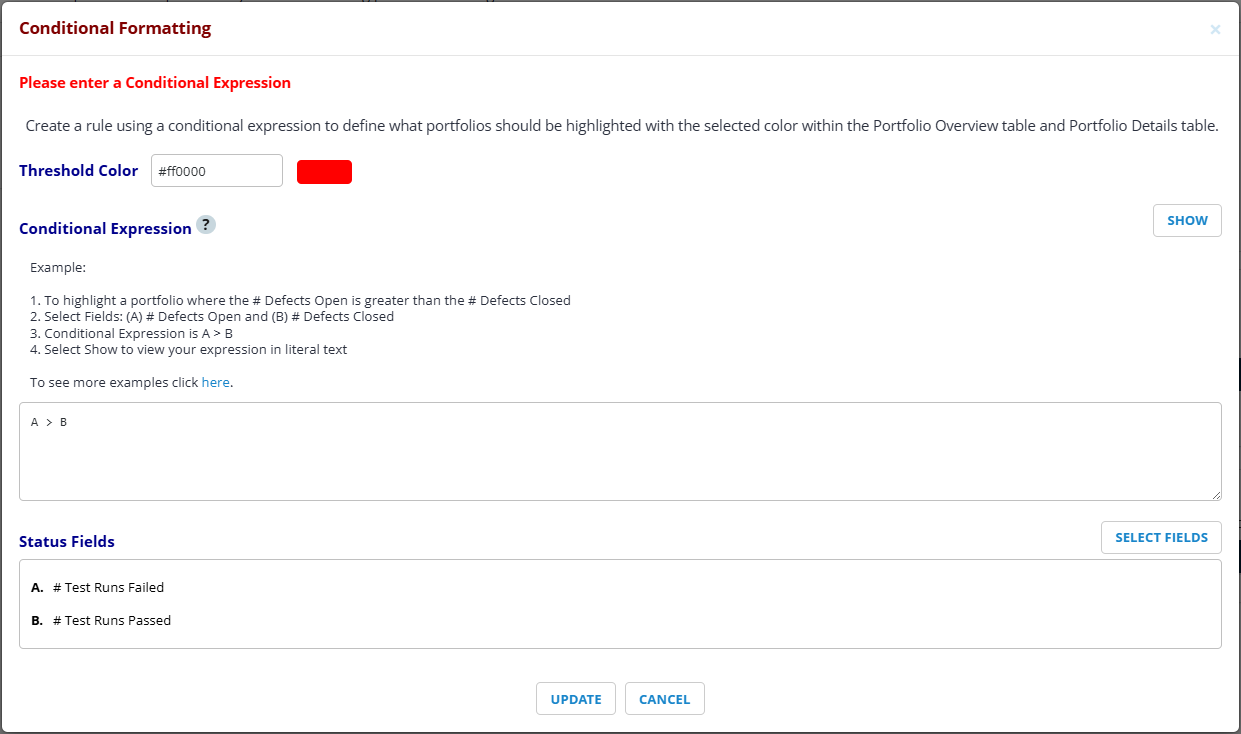
The A > B conditional expression is created from the A. # Test Runs Failed and B. # Test Runs Passed status fields to highlight areas of your portfolio where more test runs failed than passed in red.
To add conditional formatting to a portfolio report, follow these steps:
-
From Portfolio Configuration in Settings, select Add in the Conditional Formatting section.
-
In the Select Field Criteria window, drag and drop the fields you want to use in your conditional expression from Available Fields into Selected Fields.
The values displayed in the Available Fields column populate from both your test run statuses in Manager and your defect values mapped from Jira.
-
When you're done, select OK to continue to the Conditional Formatting window.
-
Select the Threshold Color you want to identify your data with.
-
In the Conditional Expression field, create a conditional expression with the status fields you selected.
When you create your conditional expression, you can use the letter labels next to the status fields you selected, as shown in the example above. If you want to see the expression in literal terms, select Show.
-
Select Update to save your conditional expression and close the Conditional Formatting window.
-
Save all the changes you made to your portfolio before you leave Portfolio Configuration.
What's next
Is your qTest instance integrated with Jira? Learn how to include Jira Defects in your portfolio.