Register Workflow as REST API Wizard
The Register Workflow as REST API Wizard allows a workflow to be registered as a REST API so that it may be invoked from an external program. The Wizard allows you to specify the workflow parameters that will be used as inputs to the REST API, and the workflow datasets that will be returned from the REST API as outputs.
Before running the Wizard, please note the following:
-
The name of the workflow to be registered as a Web Service shouldn't contain any spaces or non-alphanumeric characters.
-
The name of the workflow’s workspace shouldn't contain any spaces or non-alphanumeric characters.
-
The workflow to be registered as a Web Service should have uniquely named input parameters and uniquely named output datasets.
-
If the workflow to be registered as a Web Service uses the Run Workflow action to call another workflow, only the calling workflow needs to be registered as a Web Service.
If you have LiveCompare Editor permissions, start the Register Workflow as REST API Wizard by selecting a workflow in the LiveCompare hierarchy and choosing Register as REST API from its context menu. The following screens are displayed:
Choose Input Parameters
This screen allows you to specify the input parameters to be passed to the REST API by selecting them from a list of the workflow’s parameter nodes. Parameter notes with types Boolean, Float, IMG Select List, Integer, Object Attribute Filter, Object Header Filter, Pair List, Select List, String, String List and Table are supported.

Select the checkbox next to each parameter node to be used as an input parameter, then click Next to continue. Parameter names that contain spaces or non-alphanumeric characters are disabled in the list, as the Wizard doesn't support them.
Choose Output Parameter
This screen allows you to specify the output parameters to be returned by the REST API by selecting them from a list of the workflow’s terminal datasets (terminal datasets are those that aren’t used as inputs for other actions). Dataset nodes with types Boolean, Float, Integer, Pair List, Select List, String, String List and Table are supported.

Select the radio button next to the node to be used as an output parameter, then click Next to continue. Dataset names that contain spaces are disabled in the list, as they aren’t supported by the Wizard.
Description
Optionally, enter a description for the REST API.

Click Next to continue.
Finish - Confirm Register REST API
This screen displays a summary of the input parameters and output datasets for the REST API.
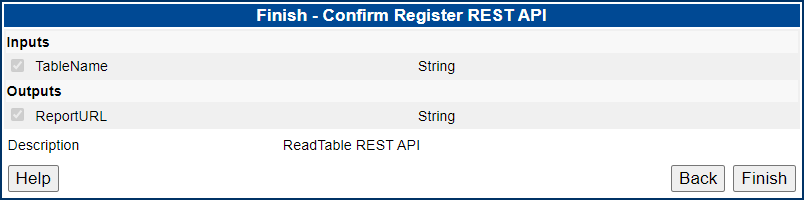
Review your selections, then click Finish to register the workflow as a REST API, or Back to make any changes.
When the Register Workflow as REST API Wizard has completed, the Web Service is listed on the ‘REST APIs' page, which is accessible from the Data > REST APIs folder in the LiveCompare hierarchy. If the Wizard is run again for the same workflow, the original REST API definition will be overwritten.