Work with Data Integrity connections
Data Integrity connections (DI connections) allow Tosca Cloud to fetch data from ODBC and SQLite sources and run Data Integrity tests with them. You can create multiple connections to the same data source using different credentials to accommodate users with different access rights. You can also share them with other workspaces, or use others have shared.
Create a new Data Integrity connection
To create a new Data Integrity connection, follow these steps:
-
Go to
 Configurations > DI connections and select Create connection.
 -
Select your connection type:
-
ODBC data source uses an ODBC connection you set up in the ODBC Data Source Administrator.
-
Connection string uses an ODBC connection string to connect to your data source.
-
SQLite uses a native SQLite connection to read your database.
-
-
Specify the details of your connection according to its type.
When you create a connection, we recommend that you provide the access credentials of an account with read-only rights to your database. This follows the principle of least privilege and helps protect your data during testing.
-
Optionally, select Test Connection to verify that your connection works. This step may take several seconds.
-
Select Save to create the connection.
After you create a connection, you can see it in your Data Integrity connections list at Configurations > DI connections.
Use Data Integrity connections in test cases
Tosca Cloud automatically makes your connections available for your Data Integrity test cases. You can use them with Data Integrity modules that include the test step  Connection, by selecting your connection from the dropdown menu in the value field or typing its name.
If you use a connection in multiple test cases, we recommend that you use a test configuration parameter to define the connection name in the Connection test step. This way, you can change your connection in bulk, if needed.
You create the DI connection Connection1 that you plan to use with multiple Data Integrity tests. So you create the test configuration parameter MyFavouriteConnection and set its value as Conenction1. Then, you create your tests entering the parameter as {CP[MyFavouriteConnection]} in the Connection test step and run your tests.
Some time later, you decide to use a different DI connection with your tests: Connection2. Then, you simply update the value of the parameter MyFavouriteConnection to Connection2. This automatically updates all of the Data Integrity tests you created with this parameter.
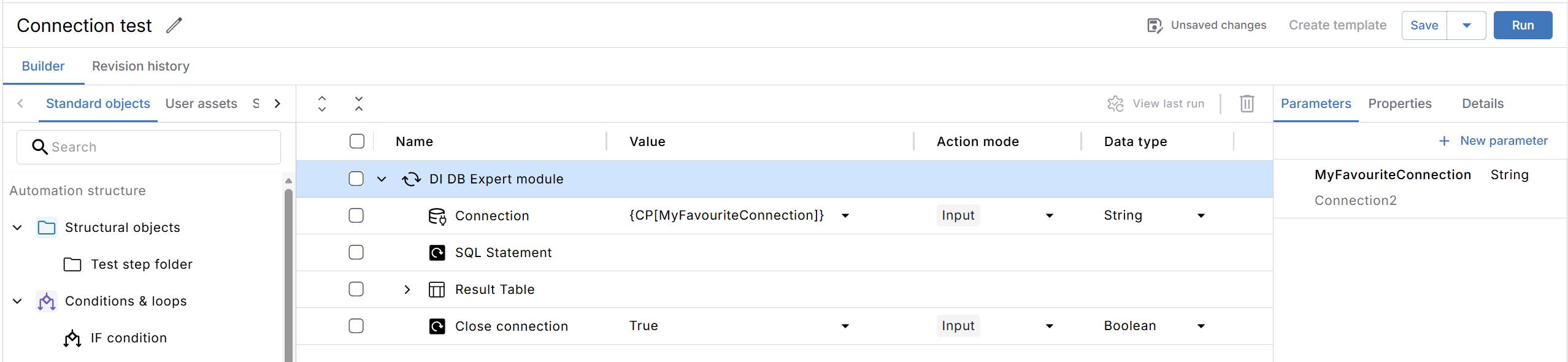
Click to enlarge: Define a connection with a test configuration parameter
Manage Data Integrity connections
To make changes to a Data Integrity connection go to your DI connections list and select the connection you want to edit. This will open the connection setup page, where you are can update the connection details.
You can delete a connection from the DI connections list by hovering over it and selecting  .
.
Note that you can only edit or delete a connection in the workspace where you created it. If you use it in a shared workspace, it's read-only.
Making changes to a connection automatically affects all test cases that use that connection.
Deleting a connection causes the tests that use it to fail and you will have to manually update them.