File Load into Caching Database module
The File Load into Caching Database module is an automation tools module for Data integrity testing.
Use this module to load table datasets from CSV files into an SQLite caching database in the agent machine. Tosca Cloud can then connect to the caching database and fetch your data for testing.
The File Load into Caching Database module contains the following values:
|
Value |
Description |
Optional |
|---|---|---|
|
Table Name |
The name of the table in the caching database, where Tosca Cloud loads the data from your CSV file. |
|
|
Keep Existing Table Entries |
Set to True to add the data from the CSV file to the existing table entries, if there are any. Set to False to clear the caching database table before Tosca Cloud loads new data. |
X |
|
File Name |
The absolute path to the CSV file you want to load. Specify the path wildcards (*) to load multiple files from the same directory into the table you select. For example: C:\temp\myExcelFile*.csv. |
|
|
File Mode |
Set to CSV for datasets with comma-separated columns. Set to Fixed for datasets with fixed length columns. |
|
|
File Encoding |
The file encoding format. The default value is UTF8. You can specify these formats:
For a complete list of supported encodings, check out Microsoft documentation (opens in new tab). |
X |
|
Column Delimiter/length Info |
If you load a dataset with comma-separated columns, enter the column delimiter characters. For example: [tab], , , ; ,|. If you load a dataset with fixed length columns, enter the starting positions of your columns separated by comma. For example, if our first column contains the first 3 characters, your second column contains the next 5 characters, and your third column contains the remaining characters. Then you need to enter: 1,4,9. |
|
|
Row Separator |
The character that indicates a new row. Usually it's \r\n for Windows or \n Unix . The default value is \r\n. |
X |
|
Cell Escape Character |
The character your dataset uses to enclose the value of cells that contain the column separator characters, row separator characters, or the cell escape character itself. For example: " or ~. The default value is ". |
X |
|
Column To Process |
The list of columns you want Tosca Cloud to load into the caching database. Separate the columns with a semicolon (;). By default, Tosca Cloud loads all columns. For example, you can list the position of the columns with the character # in front: #1;#3;#5. Or list the header names of the columns: SalesOrderID;OrderQty;LineTotal. |
X |
|
Column Renaming |
If you want to rename the columns of your dataset according to a text or CSV file, specify the absolute path to that column mapping file. The column mapping file needs to have the header row Current Column Name;Mapped Column Name, and a table row for each column that you want to rename. For example: Current Column Name|Mapped Column Name Name1|First Name Name2|Last Name |
X |
|
Column Renaming-><Current Name> |
If you want to rename the columns directly in Tosca Cloud, replace <Current Name> with the name of the column you want to rename, and specify the new name in the Value field. |
X |
|
Header Row |
Set to True if your dataset has a header row. By default the value is False. If the header row is not at the top of the table, specify the row number in the value field with the character # in front, instead of True. For example: #4. Tosca Cloud supports only single-row headers. |
X |
|
Skip Lines Starting With |
If you don't want Tosca Cloud to load certain rows from your table into the caching database, list their starting characters in the Value field and separate them with a semicolon (;). For example, you want to load a list of orders but not include those that are delivered in Paris or Berlin. You may enter the value Par;Ber if you have no other cities starting with these three characters in your list. If you are unsure, you can use more characters, or the full names: Paris;Berlin. |
X |
|
Only Lines Starting With |
If you want to load only specific rows into the caching database, list their starting characters in the Value field and separate them with a semicolon. For example, May;Jun to only load the rows that start with these months. |
X |
|
Cell Settings->All Columns - Option |
Apply one of the actions for cell settings to all columns. |
X |
|
Cell Settings->Single Columns-><Name> |
Apply one of the actions for cell settings to a specified column. To specify a column, replace <Name> with the column name. |
X |
|
Load Error Behavior->Ignore Load Errors |
Set to True if you want Tosca Cloud to ignore load errors. The default value is False. If you know the correct value, you can use this to check for bad data in your dataset. For example, if you know that your table should have a certain number of rows, you can load it into the caching database and ignore load errors, then use further Data Integrity tests to check the row count in the caching database or compare it against a table that has the correct data. |
X |
|
Load Error Behavior->Max Errors |
The maximum number of errors before Tosca Cloud aborts execution. The default value is 100. |
X |
|
Load Error Behavior->File Name |
The absolute file path where Tosca Cloud logs errors. Tosca Cloud overwrites any existing file with the same name. By default, Tosca Cloud doesn't log load errors. |
X |
You can use the following actions for Cell Settings - All Columns and Cell Settings - Single Columns:
|
Value |
Description |
|---|---|
|
Trim |
Removes all leading and trailing whitespace characters. Default scope: HeaderAndData |
|
Trim[<character>] |
Removes all leading and trailing occurrences of the specified character. Default scope: HeaderAndData Replace <character> with the character you want to remove. For example: To remove a ", enter the " four times: Trim[""""]. |
|
TrimStart |
Removes all leading whitespace characters. Default scope: HeaderAndData |
|
TrimStart[<character>] |
Removes all leading occurrences of the specified character. Default scope: HeaderAndData Replace <character> with the character you want to remove. For example: To remove a ", enter the " four times: TrimStart[""""]. |
|
TrimEnd |
Removes all trailing whitespace characters. Default scope: HeaderAndData |
|
TrimEnd[<character>] |
Removes all trailing occurrences of the specified character. Default scope: HeaderAndData Replace <character> with the character you want to remove. For example: To remove a ", enter the " four times: TrimEnd[""""]. |
|
Replace[<search string>][<replace string>] |
Replaces all occurrences of the first string with the second string. Default scope: Data. |
|
Substring[<start index>] |
Extracts a part of a longer string. The extraction starts at the defined start index position and runs until the end of the string. Default scope: Data For example: Substring[9] with input Project Manager returns Manager. |
|
Substring[<start index>][<length>] |
Extracts a part of a longer string. The extraction starts at the defined start index position and contains the number of characters specified in length. Default scope: Data. For example: Substring[9][3] with input Project Manager returns Man. |
|
Right[<length>] |
Extracts a part of a longer string. The extraction runs from the end of the string towards the beginning and contains the number of characters specified in length. Default scope: Data. For example: Right[7] with input Project Manager returns Manager. |
|
Lowercase |
Converts the string to lowercase using the currently active locale. Default scope: Data. For example: Lowercase with input Project Manager returns project manager. |
|
Lowercase[Culture:<culture name>] |
Converts the string to all lowercase. Lowercase[Culture:<culture name>] uses the given culture name to create a new locale. Default scope: Data. For example: Lowercase[Culture:zh-Hans] uses the culture information of "Chinese(simplified)" to convert uppercase to lowercase characters. |
|
Uppercase |
Converts the string to uppercase using the currently active locale. Default scope: Data. For example: Uppercase with input Project Manager returns PROJECT MANAGER. |
|
Uppercase[Culture:<culture name>] |
Converts the string to all uppercase. Uppercase[Culture:<culture name>] uses the given culture name to create a new locale. Default scope: Data. For example: Lowercase[Culture:en-us] uses the culture information of "English - United States" to convert lowercase to uppercase characters. |
To change the default scope of an action, add the parameter Scope in the :
-
To apply the action to the header row only, add the parameter [Scope:Header].
-
To apply the action to all data rows but not the header, add the parameter [Scope:Data].
-
To apply the action to the header and all data rows, add the parameter [Scope:HeaderAndData].
You want to replace all instances of the string CustomerDataAustria with the string CustomerDataUSA. You want to apply this change to the header and all data rows.
To do so, define the this action: Replace[<CustomerDataAustria>][<CustomerDataUSA>][Scope:HeaderAndData]
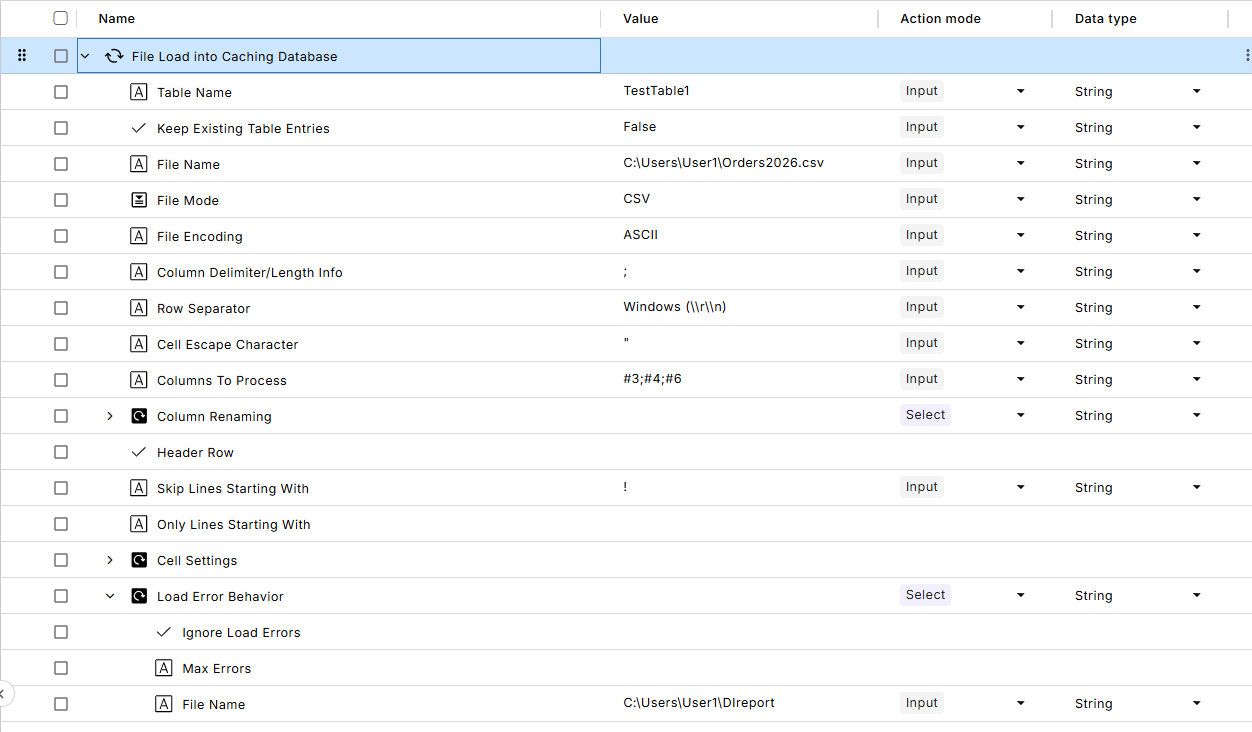
You want to load parts of your Orders2026 table into the caching database so you can later check the values of specific cells with the DI DB Expert Module, or compare those parts with the data from another database using the Complete Row by Row Comparison module.
You use the File Load into Caching Database module in the following way:
-
Enter TestTable1 in the test step value Table Name to define the table in the caching database.
-
Select False in the test step value Keep Existing Table Entries to delete any existing content in TestTable1.
-
Enter C:\Users\User1\Orders2026.csv the test step value File Name to define the location of your file.
-
Select CSV in the test step value File Mode as your file uses a specific character to separate columns.
-
Select ASCII in the test step value File Encoding to indicate the encoding format of your file.
-
Select ; in the test step value Column Delimiter/length Info as the column-separator character.
-
Select Windows (\\r\\n) in the test step value Row Separator as you work with Windows.
-
Enter " in the test step value Cell Escape Character.
-
Enter #3;#4;#6 the test step value Colemns to process to specify the columns you want to test later on.
-
Leave the test step value Header Row empty as your file doesn't have one.
-
Enter ! in the test step value Skip Lines Starting with as this character indicates abandoned or failed orders in your table.
-
Expand Load Error Behavior and enter C:\Users\User1\DIreport in the test step value File Name to save the error report in the file DIreport if your table fails to load in the caching database.
Load a CSV file into the caching database