Settings - Logging
The following setting is located under Settings->TBox->Logging:
|
Setting |
Description |
|---|---|
|
Specifies the level on which Tosca logs execution details:
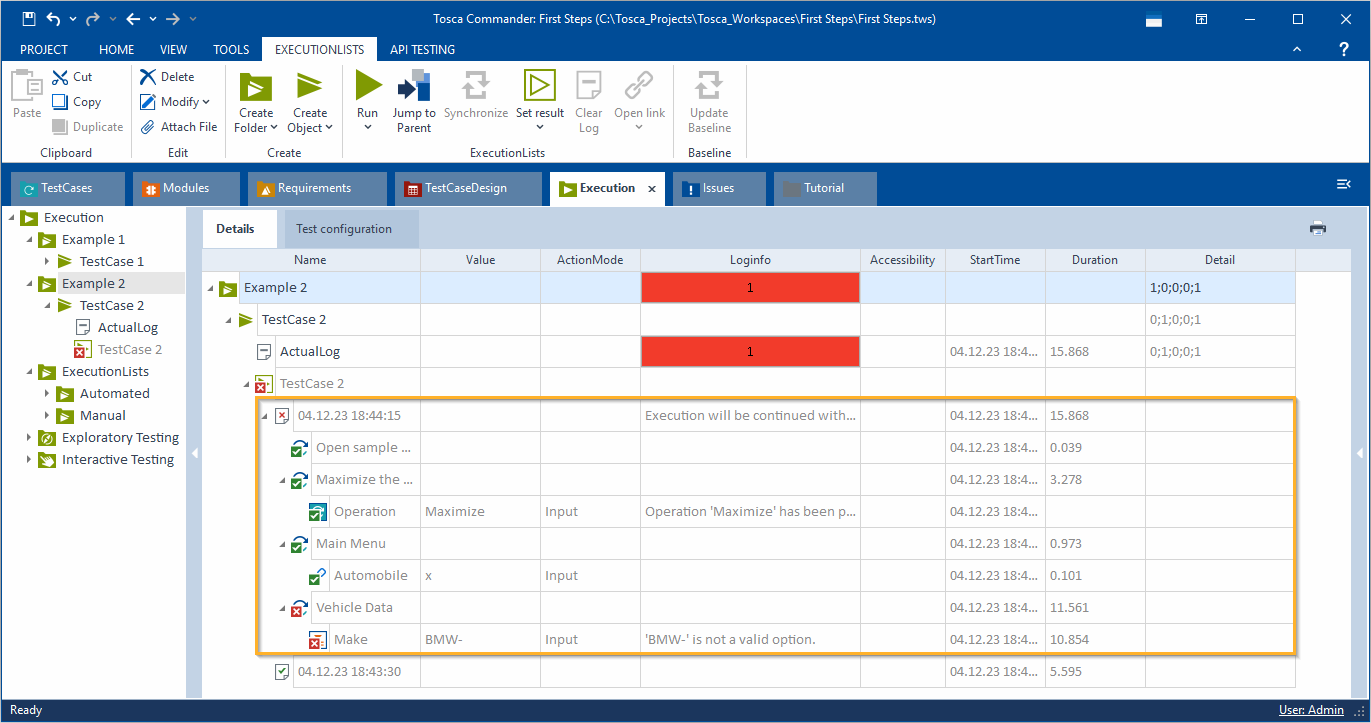
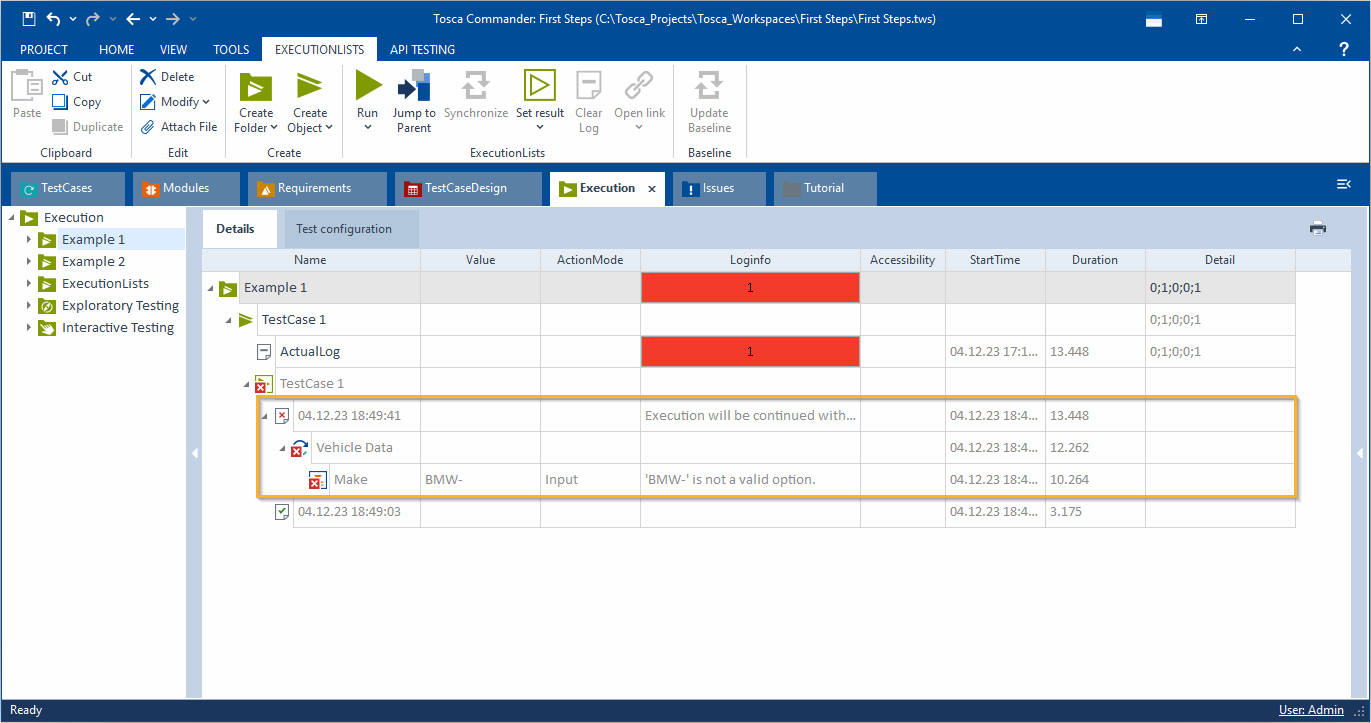
Default behavior: sample failed TestCase with setting Report Successful Execution of set to TestCases Note that you can change this behavior. If you only want to see the details of the failed or paused TestStep in your test results, configure the setting ExtendedTestcaseExecutionLogging in the ToscaCommander.dll.config file.
Changed behavior: sample failed TestCase with setting Report Successful Execution of set to TestCases
For more information on how to configure the level of detail, refer to check out "Configure the level of detail in your execution results". For example: TestStepValues - All. |
Screenshots
You can find the following settings at Settings->TBox->Logging->Screenshots:
|
Setting |
Description |
|---|---|
|
Make screenshots on failed test steps |
Takes screenshots all TestSteps that fail for specific reasons. This setting helps you document your test runs. Choose one of the following values:
For example: Verification Failure. |
|
Specifies where Tosca saves the screenshots of failed TestSteps. If you use Tricentis File Service, you don't have to specify a path. In this case, Tosca saves the screenshots to the Tricentis File Service. For example: @{Environment.ProjectDir}\Screenshots. |
|
|
Specifies the screenshot format. Choose one of the following values: bmp, gif, png, tiff, or jpeg (default). For example: jpeg. |