Optimize test runs with SeaLights
If you integrate Tosca with Tricentis SeaLights, Tosca skips tests that cover unchanged code, based on the recommendation from SeaLights. This speeds up your test cycles and gives you more time to focus on the code that needs your attention.
In this topic, you'll learn how to turn on optimization, trigger test runs, and read optimized test results.
Before you start
Before you start optimizing your test runs with SeaLights, make sure the following things are true:
-
You have an environment that's set up for integration.
-
You know the path to the build session ID file or the Lab ID. If you're unsure which one you need, contact your administrator.
Note that if you use the Lab ID, you must have at least one SeaLights agent with the same Lab ID. This agent has to be running at the time you trigger a test run, or SeaLights can't optimize tests.
-
You have access to the test artifacts you want to optimize. That means that the test artifacts aren't currently checked out by someone else. It also means that you're in the Owning Group, if any of the test artifacts have restricted user rights.
Enable optimization
To enable the SeaLights optimization for your tests, use the  SeaLights configuration in the Configurations tab. Simply fill out the test configuration parameters and assign the configuration to the tests you want to optimize.
Parameters in the SeaLights configuration
The SeaLights configuration contains the following test configuration parameters (TCPs):
|
TCP name |
TCP value |
Description |
|---|---|---|
|
SeaLightsBuildSessionIdFilePath |
<Path to the file with the build session ID> |
Define which build of your application you're testing. SeaLights needs this information to detect code changes. To enable the SeaLights optimization, you need to define SeaLightsBuildSessionIdFilePath or SeaLightsLabId. |
|
SeaLightsLabId |
<Lab ID> |
Define which test environment or instance you're testing, and which builds and agents belong together. SeaLights needs this information to detect code changes. To enable the SeaLights optimization, you need to define SeaLightsLabId or SeaLightsBuildSessionIdFilePath. |
|
SeaLightsNeverSkips |
True, False, empty |
Define tests you never want to skip. To do so, enter the value True for the following:
By default, the TCP value is empty. Tosca considers an empty TCP value as False, which means it will skip any ExecutionEntry that SeaLights recommends to skip. |
|
SeaLightsOptimization |
True |
Turn on the optimization in Tosca. |
|
SeaLightsTestStageName |
<Test stage name of your choice> |
Define the type of tests in a test run, for example, unit tests, regression tests, or integration tests. This name will appear in SeaLights, which allows you to analyze results, coverage, and so on by test stage. If you don't define a name, SeaLights displays the test stage name ToscaTests. Note that the test stage name is simply a label. It doesn't affect how SeaLights performs or collects metrics. |
Choose where to assign the configuration
We recommend that you assign the configuration to higher-level objects such as ComponentFolders, Execution folders, or ExecutionLists folders. That way, all child objects inherit the configuration, and you don't need to assign it over and over.
You can still fine-tune. Let's say you have a parent Execution folder with three child ExecutionLists folders, and you only want to optimize the tests in two of the ExecutionLists folders.
In this case, perform the following actions:
-
Assign the configuration to the Execution folder. This means all child objects inherit them.
-
For the one ExecutionLists folder whose tests you don't want to optimize, change the value of the TCP SeaLightsOptimization to False.
Note that the SeaLights configuration only has an effect on ExecutionLists. It doesn't impact other objects you might have in a folder, such as TestCases or Modules.
Find optimized tests
If you assigned the configuration, but can't remember where, check out our topic on how to find SeaLights-optimized tests.
Understand test results
After you enable optimization, SeaLights uses the first test run to learn the application code. Since SeaLights is learning, Tosca runs all tests during this first test run. Including those that cover unchanged code.
Beginning with the second test run after turning on optimization, SeaLights performs its Test Impact Analysis and tells Tosca to skip tests, if applicable.
Tosca logs all skipped tests.
In your test results, you can recognize skipped tests by the following indicators:
-
A special icon for the TestCaseLog:

-
A note in the LogInfo column.
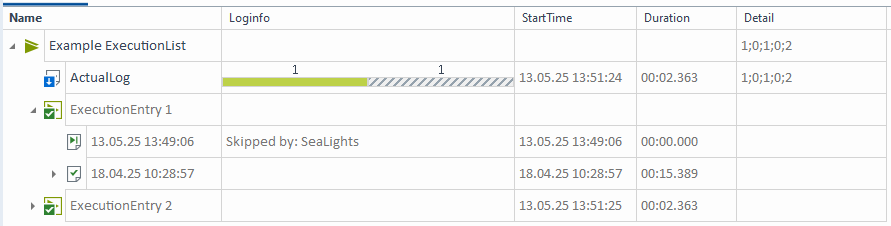
Test results for Example ExecutionList: Tosca skipped ExecutionEntry 1
What's next
Now that you've turned on optimization, run your tests. SeaLights uses this first test run to learn your application's code.