Run the SAP Solution Manager Wizard
The SAP Solution Manager Wizard enables you to quickly configure the extension.
Follow the steps described in this chapter to:
Open the SAP Solution Manager Wizard
To open the SAP Solution Manager Wizard, follow the steps below:
-
Go to the Project tab in Tosca Commander.
-
Click on the project root element and select the option Checkout Tree from the Team tab.
In the subsequent window, click Yes to confirm the checkout.
-
Right-click the project root element and select SAP Solution Manager->Configure SAP Solution Manager Integration from the context menu.
Configure the integration in the SAP Solution Manager Wizard
The SAP Solution Manager Wizard enables you to integrate SAP Solution Manager into Tricentis Tosca.
Prerequisites
The SAP Solution Manager Wizard checks whether you’ve completed all the necessary preparation steps. Here's what you can expect:
-
If both prerequisites are marked with green check marks, click Next.
-
If you see the message Current workspace is not a multi-user workspace, create a multi-user workspace as described in the "Create a multi-user workspace".
-
If you see the message SAPnco.dll files are not present in the Tosca installation folder, copy the .dll files as described in the "Add SAP .NET Connector libraries".
Workspace
Enter your workspace information using one of the following:
-
Your username and password
-
The clientID and clientSecret from Tosca Server. Note that if you choose to enter a Username, you'll need to fill in the Password field as well, since the clientID and clientSecret will be ignored.
After you have filled all necessary fields, click Next.
Solution Manager
It's time to define connection parameters.
You must set the connection type in SAP Solution Manager to Custom Application Server.
SAP Solution Manager Integration supports only the connection type Custom Application Server.
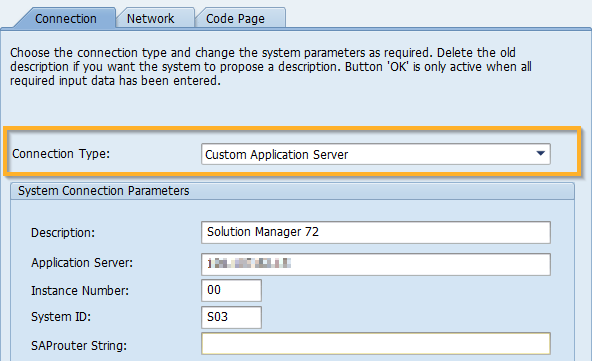
Connection Type in the Connection tab
-
In the available fields, enter the parameters as described below:
-
Parameter
Description
Example
IP address or server name of the SAP Solution Manager System.
Optionally, select Override incoming SAP application host if you want the SAP Solution Manager System to always use the SAP Host parameter. When you do so, Tricentis Tosca ignores any incoming SAP application host addresses provided by the SAP Solution Manager System. This is useful if your Tricentis Tosca installation is hosted in a different location than the SAP Solution Manager System.
10.100.8.110
SAP Client
Client in the SAP system.
001
SAP Instance number
Two-digit name that identifies the SAP system.
00
SAP Language
Language used in the SAP system under test.
This field is filled by default.
E
Log Files Path
Path to the Tricentis Tosca log files.
This field is filled by default.
C:\Temp
-
Select Next.
SAP Technical User (optional)
By default, Tricentis Tosca uses an RFC interface to communicate with SAP Solution Manager. This interface allows both systems to exchange data. Leave this section empty to use the default SAP credentials.
You can create an encrypted password for an SAP technical user. Tricentis Tosca then uses the encrypted password to connect to SAP Solution Manager instead of the password that SAP uses by default. For more information on how to create a technical user in SAP Solution Manager, sign in to SAP Solution Manager and select Configuration (All Scenarios) or open the transaction SOLMAN_SETUP in the SAP GUI. On the left pane, navigate to Test Suite > Test Automation Preparation and select Special Configuration > Create Technical User under Technical System if you're using SP16 or higher, or copy the ECATT user (usually called ECATT_ET_USR and created in the Special configuration/Standard configuration/Manual activity: Generate ECATT user) if you're using SP15 or a lower version of SAP Solution Manager.
Note that the ECATT user requires additional SAP authorizations for SP < 14.
To complete the configuration, click Finish. The subsequent summary screen describes the actions you need to take manually.
SNC (optional)
The basic SAP security measures are based on user and password authentication. With Secure Network Connection (SNC), you can add a protection layer to secure communication between two systems.
You'll need to install SNC Client encryption 2.0 when you run the SAP Logon installation. You can also modify your installation by running the installer once again.
During installation, select the checkbox SNC Client Encryption 2.0.
To ensure that the SNC is installed, follow the steps below:
-
Select Control Panel > Edit the system environment variables > Environment variables....
-
Verify if the following variables point to the sapsncencryption.dll file:
-
SNC_LIB
-
SNC_LIB_64
-
To configure SNC in the SAP Solution Manager Wizard, follow the steps below:
-
Select Activate Secure Network Connection.
-
In SNC Name, enter the name of your SNC partner.
-
Select the level of protection as described in the table below:
Parameter
Description
Authentication only
This is the minimum protection level in which the system verifies the identity of the communication partners.
Integrity protection
The system checks whether the data has been manipulated during the transfer between the two endpoints of communication.
Privacy protection
Privacy protection includes the following security measures:
-
Encryption of transferred messages
-
Data integrity protection
Maximum security settings available
Select this option to use maximum security settings.
-
-
By default, SNC uses Single Sign-On (SSO). Alternatively, you can select SNC logon with user/password (no Single Sign-On) to sign in with your username and password.
-
Click Next to go to the next step.
Further Actions
Please find below the additional actions needed so you can complete the integration with SAP Solution Manager:
-
Click Close to exit the SAP Solution Manager Wizard.