Create a multi-user workspace
Your work environment in Tosca is called a workspace. It's where you plan, create, and run your tests.
In this topic, you'll learn how to create workspaces for environments where multiple people need access to the same test assets and data. It covers what you need before you start and explains how to create workspaces for all repository types.
You're looking for instructions on single-user workspaces? Check out "Create a single-user workspace" instead.
Before you start
Before you create your first multi-user workspace, check in with your administrator. Have they prepared everything?
And while you're at it, ensure that your administrator has given you access:
-
For MS SQL, DB2, and Oracle, this means that you've received a connection string.
-
For Tricentis Server Repository, this means that you're in the assigned user group.
-
For SQLite, this means that you know the location of the SQLite database and that this location is accessible from your machine.
Create a workspace for an MS SQL, DB2, or Oracle repository
This section explains how to create a multi-user workspace for a local database repository. Please expand:
To create a multi-user workspace, follow these steps:
-
On the Tosca Commander start screen, select Create new.
-
This opens the create workspace window. Perform the following actions:
-
Select MS SQL Server, DB2, or Oracle from the Select type of Repository dropdown.
-
Configure the new workspace:
-
|
Option |
Description |
|---|---|
|
Use existing repository |
Define the repository:
|
|
Schema |
This option is only necessary if your administrator created tables with a user-defined schema, which we don't recommend. |
|
Connection string |
Enter the connection string your administrator prepared for you. If you already have a workspace for this repository, you can also reuse the connection string of the other workspace. Simply open the other workspace and copy the connection string in Project > Info. |
|
Create workspace for snapshot or branch |
This option is available if you select Use existing Repository. Select Create workspace for snapshot or branch to create the workspace for a snapshot or branch, then pick the desired entry from the dropdown list. |
|
Create new workspace in |
Define where Tosca saves the workspace. By default, Tosca creates all new workspaces in the workspace directory path C:\Tosca_Projects\Tosca_Workspaces. |
|
Select name for new workspace |
Enter a unique name for the workspace. Make sure it meets the following requirements:
|
|
Use workspace template |
Select this option to import the Standard subset or any other subset into the new workspace. This option is only available for the first workspace you create in a multi-user environment. |
|
Create slim workspace |
This option is available if you select Use existing Repository. To exclude all objects from synchronization by default, select Create slim workspace. In this case, you manually enable synchronization for selected objects. This speeds up workspace creation and may improve the performance of workspaces for large repositories. |
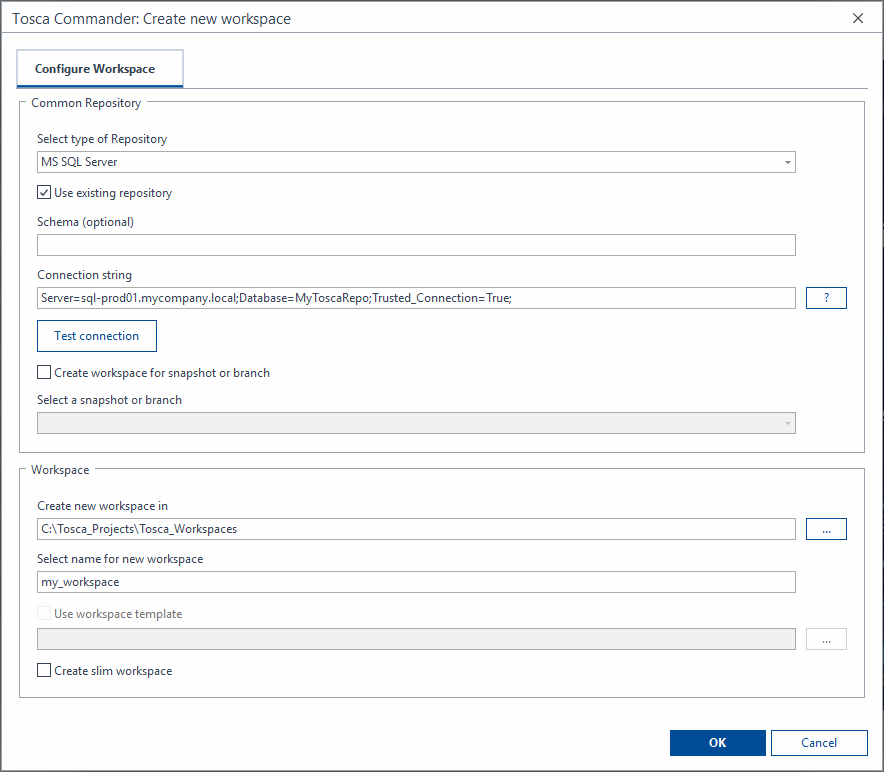
Create a multi-user workspace for an MS SQL repository
-
Finish the workspace configuration:
-
If this is the very first workspace you create for this repository, select Next and set your admin credentials.
-
If this isn't the first workspace for this repository, you don't get a Next button. Instead, select OK to create the workspace.
-
Create a Tricentis Server Repository workspace
This section explains how to create a multi-user workspace for a Tricentis Server Repository. Please expand:
To create a multi-user workspace, follow these steps:
-
On the start screen, go to Project > Settings > Tricentis Services and fill out the setting ServerEndpointAddress. You only have to do this once, when you create your first workspace.
-
Go back to the start screen and select Create new.
-
This opens the create workspace window. Perform the following actions:
-
Select Tricentis Server Repository from the Select type of Repository dropdown.
-
Select Log in to Tricentis Server to authenticate with your
-
Configure the new workspace:
-
|
Option |
Description |
|---|---|
|
Project name |
Select the project you want to connect to from the Project Name dropdown. If you don't see your project on the list, check in with your administrator. Are you in the assigned user group? |
|
Create workspace for snapshot or branch |
This option is available if you select Use existing Repository. Select Create workspace for snapshot or branch to create the workspace for a snapshot or branch, then pick the desired entry from the dropdown list. |
|
Create new workspace in |
Define where Tosca saves the workspace. By default, Tosca creates all new workspaces in the workspace directory path C:\Tosca_Projects\Tosca_Workspaces. |
|
Select name for new workspace |
Enter a unique name for the workspace. Make sure it meets the following requirements:
|
|
Use workspace template |
Select this option to import the Standard subset or any other subset into the new workspace. This option is only available for the first workspace you create in a multi-user environment. |
|
Create slim workspace |
This option is available if you select Use existing Repository. To exclude all objects from synchronization by default, select Create slim workspace. In this case, you manually enable synchronization for selected objects. This speeds up workspace creation and may improve the performance of workspaces for large repositories. |
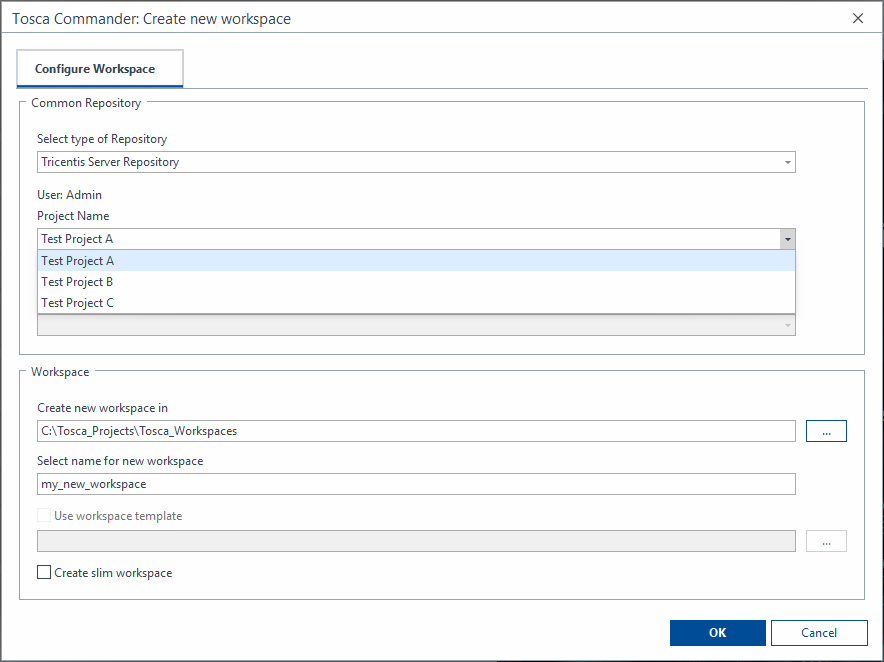
Create a multi-user workspace for Tricentis Server Repository
-
Select OK to create the workspace.
Create a workspace for an SQLite repository
Tosca doesn't support SQLite as a database system for productive multi-user environments. Use SQLite workspaces for training or demo purposes only.
Please expand:
To create a multi-user workspace, follow these steps:
-
On the Tosca Commander start screen, select Create new.
-
This opens the create workspace window. Perform the following actions:
-
Select SQLite from the Select type of Repository dropdown.
-
Configure the new workspace:
-
|
Option |
Description |
|---|---|
|
Use existing repository |
Define the repository:
|
|
Select existing repository |
This option is available if you select Use existing Repository. Specify the path to the existing SQLite database. |
|
Create new repository in |
This option is available if you clear the checkbox Use existing Repository. Specify the path to the directory where Tosca should create the SQLite database. Note that this directory has to already exist. |
|
Select name for new repository |
This option is available if you clear the checkbox Use existing Repository. Enter the name of the new repository. |
|
Create workspace for snapshot or branch |
This option is available if you select Use existing Repository. Select Create workspace for snapshot or branch to create the workspace for a snapshot or branch, then pick the desired entry from the dropdown list. |
|
Create new workspace in |
Define where Tosca saves the workspace. By default, Tosca creates all new workspaces in the workspace directory path C:\Tosca_Projects\Tosca_Workspaces. |
|
Select name for new workspace |
Enter a unique name for the workspace. Make sure it meets the following requirements:
|
|
Use workspace template |
Select this option to import the Standard subset or any other subset into the new workspace. This option is only available for the first workspace you create in a multi-user environment. |
|
Create slim workspace |
This option is available if you select Use existing Repository. To exclude all objects from synchronization by default, select Create slim workspace. In this case, you manually enable synchronization for selected objects. This speeds up workspace creation and may improve the performance of workspaces for large repositories. |
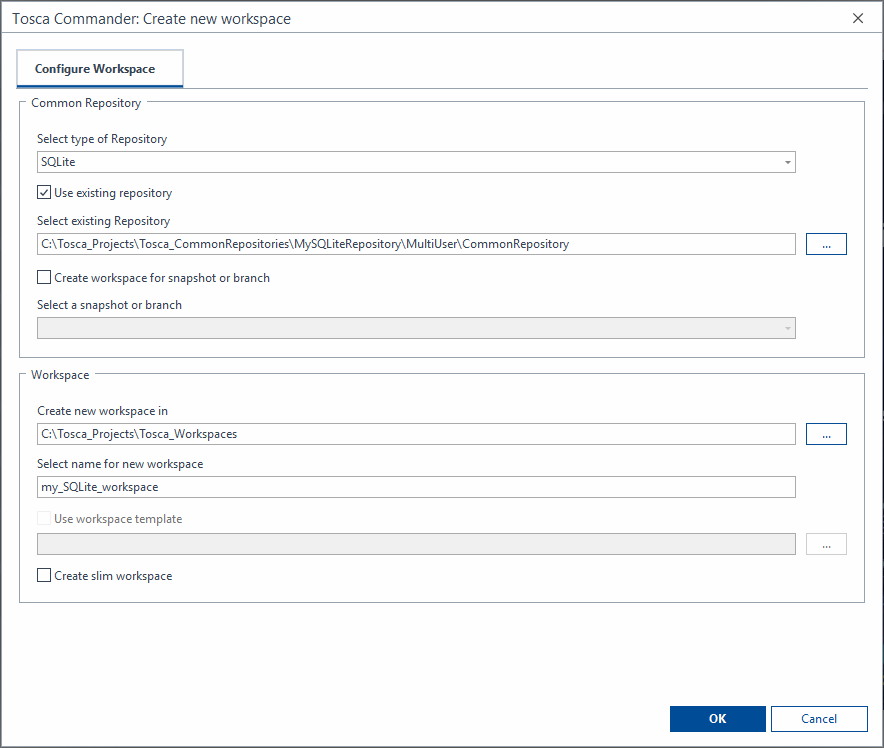
Create a multi-user workspace for an SQLite repository
-
Finish the workspace configuration:
-
If this is the very first workspace you create for this repository, select Next and set your admin credentials.
-
If this isn't the first workspace for this repository, you don't get a Next button. Instead, select OK to create the workspace.
-
Create workspaces via command line
If you want to automate your workspace setup or simply prefer to work without GUI, you can also use TCShell to create workspaces from the command line. For details, check out the following TCShell help sections:
What's next
Now that it's ready, get to know your workspace. Alternatively, you can dive a little deeper with the guided tour or our first steps tutorial.