Create Modules by scanning
Your application has various controls, which are screen elements that Tosca interacts with when you run your tests. To make this interaction possible, you must first scan your application. This gets the controls' technical information into Tosca.
Tosca saves the information as a Module. You'll later use these Modules to build your TestCases.
Before you start
If you haven't yet, check out "Best practices | Scanning | Identifiers". This topic explains different identification methods for controls and when to use them. It also provides tips for making identifiers unique and stable across tests.
If you use DEX Agents to run your tests, please check our best practices for Tosca Distributed Execution before creating new modules.
Scan options
To start the scan, right-click a Module folder or use the dynamic menu Modules and select  Scan.
Scan.
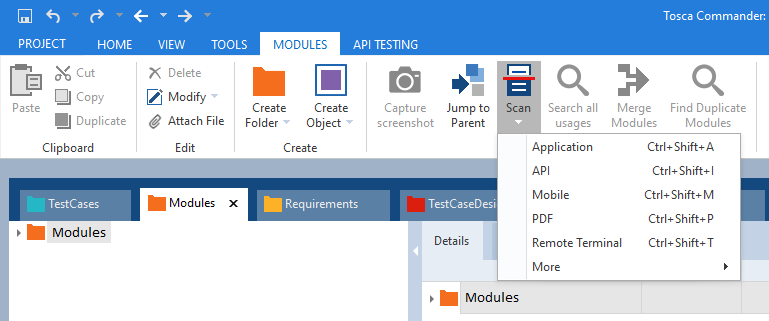
Scan options
Application
To scan graphical user interfaces (GUIs)
Alternatively, use the keyboard shortcut Ctrl + Shift + A.
API
Tricentis Tosca API Scan enables you to test your application programming interfaces (APIs). To use it, select the option API (check out "Tricentis Tosca API Scan").
Alternatively, use the keyboard shortcut Ctrl + Shift + I.
Mobile
To scan Android and iOS mobile applications with the Tosca Mobile Engine 3.0, select the option Mobile (check out "Scan mobile applications").
Alternatively, use the keyboard shortcut Ctrl + Shift + M.
To scan PDF files with the Tosca PDF Engine 3.0, select the option PDF (check out "PDF Engine 3.0").
Alternatively, use the keyboard shortcut Ctrl + Shift + P.
Remote Terminal
-
Host Application
To scan Host emulator sessions with the Tosca Host Engine 3.0, select Remote Terminal (check out "Create HOST Modules").
Alternatively, use the keyboard shortcut Ctrl + Shift + T.
-
PuTTY Application
To scan a PuTTY terminal application with the Tosca PuTTY Engine 3.0, select Remote Terminal (check out "Create PuTTY Modules").
Alternatively, use the keyboard shortcut Ctrl + Shift + T.
More
WebDriver
To scan browsers, applications, or debug ports via WebDriver, select the option More->WebDriver. You can steer the browsers on remote machines or on your local machine (check out "Advanced browser automation").
Alternatively, use the keyboard shortcut Ctrl + Shift + W.
Salesforce Scan
To scan Salesforce applications, select the option More->Salesforce Scan (check out "Create and manage Salesforce Modules").
Alternatively, use the keyboard shortcut Ctrl + Shift + S.
File Scan
To scan JSON or XML files, select the option More->File Scan (check out "Scan files").
Alternatively, use the keyboard shortcut Ctrl + Shift + F.