Link test cases and requirements
In Manager, requirements define an overall objective to be tested, while test cases define a specific test scenario, including individual steps. Link test cases and requirements to establish traceability between the goals and the details of your tests.
By default, you can link up to 100 test cases to a requirement in a single operation. To link more than the limit, perform multiple operations or have an administrator set a higher test case linking limit.
Don't link a requirement to too many test cases, as this can impact your performance.
For example, here are some general thresholds and their associated impacts:
-
One Requirement linked to 2,500 Test Cases: Expect difficult navigation within the UI at 2,500 Test Cases and an increase in loading times.
-
One Requirement linked to 60,001 or more Test Cases: Expect general system instability. Not recommended.
Link requirement to a new test case
You can create a new test case from a requirement and automatically link them. This option is useful if you don't have a test case that covers your requirement yet.
After you add a new linked test case, you can edit the test case as you normally would.
To link a requirement to a new test case, follow these steps:
-
In Requirements, go to the requirement you want to link to a new test case.
-
In the Create Associated Test Cases section, enter the necessary information for the test case, including steps.
-
Select Create to create the new test case and link it to the requirement.
qTest adds the new test case to Test design in the same module as the requirement and displays it in the Linked Test Cases section of the linked requirement.
Link requirement to existing test cases
If you have one or more test cases that you've already created, you can link to them from a requirement.
To link a requirement to a test case you already have in mind, follow these steps:
-
In Requirements, go to the requirement you want to link to a test case.
-
In the Linked Test Cases section, select Add to open the Test Cases dialog.
-
Select the test cases, or module of test cases, that you want to link.
If you select a module, qTest links all of the test cases in that module to the requirement.
-
Select Add to link these test cases to the requirement and display them in the Linked Test Cases section.
Link test cases to requirements
If you want to link from a test case to one or more requirements, you can do that quickly from within the test case.
To link a test case to a requirement, follow these steps:
-
In Test design, select the test case you want to link to a requirement.
-
Go to the Requirements tab of the test case.
-
Select Add to open the Add Requirements dialog.
-
From here, you can go to the following tabs:
-
Test Plan: Select a release to link all of its requirements, or select individual requirements.
-
Requirements: Select a module to link all of its requirements, or select individual requirements.
-
-
Select Add to finish linking the requirements to the test case.
You can see all linked requirements on the test case's Requirements tab.
Use APIs to link test cases to requirements
When you have a large number of test cases in qTest Manager, manually linking the test cases to requirements can take a considerable amount of time. To efficiently link large quantities of test cases, you can use APIs. This section provides an example walkthrough of how to link test cases to requirements using the qTest APIs.
Here's an overview of the procedure steps:
Get your data
Use GET APIs to receive all of the requirements, requirement IDs, test cases, and test case IDs in a JSON format. For full details, access the API documentation from Download qTest Resources.
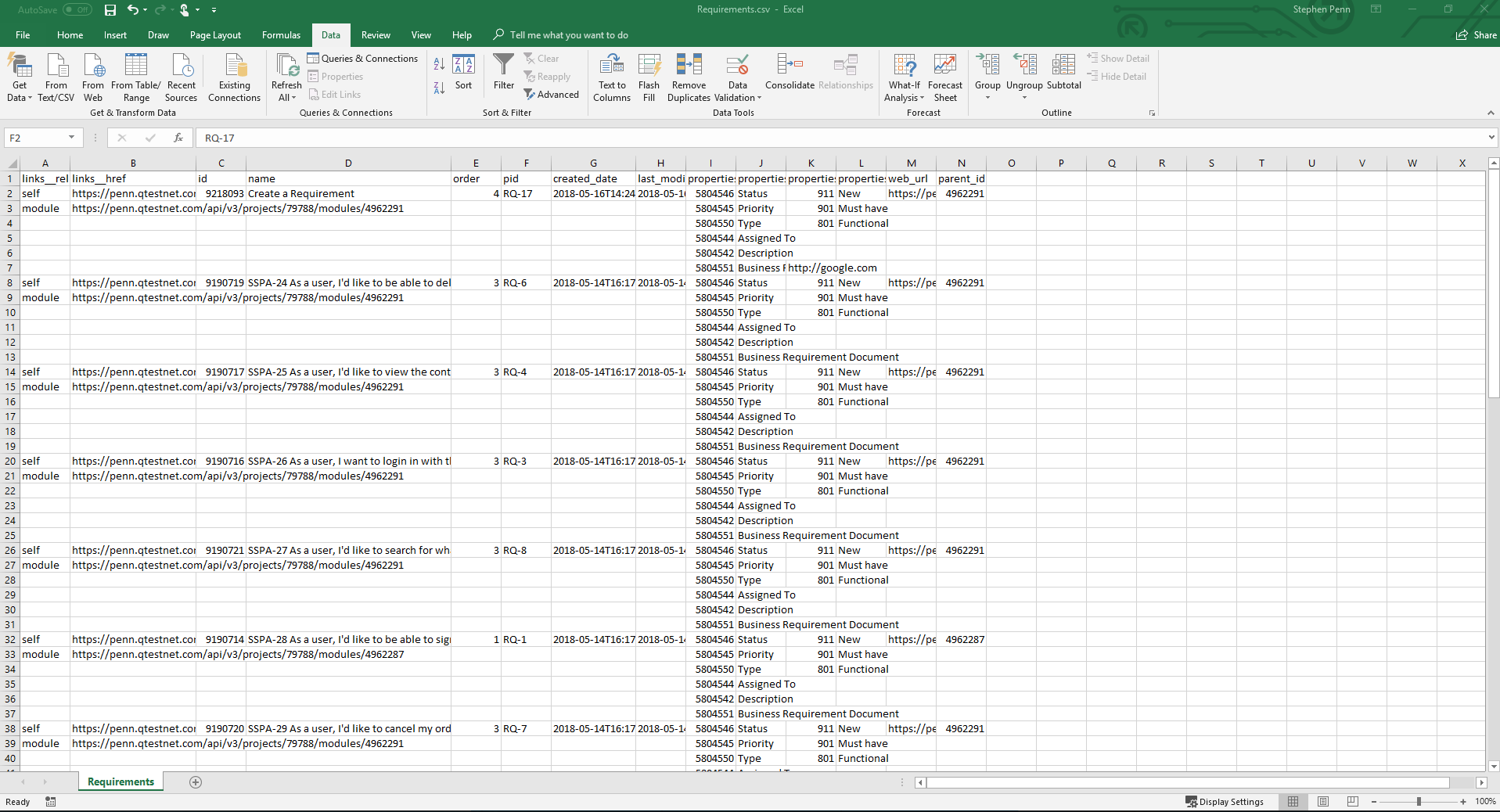
Once the results are converted, the Requirements and TestCases .csv files should look like this.
Here's how to get the files you need into the format you need them in:
-
Use the GET /api/v3/projects/{projectId}/requirements API to receive requirements and save the JSON results.
-
Use the GET /api/v3/projects/{projectId}/test-cases API to receive test cases and save the JSON results.
-
For both the test cases and requirements that you receive, convert the JSON results to a .csv file.
Create a master spreadsheet
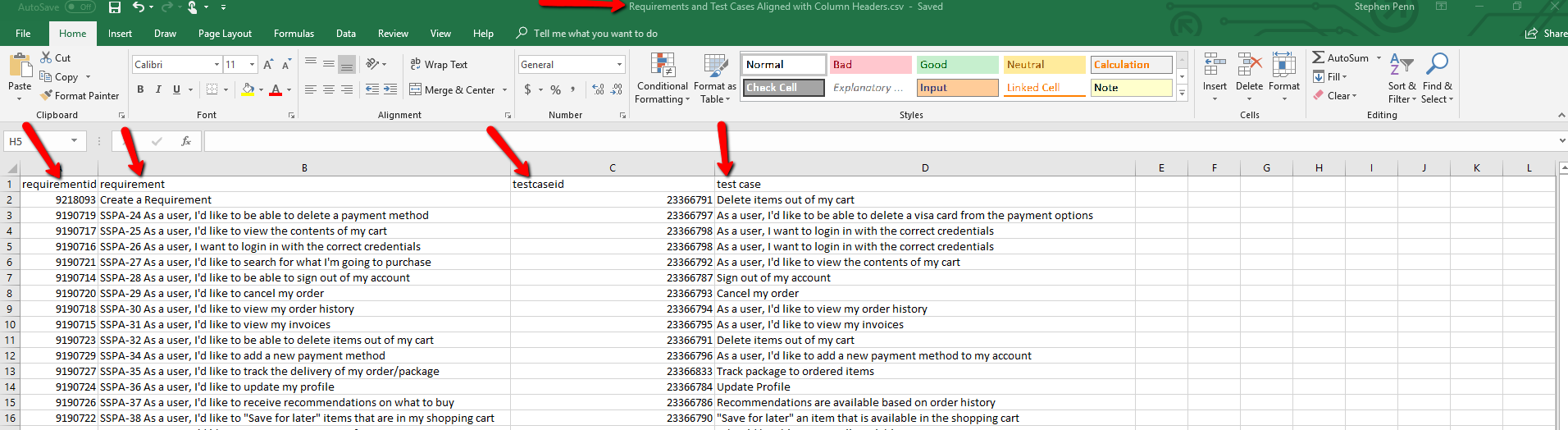
Once you're finished, the master spreadsheet should include four columns: requirementid, requirement, testcaseid, and test case.
Here's how to filter and copy the data in the .csv files to create a master spreadsheet:
-
In both of your .csv files, use the Excel Filter option in the ID column to remove any rows that do not have an entry in the ID column.
-
Create a new .csv file to be the master spreadsheet. Here, you'll combine data from the requirements and test cases .csv files.
-
Copy the Name and ID columns from your test cases and requirements .csv files into your new spreadsheet. Paste the requirements into the first two columns, then paste the test cases into the third and fourth columns.
-
Enter the requirements and test cases that you want to link in the same row. We recommend adding two blank columns between the Requirements columns and the Test Cases columns. The two blank columns can then be used to cut and paste the data, as needed.
-
Rename the columns to use the following header names, which will be referenced in a subsequent API call:
-
requirementid
-
requirement
-
testcaseid
-
test case
-
Link Test Cases to Requirements using an API
When your master spreadsheet is set up, use the POST /api/v3/projects/{projectId}/{objectType}/{objectId}/link API call to link the requirements to the test cases. For more information about this call, access the API documentation from Download qTest Resources.
Use environment variables to specify the requirementid and testcaseid that will be substituted to the corresponding value in the .csv file. You can do this with a program such as Postman. For more information about using Postman, take a look at Postman documentation (opens in a new tab).
After you finish running the API call in a program such as Postman, check the Resources section on your requirements to see your new linked test cases.