Create a module
Once you've created a test plan, you can create modules to add more detail to your organization. Modules are folders that group the same functional category of your product in both the Requirements and Test Design pages. For example, if you create requirements to test your Homepage in a module named Homepage in Requirements, you can organize the test cases that meet those requirements in the same module in Test Design.
Whether you're working in Requirements or Test Design, the modules you create in one page are automatically created in the other. For example, if you create a module in Test Design, it also automatically displays in Requirements. This helps you easily maintain an identical file structure between your requirements and test cases.
The files themselves are still separate. Modules in Requirements only contain requirements, and modules in Test Design only contain test cases.
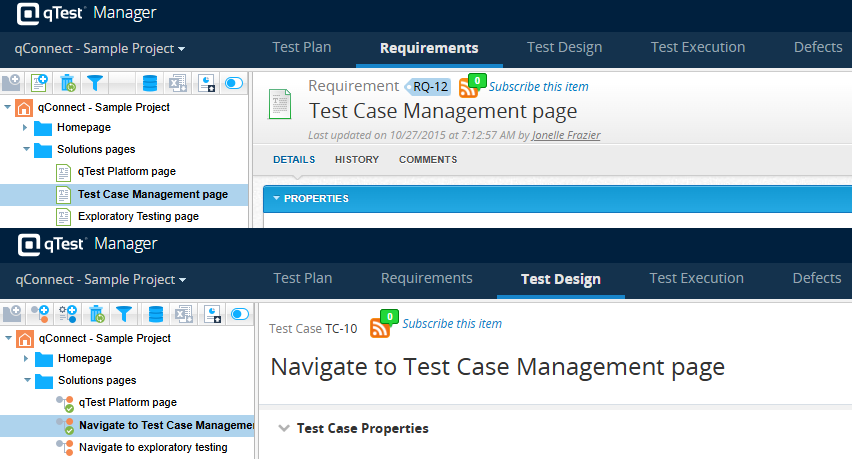
Module organization is uniform across Requirements and Test Design, but the contents of your modules differ depending on where you are in the program. A module in Requirements only contains requirements, but the same module in Test Design only contains test cases.
Before you start
Make sure you have the Create Modules permission.
Create modules
To create a new module, navigate to either Requirements or Test design. When you create a module in one location, it's also automatically created in the other.
In the tree panel, select the container you want to create the new module in. You can either create a module directly under the project, or you can nest it inside an existing module.
Create a new Module using one of following options:
-
Select the
 Create module icon on the toolbar.
 -
Right-click a container, and then select New module from the dropdown to create a module.
-
Select a container, and then press Shift+D to create a module in the selected container.
To move or reorganize a module, you can drag and drop it to a new location.
Organize modules for requirements and test cases separately
Modules are automatically synchronized between Requirements and Test design. The folders you create within Requirements are automatically created in Test design, and vice versa. We recommend using this feature to group the same functional category of your product. However, if you would prefer to manage requirements and test cases separately, you can set up separate folders.
To implement this workaround, create two modules at the top level of your file tree. Label one "Requirements" and the other "Test Cases". Then, you can organize all existing modules with test cases into the "Test Cases" folder and all existing modules with requirements into the "Requirements" folder.
What's next
Don't have any requirements yet? Learn how to create requirements.
Have a test plan and requirements? Start creating your test cases in Test Design.