Get approval for defects in Vera
qTest lets you integrate your testing with Vera, which is an e-signature tool for validation testing within a LifeSciences FDA regulated environment. This integration allows you to route a defect to Vera for e-signature approval, before you can use it to build and organize test cases.
This article covers the standard workflow for Vera approvals. If you're using a custom workflow in Vera (opens in a new tab), talk to your site administrator about approval processes.
qTest subscriptions don't include the e-signature integration. You must have a Vera license to use this feature with qTest.
Before you start
To implement Vera approval in your qTest project, you need to complete the following:
-
Get user permissions to edit defects in qTest
-
Turn on approval for defects
-
Enable the Vera Integration Actions user profile permission under Defects for the Vera Service Account you've added to qTest
Route defects to Vera for approval
To route your defect to Vera, follow these steps:
-
In your Vera-integrated project in qTest, select the Route for Approval option from the Actions dropdown on your defect.
-
Select Proceed to verify you want to lock the defect and send it for approval.
Once you send the defect to Vera for approval, qTest updates the Vera fields with the following information:
- Vera Approval Status: Routing
-
Vera Approval Route: Displays details about the Approval Task, Status, Reviewer, Date, and Level for completed or pending defect approval.
-
Vera Pending Tasks: Lists the reviewers who still have a Pending status.
-
Vera Rejection Reason: Lists the reason given in Vera if the defect is rejected.
-
Vera Revision Number: This revision number is set to 1 when the defect is created, and goes up incrementally each time the defect is revised.
-
Vera ID: ID of the approval record.
-
While the defect is out for approval, you can select Cancel Approval to cancel a routed approval. If your defect is rejected, you can revise it before you send it back for approval again. Once your defect is approved, you can no longer revise it if you're following the standard workflow.
Approve or reject a routed defect
Once you've routed your defect to Vera for approval, reviewers need to take a look at the contents in Vera before they can Approve or Reject the defect.
Requirements are approved if every reviewer listed in the Vera Approval Route field gives their okay. If a single reviewer rejects, you need to start the full review process again, after taking the given Vera Rejection Reason into account.
Approve a defect
Reviewed that defect and everything looks great? Then it's time to approve it from Vera.
As a reviewer, follow these steps to approve a defect in Vera:
-
In qTest, open the defect that's routed for approval.
-
In the Vera Approval Route field, select the link associated with your Approval Task to open Vera.
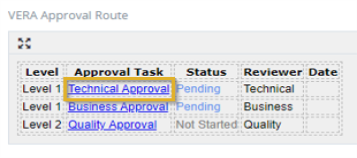 Use the link associated with your Approval Task to navigate to Vera.
 -
Sign in to Vera to continue.
-
If the defect is in compliance, select Approve.
-
In the Approve Selected Entity dialog, enter your username and password, and select Submit to apply your electronic signature.
Under Title 21 CFR Part 11 of the Code of Federal Regulations, entering your credentials is considered your "electronic signature" and validates your approval.
-
In qTest, select Reload to refresh the Vera fields on your defect.
Once all reviewers submit approvals, qTest updates the Vera fields with the following information:
-
Vera Approval Status: Approved
-
Vera Approval Route: Details on the Approval Task, Status, Reviewer, Date, and Level for completed defect approvals.
-
Vera ID: ID of the approval record.
-
Reject a defect
Not everything's perfect the first time around? If you review a defect and find an element that's not in compliance, you need to reject the defect from Vera to restart the review process.
To reject a defect, follow these steps:
-
In qTest, open the defect that's routed for approval.
-
In the Vera Approval Route field, select the link associated with your reviewer title to navigate to Vera.
- Sign in to Vera to continue.
-
If the defect is not in compliance, select Reject.
-
Enter the reason for rejection in the Reject Selected Entity dialog, and then Submit.
-
In qTest, select the Reload icon on the defect to refresh the browser.
After a defect is rejected, qTest updates the Vera fields with the following information:
-
Vera Approval Status: Rejected
-
Vera Approval Route: Displays details on the Approval Task, Status, Reviewer, Date, and Level for the all pending or completed approvals and rejections.
-
Vera ID: ID of the approval record.
-
Vera Rejection Reason: The cause for the rejection entered in the Reject Selected Entity dialog.
-
Cancel a routed approval
Sometimes you notice an error right after you hit send. Or, maybe you didn't mean to hit send at all. Don't worry, it happens to all of us.
To retract a submitted defect before it's approved, select the Cancel Approval option from the Actions dropdown to cancel the approval route. This allows you to update and revise any issues before you receive approval or rejection.
To cancel an approval, follow these steps:
- Wait until the Vera Approval Route field populates. You may need to Reloadthe defect to see this.
-
Select Cancel Approval from the Actions dropdown. The defect updates to reflect the cancellation, and the Route for Approval option displays.