View qTest test cases and test executions in Jira
You can view linked qTest test cases and test execution data within a Jira issue using the Jira Integration: qTest Enterprise add-on. This add-on allows you to clearly visualize all Test Cases and Test Runs associated with Jira issues, along with their test execution statuses, in real-time, helping you easily manage your test data in a single location. The qTest Test cases and Test executions section of a Jira issue includes two tabs:
-
Test cases: Displays the test cases linked to your requirement, including the test case number, name, and approval status.
-
Test executions: Displays the Test Runs related to your requirement, along with filters and a status bar.
Using this add-on, you can also:
For instructions on installing the Jira Integration: qTest Enterprise add-on, refer to the installation instructions on Atlassian Marketplace. Once the add-on is installed, access it by clicking the qTest icon or by navigating to the qTest Test cases and Test executions section of a Jira issue.
View linked test cases on a Jira issue
Select the Test cases tab in the qTest Test cases and test executions section to review the test cases linked to your requirement without opening qTest.
Expand a test case to view its test runs.
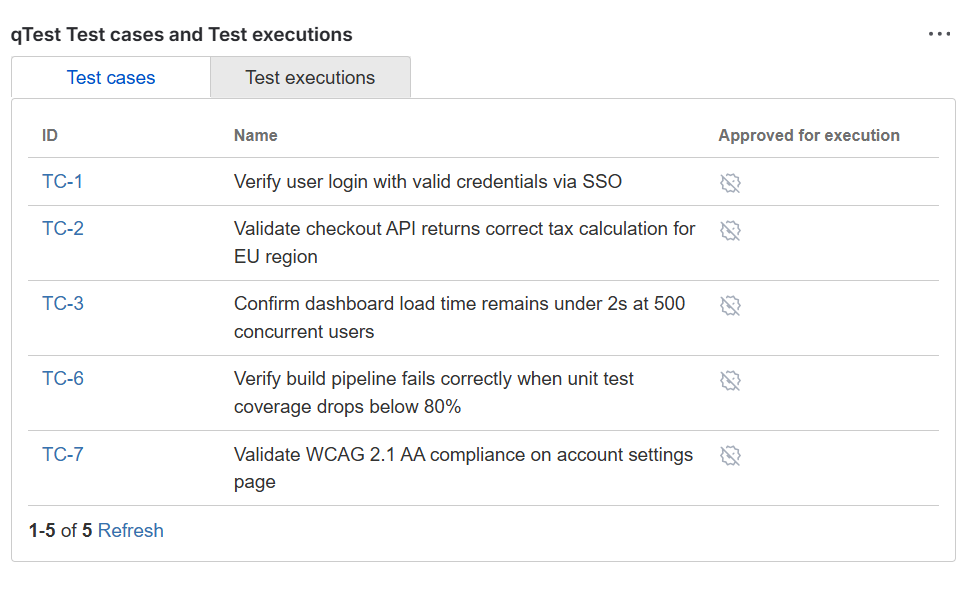
View the test cases attached to the Jira requirement in the Test cases tab of the qTest Test cases and test executions section.
For each test case, the tab displays the ID, Name, and Approved for execution status. Select Refresh to update the list.
View test runs for a Jira issue by status
The Test executions tab in the qTest Test cases and test executions section lists each test run linked to your Jira requirement, sorted by the test case the test run is attached to.
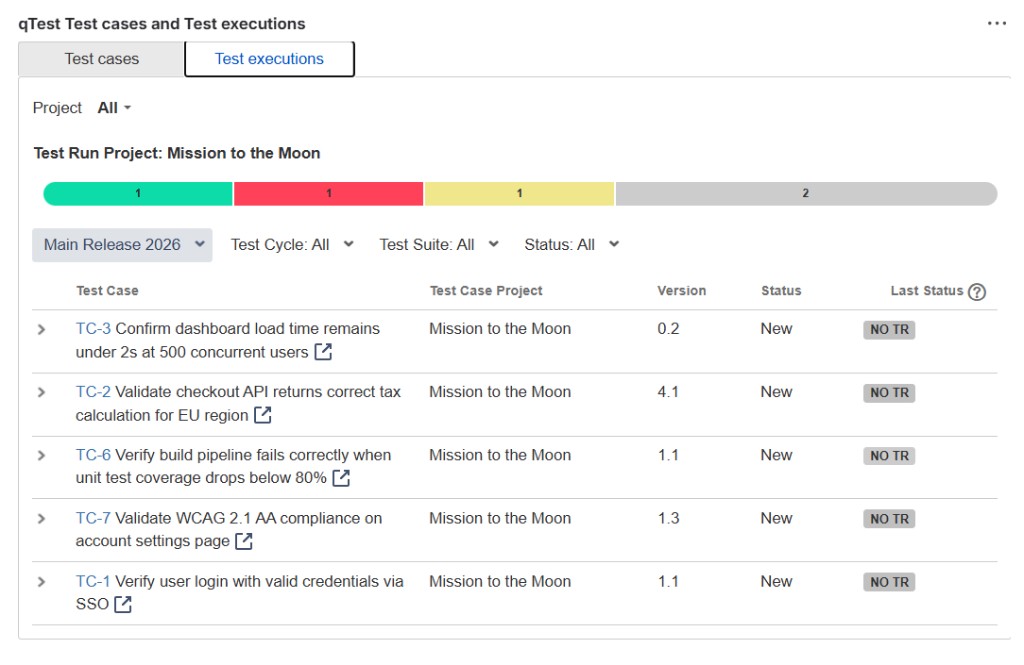
View the test runs attached to your test cases in the Test executions tab of the qTest Test cases and test executions section.
Each test case in the Test executions tab displays the following information:
-
Test Case Project: The project the test case is attached to
-
Version: The most recent version of the test case.
-
Status: The status of the test case.
-
Last Status: The status of the most recent test run attached to the test case. If a test case doesn't have a test run yet, Last Status displays NO TR.
The status bar on the Test executions tab displays the number of all related test runs for an issue by the test run Status. Use this to determine the testing progress of the Jira issue at a glance.
Hover your cursor over the status bar to display a color legend that indicates the percentage of test runs in each status. The status bar displays all the statuses in your qTest instance, including any custom statuses that have been added.
The data displayed on the status bar includes all Test Runs for an issue. However, the test cases listed in the grid of the Test executions tab only display information for the five most recently executed test runs. View the complete list of test runs for an issue on the Test Execution tab in qTest Manager.
Filter test execution data for a Jira issue
The Test executions tab includes several filters that can be used to quickly display only certain types of Test Runs. For example, you can use the filters to display a list of only Test Runs that have failed for the current release. The tab includes a Project filter, along with Release, Test Cycle, Test Suite, and Status filters.
To apply a filter, click a filter to display a drop-down menu, where you can select a filter value. When you select a value, the list automatically refreshes to apply the selected value. You can use multiple filters and select multiple values at one time. For example, you can select two releases in the Release filter and three statuses in the Status filter to display only Test Cases that belong to either release and are in one of the three statuses.
Filter selections are not saved if the page is reloaded or closed. All is selected for each filter by default.
Automatically filter Test Runs by fix version or sprint for Jira issues
You can configure your Jira integration settings in qTest Manager to automatically filter only Test Runs on the Test executions tab that match the fix version or sprint of a Jira issue. For example, if a Jira issue is associated with sprint 20 and the automatic filter is enabled, then only Test Runs that are executed in sprint 20 are displayed on the Test executions tab of the issue.
To enable the automated filter:
-
Access qTest Manager.
-
Click the Gear icon
 . Then select Integration Settings.
 -
In the External Systems panel, select JIRA.
The Configure Integration: JIRA screen appears.
-
In the Connection List section, hover your cursor in the Actions column for the Jira connection you want to configure.
-
Click the Configure icon
 .
.The Configure Connection screen appears.
-
In the Release Integration section, select the Auto-filter Test Runs on Jira iframe to match Fix Version/Sprint of Jira issue check box.
-
Click Save.