Events tab
In NeoLoad Web, events capture key actions or issues that happen during a test, such as alerts, errors, performance goals, or any special conditions you want to monitor. The Events tab shows a detailed breakdown of these events, letting you track important test outcomes in real time. You can also filter, sort, and download event data as a CSV to analyze performance, troubleshoot errors, and make sure your tests run smoothly.
Event types
Each event type helps you to identify specific issues and understand whether the test met its defined objectives. In the Events tab, you can see categorized types, such as:
-
Alerts: Automatically generated by NeoLoad Web, when predefined thresholds are crossed during the test run.
-
Custom: Specific user-defined actions or conditions set by the tester that need special monitoring during the test run. You can only trigger custom events from the API.
-
Errors: Includes errors encountered during the test run. The number of errors defaults to a maximum of 20,000, as set in the controller property
max.errors.store.count=20000. After reaching the set limit, the program discards additional errors, so the actual total error count can exceed the displayed count. -
Objectives: Belong to specific performance objectives set for the test run. They are defined in the Test interface of NeoLoad Web as Static, Baseline, and Automated. For more information, check out how to set Objectives in NeoLoad Web.
-
SLAs: Indicate whether or not the application meets the SLAs tab during the test run.
Event filters
The Events tab offers two ways to narrow the event list: the dropdown filters on the right of the tab and detailed filters on the left.
The dropdown filters on the right let you filter events by Intervals, Zones, Populations, and Users paths of your test. These filters also refresh the displayed event counts to match your selection.
The detailed Filter option on the left gives you more granular control over the event list. Choose Name, Source, Time, or Code, then specify the value you're looking for. For example, set Code to 503 to see only those errors.
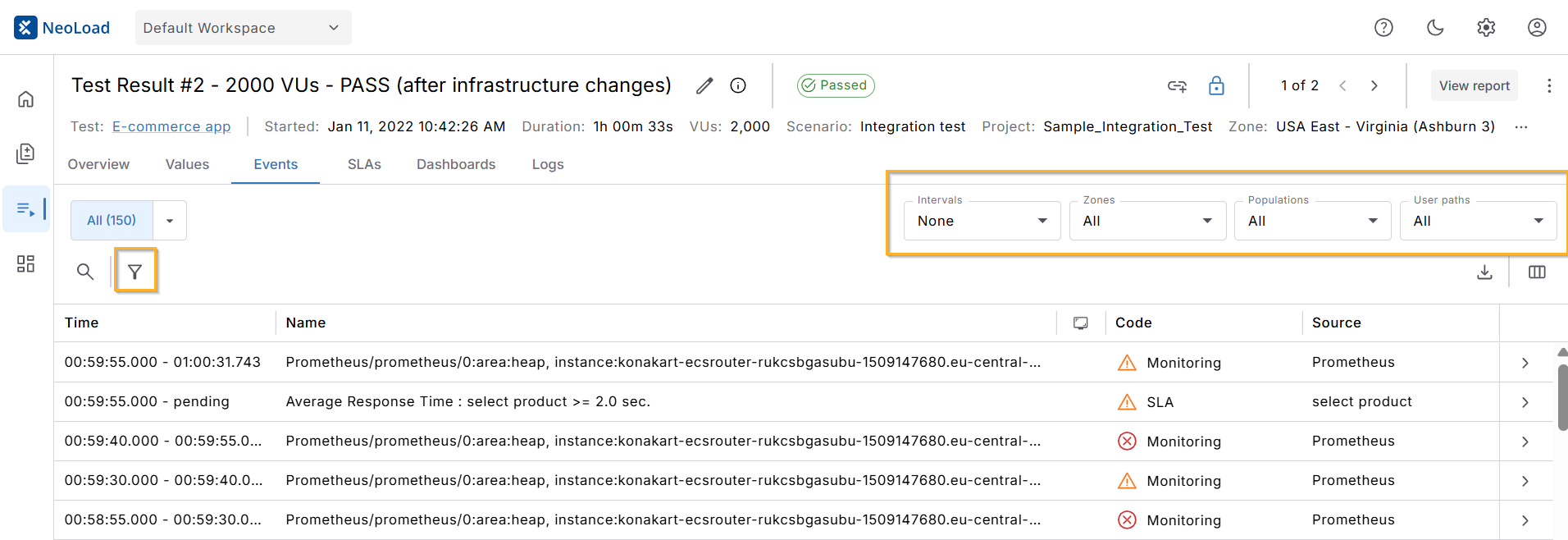
Click to enlarge: The detailed events filter on the left and dropdown filters on the right.
Event details
Select an event in the list to open the Event details window. From here, you can get in-depth information to better understand the event you selected, which can help you diagnose any underlying issues uncovered by your test. This information includes the following:
-
Time: The exact time the event occurred.
-
Name: Description or name of the event.
-
Code: Specific code associated with the event, which you can use for quick identification or reference.
-
Source: The origin of the event, such as a specific virtual user or request that triggered it.
-
Duration: The total amount of time the event was active.
-
Population: The specific user population where the event originated.
-
Zone: The Load Generator zone responsible of generating the event.
-
Load Generator: The name of the Load Generator that processed the event.
-
Transaction: The transaction the event occurred in.
-
Request: A link to the definition of the request that triggered the event.
-
Assertion: A link to the test assertion of the event, if applicable.
-
User Path: The user path associated with the event.
When you select the event, the following additional information also displays in the Contents panel to add further context for troubleshooting:
-
Request: Displays details of the HTTP request sent to the server.
-
Response: Shows the server's response to the request. If the server couldn't be contacted, it contains an error message generated by NeoLoad Web.
-
Previous: Lets you see the content of the previous sent request and the previous received response.
The Response details are only stored and displayed for the first few errors in each request. If there are errors after the first request, you'll see a "The headers and content are from the first occurrence of this action, not the current ones" message.