Lease Virtual Users capacity
Lease a portion of a license to reserve Virtual Users from the license server for a specific period of time. The leased capacity is yours until you release it or the lease expires.
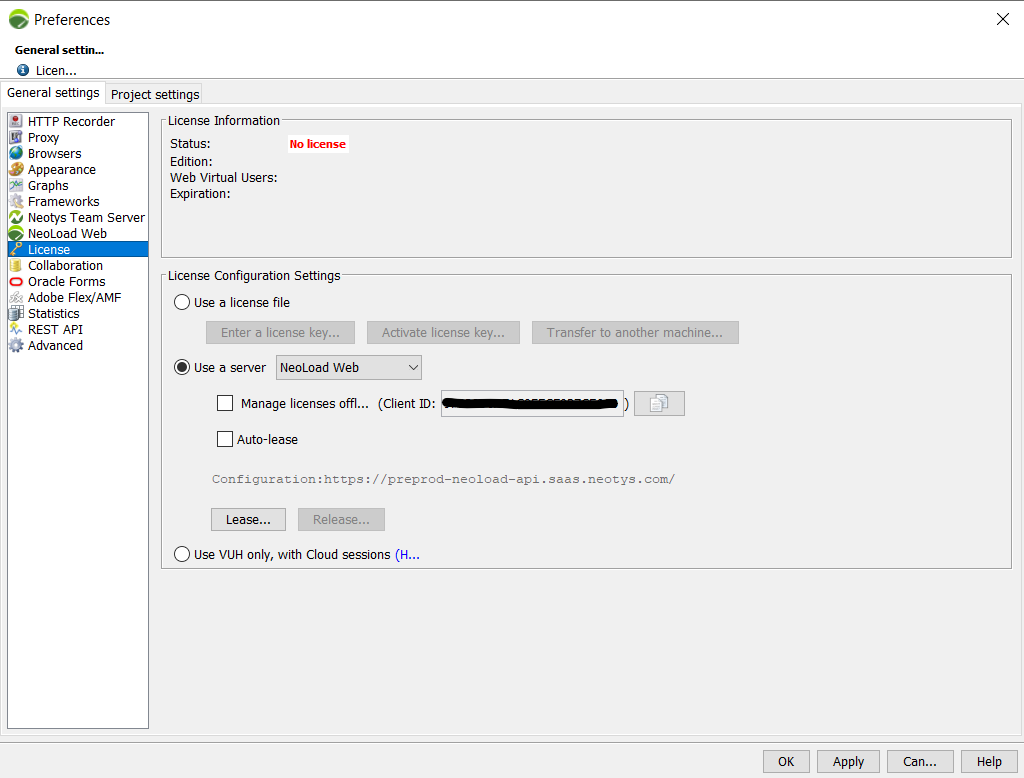
You manage leases from Help > License management > License, under the Use a server option.
Granted License List
The Granted License List shows the licenses available to you, with these columns:
-
Product: The licensed product. By default, this is NeoLoad 2026.1.
-
Description: The number of Virtual Users in the license.
-
Expiration: The date when the license expires.
-
Web VU: The Web Virtual Users capacity to lease. The minimum is 50 users.
-
SAP VU: The SAP Virtual Users capacity to lease.
When you select a license, two tabs update with details:
-
Information: The contents of the license, the support expiration date, and the associated monitors.
-
Users: NeoLoad users who already reserved license capacity. Use this tab to spot capacity that's frozen by unused reservations.
The list updates automatically to match your lease criteria. You'll see an error message if no license matches.
Lease Virtual Users capacity
To lease Virtual Users capacity, follow these steps:
-
Select Help > License Management.
-
In License Configuration Settings, select Use a server.
-
Select NeoLoad Web.
-
Select Lease....
-
In the Licenses screen, enter:
-
The Number of VUs you need.
-
The duration of the lease in Lease Duration (hours or days).
-
-
In the Granted License List, select a license that has the VUs and time you specified, then select Lease.
-
Select OK.
The License Information section and the More details link show the full lease details.
What's next
-
Activate license auto-lease to skip manual leasing for future tests.
-
Release Virtual Users capacity when you're done so others can use it.