Create a workflow
Workflows let you define and manage the lifecycle of a record using configurable state transitions. This tutorial guides you through creating a comprehensive workflow that includes states like Draft, Routing for Approval, Approved, Rejected, and Obsolete with their associated transitions.
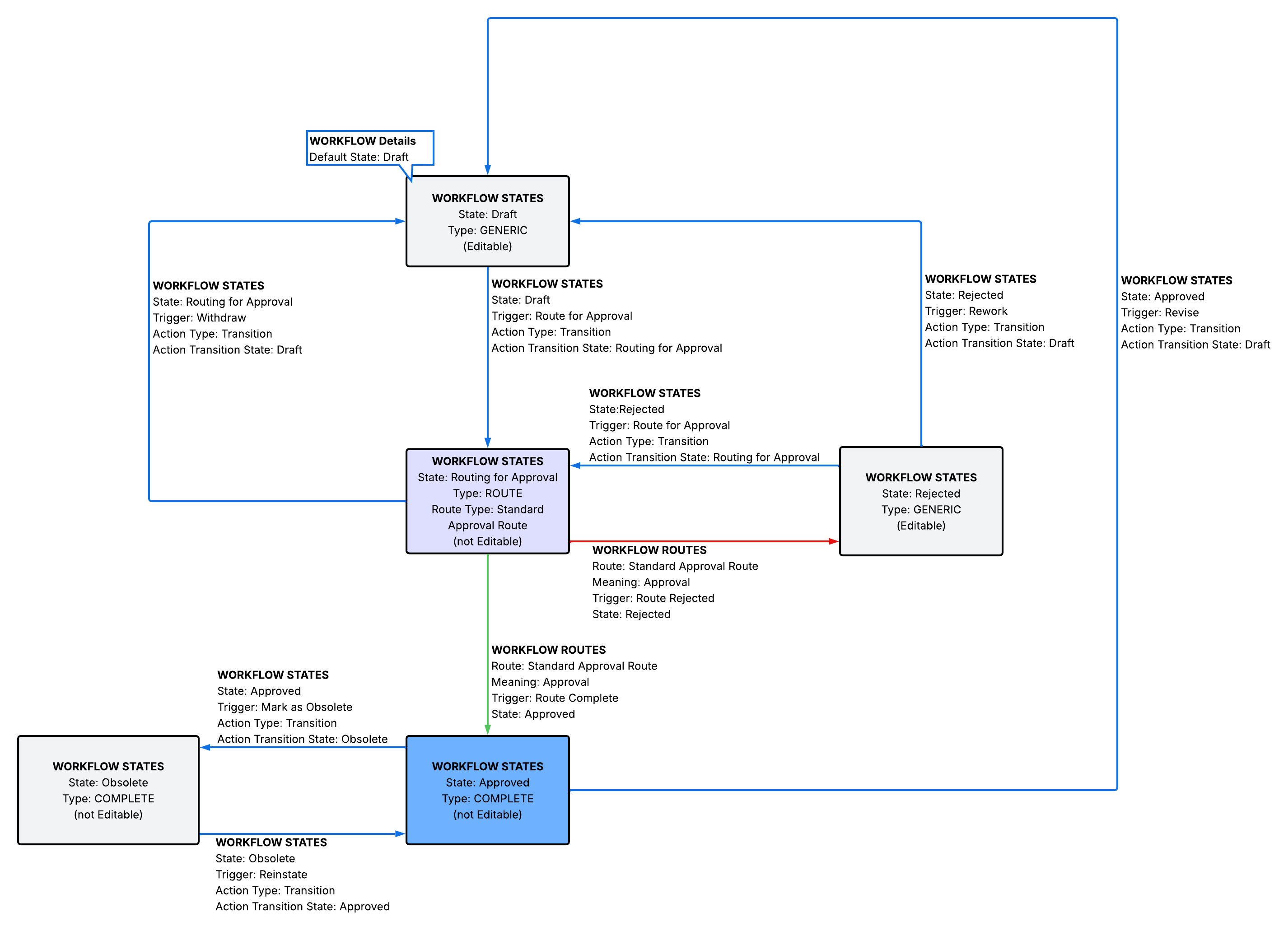
Creating a custom workflow helps you standardize your approval processes and ensures records follow the correct approval path based on your organization's requirements.
Before you start
To create and use workflows in Vera, you need to:
For detailed information about workflows, check out Manage workflows.
Create the workflow
To create a workflow, follow these steps:
-
Sign in to the Vera web portal as an administrator.
-
From the left pane, select Workflows.
-
Select + Create workflow and complete the form:
-
Name: qTest Requirement Approval Workflow
-
Description: Workflow tutorial
-
Owner: your user account
-
-
Select Save.
Add workflow states
Add the required states for your workflow:
-
Go to the Workflow States tab.
-
Select Add State and create the Draft state:
-
Name: Draft
-
Editable: ON (Checked)
-
Type: GENERIC
-
-
Select Add State and create the Routing for Approval state:
-
Name: Routing for Approval
-
Editable: OFF (Unchecked)
-
Type: ROUTE
-
-
Select Add State and create the Approved state:
-
Name: Approved
-
Editable: OFF (Unchecked)
-
Type: COMPLETE
-
-
Select Add State and create the Rejected state:
-
Name: Rejected
-
Editable: ON (Checked)
-
Type: GENERIC
-
-
Select Add State and create the Obsolete state:
-
Name: Obsolete
-
Editable: OFF (Unchecked)
-
Type: COMPLETE
-
-
Select Save workflow.
Transitioning from a COMPLETE state to a GENERIC state increments the record revision number, such as Approved to Draft. Transitioning from a COMPLETE state to another COMPLETE state doesn't impact the revision number, such as Approved to Obsolete.
Add workflow route
Create the approval route that defines how records transition through the workflow:
-
Go to the Workflow Routes tab.
-
Select Add Route and complete the form:
-
Name: Standard Approval Route
-
Meaning: Approval
-
-
Expand the Route Complete section and set:
-
State: Approved
-
-
Expand the Route Rejected section and set:
-
State: Rejected
-
-
Select Save workflow.
Add workflow triggers and actions
Configure the triggers and actions that define state transitions:
-
Go to the Workflow States tab.
-
Go to the Draft state section.
-
Select Add Trigger and set:
-
Name: Route for Approval
-
-
Select Add Action and set:
-
Type: Transition
-
Transition State: Routing for Approval
-
-
Select Save Workflow.
-
Go to the Routing for Approval state section and set:
-
Route Type: Standard Approval Route
-
-
Select Add Trigger and set:
-
Name: Withdraw
-
-
Select Add Action and set:
-
Type: Transition
-
Transition State: Draft
-
-
Select Save Workflow.
-
Go to the Approved state section.
-
Select Add Trigger and set:
-
Name: Revise
-
-
Select Add Action and set:
-
Type: Transition
-
Transition State: Draft
-
-
Select Save Workflow.
-
Select Add Trigger and set:
-
Name: Mark as Obsolete
-
-
Select Add Action and set:
-
Type: Transition
-
Transition State: Obsolete
-
-
Select Save Workflow.
-
Go to the Rejected state section.
-
Select Add Trigger and set:
-
Name: Rework
-
-
Select Add Action and set:
-
Type: Transition
-
Transition State: Draft
-
-
Select Save Workflow.
-
Select Add Trigger and set:
-
Name: Route for Approval
-
-
Select Add Action and set:
-
Type: Transition
-
Transition State: Routing for Approval
-
-
Select Save Workflow.
-
Go to the Obsolete state section.
-
Select Add Trigger and set:
-
Name: Reinstate
-
-
Select Add Action and set:
-
Type: Transition
-
Transition State: Approved
-
-
Select Save Workflow.
Set the default state
Configure the initial state for new records:
-
Go to the Workflow Details tab.
-
Set the Default State to Draft.
-
Select Save Workflow.
-
Select Activate to enable the workflow.
Apply the workflow to Record Types
To make records follow your custom workflow, you need to apply it to a Record Type or Records Management Policy (RMP).
To assign workflows to Record Types through the interface, follow these steps:
-
From the left pane, select Policies.
-
Select the Records Management Policy linked to your qTest Project Domain.
-
Go to the Record Type Workflows tab.
-
To set the qTest Requirement Approval Workflow to the qTest Requirement Record Type, select the qTest Requirement from the list of Record Types then select the qTest Requirement Approval Workflow from the list of active workflows.
-
-
Select Save to apply your changes.