Version your tests
Your testing needs can change, and you may want to modify your test cases as you go along. Still, you may also want to revisit older versions of your test case.
Don't worry, you don't have to create a new test case every time. To make things simple, Tricentis Test Management for Jira uses the same versioning methods as standard issue types in Jira. Additionally, every test run automatically saves a snapshot of the test case it was created from.
Track versions with Jira
You can use Jira's versioning methods for all issues, including Requirements and Test Cases. There are two main methods: the Fix Version field and the History tab.
In each Jira project, you have the ability to set up and use the Fix Version field to assign a software version to your issues. With this method, when you want to move up to a new version, you need to create a new issue and update the Fix Version field.
For updates to an issue between official versions, you can just update the Jira ticket, because the History section records your changes in detail.
Track versions with your test runs
In addition to the Fix Version field and the History section, you can also view snapshots of your test cases in each test run you create. To keep it simple, this snapshot isn't a numbered version, but an image of the associated test case in that particular test run.
Whenever you create a test run, you also save a snapshot of the Step Execution, Descriptions, and Requirements the test case covers at this point in time. Then, you can use the Test Runs tab in the Test Case Panel to track all of your test runs from within their associated test case.
How about an example?
You've already run a test where you added new items to the cart during the checkout process. But then you realized that your test run doesn't cover everything you need. Now, you want to add a step that changes item amounts in the shopping cart.
No problem! You can adjust your test case without losing any information, because the original test run already exists as a snapshot:
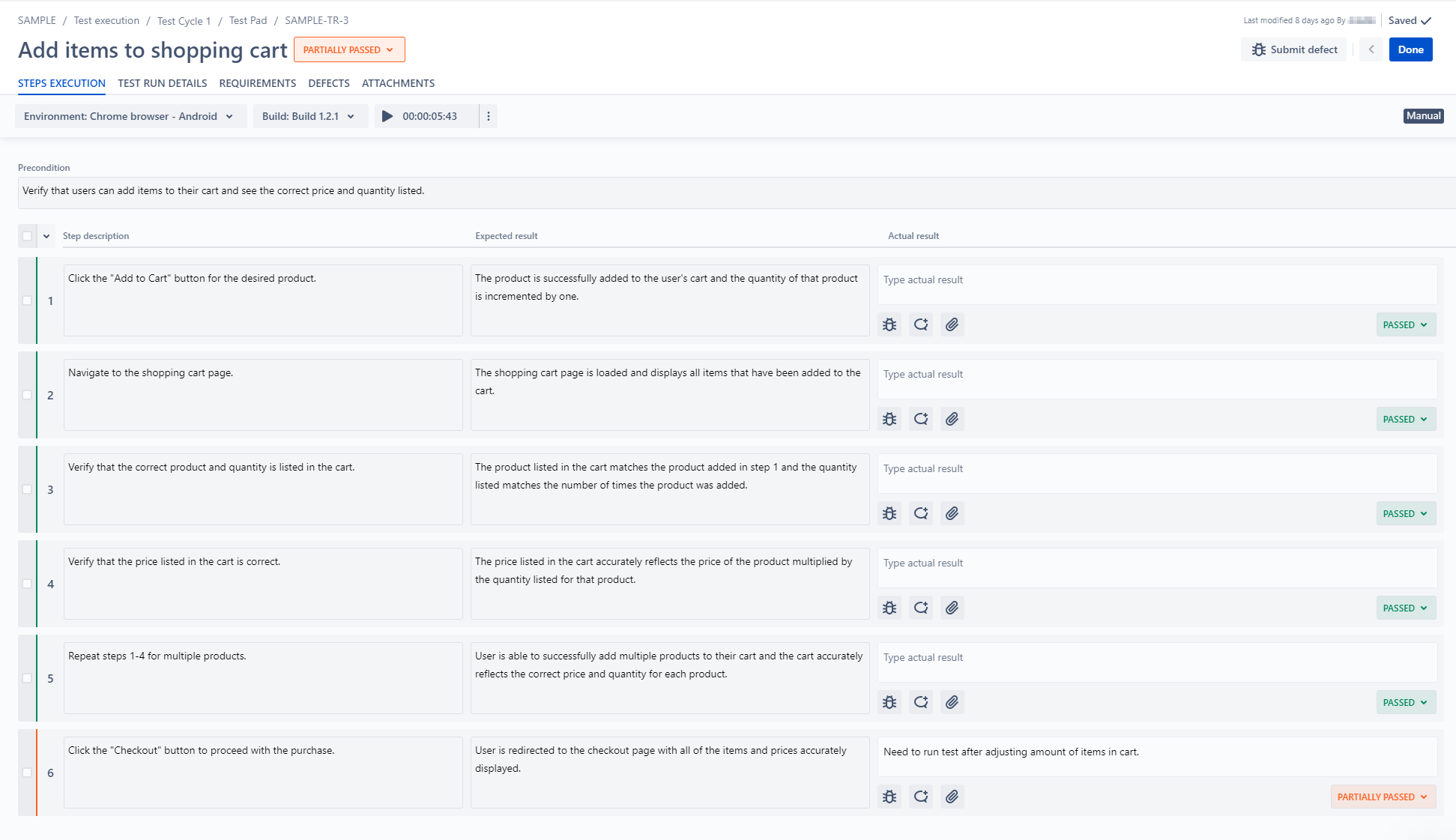
Snapshot of the test case in the first test run, which shows the original steps
On the Test Case, edit the Description and Steps to include updating item amounts, and then create a new test run. When you create a new test run, this test run includes all your changes:
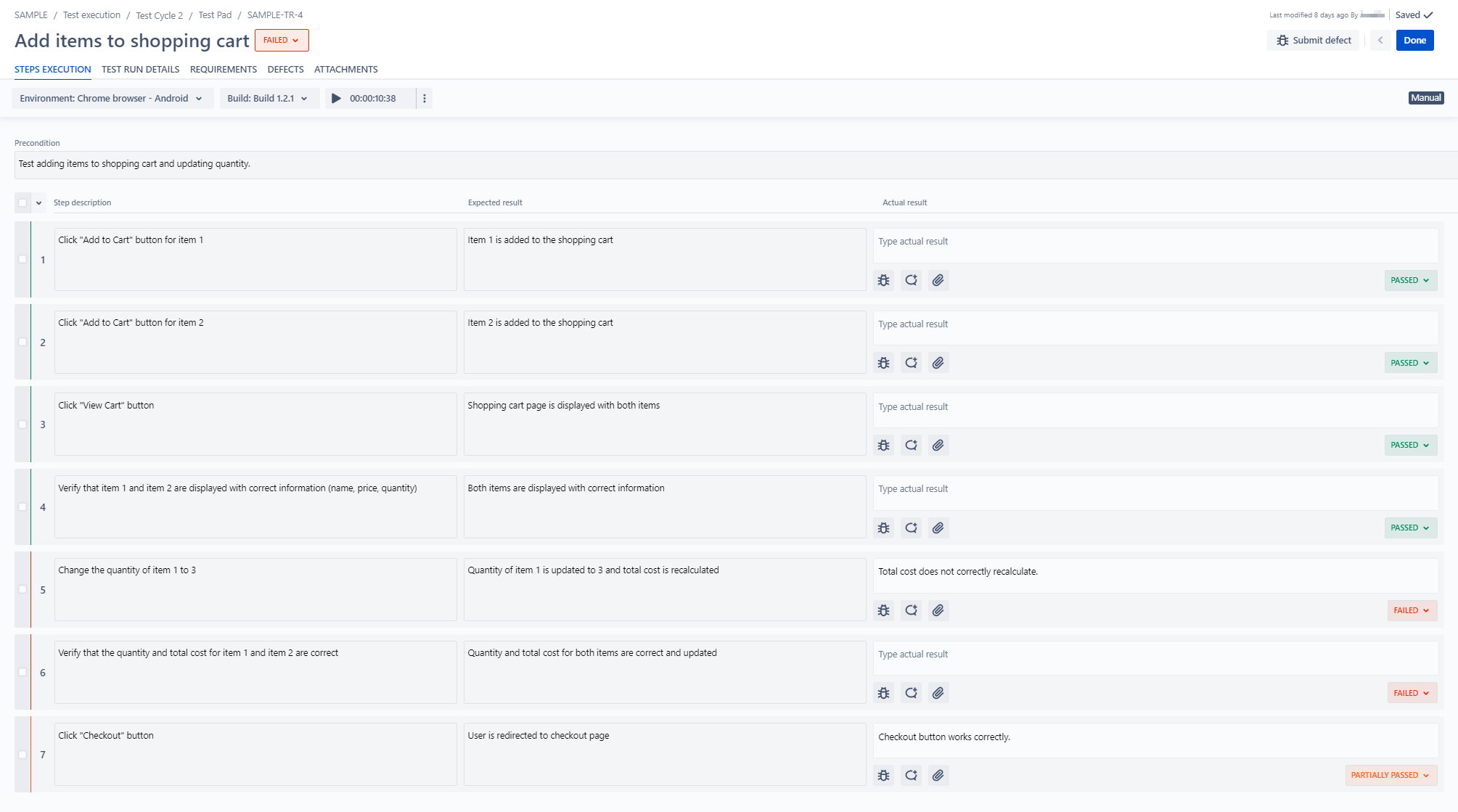
New test run with updated test steps
However, the original test run is there to stay. You can always see your original Steps and Description in the first test run you created for the test case.
By the way, this also works with attached Requirements. You can always check your old test runs to see which requirements were attached to a test case at the time.
What's next
Now that you know how to use test runs as you version, check out how you can work with the TestPad.