APIをテストする
APIは、異なるソフトウェアアプリケーション同士が相互に通信し、情報を交換することを可能にします。APIテストでは、APIにリクエストを送信し、レスポンスを確認して、すべてが期待どおりに動作することを確認します。
Ready to test an API?You need one or more API messages.Each API message consists of a request and a response module.The request module contains the information necessary to send the API request, such as the method, endpoint, and payload.The response module validates the API response.Once you create a message, run it as a quick test or use it in your test cases.
APIメッセージを作成する
APIメッセージを作成する方法は次のとおりです:
-
Go to
 Build > API messages to open the API playground.
 -
APIメッセージには、分かりやすい名前を選択してください。
-
リクエストを設定する:
-
メソッド - リクエストを送信する方法を選択してください。
-
エンドポイント - APIのURLを追加してください。Tosca Cloud は現在、HTTPおよびHTTPSをサポートしています。
-
ペイロード - 送信するデータを含めます。
-
ヘッダー - 必要に応じて、コンテンツタイプやカスタムフィールドなどの追加情報を加えてください。
-
認証 - サービスで必要とされる場合は、基本認証のクレデンシャルを入力してください。
-
-
応答メッセージの検証を定義します。期待される値が実際の値と一致するか確認したい場合は、こちらをご利用ください。
-
エントリーが有効であり、検証が期待される値を返すかどうかを確認するために、簡単なテストを実行してください。
-
保存を選択します。
ヘッダー、認証、検証のタブには、追加した項目の数が表示されます。
API プレイグラウンド パネルですべての API メッセージを見つけます:
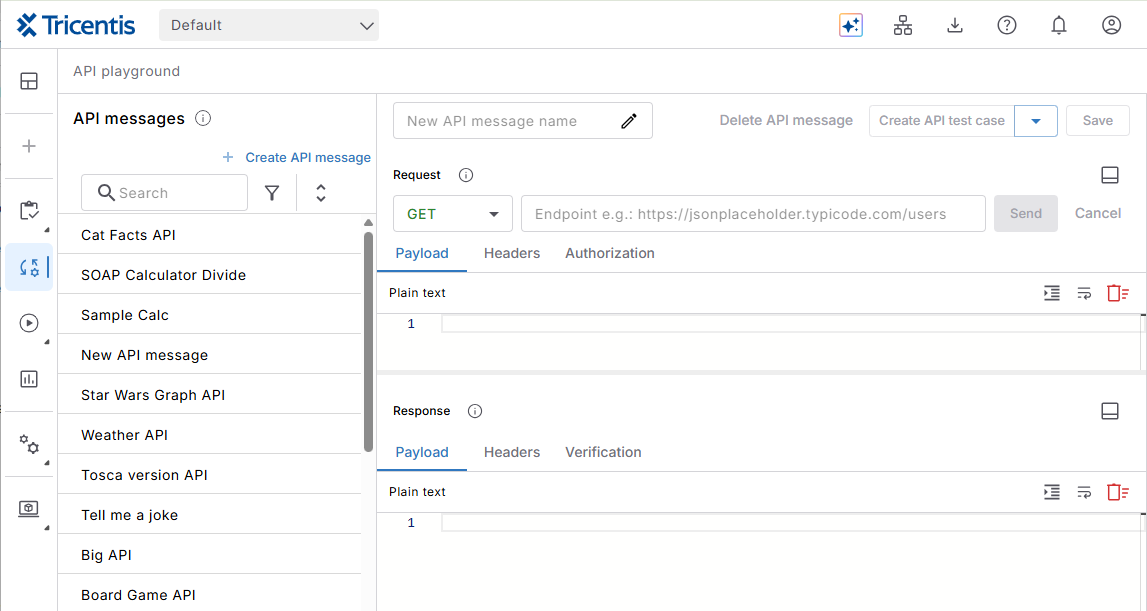
APIプレイグラウンド
検証を設定する
検証は、サービスが期待通りに機能するかどうかをテストするのに役立ちます。メッセージのフォーマット、内容、または応答コードを検証することができます。期待する値を設定し、サービスが実際に返す値と比較してください。
検証を設定するには:
-
既存のAPIメッセージを選択するか、新しいメッセージを作成してください。
-
応答セクションで、検証タブを選択してください。
-
 を選択して、検証を追加してください。
 -
新しく作成した検証のエントリを選択し、以下のプロパティを編集してください:
-
名前 - 検証に固有の名前を付けてください。
-
タイプ - 検証する項目を選択してください:ヘッダー、JsonPath、XPath、ステータスコード、または応答タイム。
-
式 - JsonPathまたはXPathを選択した場合は、こちらに式を追加してください。
-
オペレータ - 比較方法を選択してください。可能なオペレータは、等しい、等しくない、より小さい、以下、より大きい、または以上です。
-
値 - 期待される値を入力してください。
-
-
保存を選択します。
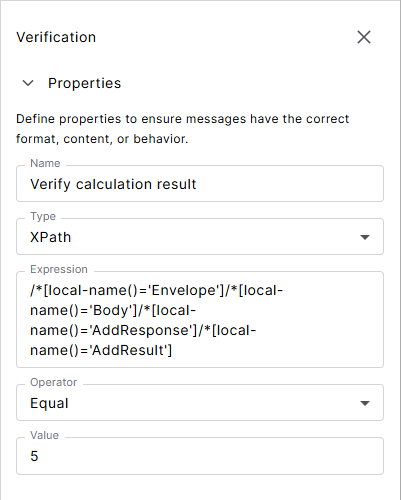
この例では、XPathを使用して計算結果を確認します。
簡単なテストを実行してください。
今すぐAPIメッセージをテストしますか。簡単な一回限りのテストを実行する方法は以下の通りです:
-
既存のAPIメッセージを選択するか、新しいメッセージを作成してください。
-
Select Send from cloud.Use the option Send via agent to securely access APIs from within your environment, even when firewalls or network restrictions prevent direct connections.The パーソナル agent safely delivers your data to the API.
-
応答タブで結果を確認してください:
-
ステータスコード - メッセージがAPIに正常に受信されたかどうかを表示します。
-
認証結果 - 設定した場合、認証がうまくいったかどうかを確認してください。
-
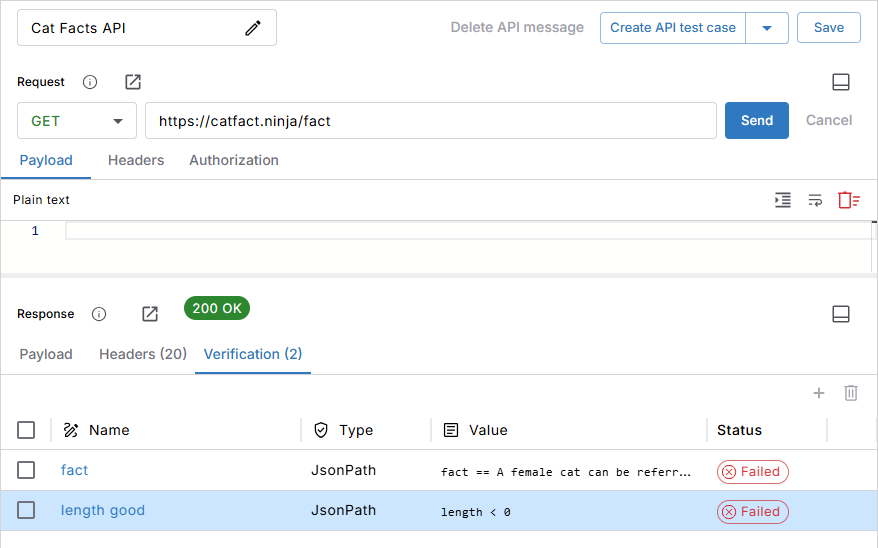
応答の結果
If you have uploaded API messages from Tosca on-prem, they may only work with the Send via agent option.The Send from cloud option doesn't support all features yet.
Create module attributes from API message elements
You can create module attributes from API message elements, such as the method or body.This allows you to steer these elements in your test cases.
To create module attributes, follow these steps:
-
Select the API message, from which you want to create a module attribute.Then, switch to Build mode.
In Build mode, you can see the request and response modules of the selected API message, including their current module attributes.
-
Add API message elements to the Attribute preview panel in one of the following ways:
-
Elements with an
 icon: Select the icon next to an element.
 -
Payload elements: Select one or more elements in the request or response.This will add a preview for each selected element.
-
The entire payload: Select
Body to add the full payload body.
-
-
To create an attribute from an element, select + Add in the Attribute Preview panel.
-
Save your API message.
Any message elements you create from a response will also appear in the Verifications tab of the playground.
APIメッセージを削除する
To delete an API message, go to Build > API messages, select the message you want to remove, then select Delete API message.
これは、現在APIメッセージを使用しているすべてのテスト ケースに影響します。続行する前に、これらのテストケースを更新してください。更新しない場合、実行時にエラーが発生します。
次の記事
APIメッセージからシミュレーションを作成する方法を学びます。