Task details view
The task details view contains all relevant details of a task. You can edit the task start and end date, the status and add a description or attachments . For further details on how to create a task, refer to "Manage tasks".
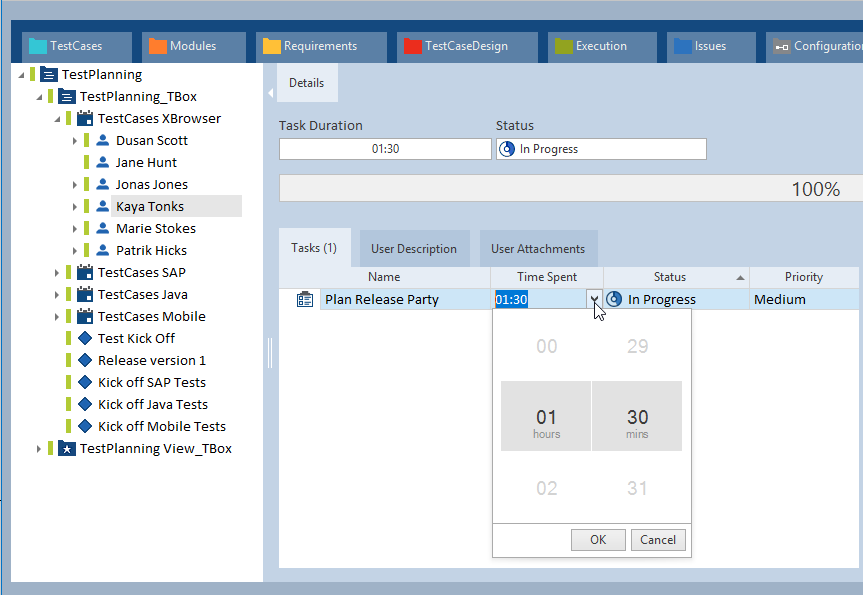
Tricentis Tosca TestPlanning task view
Task start and end
In this section, you can set the start and end date for the selected task. For further details on how to define start and end dates for sessions, refer to "Timebox session".
Task duration
The Task Duration of a task is calculated on the basis of all contained tasks within that session. For further details on how to schedule the time you spent on a specific task, refer to "Enter time spent"
Task status
This section displays the status of the task. Possible values are:  Planned,
 In Progress or
  Completed.
If the status of the task is planned, then you can set the status to Planned. Otherwise you can set the status of the task to In Progress. If the task is completed, then you can select the status Completed.
Task Priority
You can use priority levels to indicate which tasks are more urgent than others. You can select the priority levels High, Medium or Low for your task from the Priority dropdown menu.
Task Description
The task description is used to define your objectives for the task. You can include instructions for participants regarding test goals.
Task Attachments
In this section, you can see all files that were attached to the task. For further details on how to add attachments to a task, refer to "Add attachments".