Record messages
With Tosca OSV, record the traffic between your system under test and a real service. OSV captures all requests and responses. Use these recordings to do the following:
-
Export the messages to Tosca Commander to create OSV Scenarios.
-
Create a Scenario from the messages directly in the OSV Monitor.
Record your messages
Record your messages directly in the Tosca OSV Monitor. Before you start, make sure you have configured a service port for the real service you want to record.
To record messages, follow these steps:
-
Open the Recorder tab by selecting the
 Recorder icon in the Home menu.
 -
To start recording, select the Start toggle in the Recording menu.
-
Send the messages you want to record from the system under test to the OSV service port you configured. OSV records the traffic.
-
To stop recording, select the Stop toggle in the Recording menu.
The Recorder tab displays all recorded messages and message details, such as the direction, service port name, or time stamp. Customize the Recorder tab to your needs.
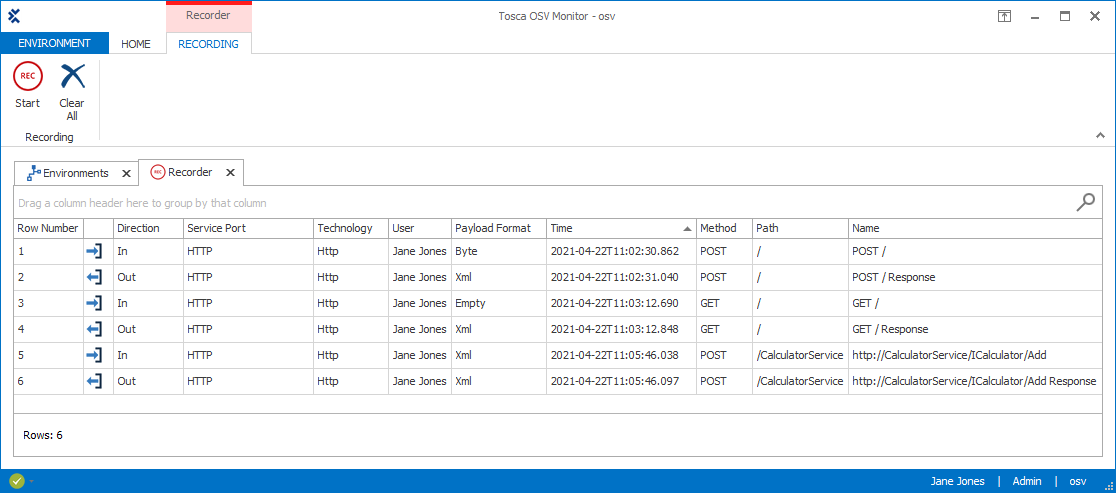
Recorded messages
To see a message in detail, right-click it and select Message Details from the context menu. For more information on message details, check out "Display messages".
To delete a message, right-click the respective row and select Delete from the context menu.