Specify customized properties
In addition to default properties such as Name and Description, you can specify customized properties for your OSV Scenarios. Customized properties allow you to save and manage additional information if your business purposes require it. For instance, you can add information on the Scenario owner or a service used in this Scenario. They do, however, not have any impact on how your Scenario is executed.
Add customized properties
To add customized properties, you have to import the Tosca OSV project definitions.
To do so, follow the steps below:
-
In Tosca Commander, select Project from the Home menu.
-
Make sure that you checked-out the project root element.
-
Right-click on it and select Import Project Definitions from the context menu.
-
In the subsequent dialog, select the file <Tosca OSV program files>\Config\ProjectDefinitions.tcd and click Open.
-
The Import Project Definitions dialog shows which changes are made to the workspace. To close the dialog, click OK.
After the import, you can use the following customized properties:
-
ApplicationVersion
-
ChangeRequestID
-
Custom 1, Custom 2, Custom 3
-
ExternalReference
-
Incident
-
Operation
-
Owner
-
Service
-
Status
-
Version
Specify customized properties
You can specify values for customized properties in Tosca Commander. For instance, you can use the property Owner to specify the owner of an OSV Scenario.
To do so, specify values for your customized properties in the Properties pane or in the Details tab.
Use the Properties pane
To specify properties in the Properties pane, follow the steps below:
-
Expand the Properties pane by clicking on the arrow on the right side of your window.
-
To specify a property, enter a value in its Value field.
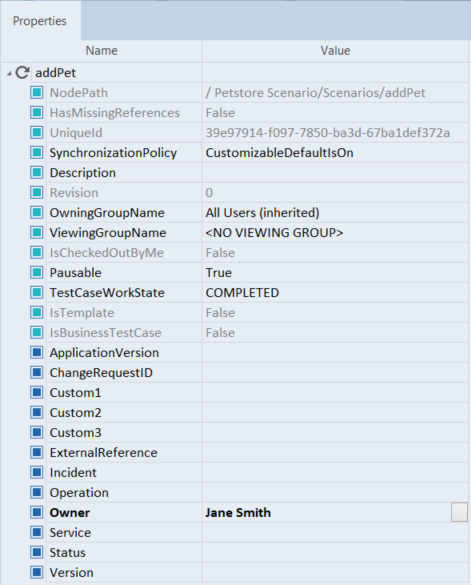
Customized property Owner with value Jane Smith
Use the Details tab
To specify properties in the Details tab, follow the steps below:
-
To display specific properties, use the Column Chooser to add the respective columns.
-
To specify a property, enter a value in the respective column.
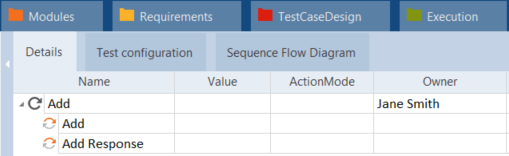
Customized property Owner in the Details tab
Display customized properties in the OSV Monitor
When you transfer a Scenario to an OSV Environment, Tosca also transfers customized properties.
To display customized properties in the OSV Monitor, add the respective columns with the Column Chooser.
You can display these columns for available, pending, and completed Scenarios.
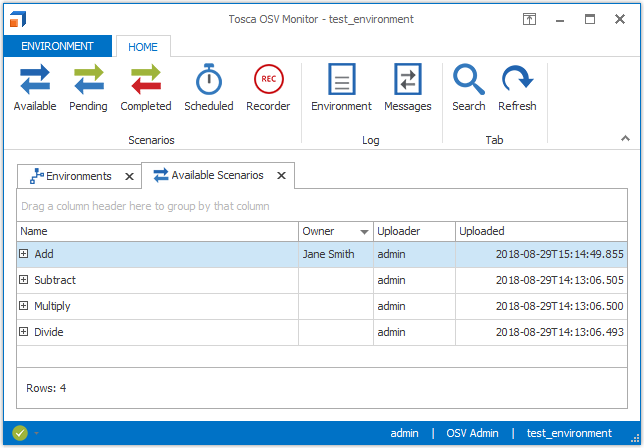
Customized property Owner in the OSV Monitor