Steer PuTTY Engine 3.0 controls
You can steer the following standard controls with the PuTTY Engine 3.0:
For information on how to create Modules using these controls, check out "Create PuTTY Modules".
Limitations
Note the following restrictions for steering PuTTY controls:
-
PuTTY applications don't support cursor positioning. When you steer TextBoxes with ActionMode Input, Tosca places the text in the currently active position in the terminal.
-
PuTTY applications don't support table manipulation. When you steer Tables, you can't use ActionMode Input.
-
When you steer your PuTTY application, make sure that the window size is the same as when you scanned it.
-
PuTTY doesn't detect passwords. When you send passwords over PuTTY, use DataType Password to protect them.
-
Use an English keyboard layout in PuTTY to ensure special characters send as expected.
If you're having trouble with control positions when you run your tests, configure PuTTY so that the setting Lines of Scrollback is 0.
Special characters
If you use the special characters {,+, ^, %, ~, (), or [], you need additional escaping. To do so, enclose the special characters in curly brackets {}. For more information on special characters and escaping, see chapters "Special characters" and "Keyboard commands".
| Tosca Input | PuTTY Output |
|---|---|
| "{{}Hello{}}" |
{Hello} |
Examples
Here are some examples to help you get started with PuTTY:
In this example, you use a TestCase to perform the following actions:
-
TestStep PuTTY - Wait for text steers the control type Label. It waits until a message which contains the word done appears. To do so, it uses wildcards before and after the word done.
-
Once the message appears, TestStep PuTTY - Input steers the control type TextBox. It sends the command exit, followed by ENTER.
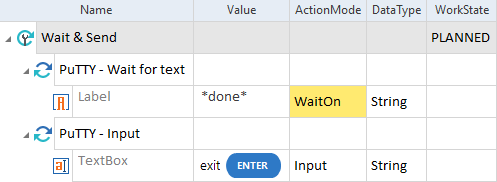
Wait for a message before sending a command to the PuTTY application
In this example, you steer the control type TextBox to sign in to a PuTTY application.
You send the username and an encrypted password, each followed by ENTER.
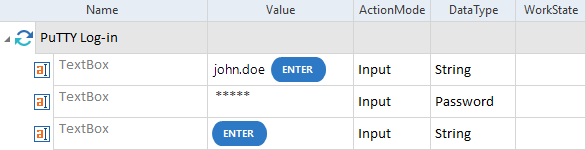
Send commands to a PuTTY terminal window
In this example, you steer the control type Table to verify whether the content of the first cell in the second row of a PuTTY table is Budapest.
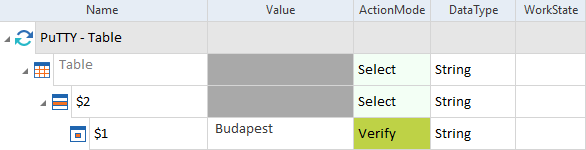
Verify the content of a table in the PuTTY terminal