In Tosca Commander you can easily modify objects and their properties via the context menu. Whether specific parameters are available for selection or not depends mainly on the selected object.
You can call up this function by right-clicking on an object and selecting Modify from the context menu. Select the preferred parameter on the next menu level.
You can also left-click on the object and select the option Modify from the dynamic menu.
Procedure
-
Select the object to be modified in the workspace.
-
Select the option Modify from the context menu or the dynamic menu and then the required parameter.
-
Enter the string that should replace the parameter into the subsequent dialog.
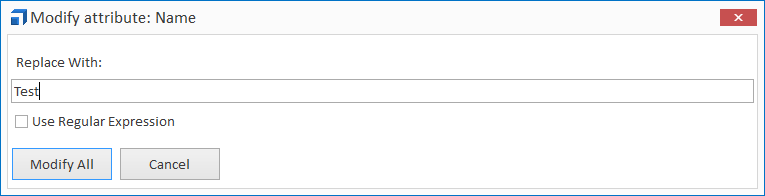
After the operation has finished, a confirmation message will appear, indicating the number of objects that have been modified.

Options
The following modification parameters are available by default:
|
Modify |
Description |
Key combination |
|---|---|---|
|
ActionMode |
The ActionMode of the selected XTestStepValue is modified. |
Ctrl + M, A |
|
ActionProperty |
The ActionProperty of the selected XTestStepValue is modified. |
Ctrl + M, T |
|
BreakInstantiation |
This modifies the BreakInstantiation property of the selected TestStep in a TestCase Template (check out "Define breakpoint for instantiation"). |
Ctrl + M, B |
|
Condition |
A condition of the selected instance is modified (check out "Preparing the conditional instantiation"). |
Ctrl + M, C |
|
DataType |
The DataType of the selected TestStepValue is modified. |
Ctrl + M, D |
|
Description |
The description of the selected object is modified. |
Ctrl + M, D |
|
DefaultDataType |
The default DataType of the selected ModuleAttribute is modified. |
Ctrl + M, E |
|
Module parameter |
The values of all module parameters can be verified, e.g. UseWaitOn, WaitOnSpec, Weight, etc. This option must be enabled by an administrator (check out "ShowModifyOperationsForObjectMapParamsOnModule"). |
|
|
Name |
The name of the selected object is modified. |
Ctrl + M, N |
|
Pausable |
The value of the property Pausable can be modified (check out "Pausable"). |
Ctrl + M, P |
|
Path |
The path of a TestStepValue pointing to an entry in an Excel worksheet is modified. |
Ctrl + M, P |
|
Query |
This modifies the current search query for virtual folders (check out "Query"). |
Ctrl + M, Q |
|
Repetitions |
The value of the Repetitions property of an ExecutionEntry is modified. |
Ctrl + M, R |
|
SchemaPath |
The path to the data source of the selected TemplateInstance is modified. |
Ctrl + M, P |
|
SortBy |
The property SortBy of the selected virtual folder is modified - search criterion of the search result (check out "SortBy"). |
Ctrl + M, R |
|
Synchronization |
The SynchronizationPolicy of the selected element is modified. The following values are possible: CannotBeExecuted, CustomizableDefaultIsOn, CustomizableDefaultIsOff and CannotBeExcludedForWholeTree (check out "Enable and disable synchronization"). |
Ctrl + M, S |
|
TestCaseWorkState |
This modifies the work state of the selected TestCase. Possible values: PLANNED, IN_WORK, and COMPLETED. |
Ctrl + M, T |
|
TypeInfoDescription |
The control type is modified. |
Ctrl + M, T |
|
Value |
The value of the selected TestStepValue is modified. |
Ctrl + M, V |
|
ValueRange |
The ValueRange of the selected ModuleAttribute is modified. |
Ctrl + M, R |
The following modification parameters are additionally available to administrators:
|
Modify |
Description |
Key combination |
|---|---|---|
|
OwningGroupName |
Modifies the name of the user group (Ownership), which is authorized to make modifications. |
Ctrl + M, O |
|
ViewingGroup |
Modifies the name of the user group (Ownership) for whom an object is visible. |
Ctrl + M, V |