File Operations
The folder TBox Automation Tools->File Operations in the Standard subset contains the following Modules:
TBox Image Compare
The Module TBox Image Compare allows you to verify pixel-accurate image files in the following formats: BMP, JPG, and GIF.
It has the following attributes:
|
ModuleAttribute |
Description |
|---|---|
|
FirstImageFilePath |
Path and file name of the first image file. |
|
SecondImageFile |
Path and file name of the image file that you want to compare to the first image file. |
In this example, you compare the image file logo_new.jpg to the image file logo.jpg.

Compare two image files
TBox File Existence
This Module allows you to verify whether a file exists in a specific directory.
The Module TBox File Existence has the following attributes:
|
ModuleAttribute |
Description |
|---|---|
|
Directory |
Path to the file. |
|
File |
Name of the file whose existence you want to verify. You can use ActionModes Verify or WaitOn. You can verify the name as follows:
|
This example verifies whether the file test01.xml exists in the directory D:\.
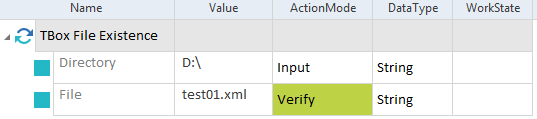
Verify the existence of a file
The screenshot below shows how to verify that the file doesn't exist in the directory D:\.:
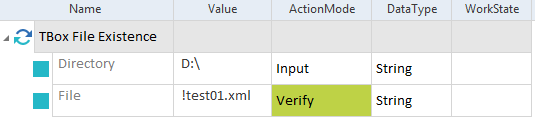
Verify that a file doesn't exist
TBox File Compare
This Module allows you to compare the content of two files and optionally see the results in a merged file.
After execution, you can view the result in the Loginfo column of the ExecutionEntry.
The Module TBox File Compare has the following ModuleAttributes:
|
ModuleAttribute |
Description |
|---|---|
|
FirstFilePath |
Full path to the first file, including the file name and extension. |
|
SecondFilePath |
Full path to the second file, including the file name and extension. |
|
DiffReportOutputFolder |
If you want to save a merged file to compare the differences, specify a path. You can verify the changes in the merged file as follows:
|
The TestStep in this example performs the following actions:
-
Compares the file data.xml to the file dataNew.xml.
-
Saves the results as a merged file to C:\Sales\reports.
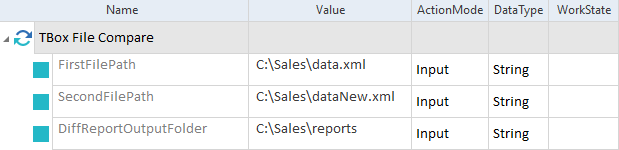
Compare two files
TBox Copy File
Use this Module to copy and paste files within the Microsoft Windows® file system. If you want to paste a file to a different directory, this directory must already exist at run-time.
The Module might not work if you use a security and password management tool.
The Module TBox File Operations has the following attributes:
|
ModuleAttribute |
Description |
|---|---|
|
Source |
Path and file name of the file that you want to copy. |
|
Target Directory |
Directory to which you want to paste the file. |
|
Target Filename |
If you want to rename the file, specify the new file name. |
|
Overwrite |
By default, Tricentis Tosca doesn't overwrite existing files. If you want to overwrite the existing file, set the value to True. |
The TestStep in this example performs the following actions:
-
Copies the file report_new.xml from the directory C:\Reports to C:\Sales Reports.
-
Renames the file to report.xml.
-
Overwrites the existing file in the target directory.
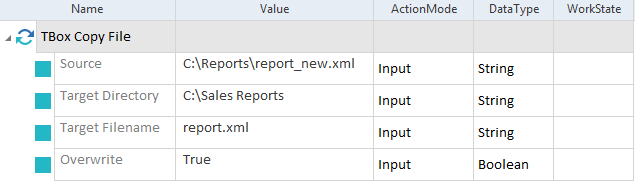
Copy and paste a file to another directory
TBox Delete File
This Module removes a file from a specific directory.
The Module TBox Delete File has the following ModuleAttributes:
|
ModuleAttribute |
Description |
|---|---|
|
Directory |
Path to the file that you want to delete. |
|
File |
Name of the file that you want to delete. To delete multiple files, use the wildcard character * to replace zero or more characters in the file name. |
If the system can't locate the file or any files matching a file name that contains a wildcard, the execution result shows the following description: The file <file name> does not exist.
The test result is positive.
In this example, you delete the file test.xml from the directory C:\Temp.
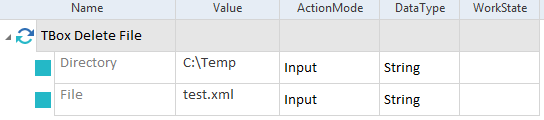
Delete a file
TBox Read/Create File
This Module allows you to perform the following actions:
-
Create a text file.
-
Write text to a text file.
-
Verify or buffer text in the file.
-
Wait on text in the text file.
The Module TBox Read/Create File has the following ModuleAttributes:
|
ModuleAttribute |
Description |
|---|---|
|
Directory |
Path of the file that you want to create or read. |
|
File |
Name of the file, including the file extension. |
|
Text |
Text that you want to write, verify, buffer, or wait on. Use ActionMode Input, Verify, Buffer, or WaitOn, respectively. |
|
Encoding |
.NET character encoding of the file that you want to create. This is optional. You can choose the following encoding options: UTF-8, UTF-16 and ISO-8859-1. |
|
Overwrite |
If you want to overwrite the target file, set the value to True and use ActionMode Input. |
|
Add Byte Order Mark |
Specify whether you want to add a byte order mark (BOM) to the preamble of your file. This is optional and only applies to files with UTF-8 or UTF-16 encoding. By default, Tricentis Tosca automatically adds a BOM to files with UTF-16 encoding. To add a BOM, note the following:
|
The TestStep in this example performs the following actions:
-
Creates a new text file named test.txt in the directory C:\Temp .
-
Adds the file content A nice text..
-
Uses character encoding UTF-8.
-
Overwrites the existing file in the target directory.
-
Adds a byte order mark.
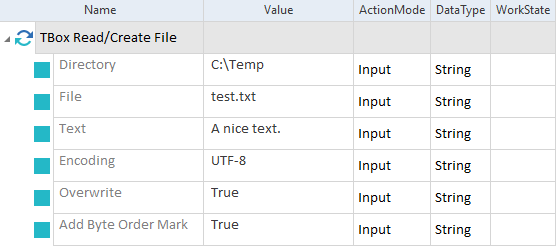
Create a new file
This example verifies whether the file test.txt in the directory C:\Temp contains the text This is text in the file.
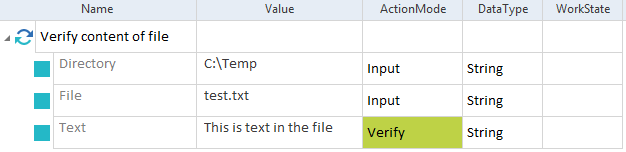
Verify text in a file
TBox Append File
This Module appends the Text ModuleAttribute to the defined file.
If you define a file that doesn't yet exist, Tosca creates it.
The Module TBox Append File has the following ModuleAttributes:
|
ModuleAttribute |
Description |
|---|---|
|
Filepath |
The full file path in which the file is located. |
|
Text |
Text that should be appended. |
|
End with Newline |
Set the value to True if you want the text to be appended with Newline at the end. This is optional. |
|
Encoding |
Specify the character encoding of the file that you want to append the Text to. This is optional. You can choose the following encoding options: UTF-8, UTF-16 and ISO-8859-1. |
In this example, you append text to a file in the directory C:\Temp.
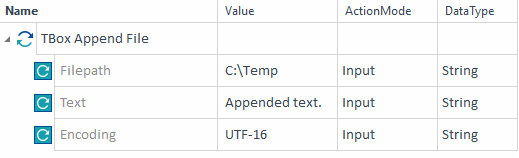
Append a file
TBox Move/Rename File
This Module allows you to move and rename a file. If you want to move the file to a different directory, this directory must already exist at run-time.
The Module TBox Move/Rename File has the following ModuleAttributes:
|
ModuleAttribute |
Description |
|---|---|
|
Existing Path |
Path, file name, and extension of the file that you want to move or rename. |
|
New Path |
New path and/or file name. Note the following:
|
The TestStep in this example performs the following actions:
-
Renames the file report_scan.jpg to scan.jpg.
-
Moves the file to C:\Temp\reports.

Move and rename a file
TBox Zip File
This Module allows you to create an archive in a zip file, and has the following ModuleAttributes:
|
ModuleAttribute |
Description |
|---|---|
|
Source |
File or directory path to the file you want to archive. To specify multiple files and directories, use a semicolon (;). |
|
Destination |
The file path of the directory to create, e.g. C:\example.zip. |
|
Overwrite |
If set to True, this overwrites the file you've specified in the attribute Destination. |
The TestStep in this example performs the following actions:
-
Specifies Example.xlsx as the file to archive in a zip file.
-
Specifies C:\Calculations\Archive\Example.zip as the destination directory for the archived zip file.
-
Overwrites the file Example.zip.
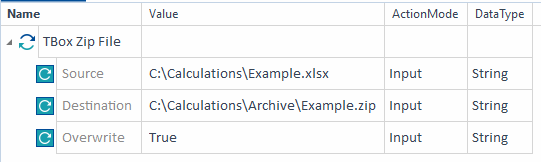
Create a zip file
TBox Unzip File
This Module allows you to extract a zip file, and has the following ModuleAttributes:
|
ModuleAttribute |
Description |
|---|---|
|
Archive |
The path to the file you want to extract. |
|
Destination |
The path to the directory where you want to locate the extracted zip file. If the directory doesn't exist, it will be created automatically. |
|
Overwrite |
If set to True, this overwrites extracted files in the folder you've specified in the attribute Destination. |
The TestStep in this example performs the following actions:
-
Specifies TBox_Tests.zip as the file to extract.
-
Specifies C:\Examples\Tests as the destination directory for the extracted file.
-
Overwrites extracted files in the Tests folder.
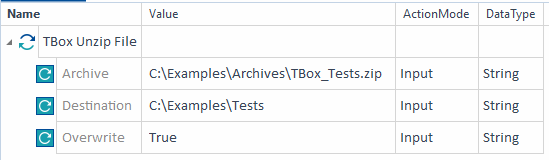
Extract a zip file