Steer SAP Fiori controls
With the SAP Web Extension 3.0, you can steer controls in SAP Fiori. This chapter describes how to steer controls specific to SAP Fiori.
The table below lists SAP Fiori controls that you can steer with the SAP Web Extension 3.0.
|
Business name of SAP Fiori controls |
Identified in XScan as |
|---|---|
|
|
|
|
|
|
|
|
|
|
|
|
|
|
|
|
Composite Controls, Header, Label, Object Attribute, Object Number, Object Status, Text |
|
|
|
|
|
You can also use the Module SAP Tile to steer the Generic Tile. |
|
|
|
|
|
|
|
|
|
|
|
You can also use the Module SAP Message Toast to steer the Message Toast. |
|
|
|
|
|
|


When SAP Fiori or SAP SuccessFactors page is loading, a busy indicator might appear. To ensure that all controls are fully loaded before you run a TestStep, you can pause test execution until a busy indicator disappears. To do so, use the Module SAP WaitForBusyIndicator. You can find the Module under Standard modules->Engines->Html->SAP FIORI.
SAP Fiori Calendar
XScan identifies SAP Fiori Calendars as TextBoxes. You can steer them as described in "TextBox".
To enter a date into SAP Fiori Calendar, use the following date formats:
|
Date format |
Description |
Example |
|---|---|---|
|
yyyyMMdd |
Specifies a single date. |
20201028 |
|
yyyyMMdd-yyyyMMdd |
Specifies a date range. Enter the start and end date. |
20200906-20200924 |
|
yyyyMMdd, yyyyMMdd, ... |
Specifies multiple dates. |
20200914, 20200918, 20200930 |
|
CWxx/yyyy |
Specifies a calendar week. Replace xx with the number of the week. |
CW7/2019 |
In this example, you perform the following actions:
-
In the TestStep Single Day Selection, you set the date 20201028 in a calendar with single day selection.
-
In the TestStep Single Interval Selection, you set the range of dates from 20200906 to 20200924 in a calendar with date range selection.
-
In the TestStep Multiple Day Selection, you set the dates 20200914, 20200918, and 20200930 in a calendar with multiple day selection.
-
In the TestStep Week Selection, you select the week 39 in a calendar with date range or multiple day selection.
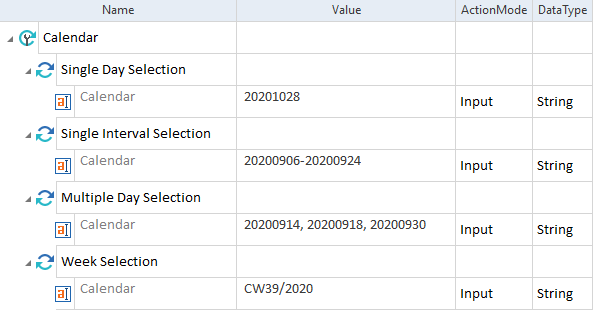
Set dates in SAP Fiori Calendars
In this example, you use the {DATE} function to convert the date 01.10.2020 into the date format yyyyMMdd that SAP Fiori Calendar accepts.

Convert the date for SAP Fiori Calendar
SAP Fiori Column
XScan identifies SAP Fiori Column as Tables. You can steer them as described in "Table".
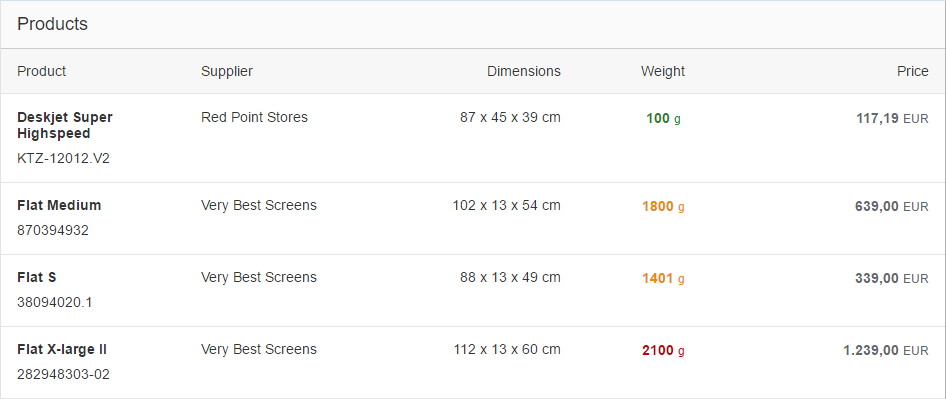
SAP Fiori Column
Verify the elements of the Column
The table below lists the properties that you can verify with the Value column.
|
Property |
Description |
|---|---|
|
Unit |
Verifies the unit. |
|
LabelTitle |
Verifies the title of the label. |
|
LabelText |
Verifies the text of the label. |
|
LabelStatus |
Verifies the status of the label. Possible values: Success, Error, Warning, None. |
In this example, you verify the following elements:
-
You verify the first row of the column Product. You use the property LabelTitle to verify whether its name is Deskjet Super Highspeed.
-
You verify the first row of the column Weight. You use the property Unit to verify whether its name is g.
-
You verify the first row of the column Weight. You use the property LabelStatus to verify whether its status is Success.
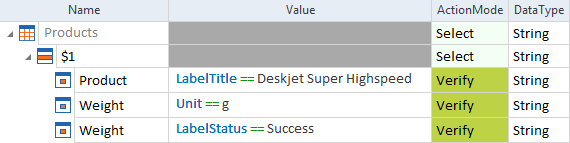
Verify SAP Fiori Columns
SAP Fiori Composite Controls
XScan identifies SAP Fiori Composite Controls as Labels. You can steer them as described in "Label"
SAP Fiori Composite Controls can consist of the following types of information:
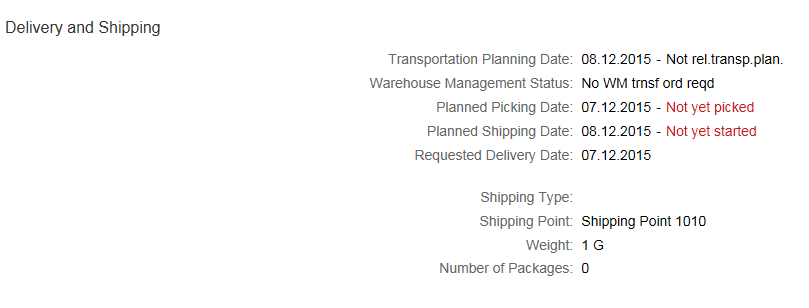
SAP Fiori Composite Controls
Verify the text information of SAP Fiori Composite Controls
The table below lists the properties that you can verify with the Value column for text information.
|
Property |
Description |
|---|---|
|
Caption |
Verifies the text in the left column. |
|
LabelText |
Verifies the text in the right column. |

SAP Fiori Composite Control with text information
In this example, you verify the text in the right column of the label Shipping Point. You use the property LabelText to verify whether its text is Shipping Point 1010.

Verify the text in SAP Fiori Composite Control
Verify the status information of SAP Fiori Composite Controls
The table below lists the properties that you can verify with the Value column for status information.
|
Property |
Description |
|---|---|
|
Caption |
Verifies the text in the left column. |
|
LabelText |
Verifies the text in the right column. |
|
LabelStatus |
Verifies the status in the right column. Possible values: Success, Error, Warning, None. |
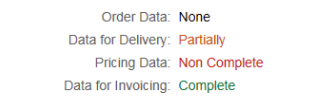
SAP Fiori Composite Control with status information
In this example, you verify the following elements:
-
You verify the text in the right column of the label Data for Delivery. You use the property LabelText to verify whether its text is Partially.
-
You verify the status in the right column of the label Data for Delivery. You use the property LabelStatus to verify whether its status is Warning.
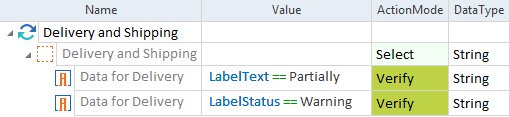
Verify the status in the SAP Fiori Composite Control
Verify the text and status information of SAP Fiori Composite Controls
The table below lists the properties that you can verify with the Value column when both text and status information applies.
|
Property |
Description |
|---|---|
|
Caption |
Verifies the text in the left column. |
|
Status |
Verifies the status in the right column. Possible values: Success, Error, Warning, None. |
|
StatusText |
Verifies the text of the status in the right column. |
|
Text |
Verifies the text and the value of the status in the right column. |

SAP Fiori Composite Control with text and status information
In this example, you verify the following elements:
-
You verify the status in the right column of the label Transportation Planning Date. You use the property Status to verify whether the status is None.
-
You verify the status text in the right column of the label Planned Picking Date. You use the property StatusText to verify whether the text of the status is Not yet picked.
-
You verify the text and status in the right column of the label Planned Shipping Date. You use the property Text to verify whether the text is 07.12.2015 and the status is Not yet started.
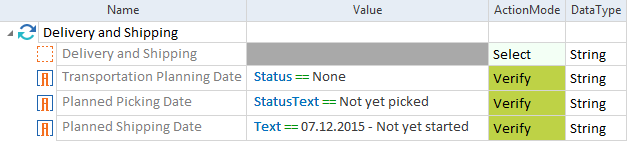
Verify the text and status in SAP Fiori Composite Controls
SAP Fiori Container
XScan identifies SAP Fiori Containers as Containers.
Verify the elements of SAP Fiori Containers
The table below lists the properties that you can verify with the Value column.
|
Property |
Description |
|---|---|
|
ContainerTitle |
Verified the title of the container. |
|
DefaultName |
Verifies the default name of the container. |
In this example, you use the property ContainerTitle to verify whether the title of the Container is Delivery and Shipping.

Verify the title of SAP Fiori Container
SAP Fiori Date Picker
XScan identifies SAP Fiori Date Pickers as TextBoxes. You can steer them as described in "TextBox".
To enter a date into SAP Fiori Date Picker, use the following date format: yyyyMMdd, for example 20201215.
Tricentis doesn't support the Date Pickers with Islamic date and secondary Gregorian date in calendar.
In this example, you enter the date 20201215 into a Date Picker.

Enter date into SAP Fiori Date Picker
SAP Fiori Generic Tile
Use the Module SAP Tile from the Standard subset to click a tile on the SAP Fiori dashboard page.
You can find the Module under Standard modules->Engines->Html->SAP FIORI.
In this example, the SAP Web Extension 3.0 clicks a specific SAP Fiori Generic Tile from Sales Orders category.
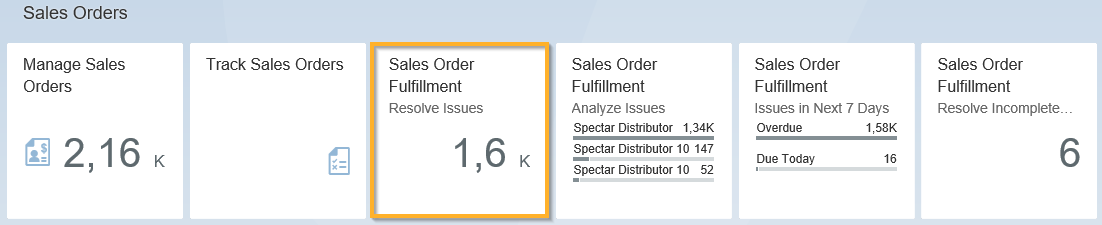
Sales Orders category with Sales Order Fulfillment tile
To do so, you specify the following ModuleAttributes:
-
Page Title to specify the caption of the page where you steer a tile.
-
Tile Category to ensure that the tile in Sales Orders category is clicked.
-
Tile Title to specify the title of the tile you want to click.
-
Tile Subtitle, because there are three Sales Order Fulfillment tiles in Sales Orders category.
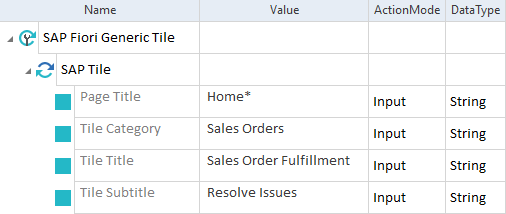
Click Sales Order Fulfillment tile in SAP Fiori
If you have multiple tabs open in your browser, you must specify which tab contains the elements that you want to steer. To do so, follow the steps below:
-
Copy the Module SAP Tile. This ensures that your changes in the Module properties don't affect the existing TestCases.
-
Select the copied Module.
-
To access the Module properties, click on Properties or the arrow
 on the right side of the workspace window.
 -
Navigate to the parameter Title.
-
In the Value column, replace the asterisk * with the name of the tab where you want to steer SAP Fiori Generic Tile, for example Home.
Alternatively, you can enter a buffered value that you have previously set using the standard Module TBox Set Buffer.
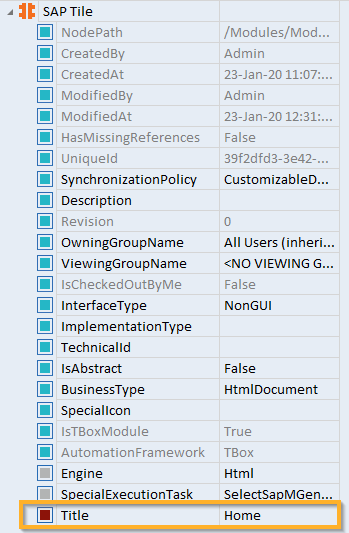
Title parameter of the Module SAP Tile
Verify SAP Fiori Generic Tiles
To verify a tile on the SAP Fiori dashboard page, scan it with XScan.
XScan identifies SAP Fiori Generic Tiles as Buttons. You can steer them as described in "Button".
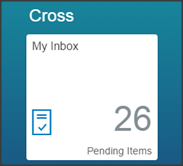
SAP Fiori Generic Tile My Inbox
The table below lists the properties that you can verify with the Value column.
|
Property |
Description |
|---|---|
|
TileTitle |
Verifies the title of the tile. |
|
TileSubtitle |
Verifies the subtitle of the tile. |
|
Info |
Verifies the text of the tile footer. |
|
Icon |
Verifies the name of the tile icon. |
|
TargetURL |
Verifies the URL that is linked to the website. |
|
Number |
Verifies the number on the tile. |
|
NumberState |
Verifies the number's state. Possible values: Neutral, Positive, Negative, Critical, None. |
In this example, you verify whether the title of the tile is My Timesheet.

Verify the title of an SAP Fiori Generic Tile
After the execution of TestCases with SAP Fiori Generic Tiles, the following error message can appear:
Control for action Aging Analysis is not visible
It's caused by the fact that sometimes SAP Fiori Generic Tiles don't load fast enough.
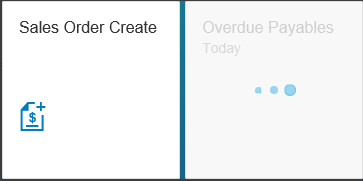
Tiles with lazy loading
To avoid this, you can add a step with the ActionMode WaitOn before the execution of the click operation.
In this example, you use the property Enabled to wait until SAP Fiori Generic Tile Create Sales Order is fully loaded.
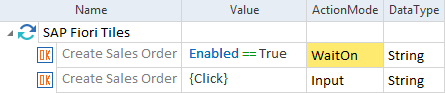
Solution for error during loading of SAP Fiori Generic Tiles
SAP Fiori Grid Table
XScan identifies SAP Fiori Grid Tables as Tables. You can steer them as described in "Table".
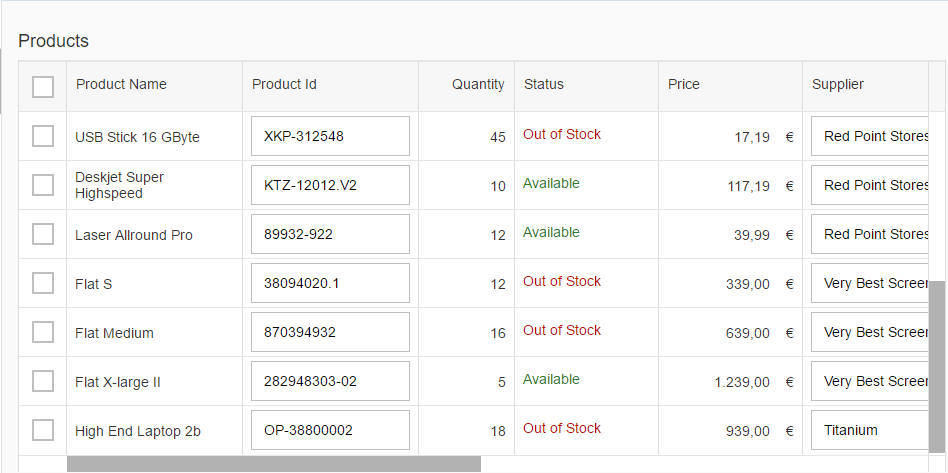
SAP Fiori Grid Table
Select rows in SAP Fiori Grid Tables
You can select one or more rows in SAP Fiori Grid Table. To do so, follow the steps below:
-
Scan a SAP Fiori Grid Table with XScan.
-
Drag and drop the Module onto your TestCase.
-
In the Name field of the <Row> attribute, enter the number of the row you want to select. For example, enter $5 to select the fifth row (check out "Table").
-
Under the <Row> attribute, set the index of the <Cell> attribute to $1. This selects the first column, which is necessary to select rows.
Tricentis recommends that you use the index number of the first column instead of its name.
-
Set the Value of the Cell attribute to select or deselect the row:
-
To select a row, set the Value to True or Click.
-
To deselect a row, set the Value to False.
-
-
Set the ActionMode to Input.
In this example, you select the fifth row of SAP Fiori Grid Table. To do so, you select the cell $1 for the row $5 and set the Value for this cell to True.
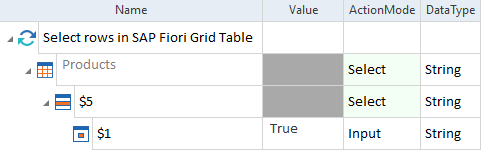
Select a row from SAP Fiori Grid Table
Verify the elements of SAP Fiori Grid Table
The table below lists the properties that you can verify with the Value column.
|
Property |
Description |
|---|---|
|
Currency |
Verifies the abbreviation of a currency in the cell, for example USD or EUR. |
|
CurrencySymbol |
Verifies the symbol of the currency in the cell, for example $ or €. |
|
DisplayedCurrency |
Verifies the abbreviation or the symbol of a currency in the cell, for example USD, $, EUR, €. |
|
LabelStatus |
Verifies the status of the cell. Possible values: Success, Error, Warning, None. |
|
Value |
Verifies the value in the cell. |
In this example, you verify the following elements:
-
You verify the first row of the column Price. You use the property Value to verify whether it's 856.49.
-
You verify the first row of the column Price. You use the property DisplayedCurrency to verify whether the symbol is €.
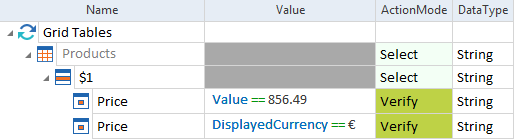
Verify the Price column
Define controls in cells in SAP Fiori Grid Tables
SAP Fiori Grid Table can contain the following elements:
-
Button
-
CheckBox
-
ComboBox
-
Link
-
Image
-
TextBox
-
Label
-
Data Picker
To steer these elements, follow the steps below:
-
Right-click on the cell of a row or column attribute in the Module.
-
Select Create Embedded <Control-Type> control from the context menu.
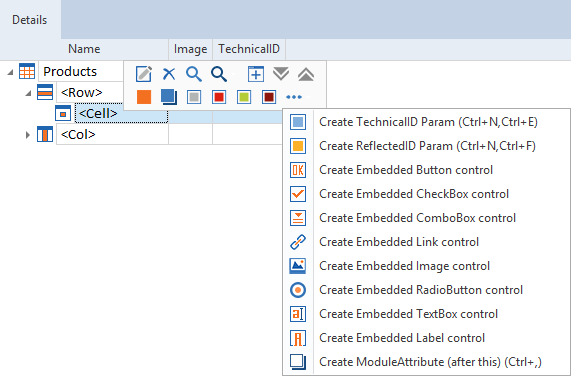
Add an embedded control
For detailed information, check out "Defining controls in cells".
If you have multiple embedded controls of the same type in a cell, you can steer them using their index number.
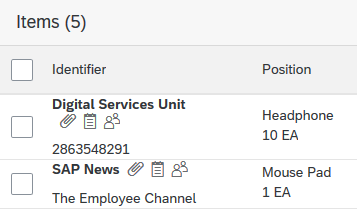
Table with multiple embedded buttons: attachment, notes, and group
To do so, follow the steps below:
-
Scan the table with XScan.
-
Create an embedded control as described in "Defining controls in cells".
-
Go to the Properties tab of this control and create a new configuration parameter ExplicitName. Set its value to True.
-
Drag and drop the Module onto your TestCase.
-
In a TestStep, replace the default name of an embedded control, for example Button, with a hash (#) and specify the index number of the control you want to steer.
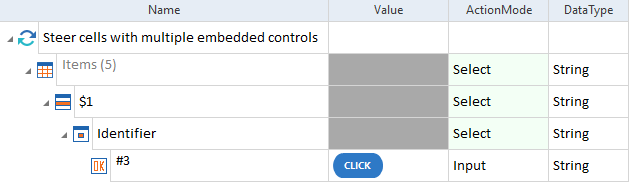
TestStep that clicks on a third embedded button
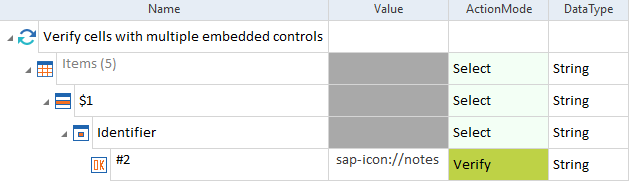
TestStep that verifies whether the second embedded control is the button notes
SAP Fiori Header
XScan identifies SAP Fiori Headers as Labels. You can steer them as described in "Label".
SAP Fiori Headers consist of the following elements:
-
Intro
-
Caption
-
The list of attributes
-
Number with number state and unit
-
Number unit
-
First status with status state
-
Second status with status state
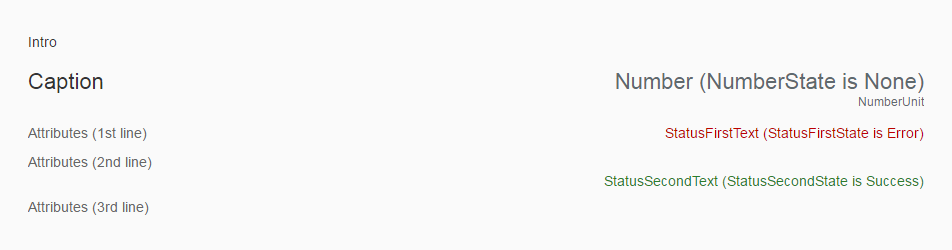
Elements of SAP Fiori Header
Verify the elements of SAP Fiori Header
The table below lists the properties that you can verify with the Value column.
|
Property |
Description |
|---|---|
|
Attributes |
Verifies the list of attributes at the bottom of the header. |
|
Caption |
Verifies the caption in the header. |
|
Intro |
Verifies the intro in the header. |
|
Number |
Verifies the number in the header. |
|
NumberState |
Verifies the number state in the header. |
|
NumberUnit |
Verifies the number unit in the header. |
|
StatusFirstState |
Verifies the state of the first status in the header. Possible values: Success, Error, Warning, None. |
|
StatusFirstText |
Verifies the text of the first status in the header. |
|
StatusSecondState |
Verifies the state of the second status in the header. Possible values: Success, Error, Warning, None. |
|
StatusSecondText |
Verifies the text of the second status in the header. |
|
Unit |
Verifies the unit of elements in the header. |
In this example, you verify the Net Order Value. You use a regular expression to verify that the value 175,50 is at the end of the line.
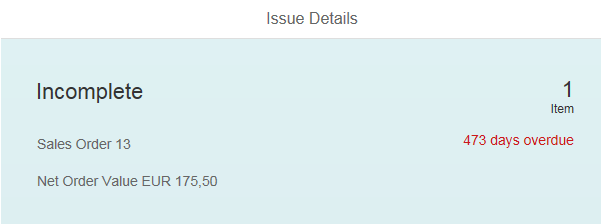
SAP Fiori Header example
Use the following general syntax to verify the attribute through a regular expression: Attribute == {RegEx[<Regular expression>]}.
For more information on regular expressions, check out "Regular expressions".
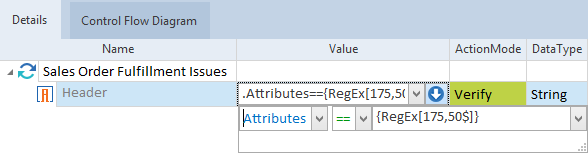
Regular expression for the verification of Attributes
Steer more than one element of SAP Fiori Header
You can steer more than one element of SAP Fiori Header. To do so, follow the steps below:
-
To open the Properties pane, click the Properties button or expand the arrow
on the right side of the workspace window. -
Change the value of Cordinality in the Value column.
For an infinite number of steerable header elements, change the default value from 0-1 to 0-n.
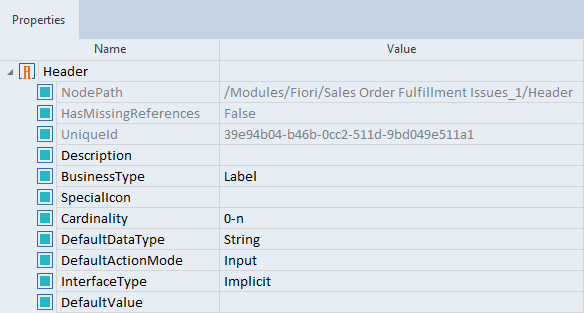
Cardinality of the Header
SAP Fiori Icon Tab Bar
XScan identifies SAP Fiori Icon Tab Bars as Listboxes. You can steer them as described in "Listbox".

SAP Fiori Icon Tab Bar
In this example, you click on the Icon Tab Bar item Heavy.

Steer SAP Fiori Icon Tab Bar
Verify the elements of SAP Fiori Icon Tab Bar
The table below lists the properties that you can verify for each Icon Tab with the multiline view.
|
Property |
Description |
|---|---|
|
Counter |
Verifies the number on the Icon Tab. |
|
Text |
Verifies the name of the Icon Tab. |
In this example, you verify whether the number on the Icon Tab Bar item Heavy is 5.
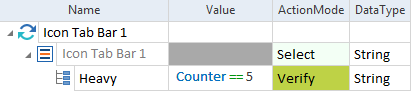
Verify the Counter on the Icon Tab
SAP Fiori Input
You can steer SAP Fiori Inputs as described in "TextBox".
Use the click operation {OpenList} to open Inputs that have an input assistant.
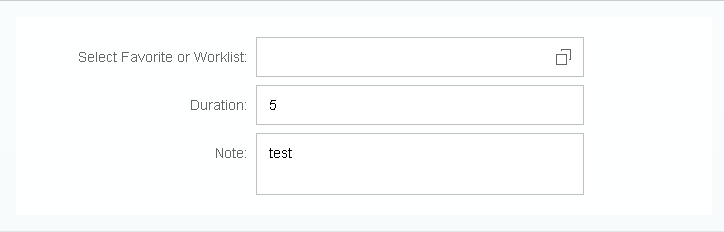
SAP Fiori Input with input assistant
In this example, you open the input assistant of an Input.

Open the input assistant
SAP Fiori List with Selection
XScan identifies List with Selection as a Listbox. You can steer it as described in "Listbox".
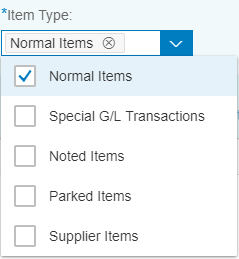
SAP Fiori List with Selection
To steer check boxes in an SAP Fiori List with Selection, follow the steps below:
-
Create generic list items as described in "Generic list items".
-
Select a check box that you want to steer from the Name column of the list item.
-
Use the property Selected to select, deselect, or verify the check box:
-
To select the check box, set the property Selected to True and the ActionMode to Input.
-
To deselect the check box, set the property Selected to False and the ActionMode to Input.
-
To verify if the check box is selected or deselected, set the property Selected to True or False and the ActionMode to Verify.
-
In this example, you use the value True to select the check box Noted Items.
After that, you use the value False to verify whether the other check boxes are deselected.
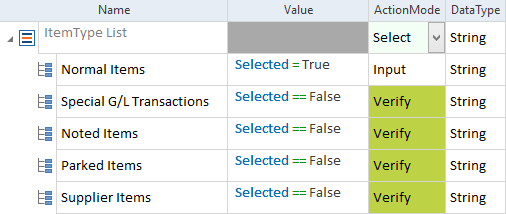
SAP Fiori List with Selection: select and verify check boxes
SAP Fiori Message Toast
XScan identifies SAP Fiori Message Toast as Containers.
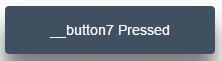
SAP Fiori Message Toast
Verify the elements of SAP Fiori Message Toast
Use the Module SAP Message Toast from the Standard subset to verify the following properties:
|
Property |
Description |
|---|---|
|
DefaultName |
Verifies the default name of the Message Toast. |
|
MessageToastText |
Verifies the text in the Message Toast. |
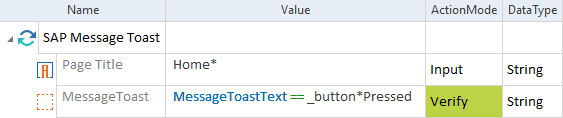
In this example, you verify the text in the Message Toast.
To do so, you specify the following ModuleAttributes:
-
Page Title to specify the caption of the page where you verify a Message Toast. You set the ActionMode to Input.
-
MessageToast to specify the text of the Message Toast that you want to verify. You use the property MessageToastText and set the ActionMode to Verify.
Verify the text in the SAP Fiori Message Toast
SAP Fiori Object List Item
XScan identifies SAP Fiori Object List Items as Listboxes. You can steer them as described in "Listbox".
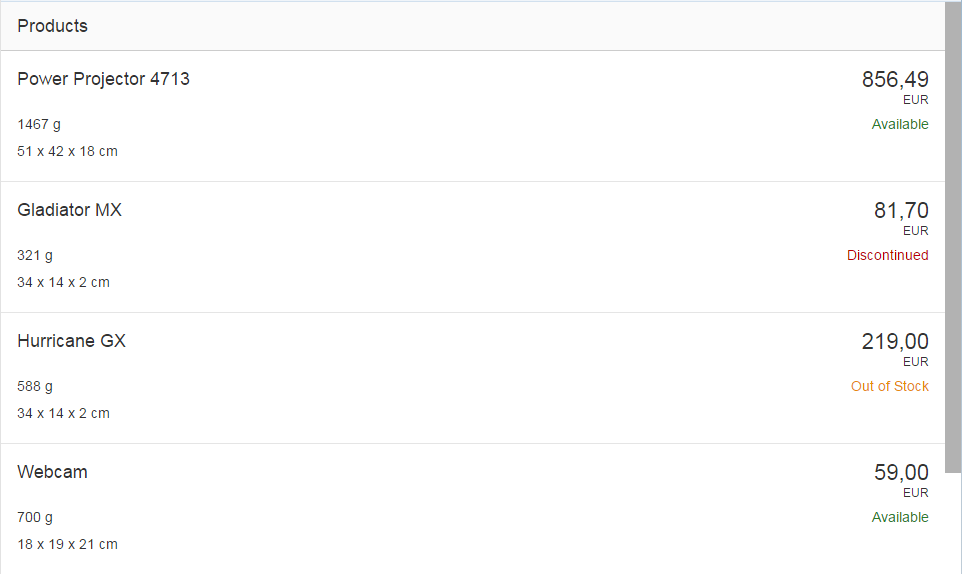
SAP Fiori Object List Items
You can locate the elements in the Object List Items on the image in "SAP Fiori Header".
Verify the elements of SAP Fiori Object List Item
The table below lists the properties that you can verify with the Value column.
|
Property |
Description |
|---|---|
|
Attributes |
Verifies the list of attributes at the bottom of the header. |
|
Caption |
Verifies the caption in the header. |
|
Intro |
Verifies the intro in the header. |
|
Number |
Verifies the number in the header. |
|
NumberState |
Verifies the number state in the header. |
|
NumberUnit |
Verifies the number unit in the header. |
|
StatusFirstState |
Verifies the state of the first status in the header. Possible values: Success, Error, Warning, None. |
|
StatusFirstText |
Verifies the text of the first status in the header. |
|
StatusSecondState |
Verifies the state of the second status in the header. Possible values: Success, Error, Warning, None. |
|
StatusSecondText |
Verifies the text of the second status in the header. |
|
Unit |
Verifies the unit of elements in the header. |
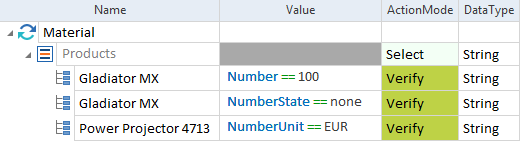
In this example, you verify the following elements of the Object List Item Products:
-
You use the property Number to verify whether the item Gladiator MX shows the number 100.
-
You use the property NumberState to verify whether the item Gladiator MX shows none.
-
You use the property NumberUnit to verify whether the item Power Projector 4713 shows EUR.
Verify SAP Fiori Object List Item
SAP Fiori Search Field
XScan identifies SAP Fiori Search Fields as TextBoxes. For information on how to steer them, check out "TextBox".

SAP Fiori Search Field
In addition to text, the SAP Fiori Search Field contains two buttons:  Clear and
  Search. To steer them, add the following values in the Value column of the Search Field control:
-
To clear the content of the Search Field, enter {CLEAR}.
-
To click the Search button, enter {ENTER}.
In this example, you perform the following actions:
-
In the TestStep Add text, you enter Sample text into the Search Field.
-
In the TestStep Clear text, you clear the Sample text from the Search Field.
-
In the TestStep Add text, you enter Sample text 2 into the Search Field.
-
In the TestStep Start search, you click on the
Search button to start the search.
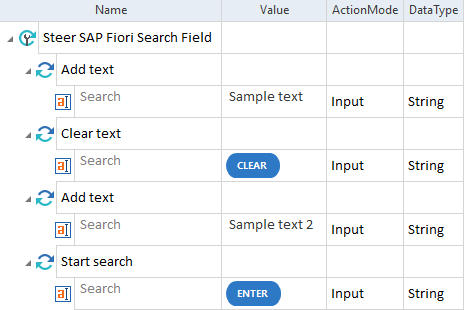
Steer SAP Fiori Search Field
SAP Fiori Toolbar
SAP Fiori Toolbar consists of buttons and context menus. XScan identifies the buttons in SAP Fiori Toolbar as Buttons. For information on how to steer them, check out "Button".
There are two types of context menus on SAP Fiori Toolbar:
-
Left-click context menus, which open when you click a toolbar button.
-
Right-click context menus, which open when you right-click anywhere on the toolbar.
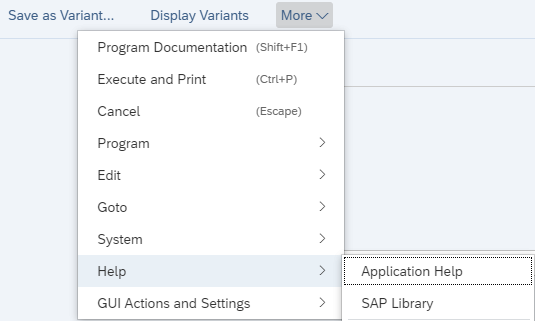
Left-click context menu
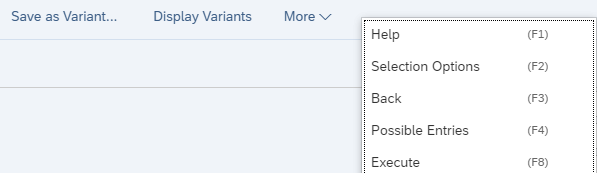
Right-click context men
To steer context menus on SAP Fiori Toolbar, ensure the context menu is properly recognized.
Scan the context menu
To use the context menu you need first to capture it by following these steps:
-
Open SAP Fiori and click More.
-
Hover over all menu options to load them.
-
Start XScan and select your Fiori application.
-
Move the Filtered items slider to the right until NWContextMenu items appear.
-
Select the NWContextMenu containing your menu items.
-
Uncheck the Id technical property for the following:
-
The context menu and its parent control,
-
The next parent control, above the selected NWContextMenu,
-
The More button.
-
-
Scan the More button using Select on screen.
-
Save the Module.
Steer the context menu
You can now use it as a standard Context Menu Module in your TestCase by following these steps:
-
Under the Context Menu ModuleAttribute, delete the Menu Item.
-
Drag and drop the Module onto your TestCase.
-
For the button that you want to steer, set the ActionMode to Input and in the Value field, enter x, X, or {RIGHTCLICK}:
-
If you want to steer the context menu that opens after you click on the button, enter x or X.
-
If you want to steer the context menu that opens after you right-click on SAP Fiori Toolbar, enter {RIGHTCLICK}.
-
-
For the Context Menu, enter the name of a menu item or a path to it using nodes ->, for example Help->Application Help. Set the ActionMode to Input.
In this example, you click on the button More and select Help->Application Help from the context menu of this button.
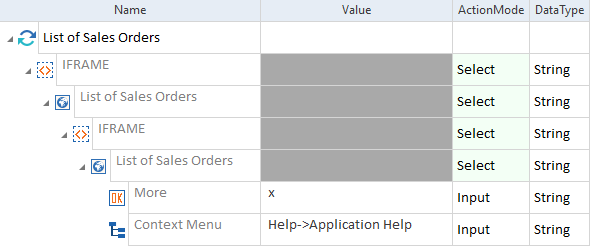
Steer a left-click context menu
In this example, you right-click on the More button and select Help from the context menu of SAP Fiori Toolbar.
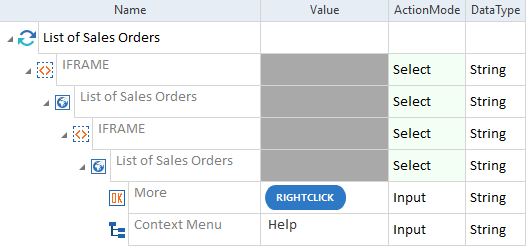
Steer a right-click context menu
SAP Fiori Weekly Calendar
XScan identifies the SAP Fiori Weekly Calendar as a ListView.

SAP Fiori Weekly Calendar
Enter date into SAP Fiori Weekly Calendar
Use the drop-down menu in the Value column to specify the day you want to select.
The table below lists the properties that you can use to steer SAP Fiori Weekly Calendar.
|
Property |
Description |
|---|---|
|
{PrevWeek} |
Clicks the left navigation arrow to show the previous week. |
|
{NextWeek} |
Clicks the right navigation arrow to show the next week. |
|
{ClearSelectedDates} |
Clears the selection of one or more days. |
|
CurrentDate |
Specifies the current date. |
In this example, you select the 19th in the calendar.

Select a date
In this example, you click the navigation arrow to show the next week of the calendar.

Go to the next calendar week
In this example, you enter the date 24.01.2017. To do so, you specify the current date and add 365 days to it.

Enter a date
Verify the elements of SAP Fiori Weekly Calendar
The table below lists the properties that you can verify with the Value column.
|
Property |
Description |
|---|---|
|
DefaultName |
Verifies the technical ID of the calendar, for example WEEKLY_CALENDAR. |
|
CurrentDate |
Verifies the current date (default property). |
|
SelectedCount |
Verifies the number of selected days. |
|
Selected |
Verifies whether the specified day is selected or not. |
|
CurrentDay |
Verifies whether the current day is selected or not. |
|
NormalDay |
Verifies whether the selected day is a work day or not. |
|
NonWorkingDay |
Verifies whether the selected day is a day of rest or not. |
|
SubmittedDay |
Verifies whether an entry exists for the specified day. |
|
ApproverActionNeeded |
Verifies whether an entry has already been approved for the specified day. |
|
Rejected |
Verifies whether an entry has been rejected for the specified day. |
|
ActionRequired |
Verifies whether a specific request has already been processed for the specified day or not. |
In this example, you verify the current date.

Verify the current date