Steer the global search field
The global search field enables you to search for items in your Salesforce applications.
The way you scan and steer the global search field depends on your Salesforce interface:
Steer the global search field in Salesforce Classic
XScan identifies the global search field in Salesforce Classic as a TextBox. You can steer it as described in "TextBox". In Salesforce, the global search field automatically initiates the search. Therefore, you don't have to specify a separate action in your TestCase that triggers the search.
Scan the global search field on a search results page
If you scan the global search field on a search results page, XScan detects two search fields, so they are not identified uniquely.
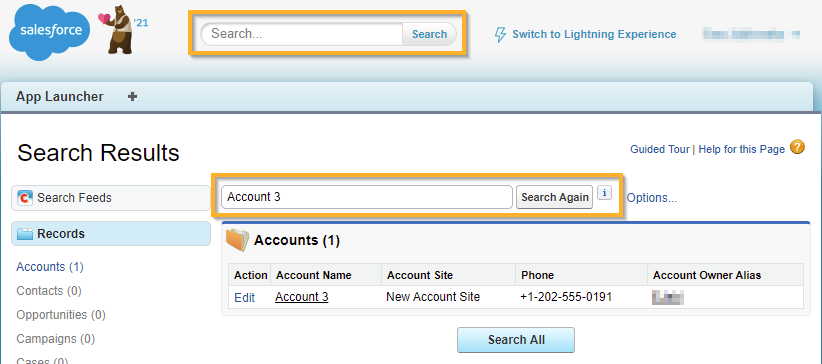
Double search field in Salesforce Classic
To make both controls unique, identify them by index.
Steer the global search field in Salesforce Lightning Experience
The global search field in Salesforce Lightning Experience consists of the following elements:
-
A drop-down menu which lets you limit the search to a specific Salesforce area. XScan identifies it as a ComboBox. You can steer it as described in "ComboBox".
-
A search field. XScan identifies it as a TextBox. You can steer it as described in "TextBox". In Salesforce, the global search field automatically initiates the search. Therefore, you don't have to specify a separate action in your TestCase that triggers the search.
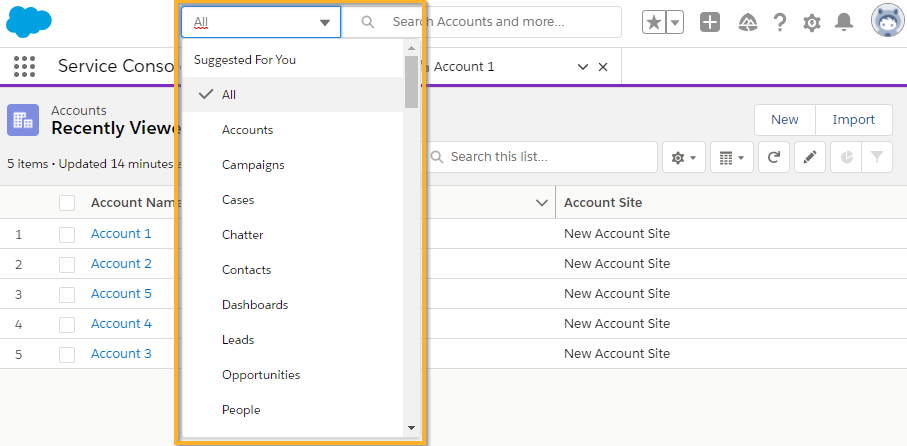
Global search drop-down menu in Salesforce Lightning Experience
In this example, you search for Account 3 in Salesforce Lightning Experience. You want to limit the search to your Accounts.
-
You select Accounts in the Value field for Search by object type and set the ActionMode to Input.
-
You enter Account 3 into the Search... text box Value field and set the ActionMode to Input.
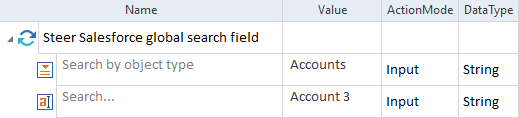
Global search field in a TestCase