This article provides you with some examples on how TBox controls are steered. These examples contain tips and tricks for creating Modules and TestCases.
For more detailed information on control steering, please refer to the TBox documentation.
Identifying controls
Controls that are uniquely identified by Tosca XScan can be steered without having to manipulate the parameters.
Controls which cannot be uniquely identified can use any property from the list of available properties as an identification criterion. The control must contain all selected properties (AND operation).
Procedure
-
Right click on the control and select the option Get all properties.
-
Select the required property from the list of found properties, for instance, OuterHtml for image controls.
-
Create the Module.
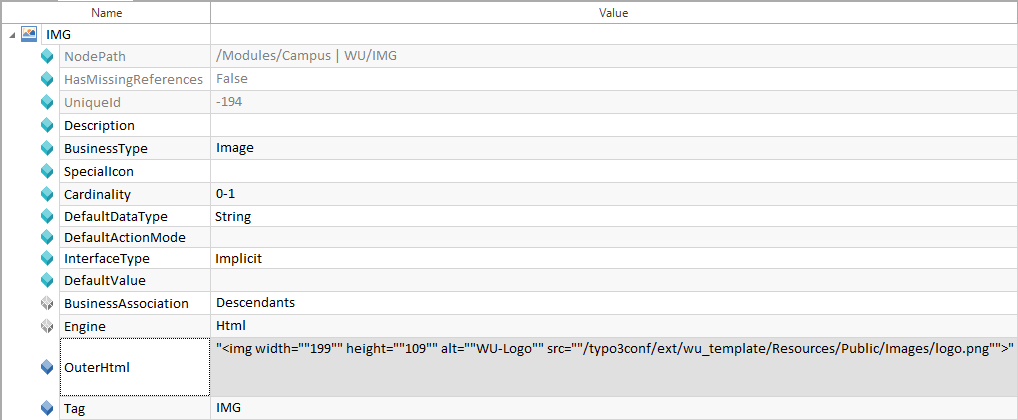
Property OuterHTML for identifying the image control in the Module
Steering tables using embedded controls
If a table contains embedded controls, Tosca XScan displays them as independent controls outside the table control.
The actually required controls can be identified by highlighting them using the context menu entry Mark on screen.
Procedure
-
Scan the table by using Tosca XScan.
-
Select the table control and the embedded controls.
-
In Tosca Commander™, the embedded controls must be added beneath the required cell control of a table row or column by using drag and drop. Unique identification is not required for the controls since they are identified implicitly by their corresponding position in the cell or column. The identification parameters must be deleted to be able to use the controls dynamically.
Alternatively, you can add embedded controls via context menu as described in chapter "Defining controls in cells".

|
In this example, the system verifies in row #1, column Supplier of the Supplier table if the text 102135 appears in the input field of the required cell. Additionally, the image in the found cell is clicked in row #2, column #1.
Table containing embedded controls |
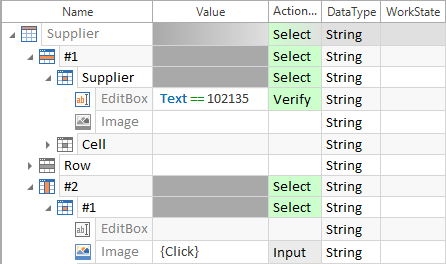
Embedded controls of the same type within one cell
-
In the TestStep, the control can be used more than once in one cell element. For this purpose, the TestStepValue can be either copied or the value of the Cardinality property can be modified.
-
The names of the TestStepValues must be modified for each control in the cell by specifying the index with a leading lozenge. The parameter ExplicitName must be added to the Module, so that the value of the control can be modified in the TestStep.
|
|
In this example, there are two buttons within one cell. Both of them should be clicked. The control type Button is used twice in the TestStep and is renamed to #1 and #2.
Cell containing several controls of the same type |
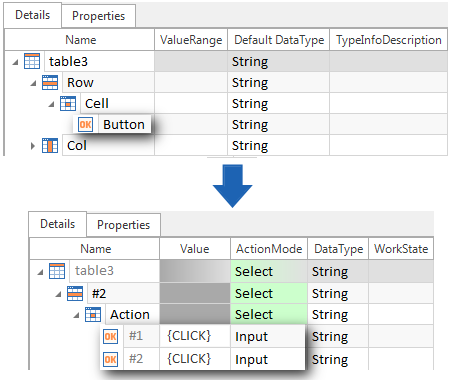
Steering tables without unique ID
A simple table which does not have a unique ID should be steered via its header and columns. The table can be identified via any row, by specifying at least one unique column name, and by using the ActionMode Constraint. This procedure can be applied to dynamic tables.
Creating the Module
-
Scan the table by using Tosca XScan. No unique ID is selected.
-
Controls that are located in tables can be added beneath a cell element by using drag and drop.
Steering in the TestCase
-
The table control is selected by using the ActionMode Select.
-
The row control is selected via the ActionMode Constraint since the required row is not yet identified. The control name must not be overwritten.
-
In order to identify the table via any row, at least one cell control must be specified by both its unique name and the ActionMode Constraint. The control names must not be overwritten.
-
In order to verify the table contents or to perform inputs into the table, another row must be defined and the ActionMode Select must be specified. The row or column is identified in the TestCase by specifying either the header column name or the row or column number with a leading prefix.
|
|
In the example below, the system searches for a table whose header contains the columns Table, without and ID. In this table, it should be verified whether a cell containing the value Cell 411 exists in row #2, column Table.
Steering dynamic tables |
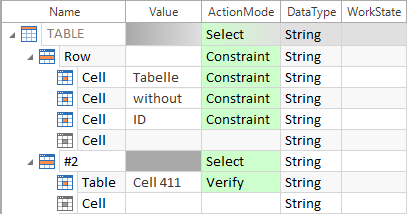
Steering ListBoxes
ListBoxes can be scanned using XScan without the need for further adaptations.
Tosca XScan automatically identifies the ValueRange and copies it to the Module. Values that should be entered manually must be specified separated by semicolons to be able to select them accordingly.

ListBox containing entries in the ValueRange column
All entries that are defined in the ValueRange can be selected from the Value column in the TestStepValue. ListBox entries are selected via the ActionMode Input.
Steering ComboBoxes
ComboBoxes can be scanned using XScan without the need for further adaptations.
ComboBox entries can be added as a value range like in the case of ListBoxes.
Some browsers add leading spaces or tabs to ListBox entries. These characters can be determined in the HTML code of the affected control.
As regards XBrowser controls, the content can be specified via regular expressions.

|
Please note that dynamic expressions are case-sensitive. |
|
|
{REGEX[\s*select03]} The command \s specifies all spaces, tabs or line break characters as being valid. The * character restricts the occurrence of such characters to 0-n. The regular expression can either be entered directly into the TestCase or into the value range of the control.
Selection of a ComboBox entry combined with a regular expression |

TBox checklist

|
Dynamic expressions are case-sensitive. Examples: {CLICK} and {CP[Testconfigurationparameter]}. |
|
|
The exact length of values will be verified. They are case-sensitive. |
|
|
Are all the plugins necessary for XBrowser use installed? |
|
|
Are the test configuration parameters set correctly in the ExecutionLists? (browser) |
|
|
Are the ValueRanges correctly defined in the XModuleAttributes? |