Test Flow View
This is Testim's Labs feature If you have joined Testim Labs, make sure this feature has been enabled in Settings > Labs. To learn more about Testim Labs and how to join, see here
Test Flow View offers a graphic flow-based visualization of your tests.
By using Test Flow View you can:
-
Understand how your tests are built
-
Evaluate their size
-
Identify common patterns and duplicates (common patterns of shared steps at the beginning of the tests will be united)
-
Gain direct access to specific test steps
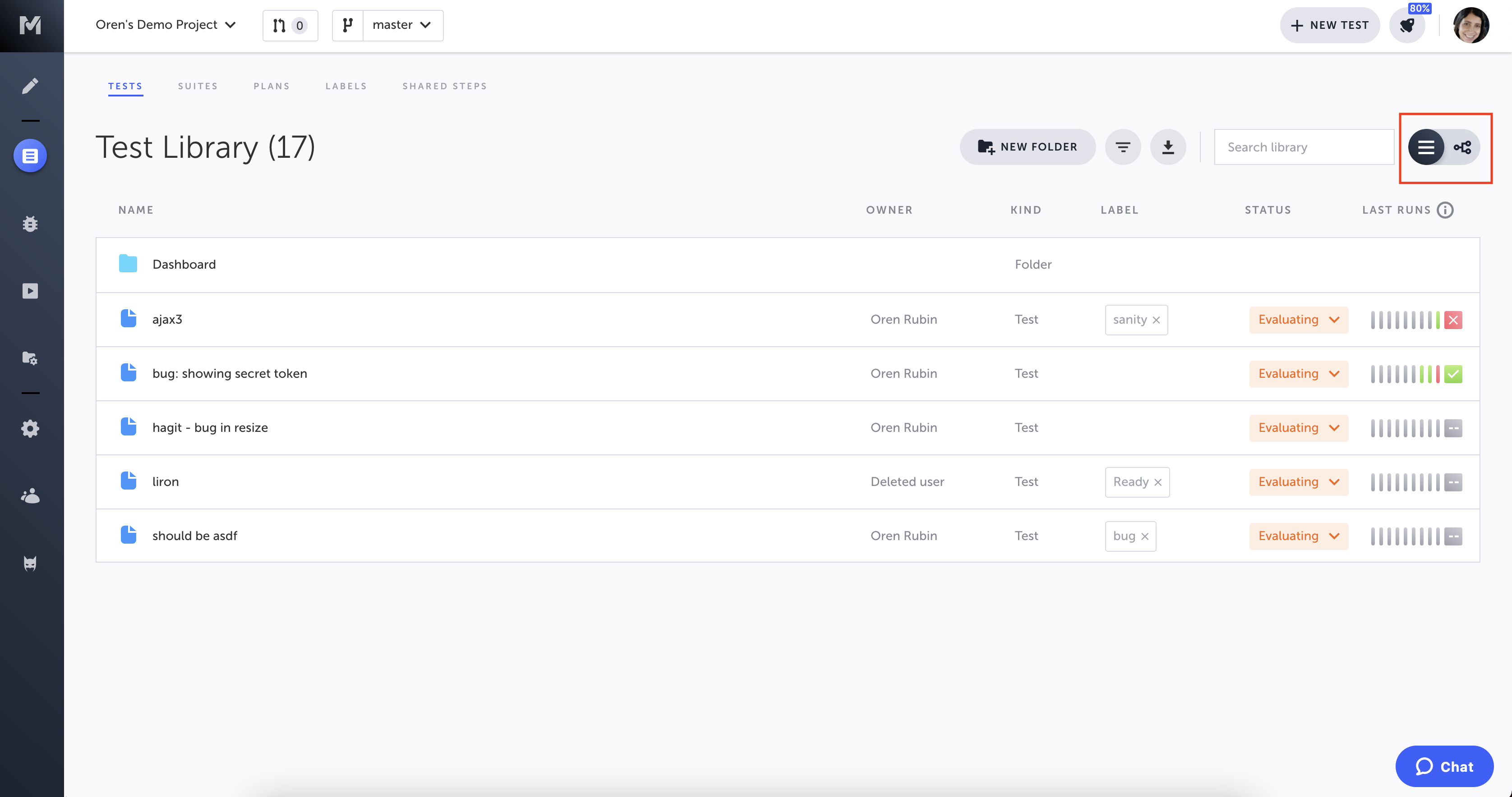
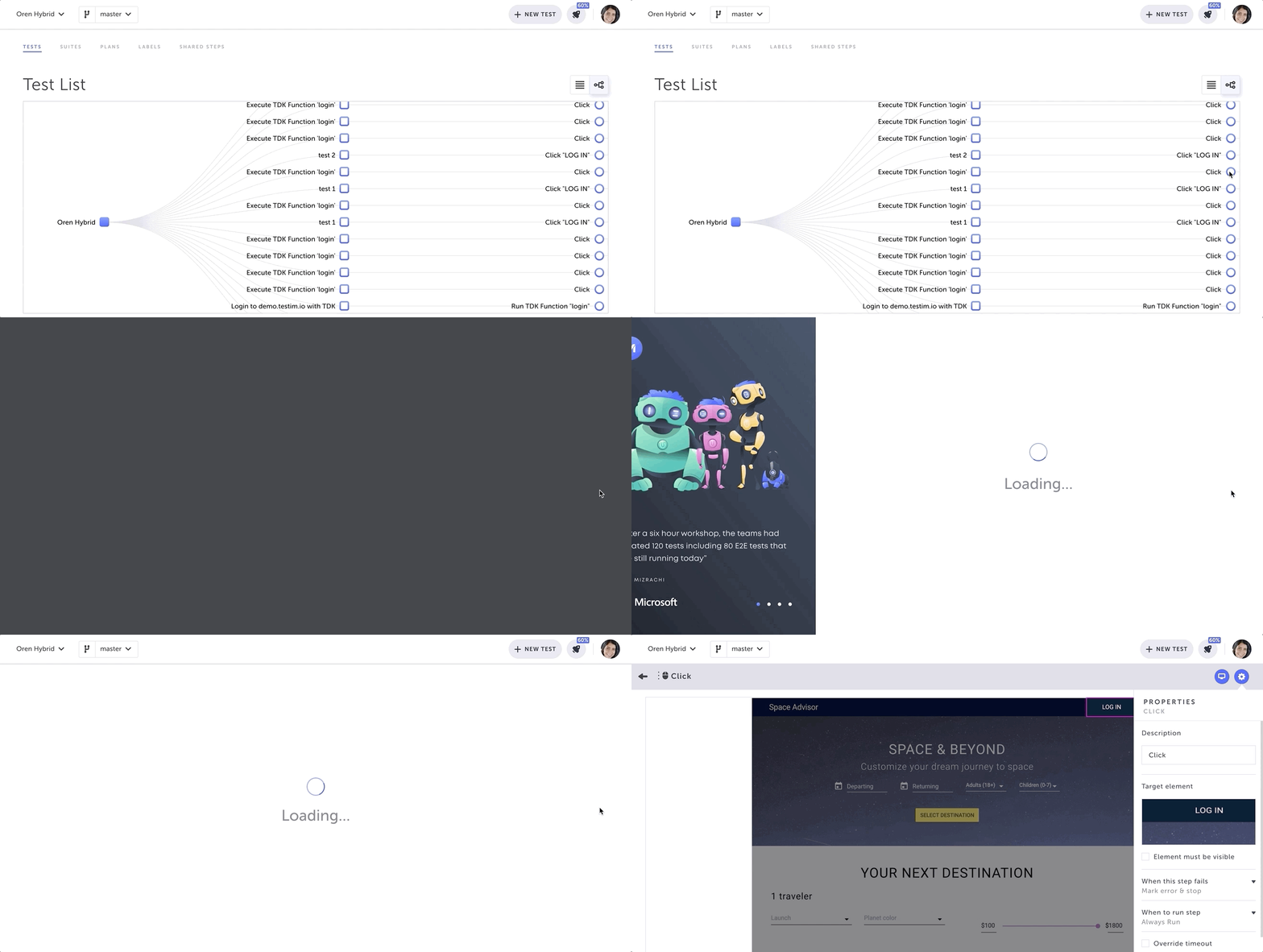
To access the test flow view, go to Test list-->Tests and select the graph view on the top right corner.
-
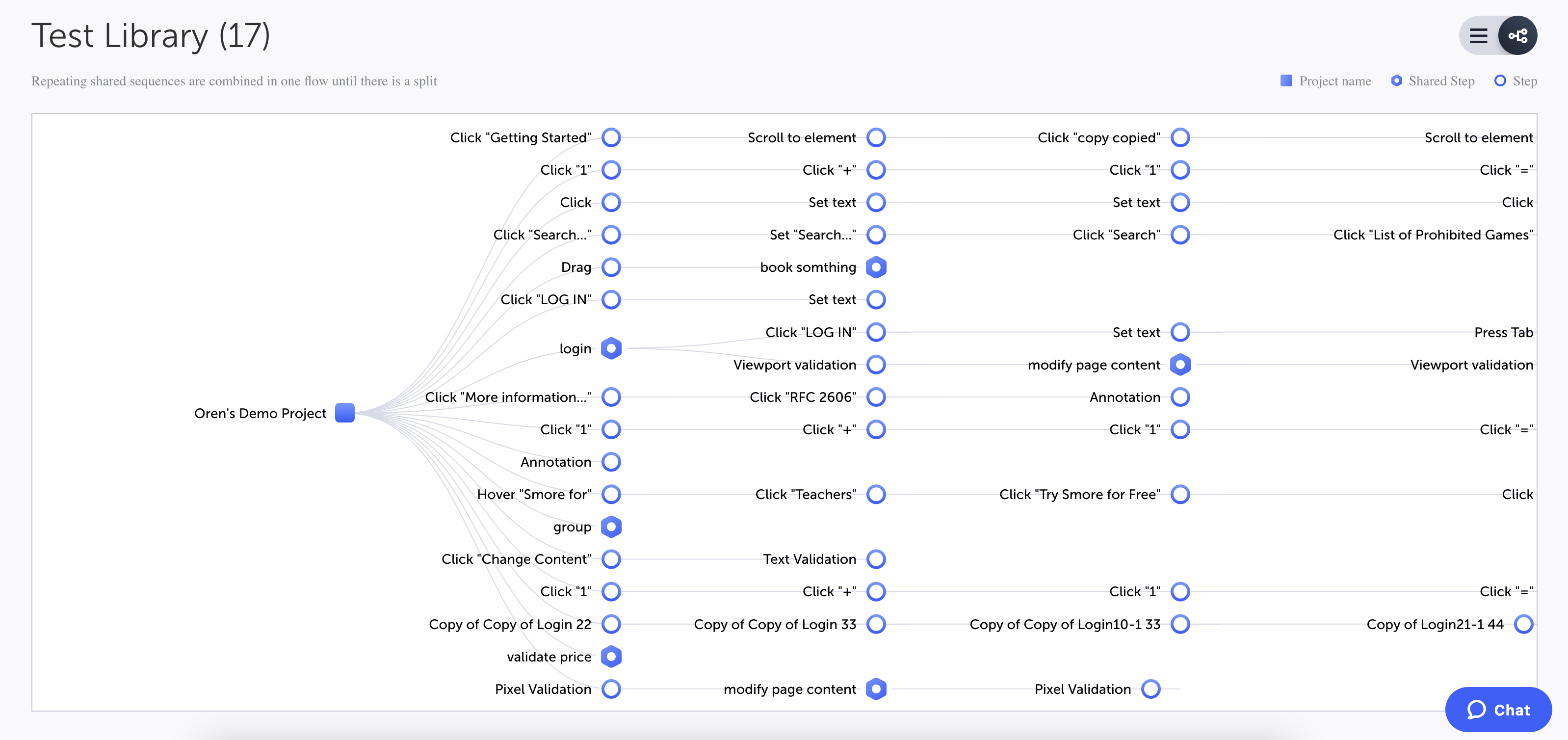
The project is represented at the beginning by a square icon
-
Each shared step is represented by a hexagon icon
-
Regular step is represented by a circle
-
At the beginning of the flow, all tests that start with the same sequence of shared steps will be united together, until there is a split in the flow
Test Flow View Controls
-
Pane - drag the graph to see different parts of your project
-
Zoom in/out - use your scroll wheel to see zoom in/out
-
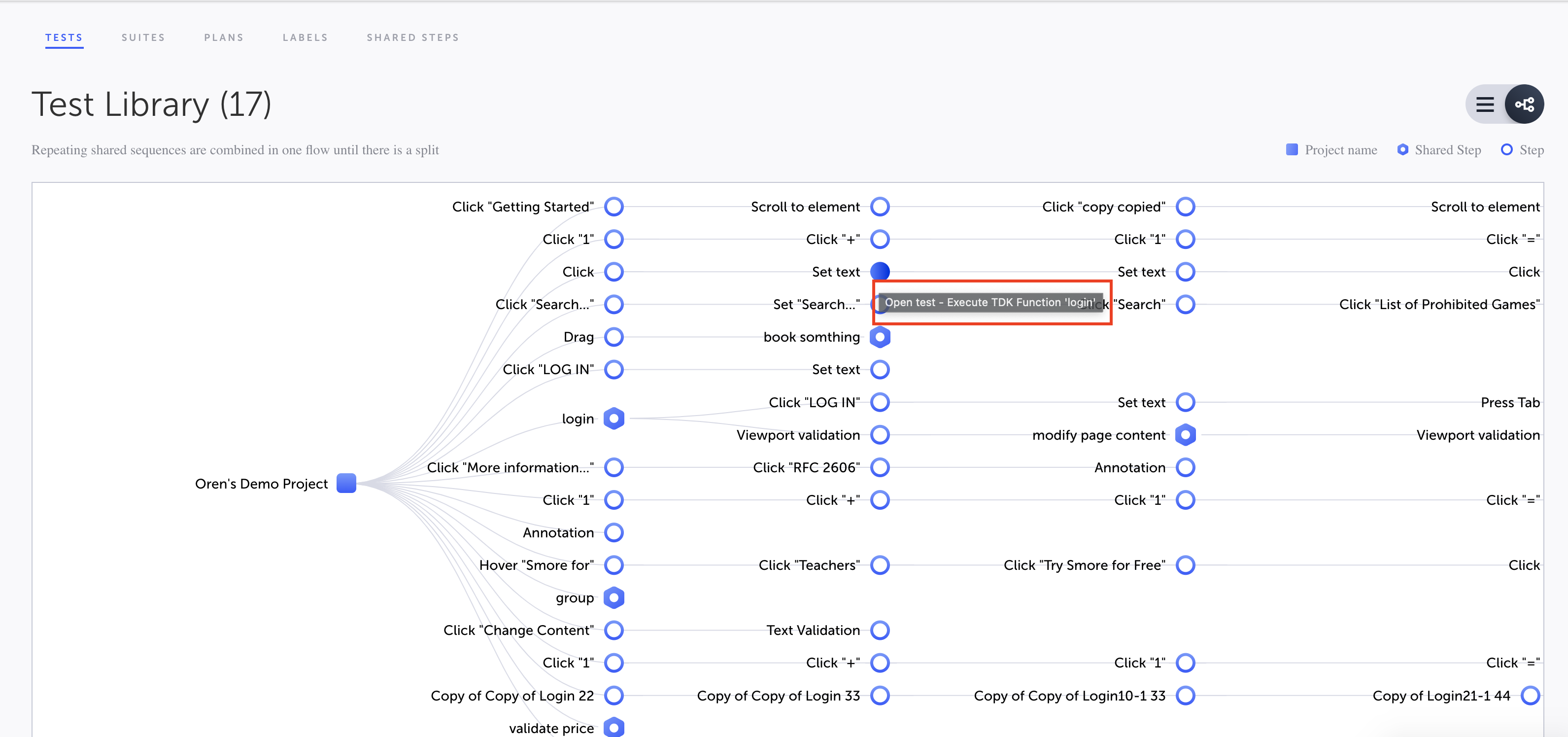
Details - hover over a step to view the test name
-
Step access - click a step (circle) to open that step in a new tab, with that step selected and the property panel for this step open
-
Shared step access - click a shared step (hexagon) to open your tests library in a new tab, filtered to only include the tests that use this shared step