Managing shared steps and folders
Creating a new folder
→ To create a new folder:
-
In the Shared Steps Library screen, click the New Folder button.
-
In the New name field, enter the name of the folder.
-
Click OK.
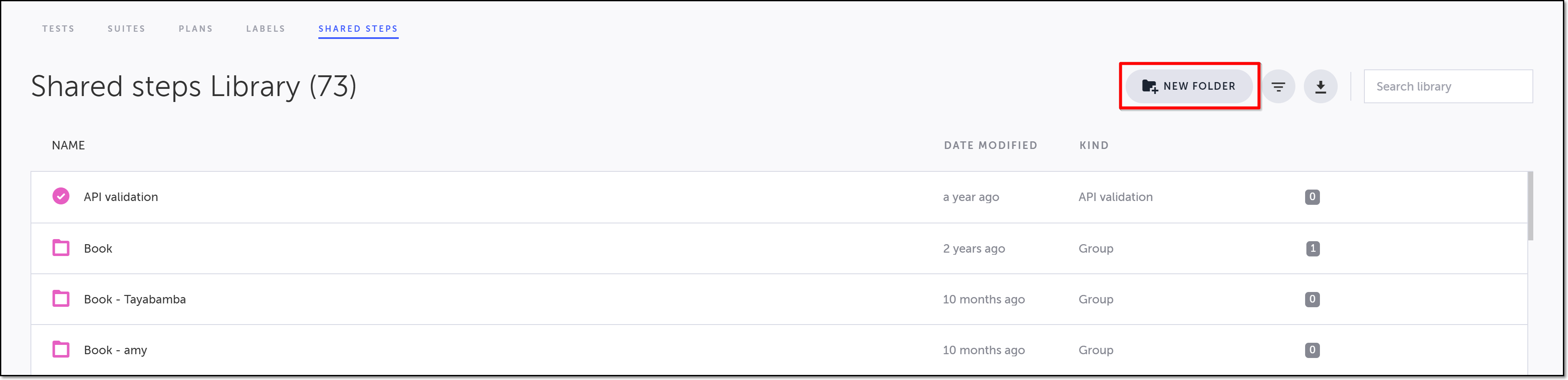
The New Folder window opens.
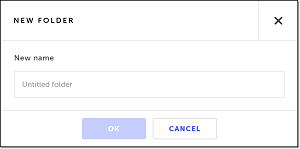
The name of the new folder must not be the same as any other folders that already exist in this project.
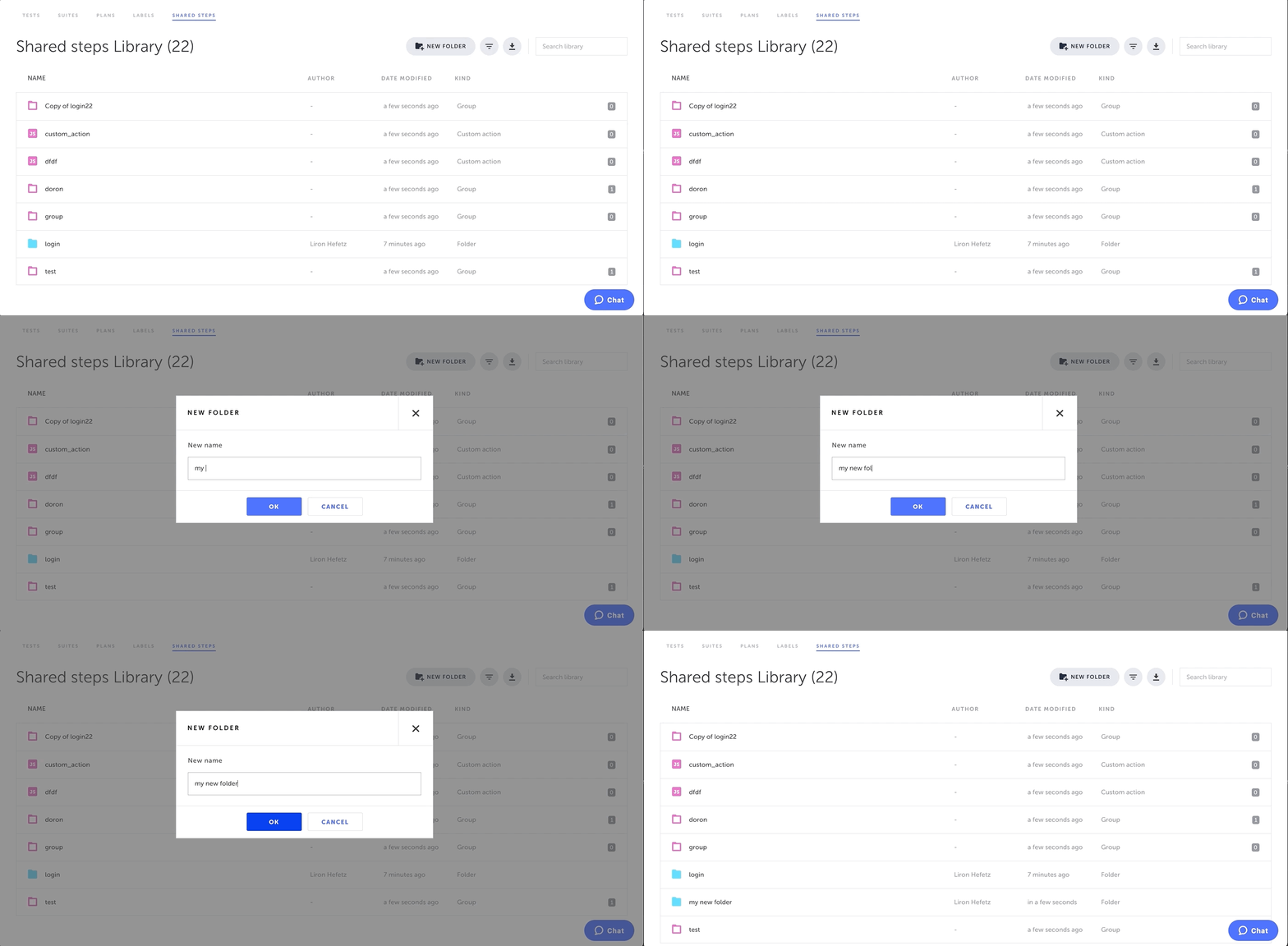
The folder is created.
Moving shared steps/folders to folders
By default, new shared steps are placed in the root folder. You can move shared steps and folders into other folders.
→ To move an item to a folder:
-
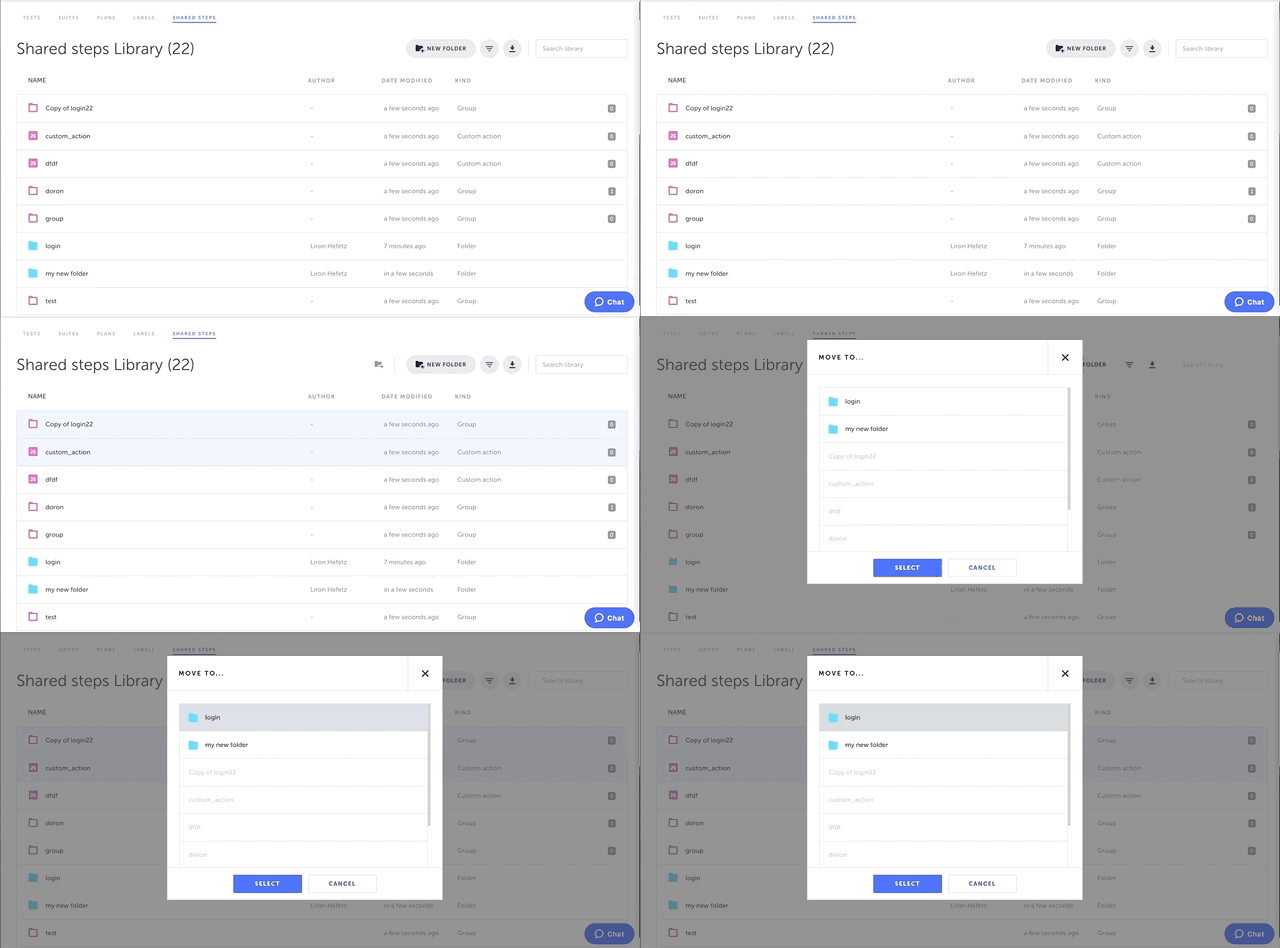
Click on the shared step or folder name to select it.
-
Click the Move to folder icon (or right-click on the shared step or folder name and choose Move to folder from the right-click menu).
-
Click on the target folder.
-
Click Select.
You can select multiple shared steps and/or folders by holding down the ctrl/cmd key and then clicking on each of the desired shared steps and folders.
You can also select all of your shared steps or folders by holding down the ctrl/cmd key + A on the keyboard.
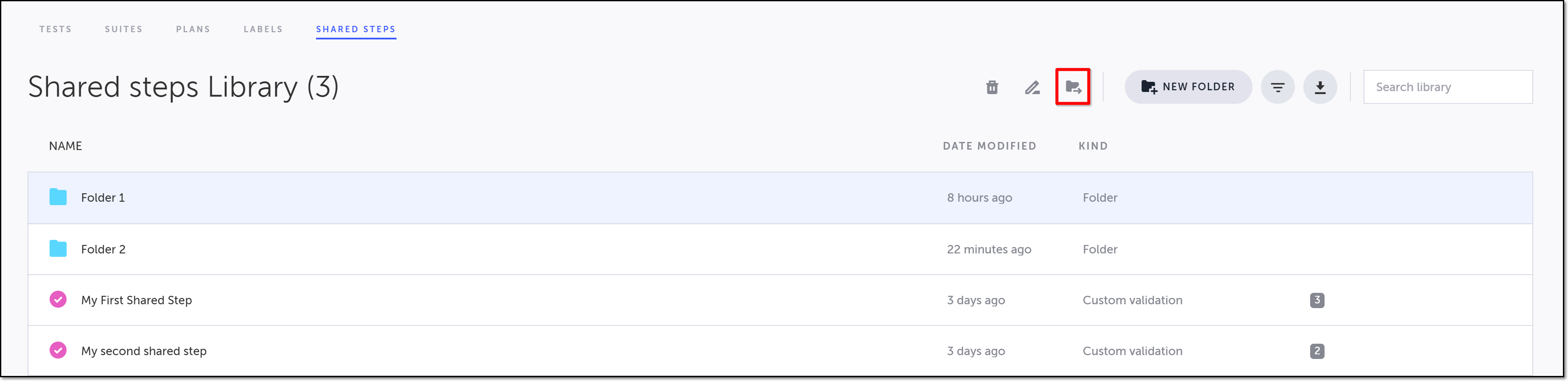
The Move To window opens.
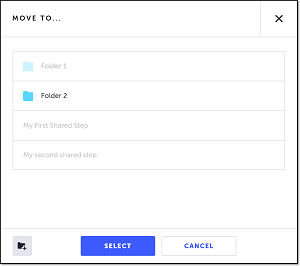
If the target folder doesn't yet exist, you can create it now by clicking on the New Folder icon (bottom left of the window), entering the new folder's name, and clicking OK.
The items are moved to the selected folder.
Renaming folders
You can rename folders in the Shared Steps Library screen.
→ To rename a folder:
-
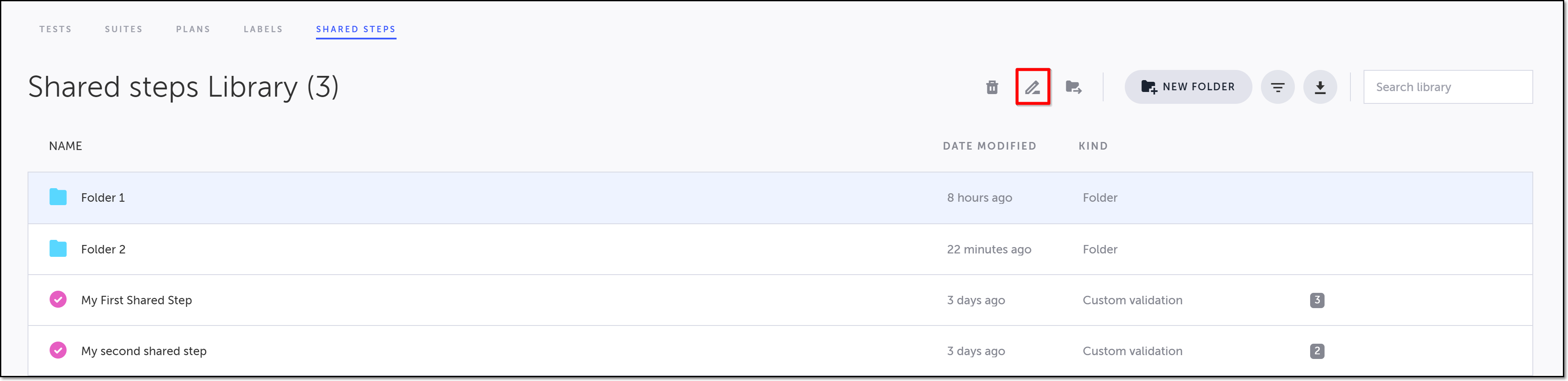
Click on the folder name to select it.
-
Click the Rename icon (or right-click on the test or folder name and choose Rename from the right-click menu).
-
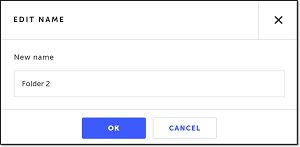
In the New name field, enter the new name of the file or folder.
-
Click OK.
The Edit Name window opens.
The renamed file or folder can be viewed in the Shared Steps Library.
Deleting folders
You can delete a folder or multiple folders through the Shared Steps Library screen.
→ To delete folders:
-
Click on the folder name to select it.
-
Click the Delete icon (or right-click on the test or folder name and choose Delete from the right-click menu).
-
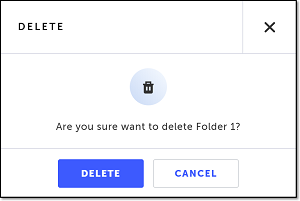
Click Delete.
You can select multiple folders by holding down the ctrl/cmd key and then clicking on each of the desired folders.
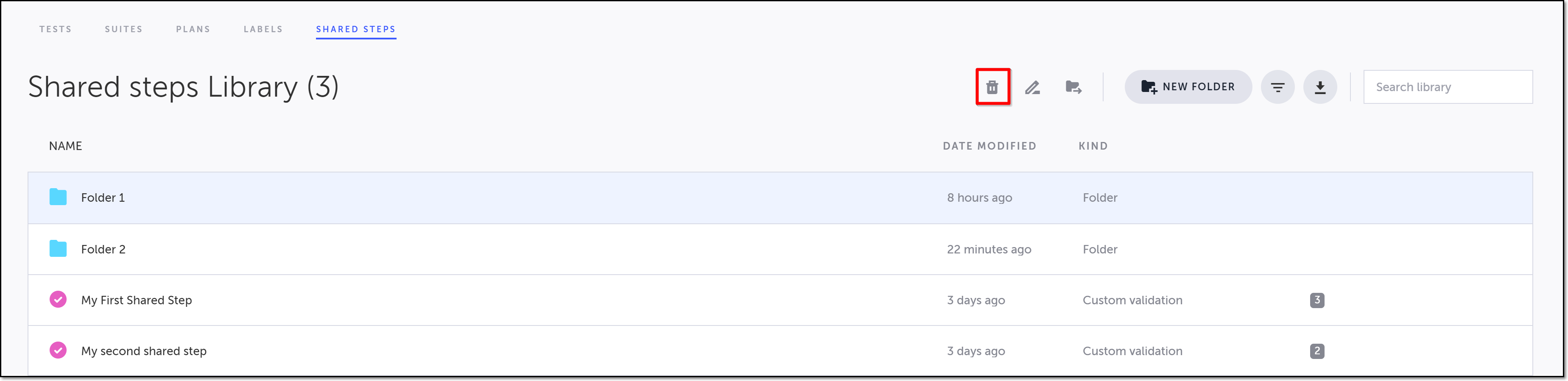
The Delete confirmation window opens.
The folder/s are deleted.