Scheduler’s notification via webhook
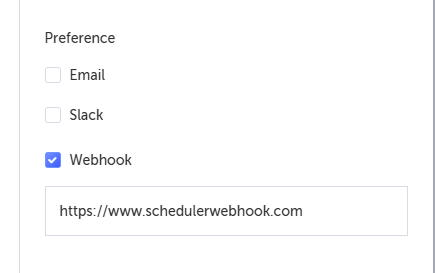
The Scheduler’s notification via webhook feature provides users the ability to add a URL as a webhook in the preference option for their scheduled runs notifications. Under the Notification section, there is a setting for when to trigger a notification (e.g., "On every failure") and the method by which the notification will be sent. One of these methods is a webhook. Outside Testim, the webhook maybe used to trigger a process, such as some form of reporting, etc.
Webhook format
The webhook sends a JSON payload containing the following information:
	• status (failure | success) – refers to the overall scheduled run status, not individual test results.
	• projectId
	• executionId
	• schedulerName
	• executionUrl
The information included in the webhook cannot be modified.
The following is an example of a webhook JSON payload:
{
  "status": "failure",
  "projectId": "AMaVXxXxXxXxrVrBrnSD",
  "executionId": "Tv9O8XxXxUOfkoqT",
  "schedulerName": "Webhook",
  "executionUrl": "https://app.testim.io/#/project/AMaVXxXxXxrVrBrnSD/runs/suites/Tv9O8kPLGUOfkoqT",
  "results": {
    "passed": [],
    "failed": [
      {
        "_id": "Bo6tVDoxhrntvlY9",
        "testId": "vwE96nZBQK4L2w2X",
        "name": "TestName",
        "reason": "Assertion failed",
        "link": "https://app.testim.io/#/project/AMXxXxXxCgrVrBrnSD/branch/master/test/vwE96nZBQK4L2w2X?result-id=Bo6tVDoxhrntvlY9"
      }
    ],
    "failed evaluating": [],
    "evaluating": [],
    "skipped": []
  }
}
For more information about scheduled runs, see Scheduler.
Configuring the Scheduler Webhook Settings
→ To configure the scheduler webhook settings:
-
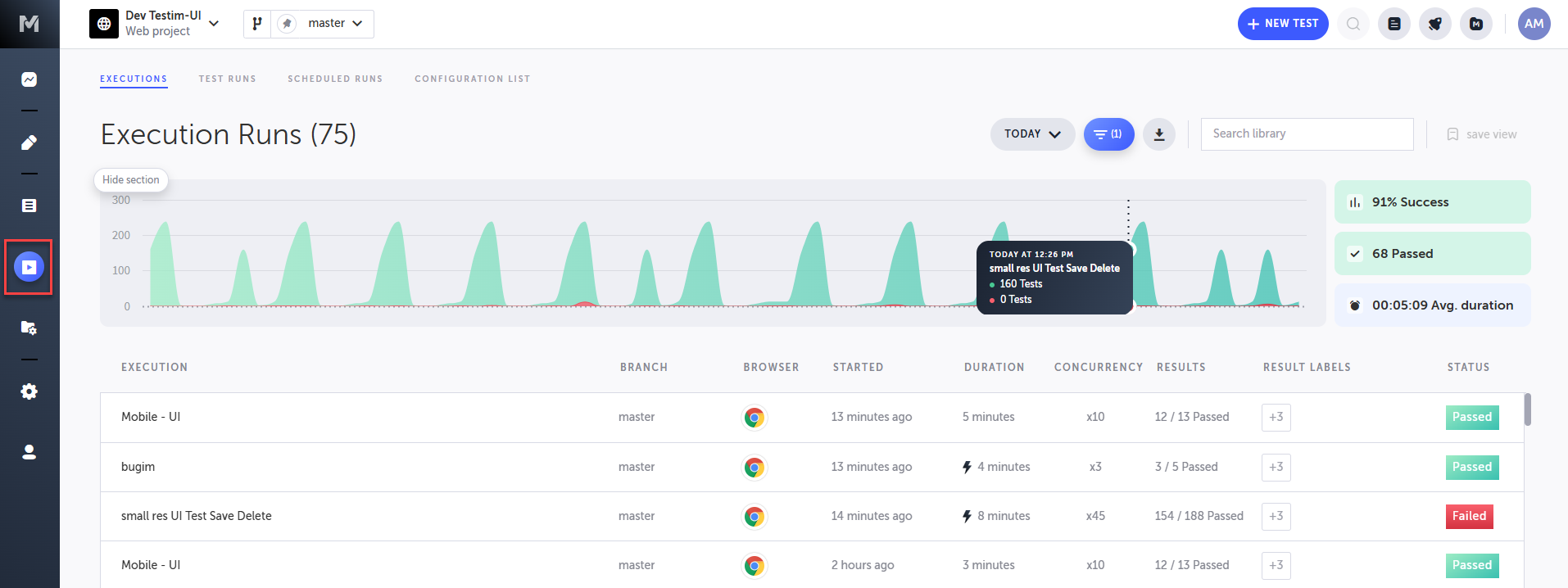
In the main navigation, click the Runs icon.
-
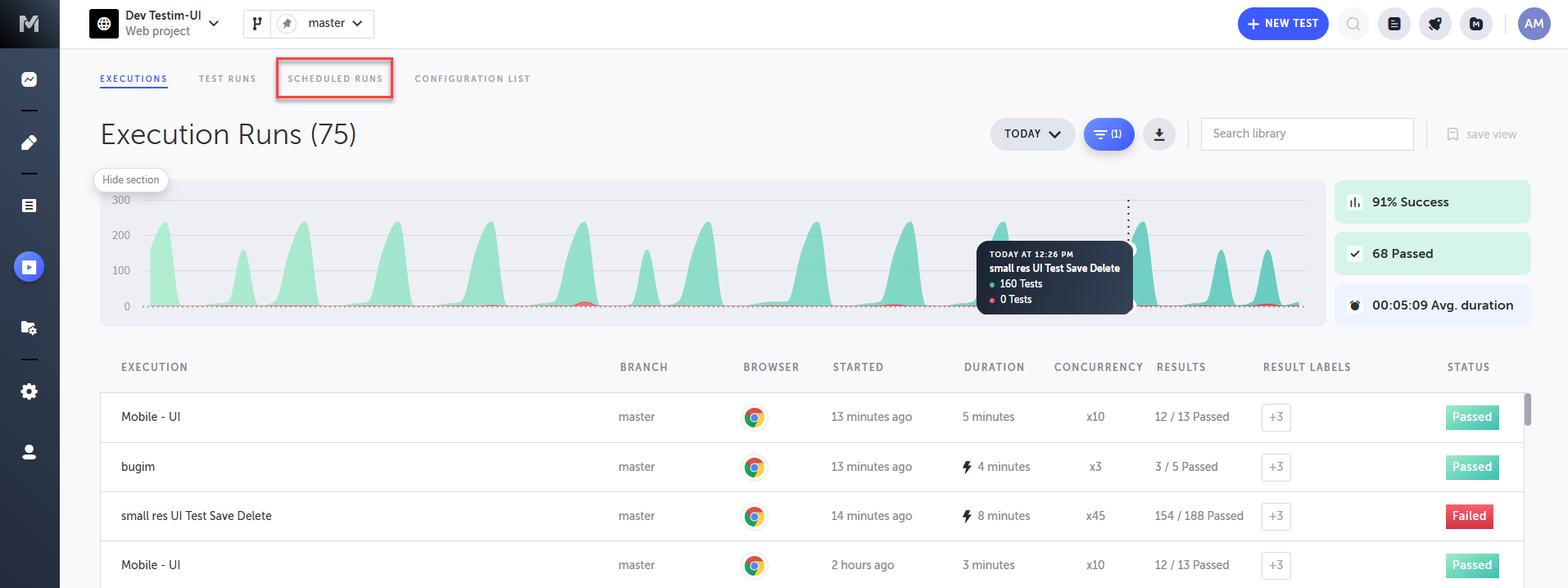
Click Scheduled Runs to open the Scheduled Runs tab.
-
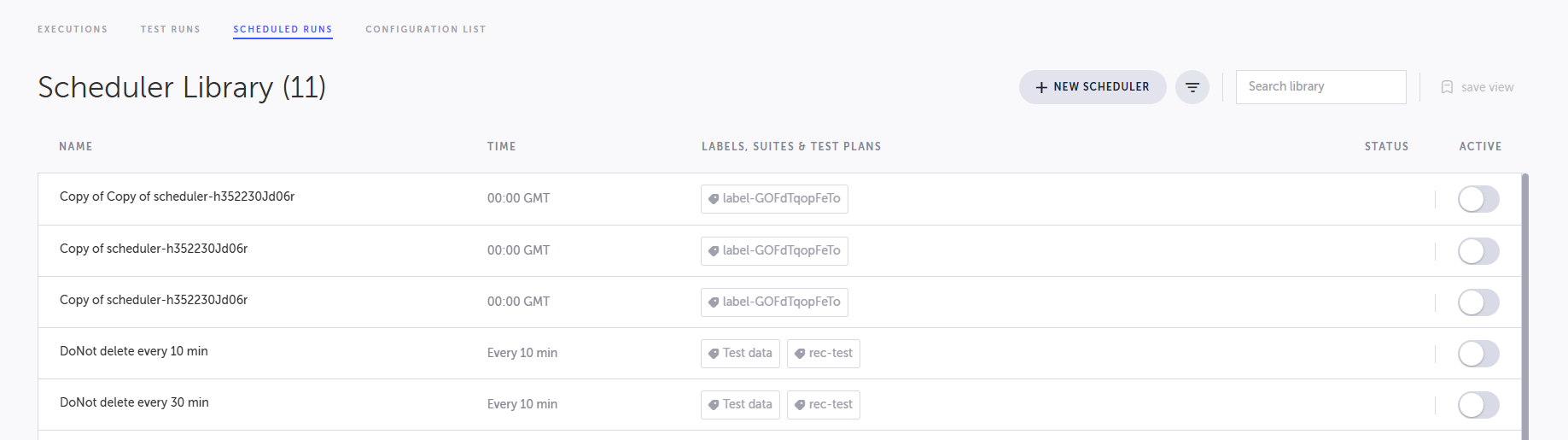
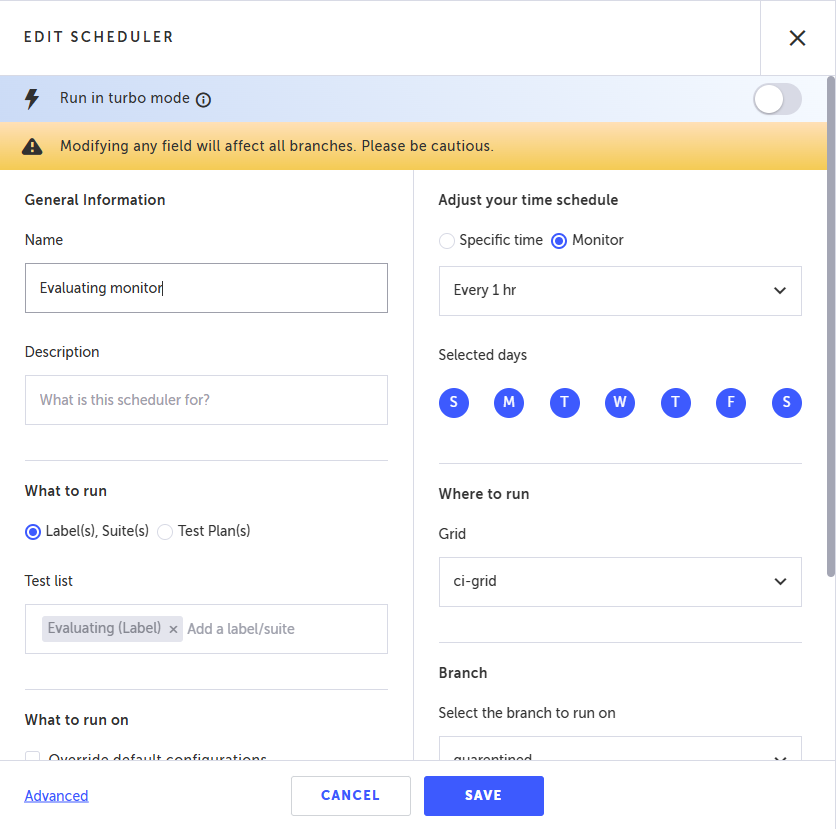
Click on the scheduler for which you would like to set a webhook.
-
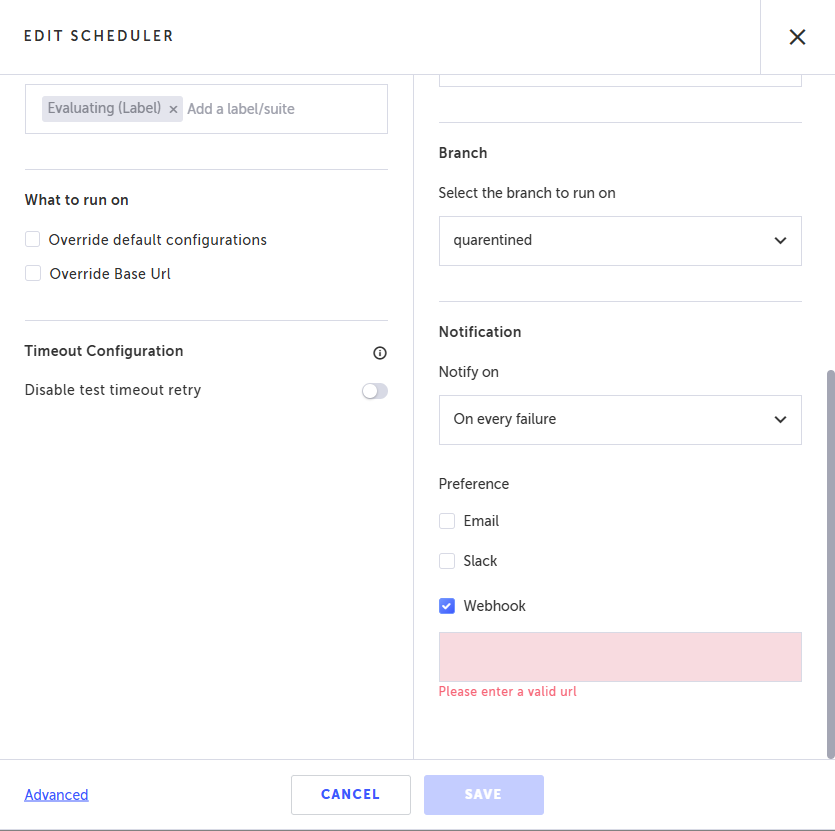
In the Notify on field, select one of the following options:
-
On every failure
-
On the first failure
-
On every run
-
Under Preference select Webhook.
The Scheduler List page is shown.
The Edit Schedule Runs window opens.
-
Enter a valid URL in the Webhook field that is shown. This is the URL where Testim will POST the run result.
-
Click Save.