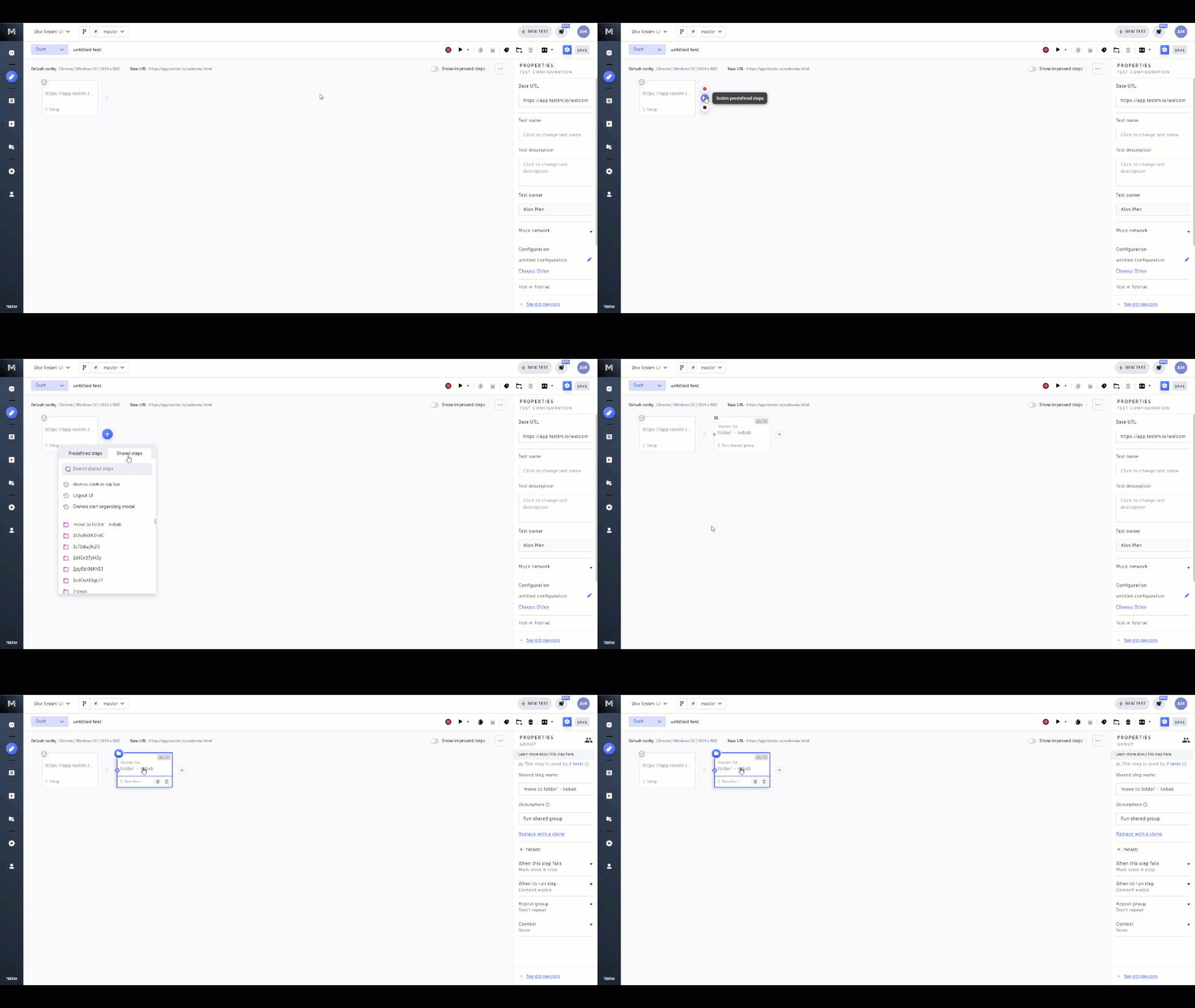
Shared Steps
Shared Steps are steps that are shared between multiple tests within a certain Project. Some of the step types are shared steps by default (i.e. you will not need to configure them as shared steps). The shared steps will be available for other users creating other tests.
The following tables list which predefined steps are shareable without the need to group them with other steps:
Validations
|
Validations |
Documentation |
|---|---|
|
Add custom validation |
|
|
Add CLI validation |
|
|
Validate download |
|
|
Validate email |
|
|
Validate API |
|
|
Add network validation |
Wait for
|
Wait For |
Documentation |
|---|---|
|
Add custom wait for |
|
|
Add CLI wait for |
|
|
Wait for download |
Actions
|
Actions |
Documentation |
|---|---|
|
Add custom action |
|
|
Add CLI action |
|
|
Add API action |
Creating a New Shared Step
You can define a step as a Shared Step when adding it to a test. This applies to the steps that are shareable, as listed above.
→To add a shared step:
-
Hover over the (arrow symbol) where you want to add the step.
-
Click on the "M" (Testim predefined steps).
-
Select a relevant step from the list of Predefined steps.
-
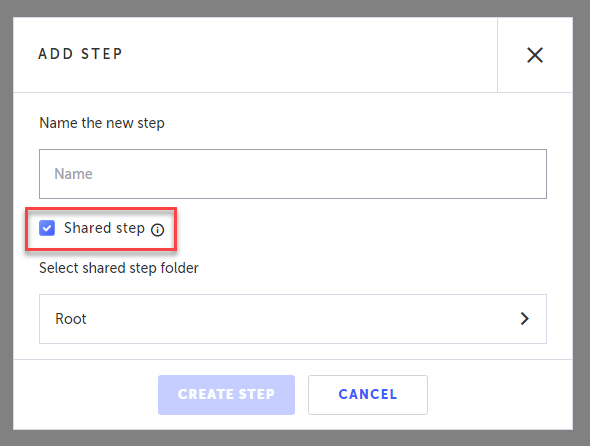
In the Add Step dialog, select the Shared step checkbox.
-
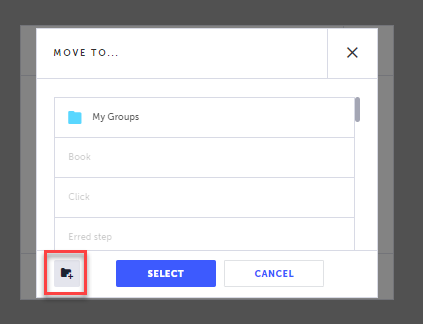
If you want to place the Shared Step in a folder other than the Root folder, under Select shared step folder, click the field and select one of the existing folders or click the Add Folder icon and name the new folder. Click Select to finish.
Turning an Existing Step into a Shared Step
When a step ,that can be a shared step, is added as regular step, you always have the option to transform it into a Shared Step.
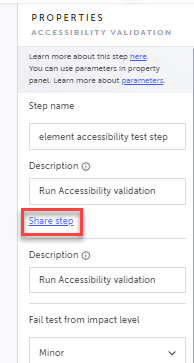
→To turn an existing step into a shared step:
-
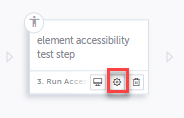
On a regular step that can be a shared step, click the Show Properties button.
-
On the Properties pane, click the Shared Step link.
Reusing a Shared Step
When creating a test, you can access the list of previously created shared steps.
→To reuse a shared step:
-
Hover over the (arrow symbol) where you want to add the step.
-
Click on the "M" (Testim predefined steps).
-
Click on the Shared Steps tab.
-
Click on a desired shared step to add it to the test.
-
Click the Properties (:fa-cog:) icon to modify its properties.
The action options are displayed.
The Predefined steps menu opens.
The list of steps is displayed.