Validate element not visible
The Element not visible validation allows you to verify that an element is not visible on the page. Use this validation to make sure an element disappeared from the screen or was never initially shown.
Web-only step This step is available for web only.
Adding a Validate element not visible step
→ To add an Element Not Visible validation:
-
Hover over the > (arrow symbol) where you want to add the validation.
-
Click on the Toggle Breakpoint button.
-
Click on the Play Scenario button, to run the test until the breakpoint.
-
Hover over the position again and click on the "M" (Testim predefined steps).
-
Click on Validations.
-
Scroll down through the menu and select Validate element not visible.
-
In the AUT window, identify the relevant element that you wish to validate, and click on it to select it.
-
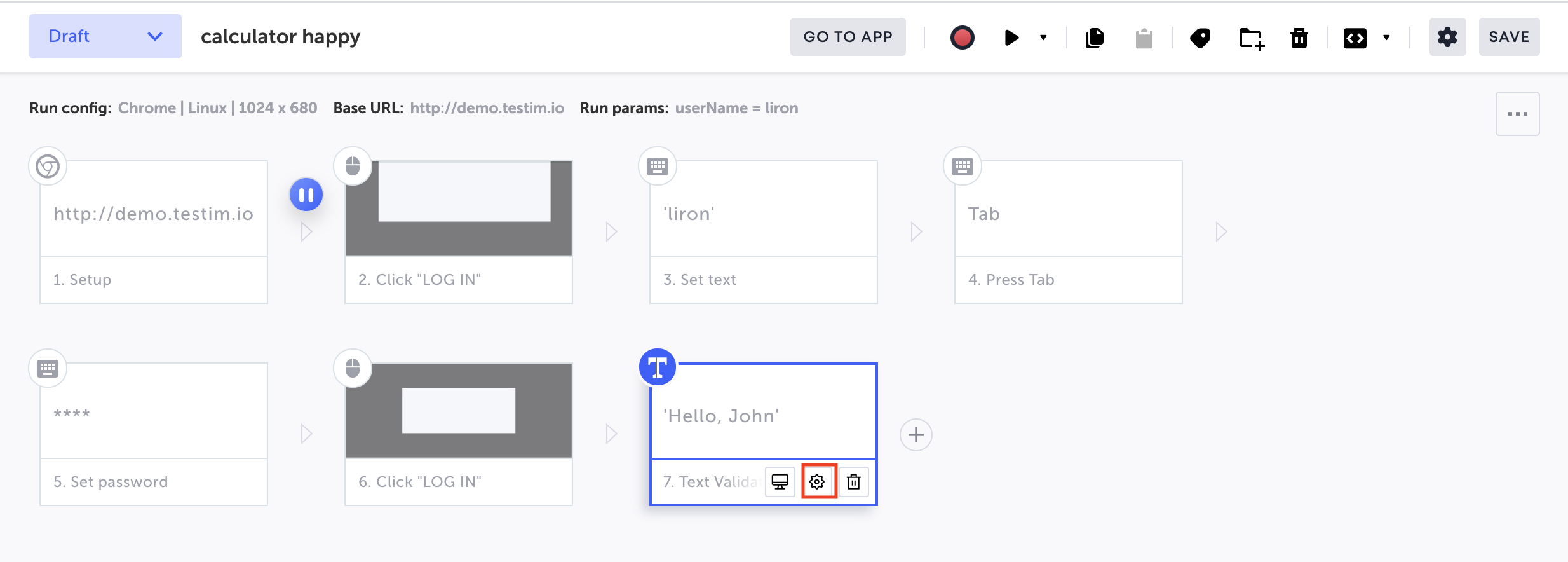
If you want to add a delay before checking that the element is not visible, hover over the step and click on the Show Properties (:fa-cog:) icon.
-
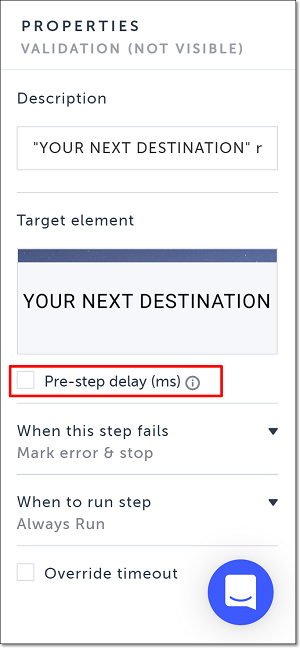
Select the Pre-step delay (ms) checkbox.
-
In the field that opens, enter the delay duration (in ms).
-
Click on the Toggle Breakpoint button after the Validation step to remove the breakpoint.
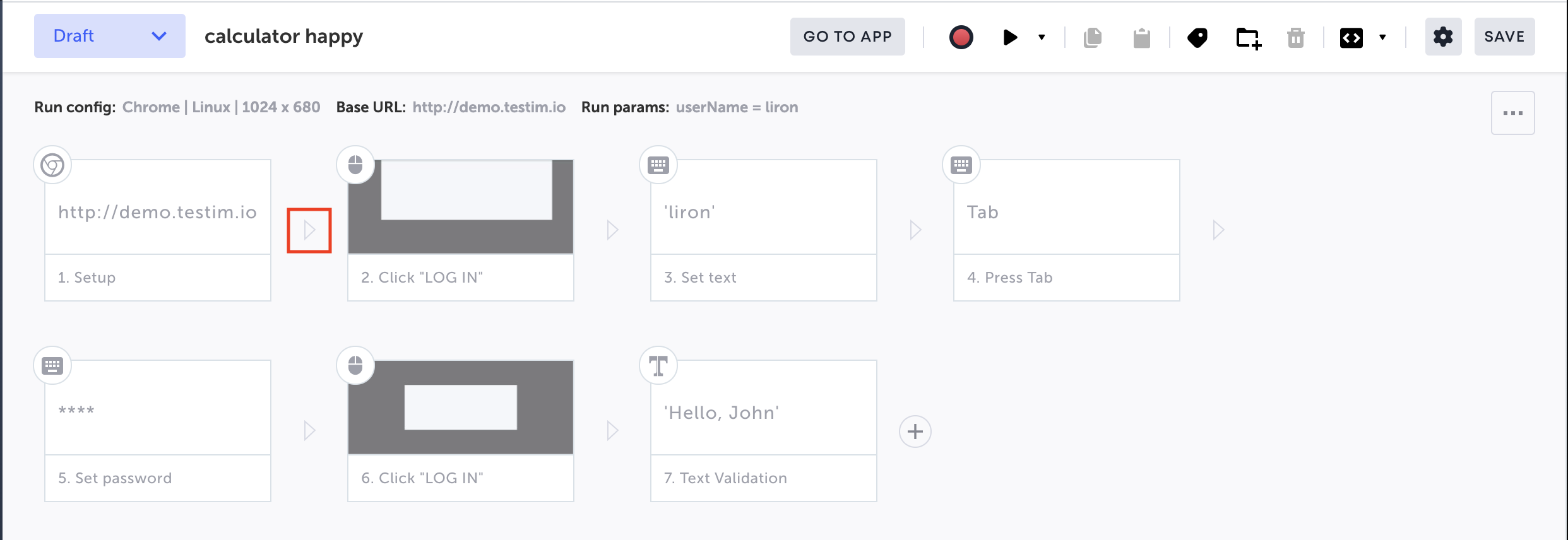
The action options are displayed.
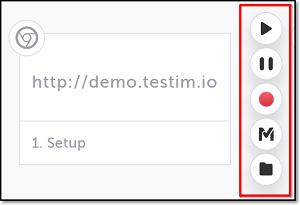
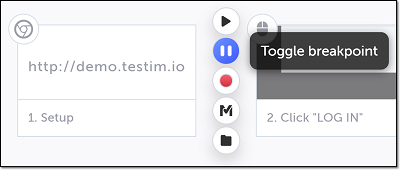
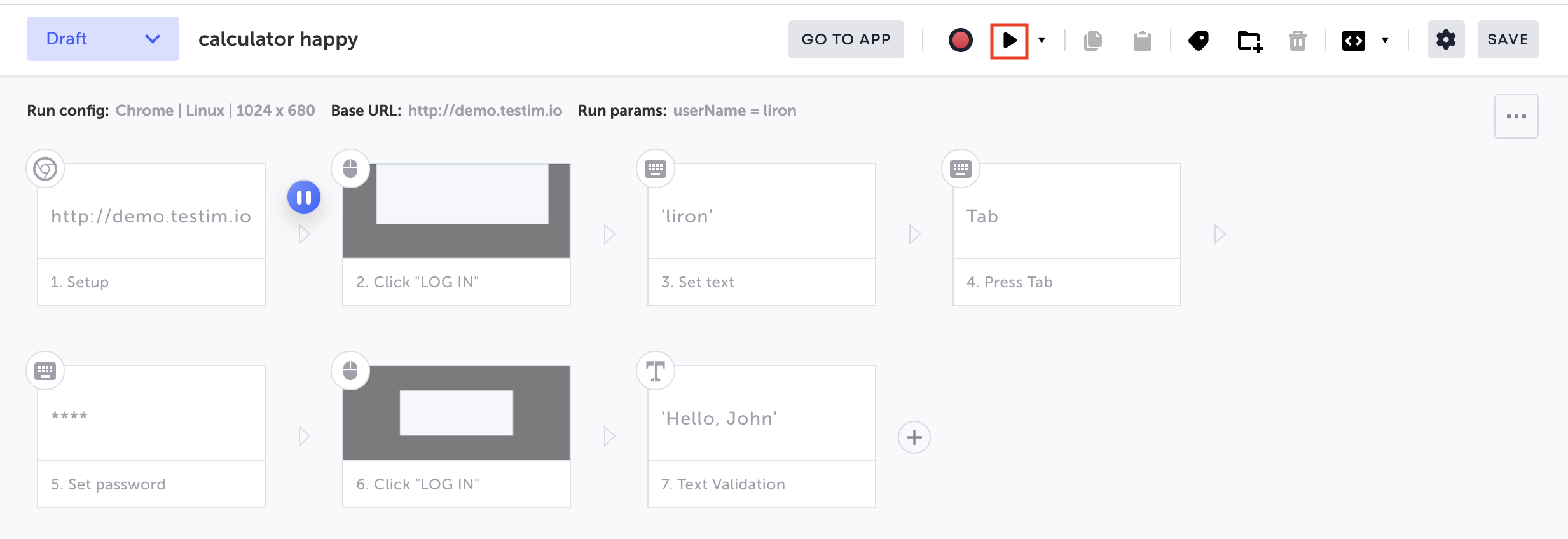
The Predefined steps menu opens.
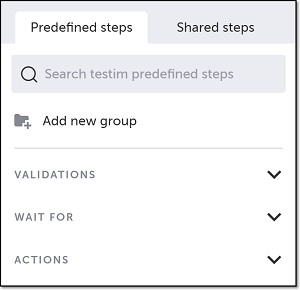
The Validations section expands.
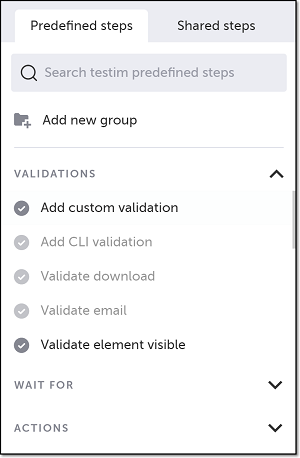
Alternatively, you can use the search box at the top of the menu to search for Validate element not visible.
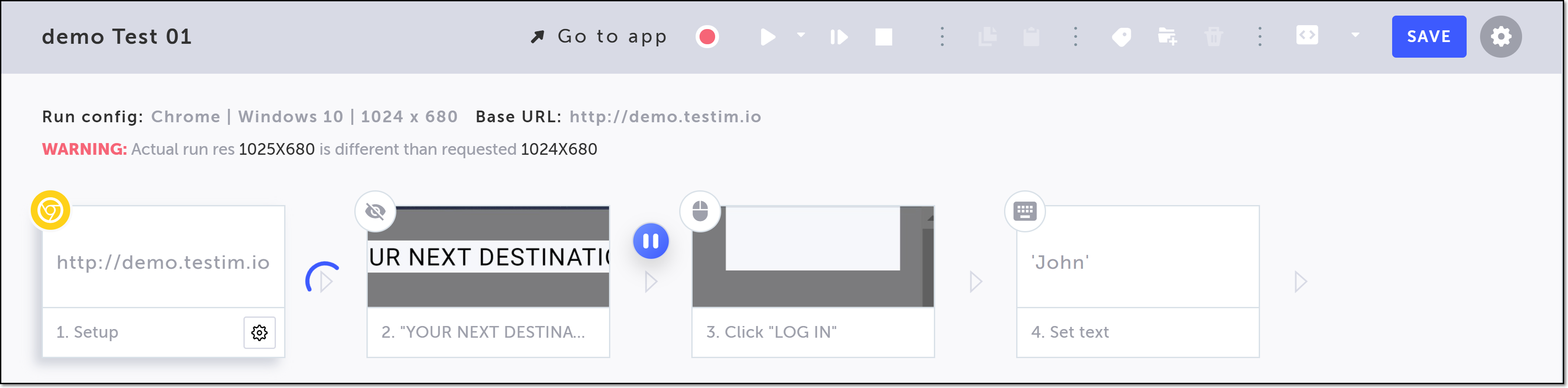
The step is created, and a thumbnail of the selected element is shown in the step.
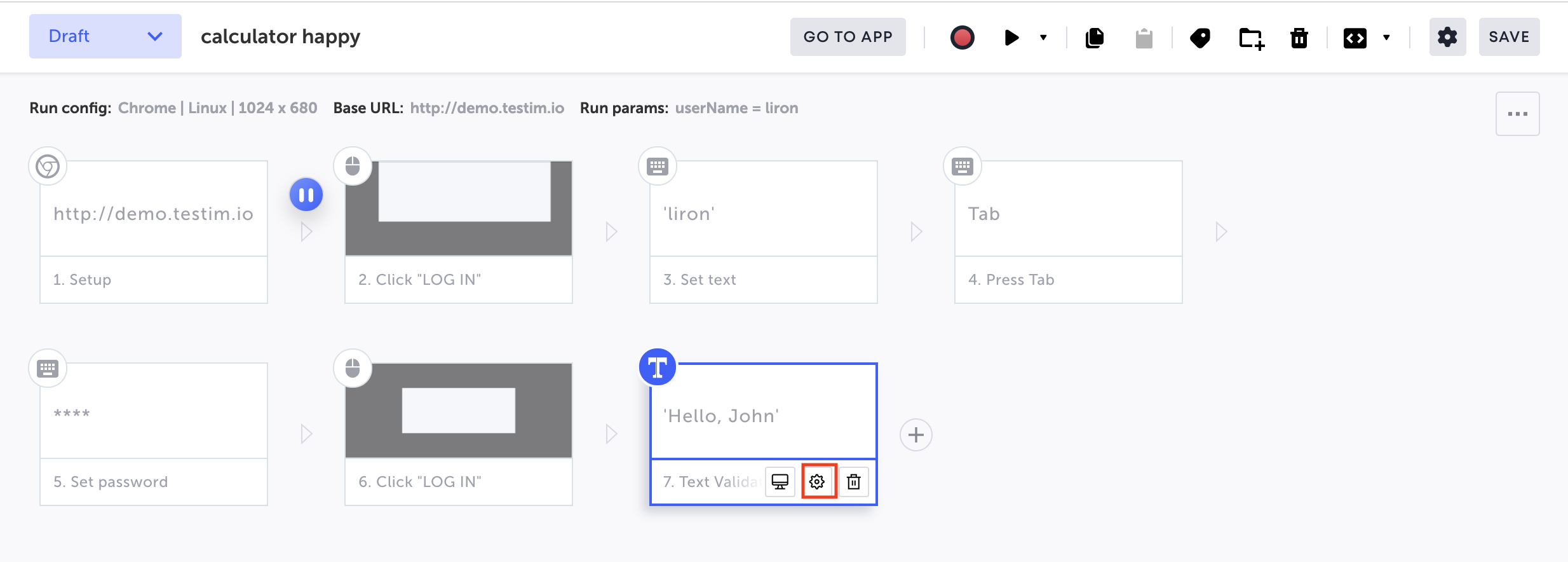
The Properties panel opens on the right-hand side.
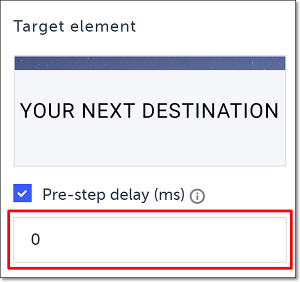
When the test is run and gets to this step, it will wait the specified amount of time before moving to the next step.
Modifying a Validate element not visible step
If you want to change the element you selected, you don’t need to delete and re-record the step. Instead, you can just reassign the element with a different element. → To reassign the selected element in a Validate element not visible step:
-
Hover over the position to the left of the step for which you want to reassign the element and click on the Toggle Breakpoint button.
-
Click on the Play Scenario button, to run the test until the breakpoint.
-
Hover over the step for which you want to reassign the element and click on the Show Properties (:fa-cog:) icon.
-
Hover over the Target element thumbnail.
-
Click Reassign.
-
In the AUT browser, identify the relevant element and click on it to select it.
-
Click on the same Toggle Breakpoint button as before (the one to the left of the step for which you reassigned the element) to remove the breakpoint.
The Properties panel opens on the right-hand side.
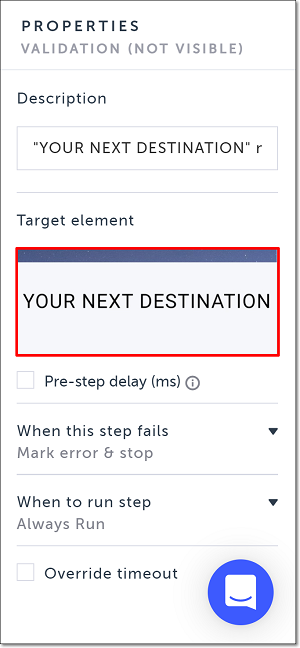
The Target element options are shown.
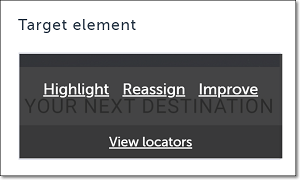
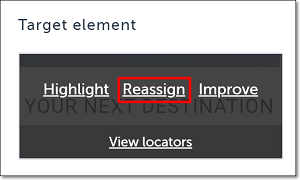
The selected element is shown in the Target element box in the Properties panel.